

The Custom access editor
The grid behind every level — eleven areas, three switches — how to open it for a new or an existing person, what each dial does, and what you are allowed to hand out.
Dieser Artikel ist vorerst auf Englisch, Französisch und Spanisch verfügbar. Sie lesen die englische Fassung. Français · Español
Every level except Administrator is a grid: eleven areas, each a ladder from least to most access, and three on/off switches. The four presets are filled-in grids. Custom is the same grid with your own settings on it.
The same editor is used on New User and, for someone already on the team, from the Custom… entry of their Role dropdown on Manage Team — so what you can set at invitation you can also change later.
Overview
The editor opens as Access for … with one line of instruction: “Pick a starting point, then change anything you like. They keep the same login.” Top to bottom: Make administrator (owner only), the four level cards with their tier chips, the Custom card, the eleven dropdowns, and the three checkboxes. Cancel closes without saving; Save applies the grid at once.
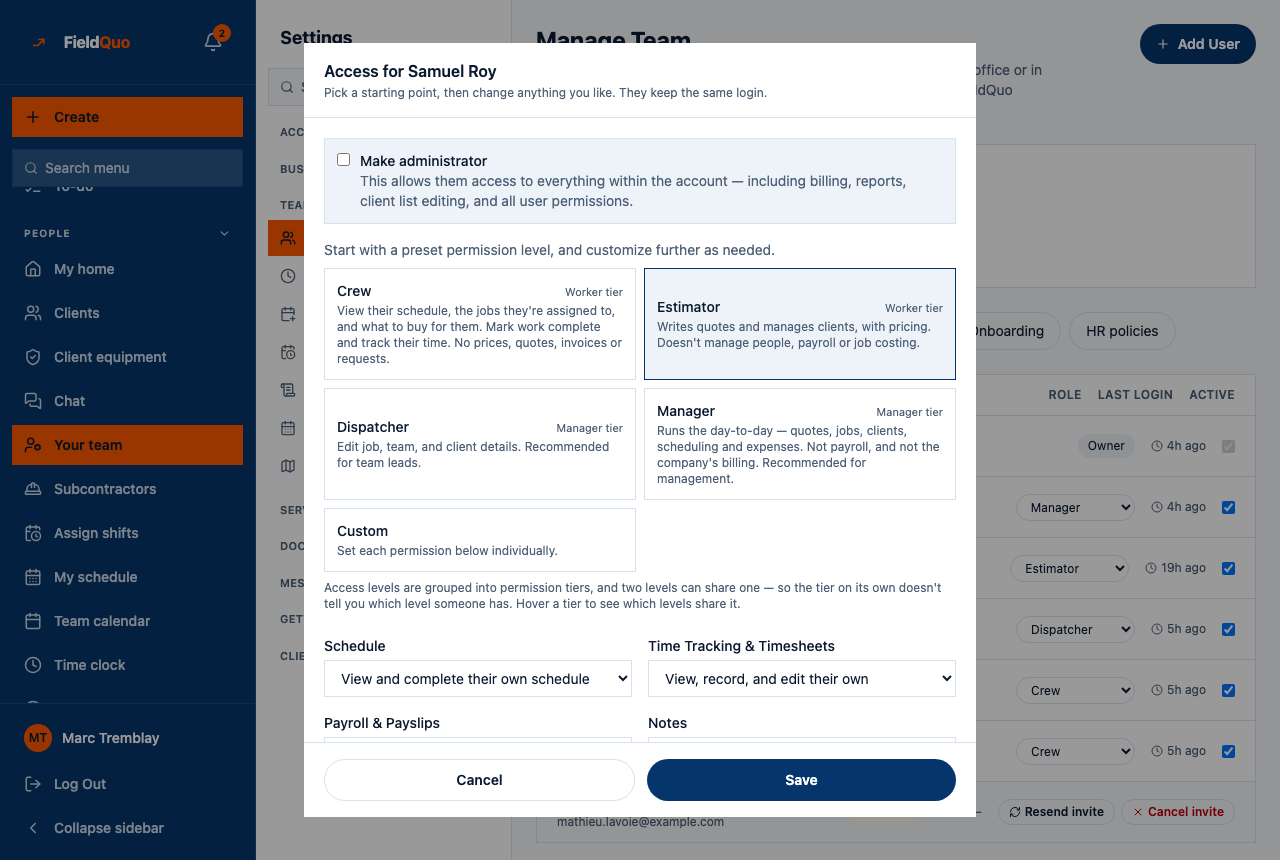
How to open it
- For somebody on the team: Manage Team → their Role dropdown → Custom…. The panel opens showing the level they have now, or Custom if their grid matches none.
- For somebody new: Add User → under Permissions, press the Custom card (“Set each permission below individually.”).
- Press a level card to load its grid, then move any dial. The moment you touch a dial the card un-highlights: the person is now Custom.
- Press Save. A Custom grid that is above Crew on any dial uses a seat, and the save is refused if your plan has none free.
The eleven areas
| Area | Rung 1 (lowest) | Rung 2 | Rung 3 | Rung 4 | Rung 5 |
|---|---|---|---|---|---|
| Schedule | View their own schedule | View and complete their own schedule | Edit their own schedule | Edit everyone's schedule | Edit and delete everyone's schedule |
| Time Tracking & Timesheets | View and record their own | View, record, and edit their own | View, record, edit, and delete everyone's | — | — |
| Payroll & Payslips | No access | View their own payslips | View everyone's payslips | View everyone's and run payroll | — |
| Notes | View notes on jobs and visits only | View all notes | View and edit all | View, edit, and delete all | — |
| Expenses | View, record, and edit their own | View, record, and edit everyone's | — | — | — |
| Clients and Properties | View client name and address only | View full client and property info | View and edit full client and property info | View, edit, and delete full client and property info | — |
| Requests | No access | View only | View, create, and edit | View, create, edit, and delete | — |
| Quotes | No access | View only | View, create, and edit | View, create, edit, and delete | — |
| Jobs | No access | View only | View, create, and edit | View, create, edit, and delete | — |
| Invoices | No access | View only | View, create, and edit | View, create, edit, and delete | — |
| Safety Incidents | No access | Report incidents, and view their own | View everyone's incidents | View everyone's incidents and follow up on them | — |
A dash means the ladder stops there; the last filled cell is the top rung. Requests is the Leads screen. Jobs at No access withholds the job record, not the work: the schedule, the visit checklist and the clock are their own areas, so a crew member still sees their day. The top rung of Time Tracking is the one that deletes an entry, and the payroll ladder deliberately starts at “their own”: one employee seeing another's pay is an incident, not a setting.
The Notes dial gates the internal notes on people — a lead's call-back log and a client's private notes: read them at View all notes, write them at View and edit all notes, remove a lead note at View, edit and delete all notes. Below that a person sees “hidden by your access level” where the notes would be. Notes on a visit itself stay readable at every level, and a quote's or an expense's notes belong to that document, not to this dial.
The three switches
- Show Pricing — “See prices on quotes, invoices and jobs, and edit them. Without it, money is removed from what this person can read as well as write.” Off, it also hides the price book, Insights and every priced PDF.
- Job Costing — “Show job profit by tracking revenue and costs from line items, labor, and expenses.” Needs Show Pricing, time tracking, expenses and jobs access. It also gates the cost basis: Overhead, Material Costs, KPIs.
- Payments — “Allow payment collection on quotes and invoices.” Needs Show Pricing, edit access to Clients and Properties, and edit access to Quotes and/or Invoices.
Two informational lines sit under the grid on New User and are not dials: client communications and reports follow from the other permissions the person holds.
What you can hand out
An owner or administrator sees every rung and every switch. A Dispatcher or Manager sees each ladder only up to their own rung, and only the switches they hold themselves — a level you do not hold is not yours to delegate. The server applies the same clamp when it saves, so a grid that arrived by other means is cut down to the same line. Changing an existing person's grid at all is owner and administrator only; a Dispatcher or Manager meets this editor on New User alone.
Crew shows no dials. Picking it locks the grid to the free level; to give somebody more than Crew, start from another card or from Custom — and that makes them a seat.
Häufige Fragen
Does a Custom grid use a seat?
Yes, unless every dial is at or below the Crew level and no switch is on. Any single dial above Crew's makes the login a seat, whatever the rest says.
I picked a preset and the badge says Custom.
A dial was moved after the preset was loaded — by you, or by somebody earlier. Pick the preset again from the Role dropdown to replace the whole grid.
The setting I chose came back lower.
You cannot hand out more than you hold. The server clamped the grid to your own rung on that area; ask an owner or administrator to set it.
War das hilfreich?