

The quote PDF
The PDF attached to every quote email carries your logo, your brand colour and your name — nothing on it says FieldQuo — and its sections can be reordered or dropped under Settings → PDF Templates.
Per ora questo articolo è disponibile in inglese, francese e spagnolo. Stai leggendo la versione inglese. Français · Español
Every quote goes out twice: as a web page the client approves on, and as a PDF they can save, print and hand to a spouse. The two are built from the same sections and the same measured colours, so the PDF looks like the page and both look like they came from you.
Overview
The PDF is rendered from your brand colour, worked into a measured palette so that a white, yellow or mid-grey brand still produces readable headings and a visible totals band. It uses the quote's own language for every label and date format, and the standard layout below unless you have marked a layout of your own as in use.
Invoices mirror quotes on purpose: the invoice PDF has the same sections in the same order, minus the signature block, so the homeowner recognises the second document as the first one's twin.
The sections, top to bottom
| Section | What it prints |
|---|---|
| Header | Your logo and company name across the top. |
| Client details | Who the document is for, and the job address. |
| Line items | The work itself, grouped by service, with each service's scope paragraph and what is included. |
| Totals | Subtotal, discount, tax and the amount owing. |
| How the work runs | Numbered steps explaining what happens after they approve, written per trade. |
| Payment terms | Your payment terms as percentage cards; hidden entirely if you have set none. |
| Notes | Whatever was typed into the quote's notes. |
| Signature block | Ruled lines for a printed signature, for clients who would rather sign than click. Quotes only. |
| Footer | Contact details and terms along the bottom. |
How to change the layout
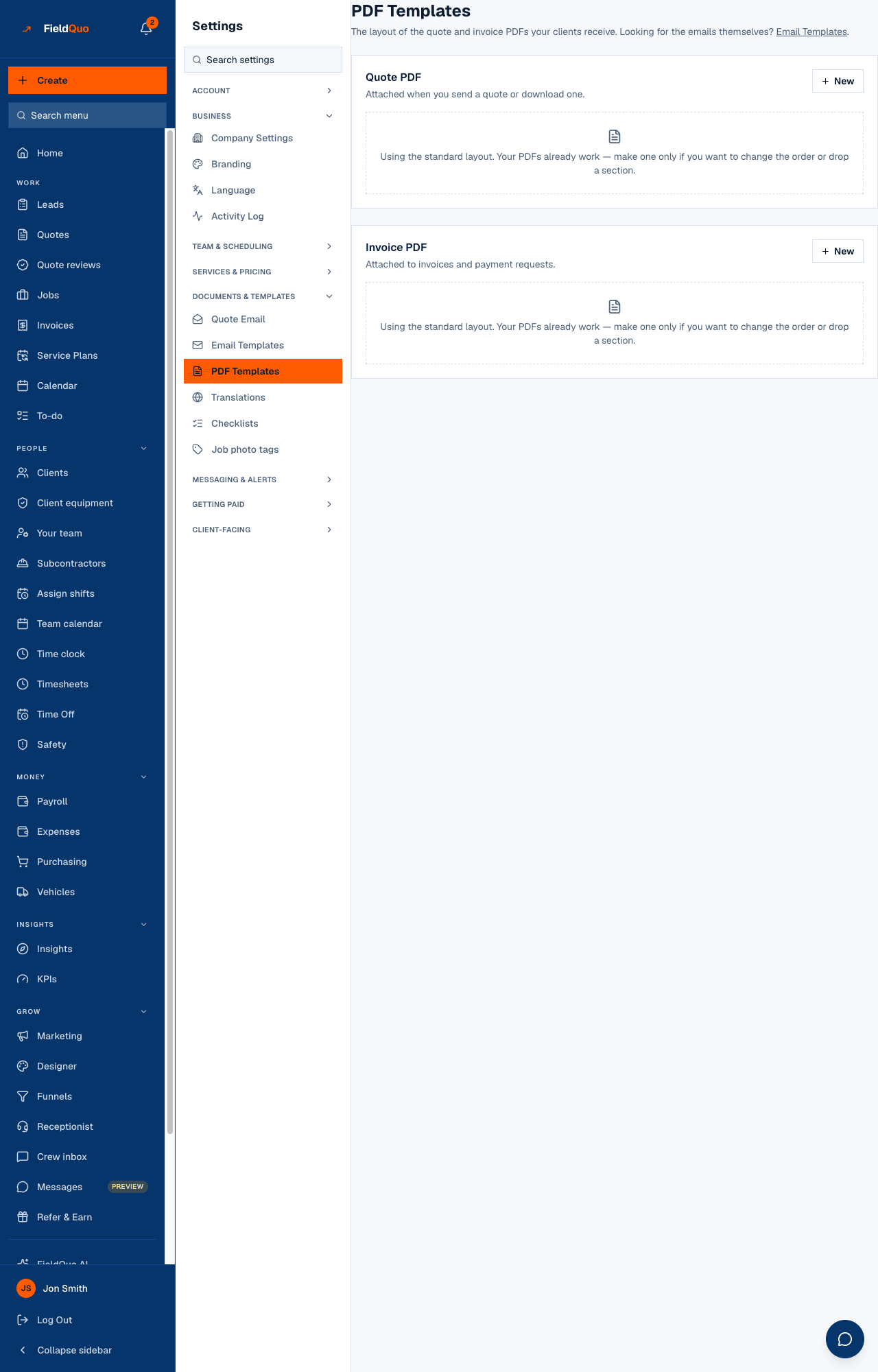
- Open Settings → PDF Templates. Two cards: Quote PDF and Invoice PDF. An empty card means the standard layout is in use — your PDFs already work.
- Press New on the Quote PDF card, name the layout (for your reference only — clients never see the name) and choose Start from the standard layout or Copy the current one.
- In Edit layout, reorder with Move up and Move down, Remove section, or Add a section. Preview with sample data renders it before you commit.
- Save, then press Use this on the layout. The Active badge marks the one every PDF uses from now on.
- If none of your layouts is marked active, the screen warns that PDFs are still coming out on the standard layout.
Removing Header, Line items or Totals is allowed, and the editor tells you the PDF “won't look like a finished document”. A layout with no sections at all produces a blank page, and the editor says that too.
Where the PDF goes
- Attached to the quote email as Quote-Q-2026-0012.pdf every time you press Send or Send again. If the PDF fails to render, the email still goes and the failure is logged for support — the client is never left waiting on a build error.
- Re-rendered after the client approves, with their signature, and emailed to them and to the owners as the signed copy.
- Downloadable from the quote page with Download PDF — the same document the client gets, in the quote's own language, saved as Quote-Q-2026-0012.pdf. The button appears only for members with the See prices switch, because the PDF is the priced document and nothing else.
- Never sent for a quote entered as a past job.
Who can change it
Settings → PDF Templates is open to anyone who can manage the team: Dispatcher, Manager, administrators and the owner. An Estimator can send the quote and so put the PDF in a client's inbox, but cannot change its layout.
Domande frequenti
Does the PDF say FieldQuo anywhere?
No. Header, footer and every section are your company's. The only FieldQuo mark on any client-facing surface is the small footer on a free website, and the PDF is not one.
Can I change the wording of a section?
Not in the PDF editor — it orders and drops sections. The scope paragraphs come from Settings → Services & Pricing (“What the quote says”), the process steps and terms from Settings → Company Settings, and the labels from the quote's language.
Why is the payment terms section missing from my PDF?
You have not set payment terms under Settings → Company Settings. The section does not appear at all rather than inventing a schedule for you. See Deposits on quotes.
È stato utile?