

Tax settings
Your tax registration number as it prints on documents, the tax rates you create, the VAT question for European companies, and the switch that picks the client's local rate for you.
Per ora questo articolo è disponibile in inglese, francese e spagnolo. Stai leggendo la versione inglese. Français · Español
Tax Settings is a card on Company Settings with two halves. The top half is about *you*: the registration number that prints at the foot of every quote and invoice. The bottom half is about the *client*: the rates you create, which one is the default, and whether FieldQuo should pick the rate that matches the client's province instead of always using the default.
The rule behind the whole card is conservative on purpose: every rate a document can carry is one you typed and named. FieldQuo does not work out what you owe, does not register you anywhere and files nothing for you — it prints what you enter.
Overview
A quote or invoice stores its tax as a money amount at the moment it is created. Nothing on this card reaches a document that already exists — deleting a rate or changing the automatic switch changes the next document, never a sent one. That is what makes the card safe to edit mid-month.
What is on the screen
The controls, top to bottom:
| Control | What it does |
|---|---|
| Tax ID name and the number box | The label the number carries on documents (e.g. GST) and the number itself. The number box is named the way your country names it — GST/HST number, VAT number, EIN — from the country in Regional Settings. No format check, deliberately: a valid number is never refused. |
| I don't have one — my business isn't registered for this. | Shown only while the number box is empty. Ticking it records the fact and clears the tax-registration step on your dashboard; untick it the day you register and the step returns. |
| Tax Rates | The list of rates you created, each as name and percentage, one carrying the Default badge, each with a delete icon. |
| Create tax rate | Opens a one-line form: Name (e.g. GST), Rate %, a Default box, and Add. Saves immediately. |
| Are you registered for VAT? | Three choices, shown only when the country is a VAT jurisdiction: Yes, No — I'm below the registration threshold, I'd rather not say yet — use my default rate. |
| Automatically apply the local tax rate of the client… | The switch that lets FieldQuo choose between your rates by the client's province instead of you picking on every document. |
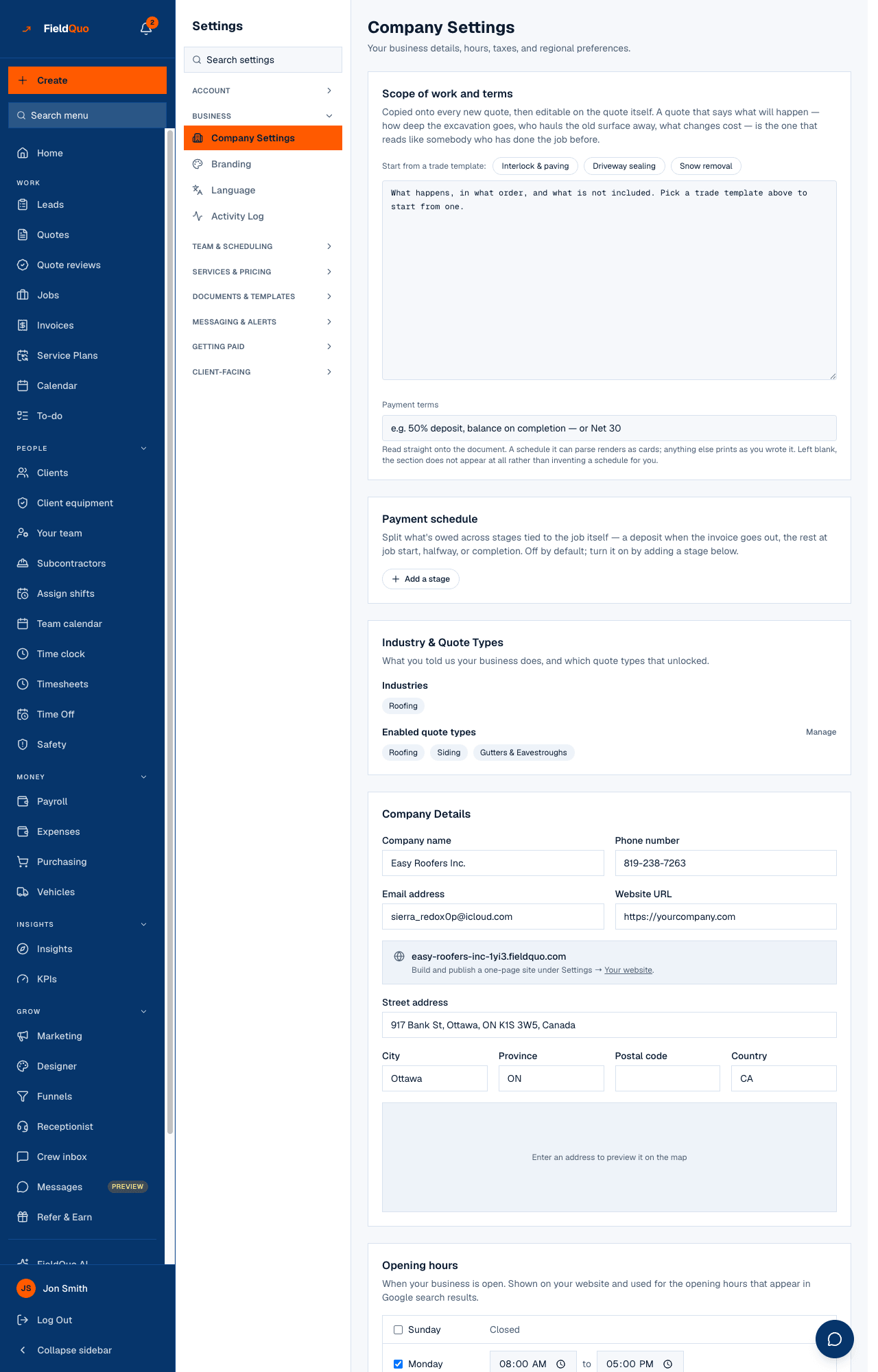
How to create a tax rate
- Open Settings → Company Settings and scroll to Tax Settings.
- Press Create tax rate.
- Type a Name that says where it applies — “GST + QST (QC)”, “HST Ontario” — and the Rate %. Name it after the province if you want the automatic switch to find it: matching is by the words in the name.
- Tick Default if this is the rate a document should carry when nothing better applies. Only one rate is default at a time; ticking it here unticks the previous one.
- Press Add. The rate appears in the list at once; there is nothing else to save.
There is no edit-in-place. To change a rate's percentage, delete it with the trash icon and create it again. Documents already sent keep their amounts.
How the rate on a new quote is chosen
When a quote is created, FieldQuo picks its rate in this order and stops at the first answer. The quote says which step chose it, so a tax figure never changes without an explanation.
- The automatic switch is off — your Default rate, untouched. The feature is opt-in and this is the door.
- One of your rates names the client's province — that rate wins. A contractor who typed “HST Ontario 13” is never overruled by a table.
- No rate matches and the jurisdiction is knowable — the published rate is applied: a Canadian province's rate, or for a US address the combined state-and-local rate for the client's ZIP from the state's own tables (see below); for an EU country only if you answered Yes to the VAT question.
- Everything else — your default rate, and the quote says so.
Name your rates after provinces before turning the switch on. A rate called “Tax” can never match anything and the switch will fall through to the default every time.
United States sales tax
A quote to a US address — from a company anywhere, a Canadian one included — carries the combined state, county, city and district rate for the client's ZIP, on the whole quote, the same way a Canadian quote carries its province's rate. The rates come from the states' own published tables and the builder names the month they were read; where no ZIP-level table exists for a state, the state rate goes in the box and the builder says *state rate only — county and city rates for this address are not known*, so you can type the address's full rate if you know it.
Most states do not tax a contractor's work on real property to the customer — the contractor pays tax on materials at the counter — and a few tax some jobs and not others (a repair but not a capital improvement in New York, a commercial remodel but not residential work in Texas, landscaping but not building work in Ohio). FieldQuo does not decide that for you. The rate goes on by default, and the note beside it says when your state's rule points the other way: *residential work is usually not taxed to the customer in Texas — switch tax off on this quote if that applies to you; what you charge is your call.* Switching tax off is one press on the quote, and the document then says no tax was charged.
The United States sales tax part of this card appears once you touch the US — your own address, a US client on file, or a state you have already set. It states the rule above, shows the month of the ZIP rates table, and lets you say, per state, Charge this rate (a rate of your own, on the whole quote) or Collect nothing (you do not collect there; every quote to that state then says so). A rate you type on a quote itself still wins over all of it.
What the quote said is what it keeps saying. The rate, the ZIP, the rates-table month and, for older documents, a stated zero are recorded on the quote when it is created and copied to the invoice raised from it; a later change to the tables or to this card changes the next quote, never a sent one.
Who can see it
Creating, deleting and defaulting rates, and changing the number and the switches, need the user-management capability — the owner, administrators, Managers and Dispatchers. A team member without it sees only the rate list, read-only, because those percentages land on the quotes they build; the registration number and the switches are not shown to them.
Domande frequenti
Do I have to enter a tax number?
Only if you are registered. A Canadian sole trader under the registration threshold has no GST number to give — tick I don't have one and the dashboard stops asking.
Where does the number appear?
At the foot of every quote and invoice, next to your contact details, as name and number together. If either half is blank, no line prints at all — never an empty label.
Will turning on the automatic switch change my sent quotes?
No. A quote stores its tax as an amount when it is created. The switch affects the next quote you create.
Why does my quote say the default rate was used?
Because no rate of yours named the client's province and the jurisdiction was not one FieldQuo will fill in — a client with no country on file, or an EU one without a VAT answer. Add a rate named for that province or state, or set the client's country and province on their record.
A US quote shows sales tax but my state doesn't tax my work. Is that a mistake?
No — it is the default. The rate goes on every US quote the way a province's rate goes on a Canadian one, and the note beside it tells you when your state's own rule says the customer is usually not charged. Switch tax off on that quote in one press; what you charge is your call, and the document then says no tax was charged rather than showing a zero. If you never collect in a state, say so once under United States sales tax and every quote there starts that way.
È stato utile?