

Review requests after a job
Settings → Reviews: your review link, the Ask automatically switch, the When to ask delay, the live queue count — and the exact rules that decide who is asked, once, and who is not.
Поки що ця стаття доступна англійською, французькою та іспанською. Ви читаєте англійську версію. Français · Español
Reviews are the biggest source of inbound work for a small contractor, and asking for one is the step that gets skipped while the van is being loaded. Settings → Reviews does the asking: once a job is marked complete, the client gets one short email from your company — your logo, your colours, your name — with a button to your review page. Never more than one per job, never to someone who unsubscribed, never for work older than a month.
Overview
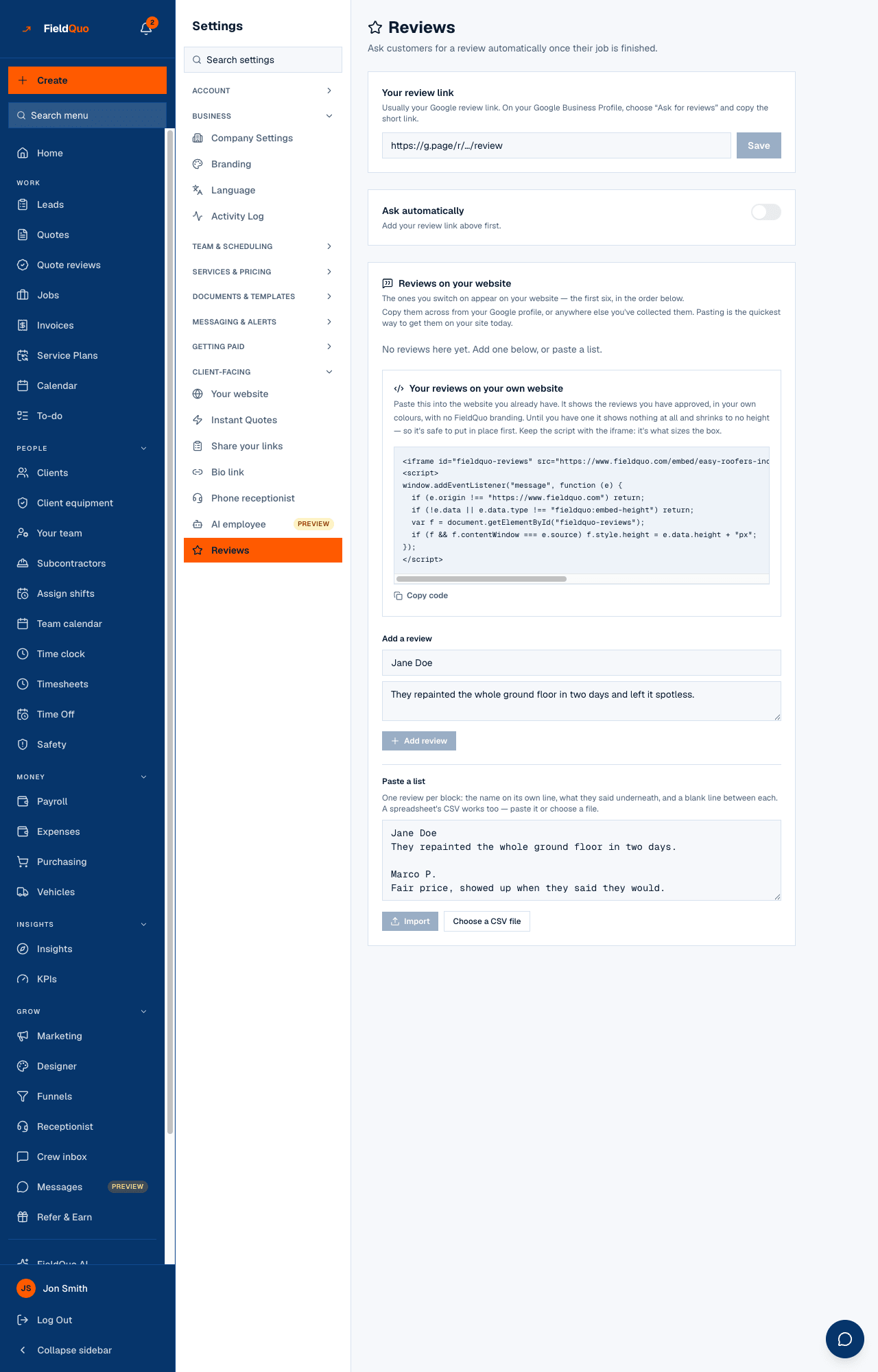
The screen is in the Client-facing group of Settings. Its subtitle says the whole thing: “Ask customers for a review automatically once their job is finished.” Two cards do the work — Your review link and Ask automatically with When to ask — and a grey panel under them proves it is working by counting the queue. The lower half of the same screen, Reviews on your website, is a separate feature: see Testimonials on your website.
What is on the screen
- Your review link — “Usually your Google review link. On your Google Business Profile, choose ‘Ask for reviews’ and copy the short link.” A box, Save, and once saved a link to Open it and check it goes where you expect.
- Ask automatically — the switch. Under it: “Every customer with an email address gets one message after their job is marked complete. Never more than one.” The switch is disabled until a link is saved, and the text then reads “Add your review link above first.”
- When to ask — appears once the switch is on: 2 hours later, 4 hours later, The next day, Two days later, Three days later, A week later. The next day is the default.
- The queue panel — “1 customer is in the queue, and 3 have been asked in the last 30 days.” — read from the same columns the sender reads, so a switch that says On while nothing sends cannot happen quietly.
- Its footnote: “Customers who have unsubscribed are skipped, and anyone who replies saying something went wrong reaches you directly rather than the review page.”
How to switch it on
- In your Google Business Profile choose Ask for reviews and copy the short link. Any page where a review can be left works — Google, Facebook, HomeStars — as long as it starts with https://.
- Open Settings → Reviews, paste the link into Your review link and press Save. A link that is not a web address is refused with the reason.
- Press Open it and check it goes where you expect. This is the page every client will land on.
- Turn on Ask automatically. It cannot be turned on without a valid link — the server refuses, not just the button.
- Pick a delay under When to ask. Each chip saves as you press it; Saved confirms.
Who is asked, and who is not
A sender runs every hour on the hour and applies these rules to each job, in this order. Every refusal has a reason so a job that was not asked about is explainable:
| Rule | What it means |
|---|---|
| Once, ever | A job is asked about exactly once. The job is stamped before the email goes out, so two overlapping runs cannot ask twice. |
| Switched on, with a link | Both are re-checked at send time. Turn the switch off and nothing more goes out. |
| Job marked Completed | With a completion time. A job completed by an import of past work is never asked about. |
| The client has an email | No email address, no ask. Texts are not used for review requests. |
| Not unsubscribed | A client who unsubscribed from your marketing email is skipped. |
| The delay has passed | Completion time plus your When to ask delay — from 2 hours to a week. |
| Completed within the last 30 days | Anything older is left alone, permanently. Switching this on does not email every customer you have ever had. |
| Email is configured | If no mail provider is set up the job is released to try again next hour rather than marked as asked. |
What the client receives
One short email in the client's language: the subject “How did we do? — Your Company”, one sentence of thanks, a Leave a review button to your link, five small 1-to-5 rating links, and the line that if something was not right they should reply to this email instead. It is sent from your own domain if you have verified one, and replies go to your company's email address. See The review request for how it looks to them.
The 1-to-5 links pre-select a score on a one-question page; the client still has to press Send there, so a mail scanner cannot vote for them. Answered scores feed the customer satisfaction figure on the KPI dashboard — see Customer KPIs. They do not become testimonials.
Who can change it
The Reviews row in Settings, and every change on it — the link, the switch, the delay — need the user:manage permission: the owner, an administrator, or a Manager or Dispatcher. An Estimator or a crew member does not see the row at all. Each change is written to the Activity Log as “Updated review request settings” or “Turned off automatic review requests”.
Часті запитання
Can I ask a specific client by hand?
No. There is no “ask now” button on a job or a client; the sender works from completed jobs and your delay. To ask someone yourself, send them your review link from your own email.
I turned it on and nothing was sent.
Read the queue panel. A count of 0 in the queue means no completed job with a client email inside the last 30 days is waiting; a job also has to be past your delay. Jobs imported from your old system are never asked about.
Does it text clients?
No — email only. A client with a phone number and no email is skipped.
Can the review go to a page on my own site?
Yes. Any https:// address works, including your own testimonials form. Collected reviews then go into Reviews on your website by hand.
Чи була ця стаття корисною?