

Working hours and bookable hours
Two weeks per person on one screen: the shift the office schedules against, and the narrower window a client may book online — and why they are kept apart.
Поки що ця стаття доступна англійською, французькою та іспанською. Ви читаєте англійську версію. Français · Español
Every person on your team has two weekly patterns, and FieldQuo keeps them separate on purpose. Working hours are the shift: when someone is on the clock, used by scheduling and time off. Bookable hours are the window a client can pick from on your public booking page and website. An estimator can work 8–4 and only take consultations 2–4 because mornings are on site — one field cannot say that.
Both live on Settings → Availability, and both are per person. Your company's opening hours are a different thing again: they live on Company Settings and are what the public reads as “when the shop is open”. See Opening hours.
Overview
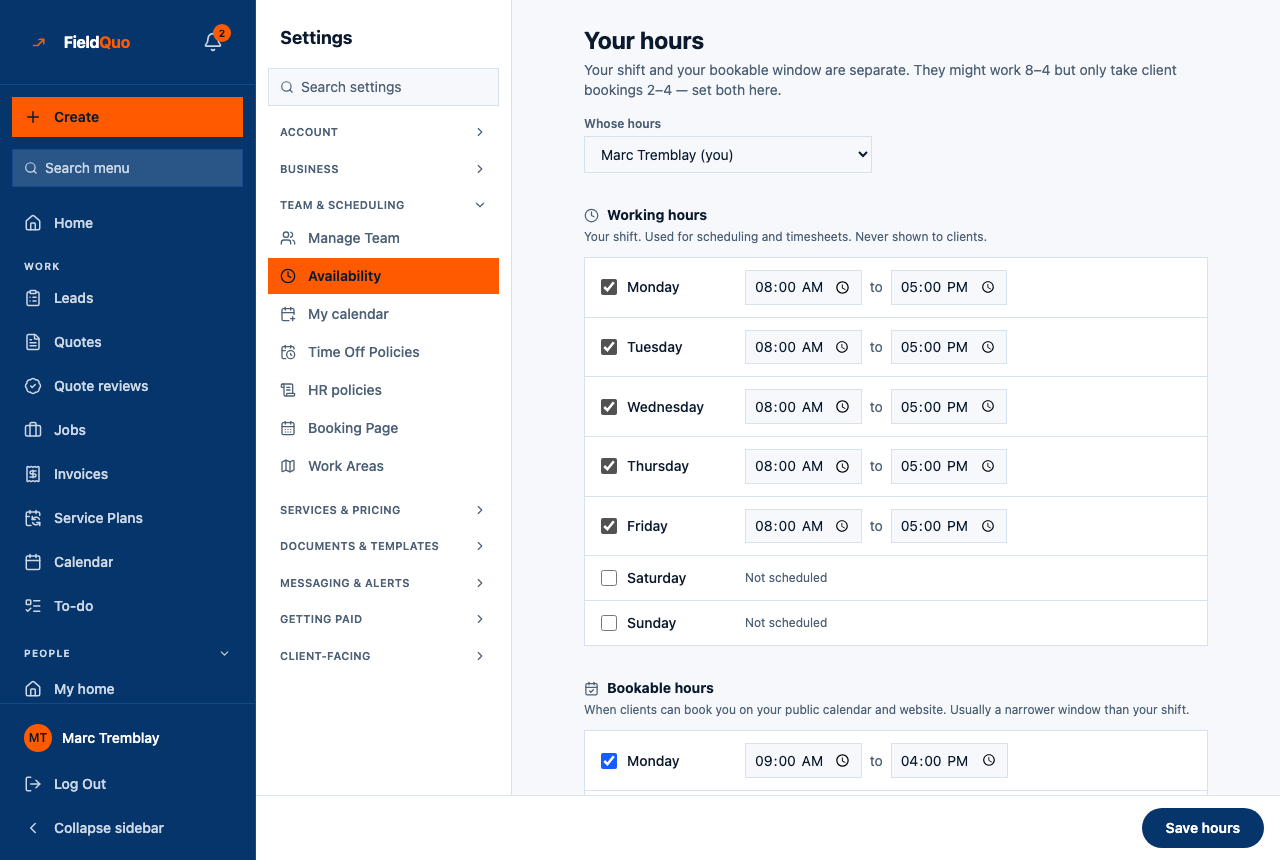
The screen is titled Your hours when you edit your own and {name}'s hours when a manager edits someone else's. Under the title, two week editors: Working hours (“Your shift. Used for scheduling and timesheets. Never shown to clients.”) and Bookable hours (“When clients can book you on your public calendar and website. Usually a narrower window than your shift.”). A sticky Save hours bar sits at the bottom, because on a phone the button would otherwise be under fourteen rows of inputs.
A person becomes bookable the moment they save at least one bookable day. With no bookable hours, the page says so: “With no bookable hours you won't appear as an option on your company's booking page.” That is the practical opt-in — setting your hours is how you say “yes, book me”.
What is on the screen
- Whose hours — a picker listing every active team member, with “(you)” after your own name. It only appears for someone allowed to manage the team and only when the roster has more than one person. Picking a colleague shows an amber line: “You're editing someone else's hours. They'll see the change on their own schedule.”
- Working hours — one row per weekday, in your company's week order. Tick the day, then a start time, to, an end time. An unticked day reads Not scheduled; an end before the start reads End must be after start.
- Bookable hours — the same seven rows for the public window. Under it, an amber warning lists any day where the bookable window falls outside the shift: “Clients could book you when you're not working: … That's allowed — just check it's intentional.”
- Save hours — saves both weeks together and flashes Saved.
How to set someone's hours
- Open Settings → Availability. From the team calendar, Edit hours on a person's card lands here with that person already picked.
- If you manage the team, choose the person under Whose hours; otherwise you are editing your own.
- Under Working hours, tick each day the person works and set the start and end of the shift.
- Under Bookable hours, tick the days and times a client may book. Leave every day unticked if this person should not appear on the booking page at all.
- Press Save hours. Read the amber warning first if one appeared — it is allowed, but it is usually a typo.
Saving replaces the whole week, not just the rows you touched. If the page could not load someone's existing hours it refuses to show the editor and offers Retry instead — an empty week saved over a real one would silently drop that person off the booking page.
What each control changes
| Control | What it changes |
|---|---|
| A day ticked under Working hours | Scheduling treats a shift outside these hours as a warning, never a block — overtime is normal. Time off counts working days from these days (Mon–Fri when none are set), and paid leave on a payslip is priced from them. |
| A day ticked under Bookable hours | The booking page and your website offer that window for this person. Slots are computed from it, minus existing bookings and approved time off. |
| No bookable days at all | The person is not listed on the booking page. Nothing else changes — they are still scheduled and paid normally. |
| Whose hours | Switches every row on the screen to that person. It never changes the company's opening hours. |
A bookable window on a day with no working hours, or outside the shift, is accepted after the warning. A client can then book that person when the office has nobody down as working. Do it only when you mean it.
Who can see it
Everyone. Availability is one of the settings rows every access level keeps, including Crew, because it is the only place a person sets their own hours. Anyone can read and change their own two weeks.
Editing somebody else's hours needs the team-management permission — an owner, an administrator, a Manager or a Dispatcher. Anyone else never sees the Whose hours picker, and the server refuses a change to another person's week regardless of what the browser sends. See Access levels: who sees what.
Часті запитання
Do working hours change what a client sees?
No. The shift is internal and the hint on the screen says so — “Never shown to clients”. Only the bookable window reaches the booking page and the website.
Can someone have two shifts in one day, or an overnight shift?
Not on this screen. Each day holds one start and one end, and the end must be later than the start. A split day is entered as the outer bounds.
Why is an estimator missing from our booking page?
They have no bookable hours saved, or their account is inactive. Open their hours, tick at least one day under Bookable hours, and save.
Чи була ця стаття корисною?