

Your schedule on your phone
Where a crew member's day lives: published shifts under Assign shifts, appointments on the Calendar, visits on the job, and to-dos.
ਇਹ ਲੇਖ ਫ਼ਿਲਹਾਲ ਅੰਗਰੇਜ਼ੀ, ਫ਼ਰਾਂਸੀਸੀ ਅਤੇ ਸਪੈਨਿਸ਼ ਵਿੱਚ ਉਪਲਬਧ ਹੈ। ਤੁਸੀਂ ਅੰਗਰੇਜ਼ੀ ਸੰਸਕਰਣ ਪੜ੍ਹ ਰਹੇ ਹੋ। Français · Español
Your day is in three places on purpose, because they are three different things: a shift is the hours your manager published for you, a visit is a booked block of work on a job, and a to-do is a task with your name on it. All three show only what is yours, and none of them shows a draft the office has not published.
My schedule
My schedule in the menu (and the Schedule tab on the phone's bottom bar) is your own next two weeks, one card per day, sized for a thumb: Tomorrow, Tuesday Sep 15, then the hours large — 8:00 AM – 4:00 PM — the client and site address, who else is on that job that day as initials, your lunch and breaks, and the manager's note quoted. On today's card a green Clock in button opens the time clock. A shift placed outside the hours you said you were available says so, with who did it.
Add to calendar downloads your published shifts as an .ics file your phone's calendar opens; download it again next week and the events update rather than doubling. Request time off goes to the Time off screen. Only published shifts appear — a draft your manager has not committed to never reaches your phone.
When a manager publishes, moves, re-jobs or cancels one of your shifts you get a notification in the bell and, if you turned them on, a push: Your schedule is out: Mon 14 Sep, 8:00 – 16:00 at Sophie Dubois, 12 rue Principale, and 4 more. Tapping it opens this screen.
Overview
The Crew level's schedule setting is View and complete their own schedule: you see your own hours and can mark your own visits done, and you cannot see or move anyone else's. The Team calendar — everyone's availability on one page — is a management screen and is not in your menu.
Where to look
| Row | What it shows | What you can do |
|---|---|---|
| Assign shifts | Your published shifts, a week at a time, Sunday to Saturday, today outlined | Read them. The line at the bottom says: These are the shifts your manager has published. Check back for changes. |
| Calendar | Appointments assigned to you, unassigned ones, and visits on your jobs | Open the job; on your own visit, On my way and Mark complete. |
| Jobs | The jobs you have a visit on, with each visit's date and time | Tick the checklist, add photos, write the daily log. |
| To-do | Tasks assigned to you, ones you created, and unassigned ones | Claim an unassigned task; complete yours. |
Your shifts
A manager drafts the week on the Scheduling screen and presses Publish week; until then a shift is a Draft the crew cannot see. Once published, your shift shows its start and end, the job, and any note the manager typed — where to be, what to bring. If a shift was placed outside the hours you said you were available, the shift itself says Outside stated availability, with who did it and why, so you learn it here rather than on the morning.
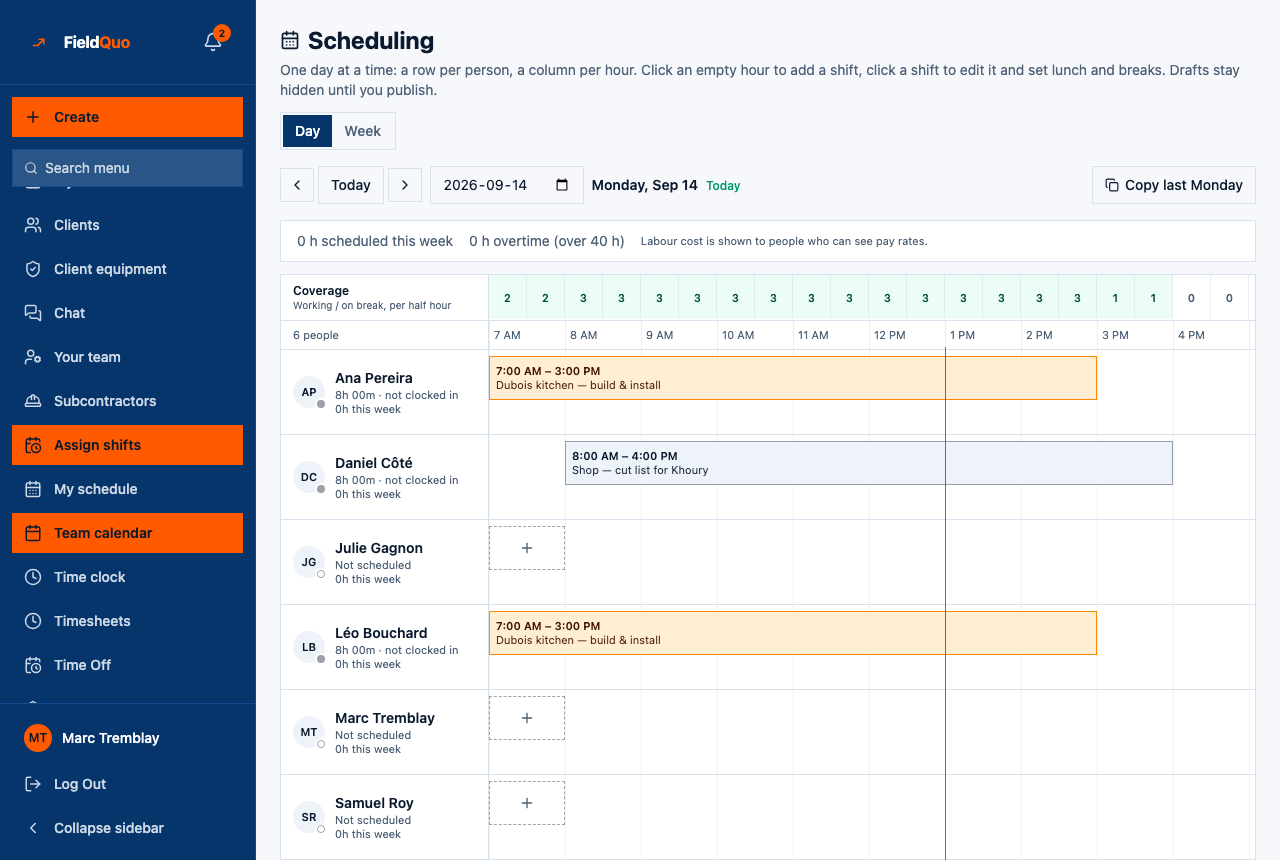
The screen's row is titled Assign shifts for everyone because the title is the manager's. You are not assigning anything; you are reading what was assigned to you.
A visit, from arrival to done
- Open the job from Jobs or from the Calendar. Your visit shows its time, who is assigned, and the checklist count.
- Tap On my way. The client is texted your company's on-my-way wording; the line under the button says where it goes — or that nothing will be sent because the client has no mobile on file. Your phone is asked where it is, once.
- Work through the checklist. A hold point is a step somebody must confirm before the next; a step marked Photo expected is a reminder, not a lock.
- Tap Mark complete. The visit is done; the office sees it and the job's next steps follow.
Who can see it
Your own shifts and visits: you. Everyone's: the Dispatcher level and above, who also draft and publish. Your bookable hours — the pattern the manager is warned against scheduling outside — are yours to set under Settings → Availability; see Working hours and bookable hours. The manager's side is in The Scheduler: draft and publish the crew's week.
ਅਕਸਰ ਪੁੱਛੇ ਜਾਂਦੇ ਸਵਾਲ
My manager says the shift is there but I cannot see it.
It has not been published. A shift is a draft, invisible to the crew, until the manager presses Publish week.
Can I swap a shift with a colleague?
Not in FieldQuo. Ask your manager to move it; the Crew level cannot edit shifts, its own included.
Why do I see an appointment that is not assigned to anyone?
Unassigned appointments are shown to everyone on purpose — an unclaimed job nobody can see is a job nobody does. Unassigned visits, though, only show on jobs you are already on.
ਕੀ ਇਹ ਮਦਦਗਾਰ ਸੀ?