

Bio link
The Settings row that builds the one page Instagram and TikTok let you link to — your heading, a line under it, your social handles and the buttons that matter — with a live phone preview and a Save button.
Sa ngayon, available ang artikulong ito sa Ingles, Pranses at Espanyol. Binabasa mo ang bersyong Ingles. Français · Español
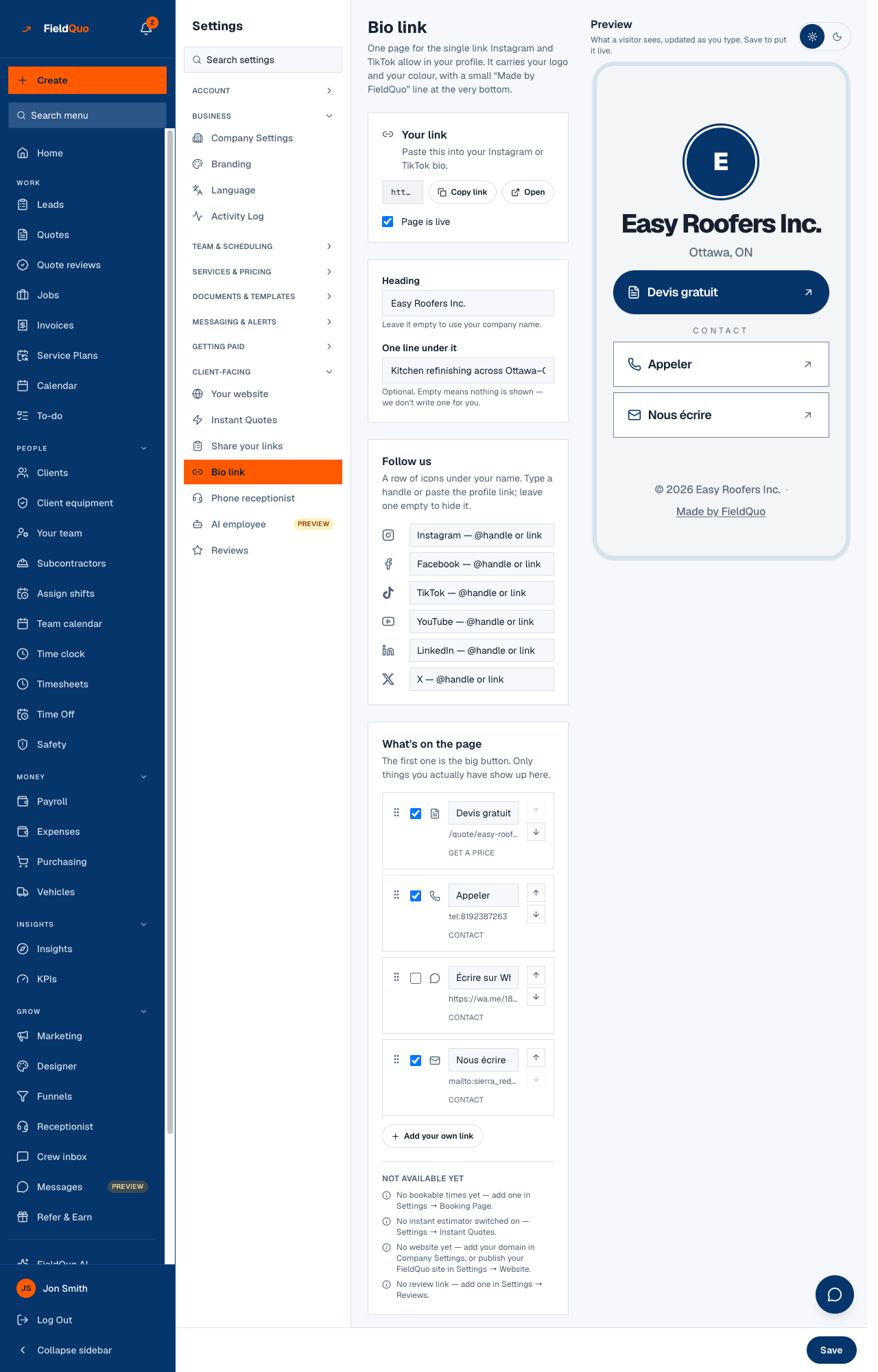
Settings → Client-facing → Bio link makes the single link a social profile allows into a page: “One page for the single link Instagram and TikTok allow in your profile. It carries your logo and your colour, with a small “Made by FieldQuo” line at the very bottom.” The address sits at the top of the screen, big, with Copy link, because getting that string into a phone's clipboard is the reason anyone opens this row.
Nothing on the page is invented. A button appears because the thing behind it exists — an instant estimator, a bookable visit type, a published funnel, your website, your review link, your phone — and a button you switch off stays off.
Overview
The page is derived from your company record. The quote form is always there, because every company has one; Book a visit appears once you have an active visit type; an instant price once an instant estimator is switched on; each published funnel as its own button; your website once it is published or once a domain is entered in Company Settings; Leave a review once a link is saved under Reviews; Call and Email us from the phone and email in Company Settings. Every row you have is on by default, except Message on WhatsApp, which stays off until you say the number is on WhatsApp.
The public page follows the visitor's phone between light and dark on its own. The light / dark switch on this screen changes only the preview frame. Button wording comes from your company's language, not the language you are reading the settings in.
What is on the screen
- Your link — the address, Copy link, Open, and the Page is live box. Under it: “Paste this into your Instagram or TikTok bio.”
- Heading — “Leave it empty to use your company name.” — and One line under it — “Optional. Empty means nothing is shown — we don't write one for you.”
- Follow us — Instagram, Facebook, TikTok, YouTube, LinkedIn and X. “Type a handle or paste the profile link; leave one empty to hide it.”
- What's on the page — every row with a Show on the page box, its Button text, a grip to drag, Move up / Move down, and its group: Get a price, Book, Contact or More. “The first one is the big button.”
- Add your own link — up to ten rows you write yourself, each with text, a URL and an Icon.
- Not available yet — the rows you cannot have yet, each with the screen that would create it.
- Preview — a phone frame updated as you type, with a Light / Dark toggle, and Save at the bottom.
How to set it up
- Open Settings → Bio link.
- Write the Heading, or leave it empty to use your company name, and the One line under it if you want one.
- Under Follow us, type your handles. A field that does not look like a handle or a profile link is not saved, and the screen says so before you save.
- Under What's on the page, tick the rows you want, rename a button whose default wording is not yours, and drag or use the arrows to put the most important one first — it becomes the big button.
- Press Add your own link for anything else, such as a Google listing or a gallery elsewhere. Your own links need both text and a URL.
- Press Save, then Copy link and paste it into your Instagram or TikTok profile.
Nothing is saved until you press Save. Reorder, rename and switch off is a multi-step edit of one public page, and saving every keystroke would put half-finished states in front of whoever taps the link in between.
What each control changes
- Page is live — untick it and save, and the address shows a not-found page until you tick it again. The screen then reads “The page is switched off — this link shows a not-found page.” The page is live from the start.
- Show on the page — hides or shows one row. A hidden row keeps its place and its wording for when you bring it back.
- Button text — replaces the default wording for that row only. Empty means the default, never a blank button.
- Order — the first row is the large button. The page groups rows under headings, and the headings are ordered by where each group's first row falls, so putting your website first puts More first.
- Light / Dark — the preview frame only. Visitors get whichever their phone asks for.
Who can see it
The owner, administrators, and anyone at the Dispatcher or Manager level can open and save this screen; Crew and Estimator logins do not see the row. The public page needs nothing — no account, no app. For the page itself and what each button opens, see The bio link.
Mga madalas itanong
Why is Book a visit greyed out?
You have no active visit type. The Not available yet list says which screen creates one — Settings → Booking Page.
Why is WhatsApp off when I have a phone number?
Having a number is not a statement that WhatsApp is on it, and a WhatsApp link to a number that is not opens a chat with nobody. Tick Show on the page when it is.
Is there a QR code?
Not on this screen. The address is short enough to say out loud, and any QR generator will turn it into a square for the van.
Nakatulong ba ito?