

Email Templates
Block-built email templates grouped Automated, Marketing and Custom — what the editor offers, which sends actually use them today, and what the Active badge does and does not change.
Sa ngayon, available ang artikulong ito sa Ingles, Pranses at Espanyol. Binabasa mo ang bersyong Ingles. Français · Español
Settings → Documents & templates → Email Templates lists every email template your company has, grouped by what it is for, with one per type marked Active. Each template opens in a block editor with a subject line, your branding, merge fields, a live preview and a send-a-test button.
Read the next section before building one. Templates are genuinely sent by Follow-up rules and email campaigns. The Active badge on the automated quote and receipt types does not change what a quote or invoice email says today — those come from the document itself.
What is on the screen
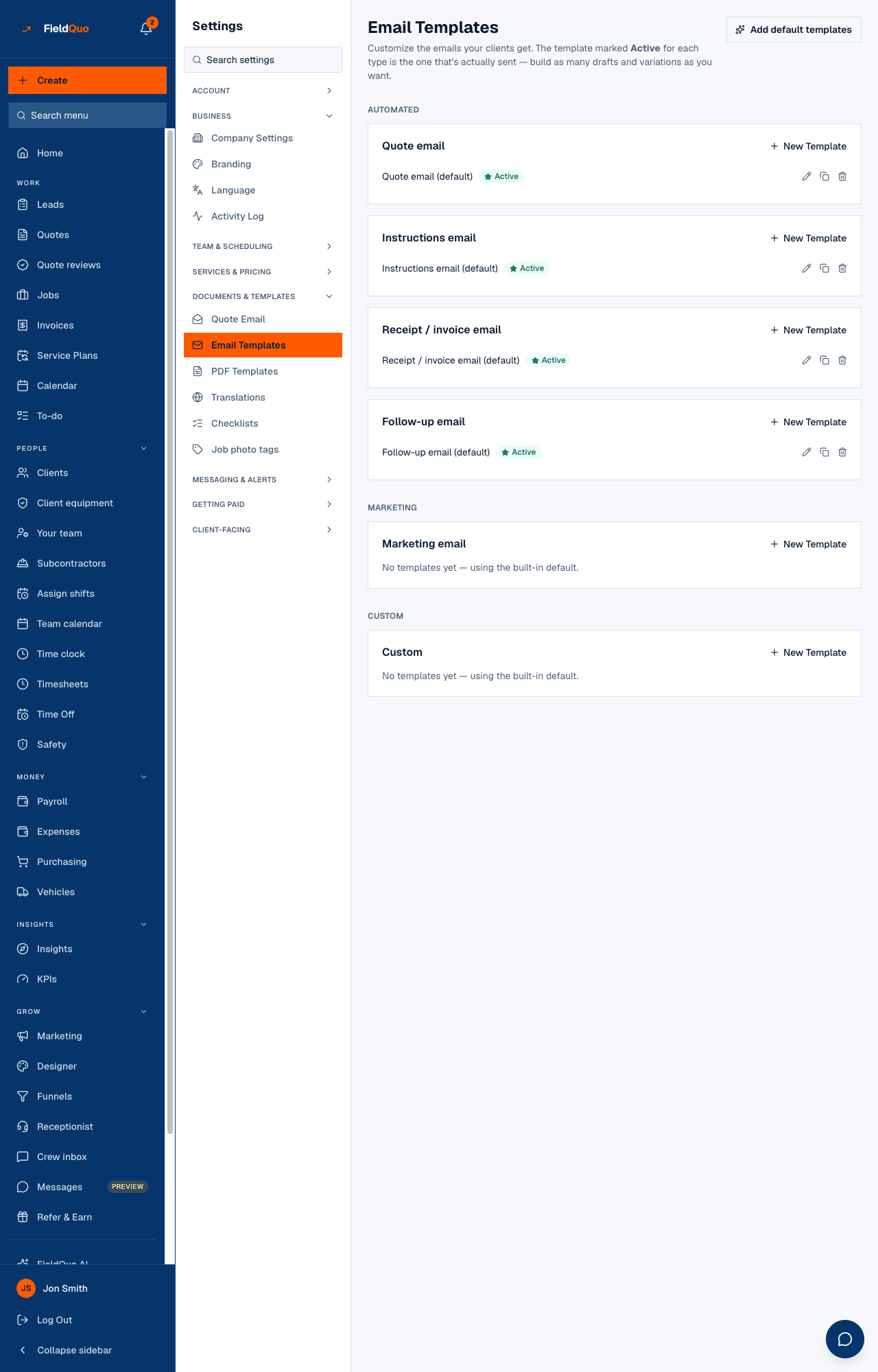
At the top, Add default templates, which seeds a starter template for each automated type you do not have yet. Then three groups — Automated (Quote email, Instructions email, Receipt / invoice email, Follow-up email), Marketing (Marketing email) and Custom — each type with New Template and its list of templates. A row shows the name, an Active badge on the one in use, a star to make another one active, and edit, duplicate and delete icons. A type with none reads No templates yet — using the built-in default.
Which sends use a template
| Template type | Used by |
|---|---|
| Follow-up email, Marketing email, Custom | Follow-up rules — a rule picks one of these when you create it, and the follow-up cron renders its blocks. See Follow-up rules. |
| Marketing email, Custom | Email campaigns on the Marketing screen — a campaign picks a template and sends it to your subscribers. See Email campaigns and subscribers. |
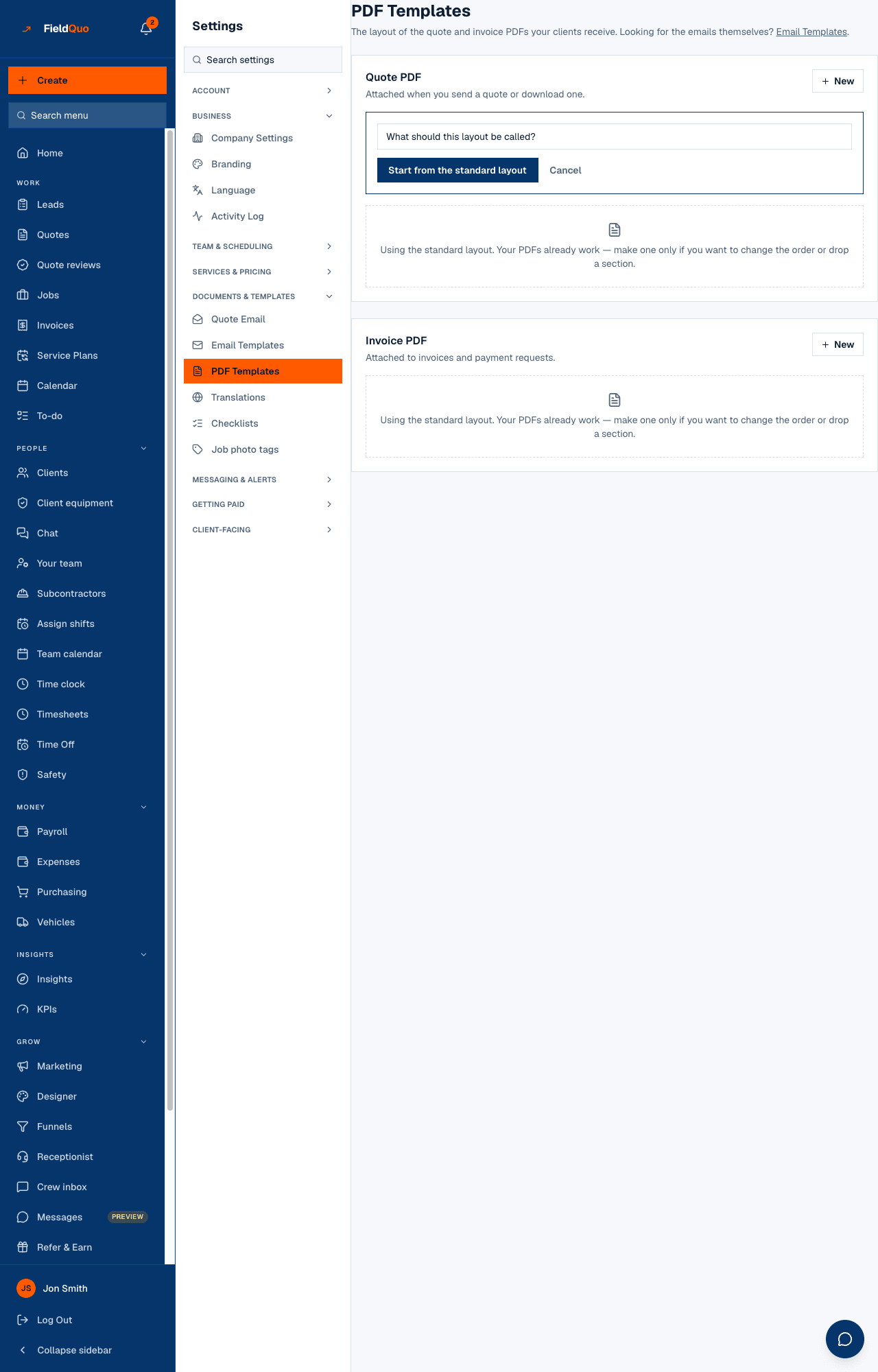
| Quote email, Instructions email, Receipt / invoice email | Nothing yet. The real quote and invoice emails are built from the document — its scope, inclusions and steps — and the layout under PDF Templates. Marking one of these Active moves the badge and changes no email. |
The wording of the quote email that IS yours to change lives elsewhere: per trade under Services & Pricing, and the two optional sections under Quote Email.
How to build one
- Press New Template under the type you need, give it a name and press Create & edit.
- Set the Subject line (merge fields work there too; blank uses the built-in subject for the type).
- Under Look & feel the template starts as Using your branding; change the accent, header and background only if you want to.
- Press Add block to add text, images, buttons, dividers or a summary, and drag blocks to reorder. Merge fields insert the client's name, the amount and so on.
- Check Email preview with sample data, on mobile and desktop, then Send a test to your own address.
- Press Save. Back on the list, press the star to make it the Active one for its type.
Delete is a hard delete with a confirmation. Deleting the Active template of a type returns that type to the built-in default.
Who can see it
Everyone can read templates, but every control — create, edit, activate, duplicate, delete, seed defaults — needs user:manage, so the row is shown only to owners, admins and supervisors rather than drawing buttons that would all be refused.
Mga madalas itanong
I made a Quote email template Active and my quote email looks the same. Why?
Because the quote email is not rendered from a template today. Its wording comes from the quote and from Services & Pricing; the optional sections from Quote Email.
Do templates keep my logo and colour?
Yes. A new template starts as Using your branding, from Settings → Branding, until you customise its look.
Where do I choose which template a follow-up uses?
On the follow-up rule itself, under Settings → Follow-ups. Only Follow-up, Marketing and Custom templates are offered.
Nakatulong ba ito?