

The client portal
The one page where a client sees their invoices, what they still owe and their quotes — how they get there, what is on it, what they can and cannot do, and the fact that there is nothing to set up.
Sa ngayon, available ang artikulong ito sa Ingles, Pranses at Espanyol. Binabasa mo ang bersyong Ingles. Français · Español
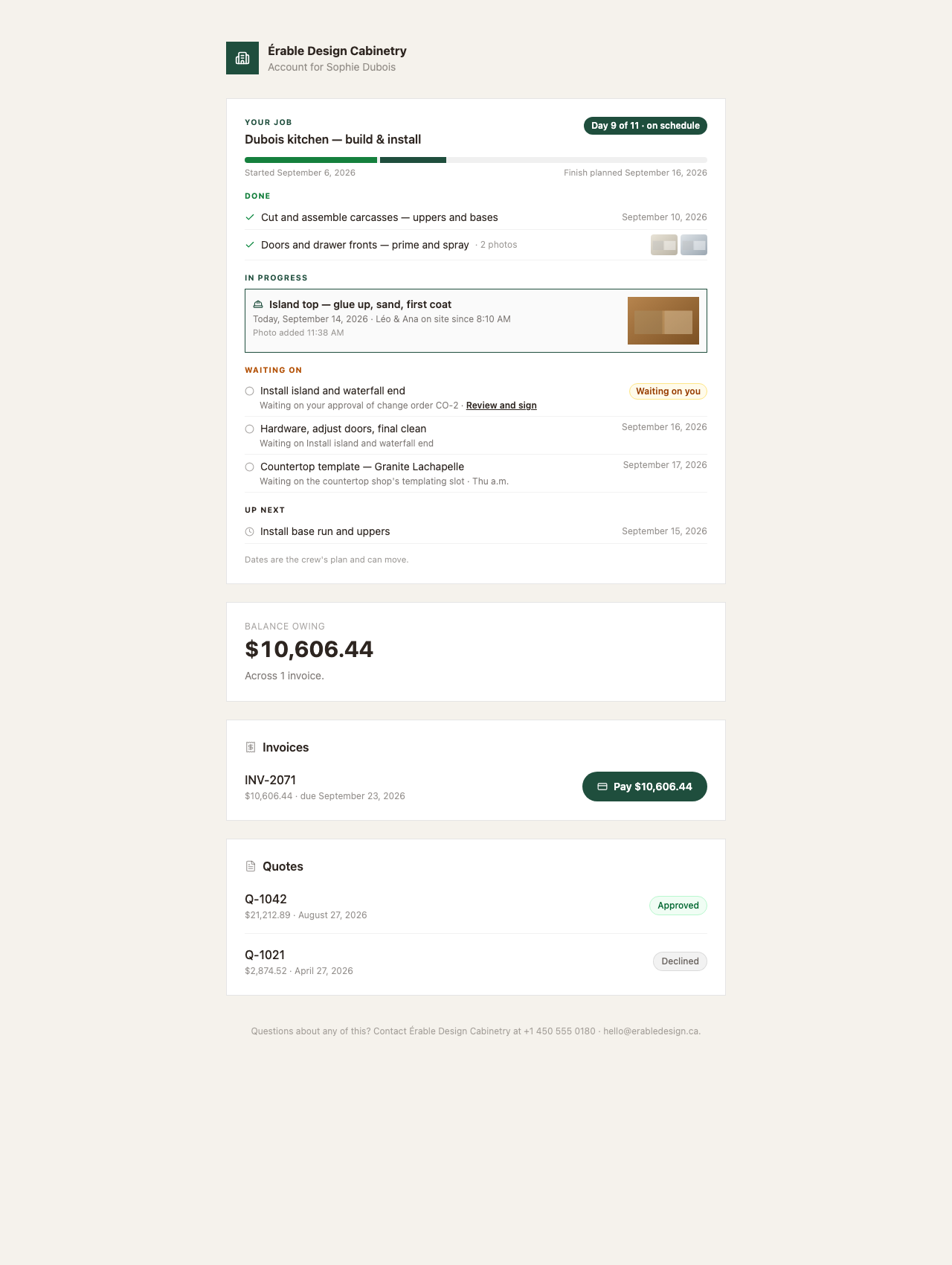
The client portal is a single page, on your letterhead, headed Account for [client]: a balance, the invoices behind it with their Pay buttons, and the quotes with where each one stands. No sign-in, no password, no app — the link is the key, and it never expires.
There is nothing to switch on. Every invoice email already carries a link into it, so a client who has ever been sent an invoice has a portal.
Overview
The page is written in the client's language (their record, then your company default), formats money in your currency, and derives every colour from your brand colour with contrast measured. It is kept out of search engines and shows only what the client is owed and owes — no jobs, no visits, no photos.
How the client gets there
- The Pay online / View your invoice button in every invoice email, payment request, deposit or instalment request and service-plan invoice opens the invoice page; Back to your account at the top of it opens the portal.
- After paying on Stripe's page, the client is returned to the portal with a “Payment received” banner.
- An automatic overdue reminder built from your own template can carry the same invoice link.
There is no button in the app to copy or send a portal link, and quote emails do not carry one — the portal is reached through invoices. The link is minted once per client and reused; FieldQuo does not offer a way to expire or replace it from the app.
What is on the page
- Your logo (or your initial on your colour), your company's name, and Account for [client].
- Balance owing — the sum across every issued invoice — then “Across 2 invoices.” or “Nothing outstanding. Thank you.”
- Invoices — one row per invoice: the number, the total, “$5,000.00 paid” when part has been paid, “due [date]”, and on the right the same action as the invoice page: Pay $10,606.44 (or Pay … by card and Pay … from bank account), Bank payment pending, a Paid tick, or the arrange-payment line. Only the latest version of an amended invoice is listed.
- Quotes — one row per sent quote: the number, the total, the date, and a pill — Awaiting your reply, Approved or Declined — with a Review link that opens the approval page while the quote is still waiting.
- The footer: “Questions about any of this? Contact [Your company] at [phone] · [email].”
What the client can do, and cannot
From the portal a client can open an invoice, pay it (by card, from a bank account, or with Affirm on Stripe's page), and open a waiting quote to approve or decline it. That is the whole list.
- They cannot change their name, address or email — those live on their client record, which you edit.
- They cannot download a PDF of an invoice or a quote from the portal.
- They cannot see jobs, visits, appointments, photos or a payment history — the portal shows invoices and quotes only.
- They cannot message you from the page; the footer gives them your phone and email.
What you control
| Where | What it changes on the portal |
|---|---|
| Settings → Branding and Settings → Company Settings | The logo, the colour, the name, the phone and email in the footer, the tax number on the invoice page. |
| Settings → Payments | Whether the Pay buttons appear, whether a bank-account button is offered, and the accepted offline methods. |
| The client's language and your company default | The language of every label on the page. |
| Sending | What is listed: a draft invoice or a draft quote is never shown; only sent ones are. |
There is no portal settings screen. FieldQuo does not let you hide the quotes card, add a message, or turn the portal off.
Who can see it
Anyone with the link — which is why it is only ever sent to the client's own email address. On your side there is nothing to open: what the portal lists is exactly the invoices and quotes you already see under Invoices and Quotes.
Mga madalas itanong
How do I send a client their portal link?
Send them an invoice, or press Request payment on one they already have. Both emails carry the link. There is no separate send-portal button.
Does the link expire?
No. It is created once per client and reused on every email, and FieldQuo does not offer a way to replace it from the app.
Can the client see their upcoming visit in the portal?
No. Visits are managed from the link in the booking confirmation email — see Managing a booked visit. The portal shows invoices and quotes only.
Nakatulong ba ito?