

Quotes sent with no response
How the Quotes list surfaces the quotes nobody has answered, what Follow up sends, and how a follow-up rule chases them for you.
Поки що ця стаття доступна англійською, французькою та іспанською. Ви читаєте англійську версію. Français · Español
A quote that has been sitting at Sent is the follow-up queue, and FieldQuo puts it at the top of the list rather than letting it sink under newer drafts. This article is about the three things you can do with it: read it, chase it by hand, and let a rule chase it for you.
Overview
On Quotes, with the All chip selected, every quote whose status is Sent is grouped at the top under the heading Quote sent, no response, oldest sent first — the quote that has waited longest is the one the client has most likely forgotten. Everything else follows in the order it was created.
Each row shows how long ago it was sent and its expiry. A quote whose Valid until date is within three days, or already past, is marked so it stands out; the sentence beside it always names the actual date, so the emphasis is never the only thing you have to go on.
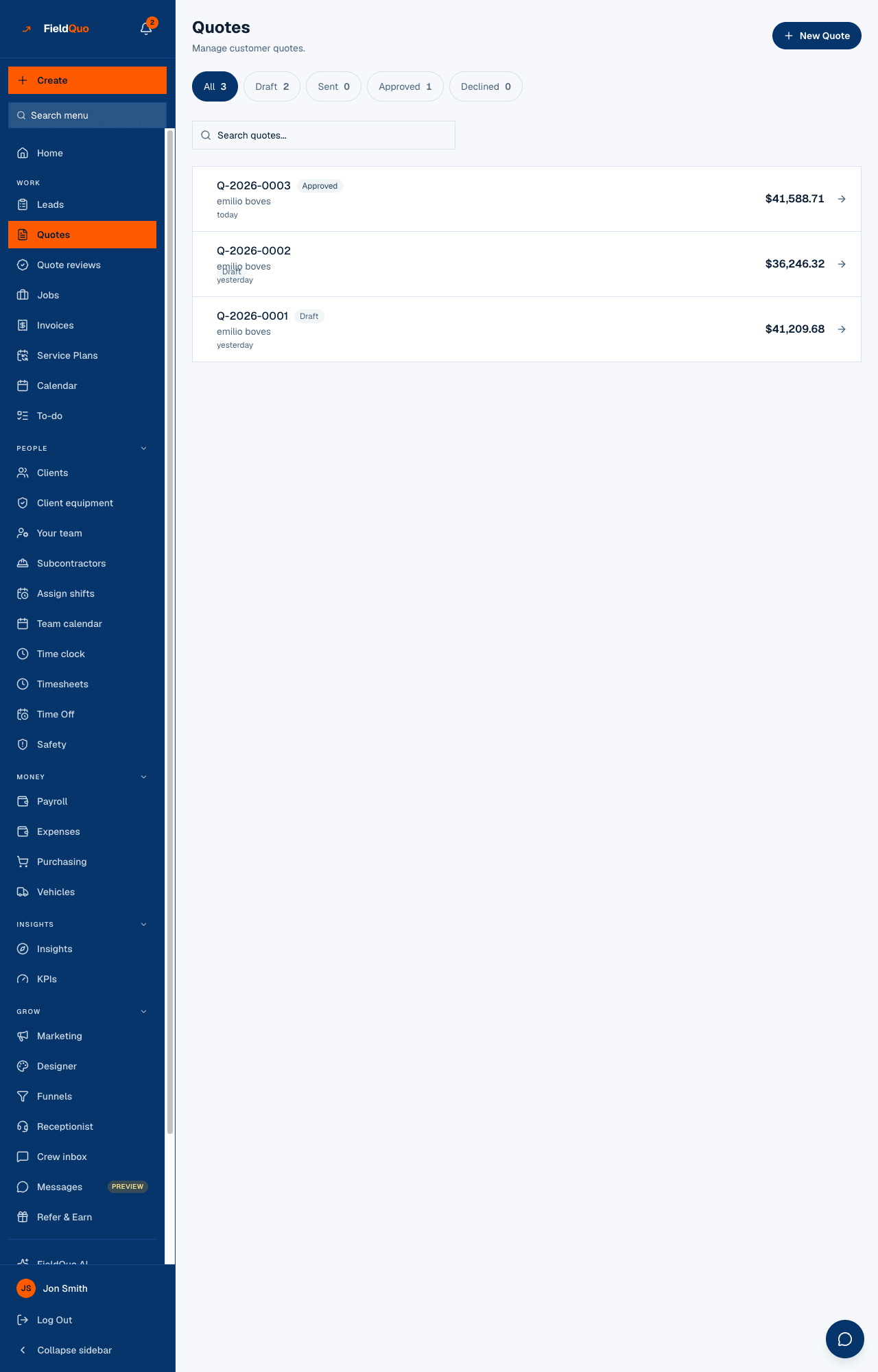
A quote is aged from the date it was actually emailed. A quote whose status was set to Sent without an email — a price agreed on the phone, an imported document — shows no age at all rather than an invented one.
Follow up by hand
- Open the quote. While it is Sent and has been emailed, the action bar shows Follow up.
- Press it and confirm the recipient. The follow-up email uses the same layout as the quote email with a different opening, and links to the same approval page.
- The quote records the follow-up date and count; the activity log says a follow-up was sent.
Send again is different: it re-sends the full quote with a fresh PDF and resets the sent date, so the quote's age — and the timer on any follow-up rule — starts over.
Let a rule do it
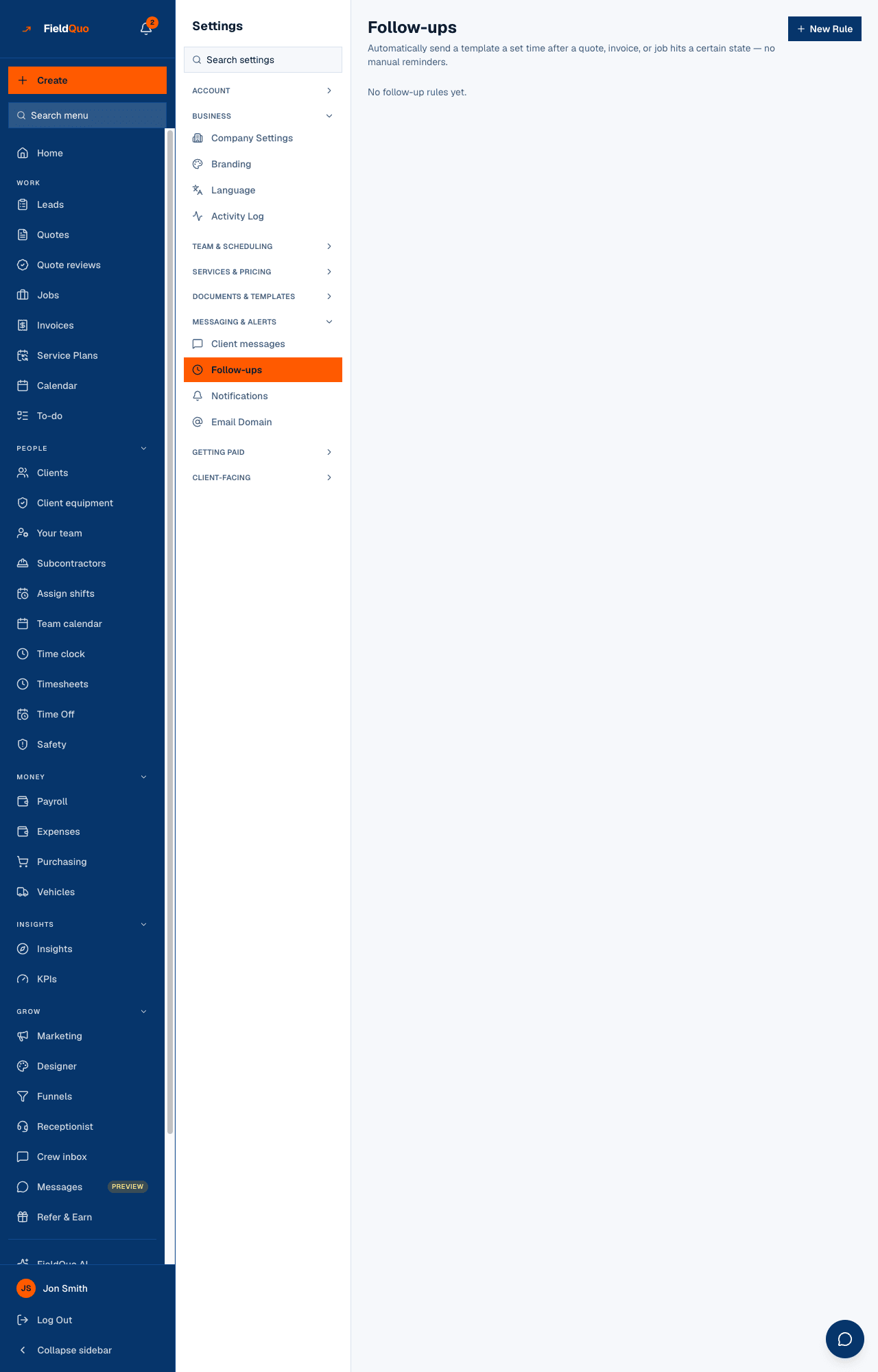
Settings → Follow-ups runs a template a set time after a quote, invoice or job reaches a state. The trigger for this queue is Quote sent, no response: it fires once the quote has sat at Sent for the delay with no accept or decline. The suggested delay is 3 days.
- Open Settings → Follow-ups and press New Rule.
- Choose the trigger Quote sent, no response, a delay in hours or days, and the email template to send (from Settings → Email Templates).
- Press Create Rule. Pause stops it without deleting it.
- Each quote gets a given rule's email once.
- The rule stops as soon as the client accepts or declines.
- Clients with no email address on file are skipped.
- Quotes entered as past jobs are never followed up.
- The check runs daily; nothing is sent by text message from a follow-up rule.
Who sees this
The Quotes list is visible to anyone with Quotes at View only or higher. Follow-up rules are created and paused under Settings, by owners, administrators, Managers and Dispatchers.
Часті запитання
Why does the group not appear?
It only shows on the All chip, and only when there is at least one Sent quote and at least one other quote. On the Sent chip you are already looking at the queue.
Can the phone assistant call about an unanswered quote?
Yes, if you turn on quote callbacks — a different feature from follow-up emails. See Quote callbacks.
Does a follow-up change the lead?
No. A follow-up email leaves the lead behind the quote where it is; only the first send moves a new lead to Contacted.
Чи була ця стаття корисною?