

The self-quote form
What a homeowner sees when they open your Request a quote link: three short steps, no prices, a confirmation on your stationery, and a lead in your pipeline.
Поки що ця стаття доступна англійською, французькою та іспанською. Ви читаєте англійську версію. Français · Español
Your Request a quote link is a public form a stranger can fill in from your website, a Facebook post or the back of the van. It carries your logo, your name and your brand colour; nothing on it says FieldQuo. It asks for the service, the rough size of the job, and a way to reply — in that order, because someone comparing three contractors will pick a service before they will hand over an email address.
It never shows a price. The form produces a lead, not a quote: the homeowner is told a person will price the job, and what they typed lands on your Leads board with the size of the job already known.
Overview
The form lives at your company's own link (the Request a quote card on Settings → Share your links gives it to you, with a snippet to embed it in a website you already have). It is written in your company's language and laid out in the same order as your quote — identity strip at the top, a three-dot progress line, then one step at a time.
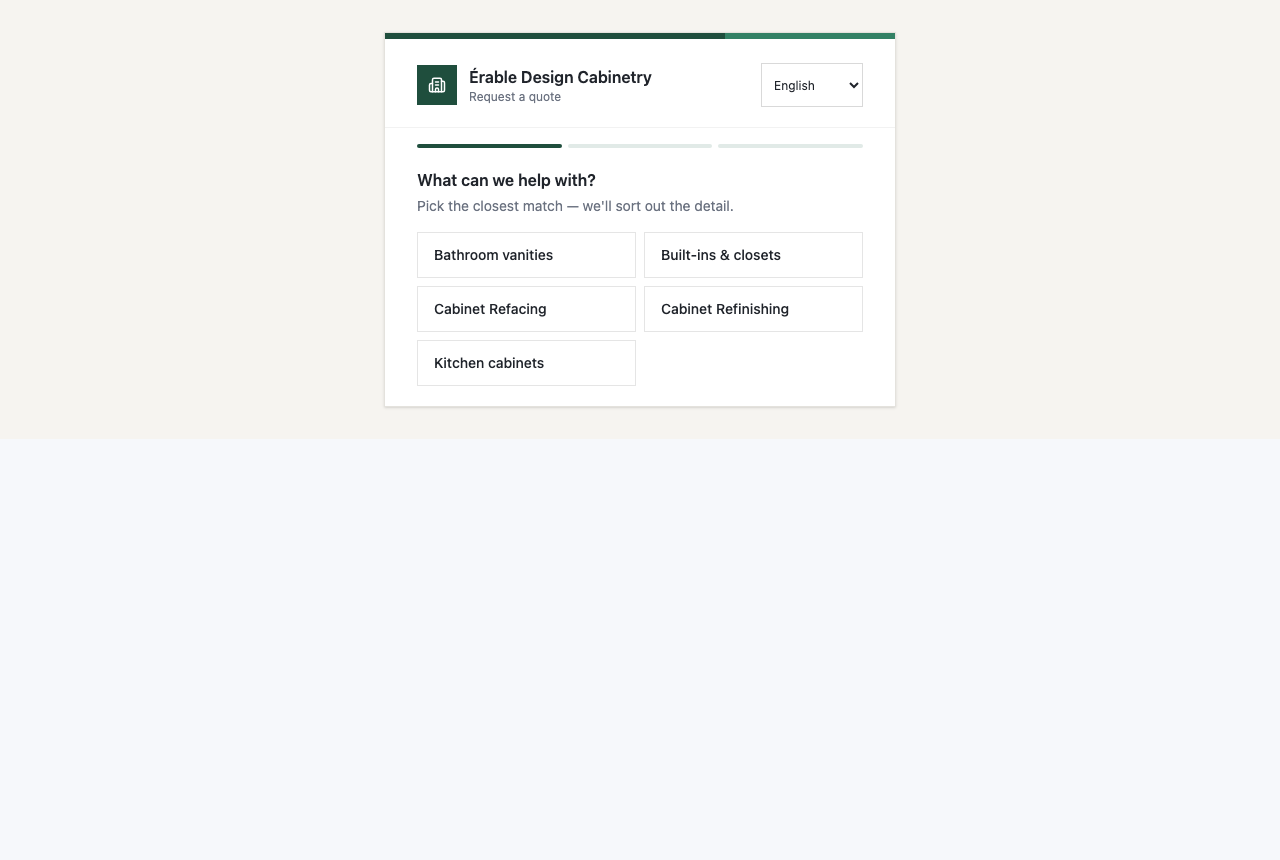
The list of services is the one you enabled under Settings → Services & Pricing. A visitor cannot request work you do not do, and the rate card behind each service never leaves that settings screen — the public endpoint returns services and intake fields, not prices.
What the homeowner fills in
- What can we help with? — one tap on a service. A cabinet company that has switched on Kitchen Design also shows a line here: “Prefer to draw it? Design your kitchen yourself and send us the layout →”.
- How big is it? — at most three number or choice fields for that service (doors, square feet, rooms), then two chip rows that are always asked: When are you hoping to start? (As soon as possible · Within 2 weeks · In the next 1–3 months · Just exploring for now) and Rough budget? (four bands in your currency, plus Not sure yet — optional), and a free-text Anything else we should know?.
- Where should we send it? — a name, and an email or a phone number (“One of email or phone is enough”), an optional address with Google autocomplete, and Add photos, a video or a PDF plan. The button reads Send my request, under it: “No obligation. [Your company] will get back to you with a price.”
An address picked from the autocomplete carries its city, province and country to the lead, so the client you create from it already has a tax jurisdiction. An address typed by hand still submits — the form never depends on Google being reachable.
What happens after Send
- The screen turns into a Request received document in your colours: your logo and phone, the word Request, a reference, a “prepared for” panel with what they typed, What you asked for, and What happens next in three numbered steps — they read it, they price it, you get a quote. A line reads “No price is shown yet — this request hasn't been priced.”
- If they gave an email, a copy goes to them from your company, in the language the lead was created in, with the same content and no price. The screen says “A copy is on its way to …” only when a copy was actually sent.
- If your company can take bookings (at least one active event type and the visit mode on), a Would you like us to come and see it? panel appears under the confirmation with a Book a visit button, pre-filled with the details they just typed. See The booking page.
- On your side, a lead appears on Leads with the source, the answers as structured fields, the photos and the plan, scored Hot, Warm or Cold — and the people who get lead notifications are told. A phone number given here is recorded as consent to be called back.
The lead keeps the language it was written in, and the quote you convert it into is created in that language — see A quote keeps its language.
What you control
| Where | What it changes on the form |
|---|---|
| Settings → Branding | The logo, the brand colour and every colour derived from it — contrast is measured, so a yellow or white brand still reads. |
| Settings → Services & Pricing | Which services appear at step 1, and which intake fields step 2 asks (the first three number or choice fields of each service). |
| Settings → Language | The language the form and the confirmation are written in — your company's default. There is no language picker for the visitor today: FieldQuo does not yet let a company list several send languages. |
| Settings → Booking Page | Whether the Book a visit panel appears after the confirmation (it needs at least one active event type). |
| Settings → Share your links | The link itself, an Open button, and the embed snippet for your own website. |
The wording of the steps is FieldQuo's, in eight languages; it cannot be edited. What you cannot do on purpose: show a price, ask for a card, or add fields of your own.
Who can see it
The form itself is public — anyone with the link. The Share your links screen that hands out the link needs the Manager level or above (an owner, an administrator, a Manager or a Dispatcher). The leads it creates are visible to anyone whose access includes Requests.
Часті запитання
Can the homeowner see a price on the form?
No, and this is deliberate. The form creates a lead; a person prices it. If you want a visitor to see a starting figure, that is the instant estimate — see The instant estimate page.
Why does the form show only some of my services?
It lists the services switched on under Settings → Services & Pricing. Switch one on and it appears on the form at once.
Does the visitor have to give an email?
An email or a phone number — one is enough. A misspelt email is refused while they are still looking at the form, rather than bouncing later.
Can I put the form on my existing website?
Yes. Settings → Share your links has an embed snippet; inside your own page the form drops its logo strip because your site already carries your name.
Чи була ця стаття корисною?