

Email delivery (Resend) and your own domain
Who your quotes and invoices appear to come from, how to send them from your own domain instead of FieldQuo's shared address, where replies land, and what FieldQuo cannot tell you about a bounce.
Dieser Artikel ist vorerst auf Englisch, Französisch und Spanisch verfügbar. Sie lesen die englische Fassung. Français · Español
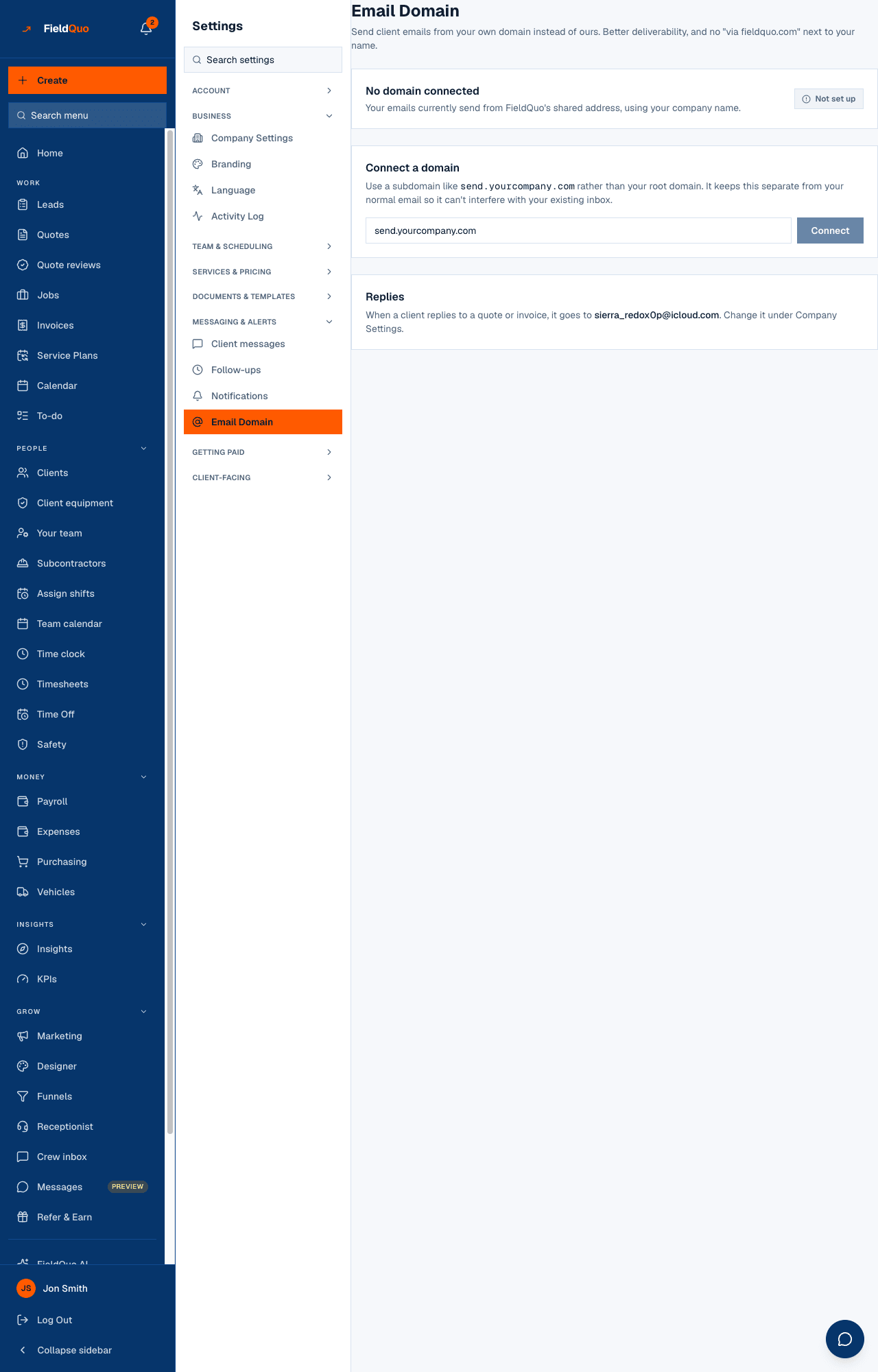
Every quote, invoice, receipt, reminder and review request goes out under your company's name as the sender. Until you connect a domain, the address behind that name is FieldQuo's shared sending address; after you verify one on Settings → Email Domain, the address is yours — quotes@send.yourcompany.com, for example — and no “via fieldquo.com” appears beside your name in the client's inbox.
The delivery itself is done by Resend, an email service the client never sees. This article is the sender, the domain, the replies, and the honest limits: FieldQuo learns nothing about a message after Resend accepts it.
Overview
The From line is built the same way for every client email: your company name, then an address. With no domain of your own, the address is on FieldQuo's shared sending domain and the name is still yours. With a verified domain, the address is the Sender address you chose, at your domain. Replies always go to your company email from Company Settings — or, if that is empty, to the account owner's login email — never to the shared address.
Client emails are also sent in the client's language, and a quote's covering email in the quote's language; see A client's language.
How to send from your own domain
- Open Settings → Email Domain. Under Connect a domain, type a subdomain such as send.yourcompany.com — a subdomain rather than your root domain, so it cannot interfere with your existing mailbox — and press Connect.
- The page shows Add these DNS records: the type, name and value of each, with Copy value beside it. Add them at whoever hosts your domain's DNS, keeping the name exactly as shown.
- Save at your host and leave it. Most hosts apply changes within an hour, some take up to 24. The page rechecks every 30 seconds by itself while the status reads Waiting on DNS; Check verification asks straight away.
- When the status reads Verified, the card says Emails will send from quotes@send.yourcompany.com. Change the part before the @ under Sender address and press Save — letters, numbers, dots, dashes or underscores. It does not need to be a real mailbox.
The records prove you own the domain, which is what lets FieldQuo send as you. Nothing sends from your domain until it is verified; until then the status card reads Your emails currently send from FieldQuo's shared address, using your company name. A domain ending in fieldquo.com is refused, and a domain already connected to another company on FieldQuo is refused with a sentence saying so.
What each control changes
| Control | What it changes |
|---|---|
| Connect | Registers the domain for sending and shows the DNS records. Replaces any domain connected before. |
| Check verification | Asks whether the DNS records are in place now. The status becomes Verified, Waiting on DNS or Verification failed. |
| Sender address → Save | The part before the @ on every client email once verified. Default: quotes. |
| Disconnect | Removes the domain. Emails go back to FieldQuo's shared address, still under your company name. Nothing already sent changes. |
| Replies | Not a control — it shows where a reply lands: your company email, or the owner's email when none is set. Change it under Company Settings. |
Which emails use it
Everything a client receives: quotes, invoices and payment requests, deposit and instalment emails, service-plan invoices, follow-ups and reminders, review requests, booking confirmations and changes, self-quote and instant-estimate confirmations, and marketing campaigns. Marketing campaigns, review requests and job-completed follow-ups also carry a one-click unsubscribe link; transactional emails such as a quote or an invoice deliberately do not.
Emails FieldQuo sends to you — team invitations, password resets, billing notices, phone-credit warnings, the monthly digest — come from FieldQuo's own addresses whatever domain you connect, because they are from FieldQuo.
What FieldQuo cannot tell you
- Bounces. Once Resend accepts a message, FieldQuo hears nothing further. There is no bounce report and no “bad address” flag on a client. What it does check is the address itself before sending, and it tells you at once when Resend refuses a send.
- Replies. A client's reply goes to your mailbox, by the Reply-To address. It does not appear inside FieldQuo.
- Opens and clicks. Not tracked.
- Sending limits. FieldQuo sets none of its own; a “rate-limiting” message on a send is Resend's, and clears in a moment.
Who can see it
Settings → Email Domain is for the owner, administrators and the Manager and Dispatcher levels — anyone who can manage people. Crew and Estimator logins do not see the row, and the route refuses them. Every plan includes it; there is no add-on for your own domain.
Häufige Fragen
Do I need my own domain?
No. Without one, emails go out under your company name from FieldQuo's shared address, and replies still reach your own mailbox. A verified domain removes the “via” hint some inboxes show and improves deliverability.
Which DNS records do I add?
Exactly the ones the page lists for your domain — copy each value with the button. The page does not invent a generic list; the records are read from the sending service for your domain.
Where do my clients' replies go?
To the company email on Company Settings. If it is blank, to the account owner's login email, and the page says so in amber until you set one.
War das hilfreich?