

Chat on your phone
The company chat from a crew member's phone: #general, a room for every job you are on, direct messages, mentions, and what a message can and cannot carry.
Dieser Artikel ist vorerst auf Englisch, Französisch und Spanisch verfügbar. Sie lesen die englische Fassung. Français · Español
Chat is your company talking to itself. #general is everyone on the team; every job on the calendar has its own room for the crew booked on it and the office; a direct message is between the two of you. Nothing leaves the company, and it is the one tab every access level keeps in the phone's tab bar.
Overview
The list groups rooms as Unread, Company, Jobs, Direct messages and Finished jobs. Open one and you get the thread with an Unread messages divider where you left off, the Members panel, an Open job link on a job room, and the composer at the bottom. The list refreshes itself every 15 seconds while the screen is open.
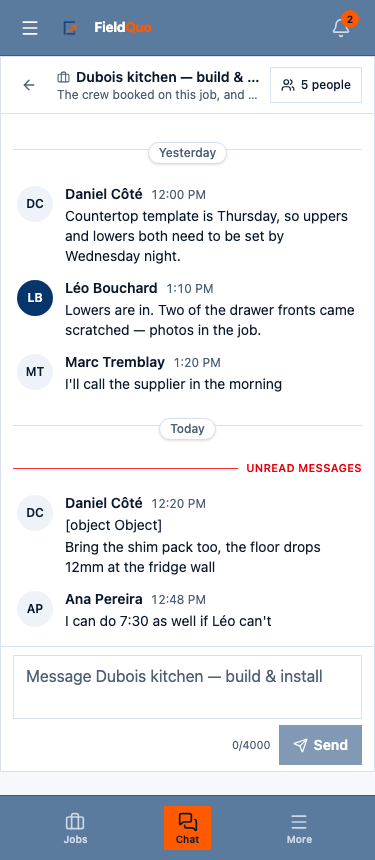
The rooms
| Room | Who is in it | How you get in |
|---|---|---|
| #general | Everyone on the team | The moment your invitation is accepted; you leave when your account is deactivated |
| A job room | Whoever is booked on one of the job's visits, plus the owner, admins and managers | Being booked on a visit |
| A direct message | Just the two of you — nobody else can read it | New message, then a name |
| Finished jobs | The same people, read for the record | The job is finished; the room is kept |
How to send a message
- Tap Chat in the tab bar.
- Open the room — or New message to start a direct message with somebody on the team.
- Type in the composer. Up to 4,000 characters; the count shows under the box.
- To point a message at somebody, type @ and pick them from the list. Only people in the room can be mentioned.
- Tap Send. If it fails, the message reads Not sent. with Put it back in the box — your words are not lost.
Mentions, and who is told
A direct message tells the other person; a mention tells the people named. Never the author, never the whole room. The bell counts your unread rooms, and if the person has turned browser notifications on, a direct message or a mention also reaches them as a notification — New message from … or … mentioned you in #general.
There is no read receipt and no typing indicator. Opening a room marks it read for you; nobody else sees that.
What a message cannot carry
- Photos or files. The composer is text only. Put a photo on the job — upload it or text it in — and say so in the room.
- Clients. Nothing here reaches a homeowner; the chat is internal by construction.
- Edits or deletions. A sent message stays as sent.
Who can see it
Everyone on the roster, at every access level, when the crew chat feature is on for the company. A read-only support session from FieldQuo can see the chat and cannot post in it, and the screen says so. The office's side of a job room is A chat room for every job.
Häufige Fragen
Why can I not see a room for the job I am on?
You are in a job's room when you are booked on one of its visits. If your name is not on a visit, ask the office to book you on it — that is the only way in.
Can I send a photo in the chat?
No. Upload it on the job page or text it to the crew line, then mention the person who should look.
Will I get a notification for every message?
No. Only a direct message to you, or a message that mentions you — and only if notifications are turned on in your browser.
War das hilfreich?