

Only in FieldQuo
Team chat
The company talking to itself: #general for everyone, a room per active job for the crew booked on it and the office, direct messages, @mentions that reach a phone — and nothing that leaves the company.
Chat is the company's own conversation, inside FieldQuo. Everyone on the roster is in #general; every job on the calendar has a room for the crew booked on it and the office; and any two people can message each other directly. Mentions notify the person named, and on a phone Chat is the crew's own tab at the bottom of the screen.
Nothing here reaches a client, and nothing reaches FieldQuo — the support team's read-only session can see the rooms and cannot post in them.
Overview
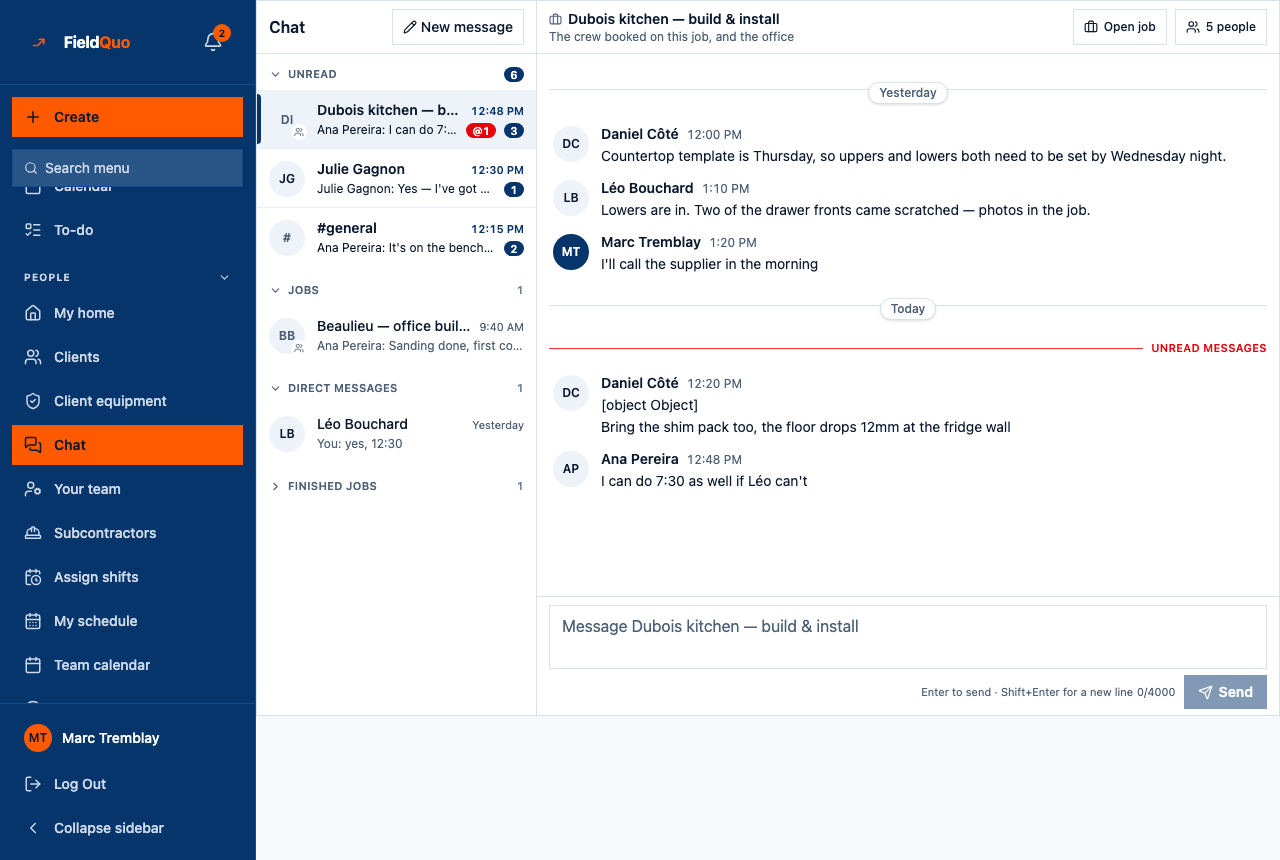
The screen is the same chat kit as Messages: the conversation list down the left, the thread in the middle with day dividers and an unread line, the room's Members on the right, and the composer at the bottom. Unread rooms rise to the top of the list, because the list exists to answer “who is waiting on me”. Rooms are made and kept in step by FieldQuo from your roster and your schedule — nobody adds or removes anybody by hand, which is why the list can never drift from who is actually on a job.
What is on the screen
- Unread — any room with something you have not seen, mentions counted separately.
- Company — #general, “Everyone on the team”.
- Jobs — one room per scheduled or in-progress job, named after it, “The crew booked on this job, and the office”, with Open job in its header.
- Direct messages — “Just the two of you. Nobody else can read this.”
- Finished jobs — rooms of completed or cancelled jobs, kept with their history: “This job is finished. The room is kept for the record.”
New message at the top opens a direct message: search the team by name or email and pick one person. The composer reads Message #general or Message Ana; typing @ opens Mention somebody with the people in that room — ↑↓ to choose, Tab to insert.
The three kinds of room
| Room | Who is in it | How it is kept |
|---|---|---|
| #general | Everyone who can sign in to the company. | Somebody joins the moment their invitation is accepted and leaves when their account is deactivated. Nobody can leave it. |
| A job room | Whoever is booked on one of the job's visits, plus the owner, administrators and managers, who run every job. | Made for a job once it is scheduled; membership follows the visits — book somebody on a visit and they are in, take them off and they are out. Kept, read-only in practice, under Finished jobs when the job ends. |
| A direct message | Two people. | Opened from New message by either of them; there is only ever one room for a pair. |
A room is never made for an unscheduled job — it would hold the office talking to itself about work nobody has been given. Schedule a visit and the room appears.
Mentions and notifications
A message can only mention somebody who is in the room. The person named sees the message tinted in the thread, a mention count on the room in the list, and — where they have turned on browser notifications — “Ana mentioned you in #Nguyen kitchen” on their phone or desktop, which opens straight into the room. A direct message notifies the other person the same way. Neither the author nor anyone else is told.
- Turn notifications on per browser under Settings → Notifications — see Notifications for you: email and browser.
- A message that could not be pushed is still stored and still badged; the push is a courtesy about a message that already exists.
A read-only support session sees “You are viewing this account read-only. Support access can see the chat and cannot post in it.” It cannot send, mention or open a direct message.
How to use it on the job
- On a phone, tap Chat in the tab bar at the bottom; on a desktop, open Chat in the sidebar.
- Open the job's room under Jobs and type. Put @ before a name to make sure the office sees a question.
- To reach one person privately, press New message, search their name and send.
- When the job is finished its room moves under Finished jobs — “what did we agree about the Nguyen kitchen” is still answerable in March.
Who can see it
Everyone on the roster, including Crew logins — the chat is the crew's own screen and has no access level of its own. What a person sees is the rooms they are in: #general, the jobs they are booked on, and their direct messages. The owner, administrators and managers are in every job room.
What is different here
None of the pricing pages FieldQuo compares itself with — Jobber, Housecall Pro, QuoteIQ, ServiceTitan, Projul — lists a team chat at any tier. Here it is on every plan, for every login including the free crew ones, with the job rooms drawn from the schedule rather than kept by hand.
Frequently asked questions
Can a client see any of this?
No. Chat is between members of your company only. Client conversations live in Messages, and client-facing texts are the two described in Texting clients: what is automated and what is not.
How do I add somebody to a job's room?
Book them on one of the job's visits. Membership is derived from the schedule, so there is no add button — and taking them off the visits takes them out of the room.
Can I delete a message or a room?
No. A finished job's room is kept for the record, and a departed member's messages stay attributed to “Someone who left”.
Was this helpful?