
The crew tab bar
The bar along the bottom of the phone layout: the time clock first on everyone's bar, what else each role gets, and the crew's simple layout on a computer.
On a phone, the bar along the bottom of the screen is how you move around. Everyone's bar starts with Clock — the owner's too — and the rest depends on what you do all day: a crew member gets Today and Chat, someone who writes quotes gets Quotes and Calendar, someone who runs the schedule gets Schedule and Team. More, on the right, holds everything else.
Overview
The bar appears whenever the screen is narrower than about 1,024 pixels — every phone, most tablets held upright. The current screen's tab is highlighted; the others show in a muted colour. Above that width the bar disappears: the office gets the sidebar, and a crew member gets the simple layout described below.
The tabs, by role
| Who | The bar | Moved to More |
|---|---|---|
| Owner and admins | Clock · Leads · Quotes · Jobs · Chat · More | Invoices — you usually reach an invoice from its job, from the + button, or from the payment notification. |
| Crew | Clock · Today · Chat · More | Nothing — the clock was already first. |
| Estimator | Clock · Quotes · Calendar · Chat · More | Leads — a new lead arrives as a notification that opens it, and the visit you book lands on the Calendar. |
| Dispatcher and Manager | Clock · Schedule · Team · Chat · More | Jobs — every booking on the schedule opens its job. |
A tab you cannot use is not drawn: the same access rules hide the same rows in the full menu, and the pages behind them refuse at the same level, so the bar is a shortcut, not the security. Team needs both your access to Time Tracking at everyone's and permission to manage people; Chat needs the crew chat feature on for your company.
The Clock tab
Clock opens the time clock. It is on every bar, owners and admins included. An owner or admin who is not on the roster yet sees Set yourself up to clock in there — it costs no seat, and it does not put you on a pay run: owners stay off payroll unless Pay me through payroll is on under Team → Your own rate.
If an owner sets someone's Time Tracking & Timesheets to No access (Manage Team → Role → Custom…), the Clock tab leaves that person's bar and the tab it replaced comes back — an estimator gets Leads again, a dispatcher Jobs. An owner's or admin's clock cannot be switched off.
What a crew member gets
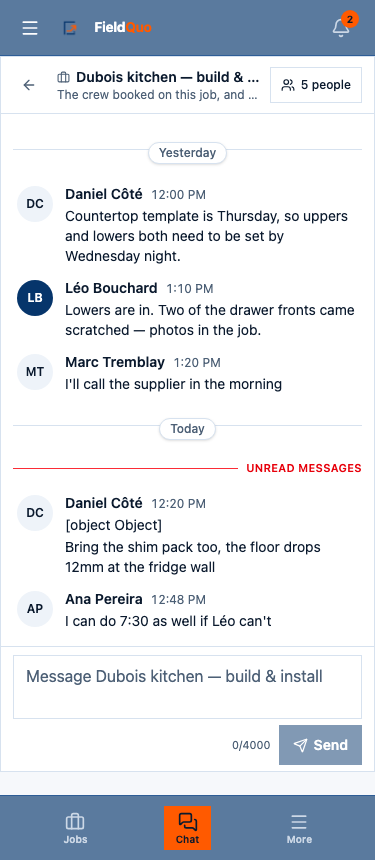
- Clock — clock in and out, start a break, switch job; the Time log tab is where you Request a correction if a time is wrong.
- Today — today's visits with the address and directions, the job's photos and checklist, then the rest of the week.
- Chat — #general, the room for each job you are on, and direct messages.
- More — a page, not a menu: your requests, time off, availability, supplies, the team, your earnings, your jobs, then Everything else — every other screen your access allows, one big row each.
There is no menu button for crew. The folding menu the office uses is not drawn for them, on a phone or a computer: everything it held for them is on the More page.
Crew on a computer or a tablet held sideways
Wider than about 1,024 pixels, a crew member gets no sidebar. Instead, at the top of every page:
- A slim header — your company's logo and name, your name, the notification bell and Sign out.
- One big clock button right under it. It says Clock in when you are not clocked in (green), Clock out with the time you started when you are (red), and End break on a break. It opens the time clock, where you tap once more to punch — the same as the clock card on Today.
- Big buttons for Today, My schedule, Chat, Jobs and More. The one you are on is filled in dark.
The bigger letters and buttons are on purpose: a crew screen is read in a van, in gloves, by people who do not want a menu. Nothing is hidden behind a hover or a fold.
More, for everyone else
For the office roles, More opens a sheet over the bar: search first, then every screen that is not already one of your tabs, then your account rows. A screen is in one place, never two — when Invoices left the owner's bar, it appeared in the sheet. Home is not a tab: the FieldQuo logo in the top bar takes you there.
If your bar shows only Clock, Chat and More, every document your role carries is set to No access. That is a valid grid, not a fault — everything you can use is under More.
Frequently asked questions
Can I choose which tabs are in the bar?
No. Each role's bar is fixed, and your access level decides which one you get. Under More, everything else is one tap away.
I own the company and never clock in. Why is there a Clock tab?
Because some owners work on the tools, and the clock should be one tap away for them like for everybody else. It changes nothing until you use it: it does not put you on payroll.
Where did Invoices go?
Under More, in the same sheet as every other screen. You also reach an invoice from its job's page, from the + button, and from the notification when it is paid.
A crew member wants the old sidebar back.
There is no switch for it. Everything the sidebar showed them is on their More page, under Everything else.
Was this helpful?