

Only in FieldQuo
Payroll runs
How approved hours and saved rates become a pay run with payslips — Calculate, save as draft, approve, record as paid — and the one thing FieldQuo deliberately does not do: move the money.
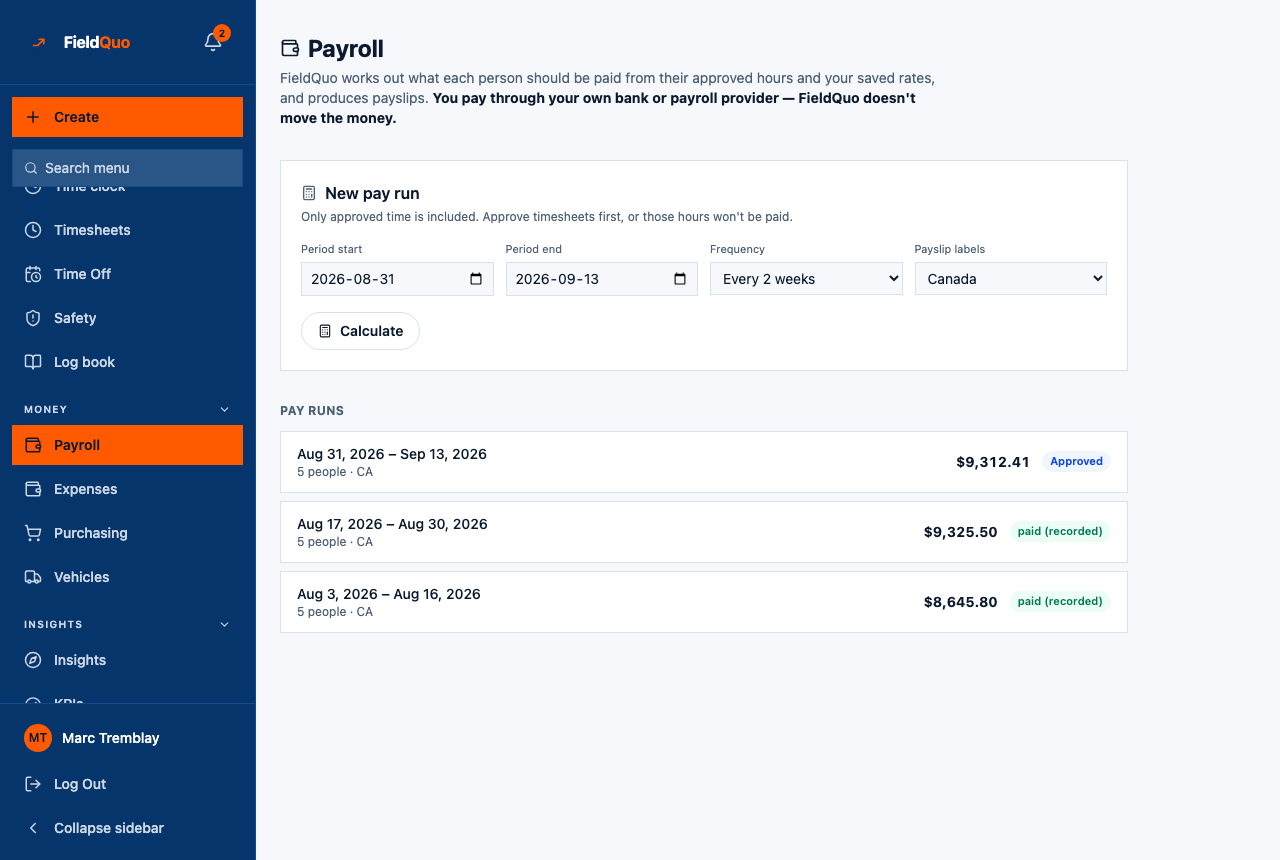
The Payroll screen works out what each person should be paid for a period, from the hours a manager approved on Timesheets and the rates saved on their record, and produces a payslip per person. The sentence at the top of the screen is the whole contract: “You pay through your own bank or payroll provider — FieldQuo doesn't move the money.”
The feature matrix marks payroll as partial, and the limit is exactly that: FieldQuo works out gross pay and produces the payslips. It does not pay employees or file your payroll taxes — deductions are the ones you or your accountant supply on Payroll settings.
Overview
One screen, two audiences. Someone allowed to run payroll sees My earnings for themselves, then New pay run and the Pay runs list. Everyone else sees only My earnings and the line “Only your own payslips are shared with your account.” — see Payslips.
A run moves through four states: Draft (a working document you can still change or cancel), Approved (payslips become visible to the people on it), paid (recorded) (a human confirmed the money left through the bank or payroll provider), and Cancelled. The wording is “record as paid”, not “pay”, because a button called Pay that paid nobody would be the worst control on the product.
Only in FieldQuo: neither Jobber nor Housecall Pro lists payroll on its pricing page at any tier. ServiceTitan lists “payroll management” from its Essentials tier up, and Projul does not list it. FieldQuo includes it in every plan — as a calculation and a set of payslips, never as a transfer.
What is on the screen
- My earnings — This period with its dates and payday, your approved hours × your rate (or “No hourly rate is set on your record, so this can't be worked out yet.”), a progress bar through the period, then Gross, Deductions and Net for the year, then your payslips.
- New pay run — “Only approved time is included. Approve timesheets first, or those hours won't be paid.” Four fields: Period start, Period end, Frequency (Every week, Every 2 weeks, Twice a month, Once a month) and Payslip labels (Canada, United States, United Kingdom), then Calculate.
- Pay runs — one row per run: the period, how many people and the label region (“5 people · CA”), the net total and a status badge. Opening a row shows every line, a Payslip PDF per person once the run is approved, and the Approve run / Record as paid buttons.
How to run payroll
- Approve the period's hours on Timesheets first — see Timesheets and approving hours. Pending hours are left out and named.
- Open Payroll. The period is pre-filled with the last period that closed under your pay cycle; the frequency follows it.
- Pick the Payslip labels region — it only chooses the deduction names on the payslip (CPP/EI, Social Security/Medicare, PAYE/NI). It calculates nothing.
- Press Calculate. A preview lists each person with hours, gross, deductions and net, the totals, and any notes — unapproved hours left out, self-approved hours included, paid leave included, or “No deductions are set up, so these are gross figures.”
- Press Save as draft run. The run appears under Pay runs as Draft.
- Open the run and press Approve run. Payslips become visible to the people on it: “Approved and visible to your team as payslips. Pay them through your bank or payroll provider, then record it here.”
- Pay everyone outside FieldQuo, then press Record as paid. The run and every payslip are stamped with the date.
Approval is the last free moment. A draft may overlap a period you already paid — the preview says so — but Approve run refuses while an approved or paid run covers the same days. Cancel the wrong one first.
What the run includes
- Approved time only. Pending time is somebody's unverified claim; paying it would make approval decorative. The preview names whose hours were left out.
- Overtime at 1.5× above 40 hours in a week, split week by week inside the period. A calendar period (twice a month, once a month) contains partial weeks, and the pay-cycle card says so.
- The rate on the person's record — their hourly rate, or the labour cost saved on their team record when no hourly rate is set. With neither, the line shows no pay and a warning rather than $0.00.
- A salary divided over the period when one is saved for the person instead of an hourly rate.
- Approved paid leave as a named earning line (“Vacation — 5 days”), priced from that person's own working day, so a week off is not a week of zero hours.
- Deductions and allowances from Payroll settings, applied to everyone. Without any, the run is gross-only and says so.
Statuses
| Status | What it means |
|---|---|
| Draft | Saved and invisible to the people on it. To change it, cancel it and calculate the period again. Can be cancelled. |
| Approved | Figures are final. Payslips are visible and downloadable by the people on it. Can still be cancelled — a paid run cannot. |
| paid (recorded) | You confirmed the money left through your bank or payroll provider. The date is stamped on the run and on every payslip. Final. |
| Cancelled | Kept in the list for the record. Its period can be run again. |
Who can see it
The Payroll row is in everyone's sidebar, because everyone has payslips. Running payroll — Calculate, Save as draft run, Approve run, Record as paid — needs the Payroll & Payslips area set to View everyone's and run payroll, which owners and administrators hold automatically. View everyone's payslips opens every run read-only.
Every preset — Crew, Estimator, Dispatcher, Manager — starts at View their own payslips. The Manager description says “Not payroll” and means it; an owner who wants a manager running payroll grants it deliberately in the Custom access editor.
Frequently asked questions
Does FieldQuo transfer the wages?
No. It works out the figures and produces payslips. You pay through your bank or payroll provider and then press Record as paid so the payslips can say when.
Why is somebody showing at $0 or with no pay?
No hourly rate or labour cost is saved on their record, or their hours for the period are still pending. The preview says which.
Can I correct a run after it is approved?
Cancel it and run the period again, as long as it has not been recorded as paid. A paid run is final; a correction is a second run over the same period, saved as a draft — approval refuses only while an approved or paid run overlaps.
How do I hand a run to my bookkeeper or payroll provider?
Open the run: every person's hours, gross, deductions and net are on screen, and each person's Payslip PDF downloads once the run is approved. FieldQuo does not export a run as a file.
Was this helpful?