

The booking page
What a homeowner sees when they open your booking link: who or what to book, how to meet, a calendar of real availability, their details, a visit fee when you charge one, and the confirmation that follows.
Dieser Artikel ist vorerst auf Englisch, Französisch und Spanisch verfügbar. Sie lesen die englische Fassung. Français · Español
Your booking link opens a page with your logo and name and the line Book an appointment. The homeowner picks what they want, picks a time from a calendar that only offers slots your team can actually keep, leaves their details, pays a visit fee if you charge one, and is told You're booked. The slot lands on your Appointments calendar with a Client booking badge.
The calendar is not a wish list. Each slot is computed from the bookable hours the person set under Settings → Availability, minus their existing bookings, appointments and approved leave, and — if you switch it on — minus the times they could not drive to from the previous job.
Overview
The same page serves three doors: the link itself, the Book button on your website, and the embed snippet from Settings → Booking Page for a site you already have (inside your own page it drops the logo strip). The Stripe step for a fee always opens in the full window, never inside a frame.
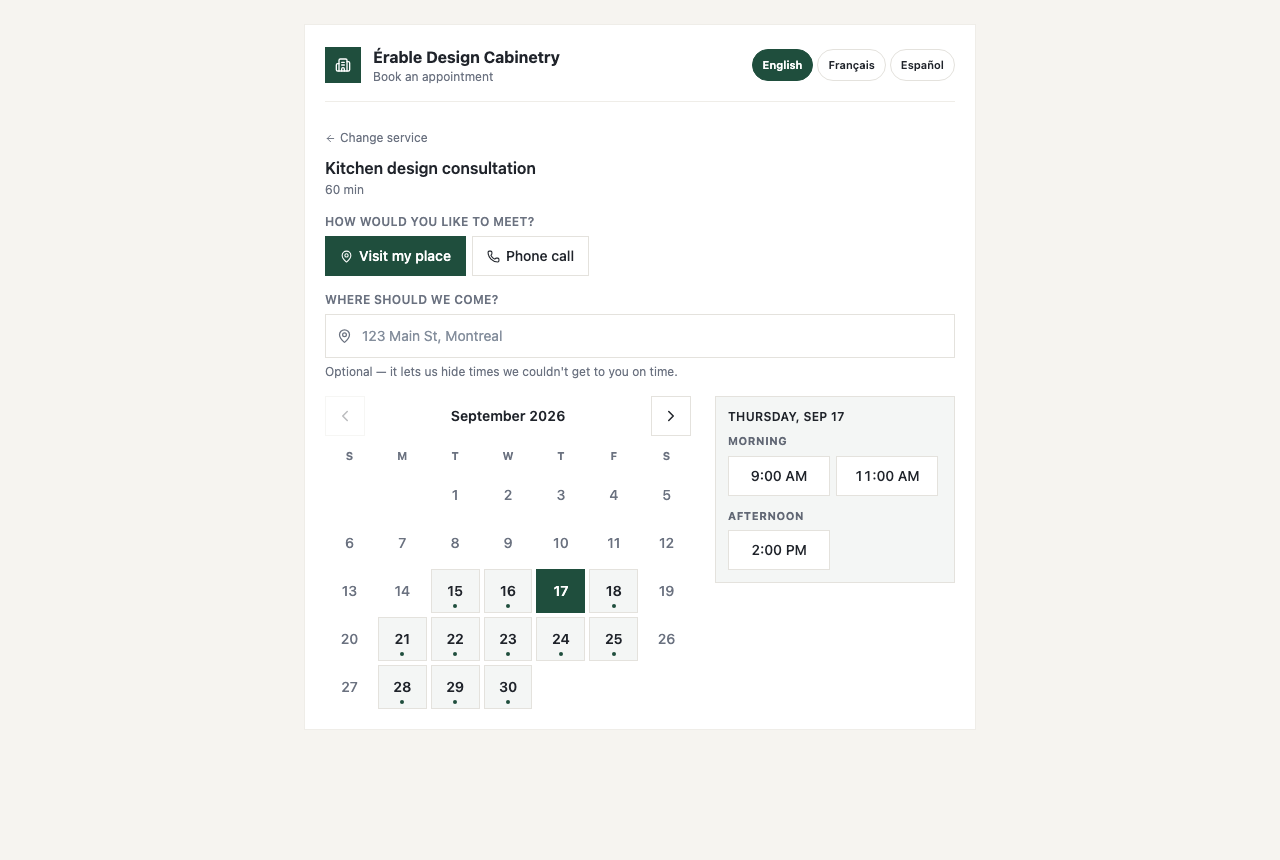
The booking page is written in English, whatever your company's language: only the “What kind of work is it?” chips and the notes field are translated, from the visitor's browser language. The confirmation email and the visit page that follow are in the client's language.
What the homeowner does
- Choose. If your team members have set bookable hours, the page asks Choose who you'd like to meet and lists them with their next free time; otherwise it asks What can we help with? and lists your event types with their length and any fee. A company with a single event type skips this step.
- Pick a time. How would you like to meet? — Visit my place, Phone call or Video call — appears only when you offer more than one. For a visit, Where should we come? takes an address (“Optional — it lets us hide times we couldn't get to you on time.”). Then the month grid and a day's times under Morning, Afternoon and Evening.
- Their details. Your name, Email (“We'll send your confirmation here.”), Phone (optional), What kind of work is it? when you have services switched on, and Anything we should know?.
- Confirm. The button reads Confirm booking — or Pay $49.00 & book when the event type has a fee, after a Visit fee card: “Paid now to hold your spot. If you go ahead with the work, [Your company] can credit it back on your invoice.”
- You're booked. “A confirmation is on its way to [email]. [Your company] will be in touch if anything changes.” A paid booking first shows One more step and Continue to secure payment — “Payment is handled by Stripe. Your time is held for 30 minutes.”
If two people go for the same slot, the second sees “That slot was just booked by someone else. Please pick another time.” and a refreshed calendar. A company with no active event type shows “[Your company] hasn't set up online booking yet.” with your phone number.
What decides the times on the calendar
- Bookable hours of the person the event type belongs to, set under Settings → Availability. A person with no bookable hours offers no slots at all.
- What is already on their calendar — confirmed bookings, scheduled appointments, and approved time off, which blocks the whole day.
- Travel, when Don't offer times you can't drive to is on and the homeowner gave an address: a slot is hidden if they could not get there from the previous job (plus your Extra time between jobs), or from there to the next one. An address that cannot be placed shows every time and says so.
- Slots start every 15 minutes and must finish inside the bookable window; a new booking can be made for any future time, with no minimum notice and no limit on how far ahead.
- Times are shown in the visitor's own time zone. The arrival window you promise appears in the confirmation email and on the visit page, not on the calendar.
The visit fee
An event type can carry a Visit fee and, optionally, a Promo price shown with the standard price struck through while Promo on is ticked. The fee is charged by card only, on Stripe's page, into your connected account; while the client is paying, the slot is held for 30 minutes and the appointment is created only when the payment settles. A hold that lapses is released, and shows on your dashboard as awaiting payment until then.
A fee is charged only when Stripe can take payments on your account; without Stripe the same event type is simply free. What happens to the fee if the client cancels is your Changes & cancellations policy — see Managing a booked visit and Booking fees and visit deposits.
After they book
- The client gets an email from your company, in their language: subject “Confirmed: Kitchen design consultation with [Your company]”, You're booked in, When (with your arrival window, if you promise one) and Where, and the button Change or cancel this visit. FieldQuo sends no confirmation text; a reminder text goes out only if you have set one up.
- On your side, the client is matched by email or created, and the visit appears under Appointments with a Client booking badge, assigned to the person whose calendar it is, with the address and notes the client typed.
- FieldQuo does not email or notify you about a new booking — the calendar is the record. You are emailed when a client later moves or cancels it.
What you control
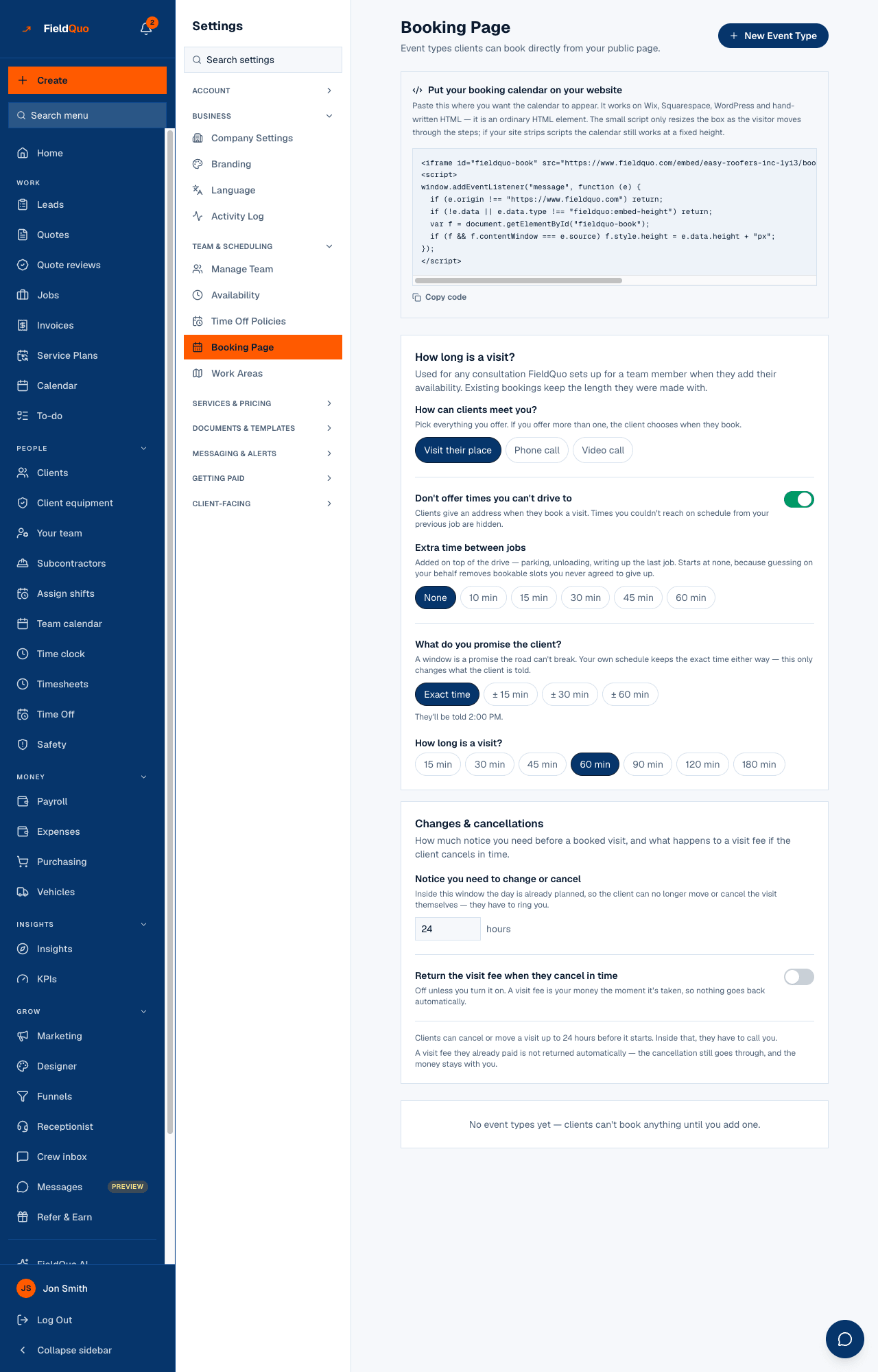
| Setting on Settings → Booking Page | What it changes on the page |
|---|---|
| How long is a visit? | The length of the consultation FieldQuo creates for each team member who sets bookable hours. |
| How can clients meet you? — Visit their place · Phone call · Video call | Which meeting modes the page offers; with more than one, the client chooses. |
| Don't offer times you can't drive to and Extra time between jobs | Whether an address hides unreachable slots, and how much slack is added to the drive. |
| What do you promise the client? — Exact time or ± 15 / 30 / 60 min | What the confirmation email and the visit page say under When. |
| Each event type — Length, Active, Visit fee, Promo price, Promo on | What is listed, for how long, and at what price; an inactive type disappears from the page. |
| New Event Type | Adds a kind of appointment a homeowner can self-book. |
Who can see it
The page is public. Settings → Booking Page needs the Manager level or above — an owner, an administrator, a Manager or a Dispatcher. Every team member sets their own bookable hours under Settings → Availability, which is what puts them on the page.
Häufige Fragen
Why does the page show a person picker instead of my event types?
Because at least one team member has set bookable hours; the page then lists people, each with their own consultation. Event types are listed when nobody has.
Can a client book for tomorrow morning at midnight tonight?
Yes, if the slot is free — the page applies no minimum notice to a new booking. The notice you set under Changes & cancellations applies to moving or cancelling one, not to making it.
Where does the visit fee go?
Into your connected Stripe account, like an invoice payment. The confirmation email does not mention it; the visit page shows it as a deposit paid.
Can I put the calendar on my own website?
Yes — Settings → Booking Page has the embed snippet. See Embed booking and quote forms on any site.
War das hilfreich?