

The Appointments calendar
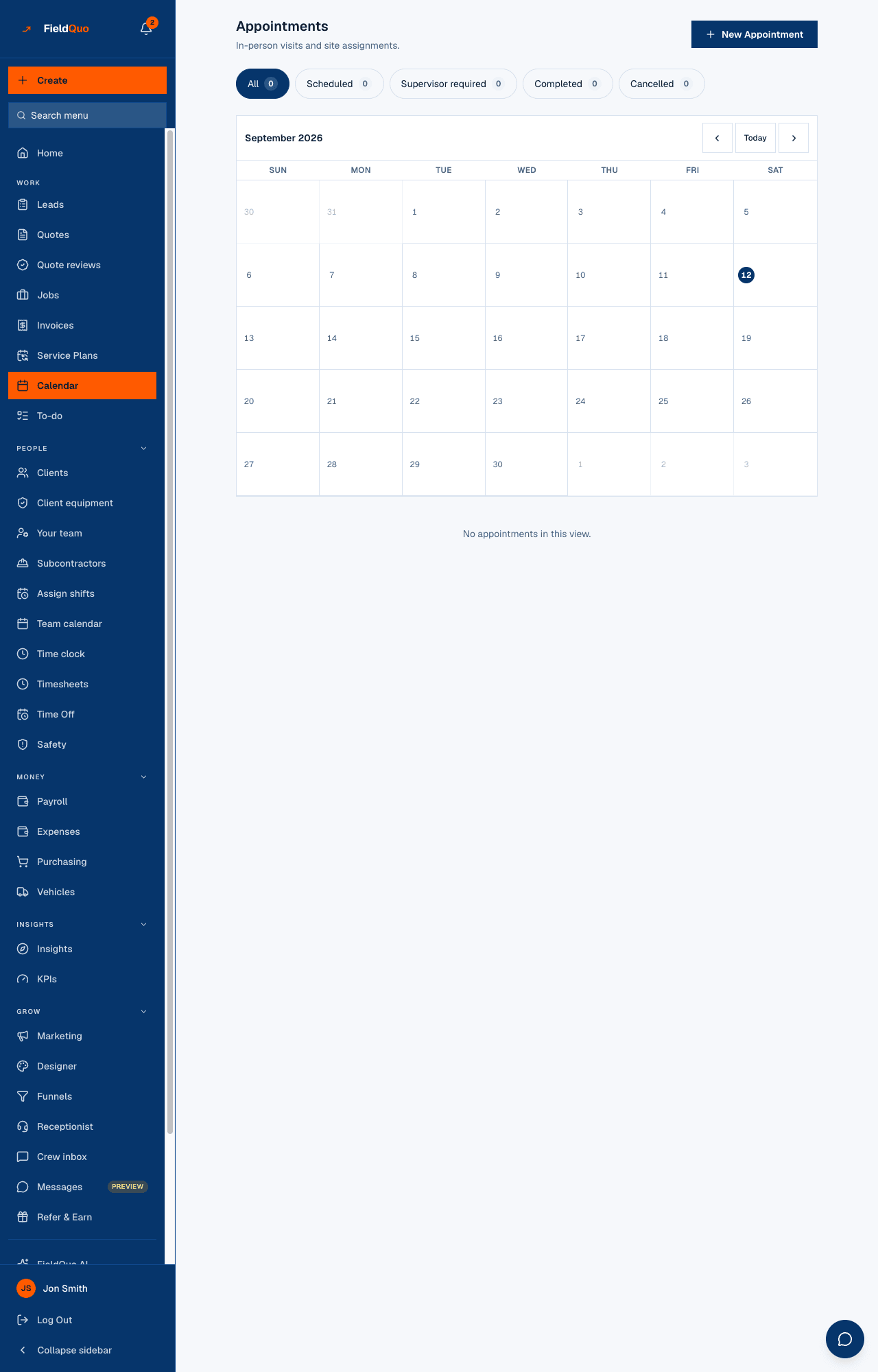
The Calendar screen: status chips with counts, the month grid, every row with its badges, the drive between stops, who is assigned, and your team's next two weeks.
Calendar in the sidebar opens Appointments — In-person visits and site assignments. It is the one place to ask “what is happening this week?”: job visits, appointments and client bookings all appear, each on its day, each labelled.
The screen has three parts — the chips, the grid, the list — and a fourth, Your team, for people who run a crew.
Overview
Nothing is booked from the grid itself. You read it, pick a day to narrow the list, then act on the rows: call, navigate, assign, move, cancel or complete, open the job. Booking happens through New Appointment or from a job page — see Book a visit for a client.
What is on the screen
- New Appointment at the top right.
- Chips All, Scheduled, Supervisor required, Completed, Cancelled, each with a count of the rows it would show. The count appears only once the list has loaded — a chip never says 0 over a request that has not answered.
- The month header with Previous, Today and Next. The week starts on the day set under Company Settings → First day of the week — Sunday unless you changed it.
- Seven columns at every width. Today is ringed. Above phone width a day shows up to two chips (time and client) and “+1” for the rest; on a phone it shows dots.
- Press a day to show only that day's rows; the date and Clear appear above the list. Press the day again to clear it.
- The list: one card per entry, expandable, then Your team underneath.
Reading a row
Each card leads with the client's name and a status badge — Scheduled, Supervisor required, Completed, Cancelled, and for other kinds Confirmed, Awaiting payment, On the way. Then the kind badge, the time (and the end time when a booking carries one), and a phone number and address that work as links. Press the card to open the details.
- Job visit — the job's title, the assignee's name, and Open job. Its notes and checklist are edited on the job; moving, cancelling and completing it work from here too.
- Client booking — the event type and the assignee. Moved by the client through their own link.
- Supervisor required — this appointment must be assigned to an owner, administrator or supervisor.
- Booked by the AI receptionist — nobody in the company spoke to this client; the caller's own words are in the notes.
- Booked a visit / Callback booked / Video call booked — how the client asked to meet. A callback has no address by design.
- Details: Phone, Email, Location, Address (when the client's own address differs from the site), Notes, and Open client. A field hidden by your access level says so rather than reading as empty.
The drive between stops
Above a row you may see “about 25 min drive · 40 min gap”, or in amber “about 25 min drive · 20 min gap · 5 min short”. It is the straight-line estimate between one assignee's consecutive stops on the same day, shown only when both stops have coordinates. The verdict — tight or not — is given only when the earlier stop has an end time, which a booking has and a hand-made appointment does not.
It is an estimate, and it says so — a road factor over the crow's flight, not a live route. The real travel check on the slots clients can book uses the same maths with Google's driving time on top; see Arrival windows and travel buffer.
How to assign an appointment
- Find the row. On an appointment, the dropdown at the right reads Unassigned or a name.
- Pick the person. On a Supervisor required appointment, names that are not supervisors are marked “(not a supervisor)” and the server refuses them.
- The row updates at once, and a Supervisor required appointment that just got a supervisor becomes Scheduled.
Only owners, administrators and supervisors (the Dispatcher and Manager presets) get the dropdown. Everyone else sees the name, plus Assign to me on an unassigned appointment that does not need a supervisor — the one assignment they are allowed to make.
How to move, cancel or complete an entry
Under an appointment or a job visit you may act on, the row carries Reschedule, Mark complete and Cancel visit — and on a finished or cancelled one, Reopen or Put it back on. A Client booking that has not become an appointment yet has none of these; the client moves it through their link.
- Press Reschedule. Under New date and time, pick when. The tick Email … about the change is on when the client has an address on file — the dialog says plainly when there is none — and the letter goes in the client's language, saying the office moved it.
- Press Move it. A time in the past, or one that leaves too little for the drive from the stop before or to the stop after — the same travel-buffer check the booking page applies — is refused with the reason, and Move it anyway re-sends it when you know better than the estimate.
- Press Cancel visit to call it off. Reason (kept on the visit, not sent to the client) is optional; written, it shows under the row afterwards and is cleared if you put it back on. The same email tick applies, and the client's letter says the office cancelled.
- Press Mark complete when it is done, Reopen to undo that, or Put it back on to reinstate a cancelled one. Cancelling is a status, never a delete — the row stays.
The buttons appear on the same terms the routes enforce: an appointment to its assignee or to Schedule at Edit everyone's schedule; a visit to its assignee, to anyone when it is unassigned, or to that same level. A booking behind an appointment moves and is cancelled with it, so the slot on your booking page follows.
Who sees what
| Access | What the calendar shows |
|---|---|
| Schedule at Edit everyone's schedule or above — Dispatcher, Manager, administrator, owner | Every appointment, every visit and every booking in the company, plus Your team underneath. |
| Estimator | Their own and unassigned appointments; their own visits and unassigned visits; bookings on their own event types. No Your team section. |
| Crew | Their own and unassigned appointments; their own visits, and unassigned visits on the jobs they are on; bookings on their own event types. |
| Everyone | The New Appointment button — creating an appointment for yourself or unassigned is allowed at every level; assigning it to somebody else is not. |
Frequently asked questions
Why does the grid start on Sunday?
The first day of the week is a company setting under Company Settings. Change it there and the grid follows.
Can I move an appointment by dragging it?
Not by dragging. Press Reschedule on the row — an appointment or a job visit — and pick the new time; the travel check says if it is too tight. A client booking that has not become an appointment yet is moved by the client through their link.
Where is Your team?
It shows under the list for people who can see the whole team's schedule — Dispatcher, Manager, administrator and owner — and lists what each person has booked over the next two weeks. See The Team Schedule.
Was this helpful?