

Reviews
The Settings row that asks each client for a review after their job is marked complete — your review link, the Ask automatically switch, the delay, a live queue count — and the testimonials shown on your website.
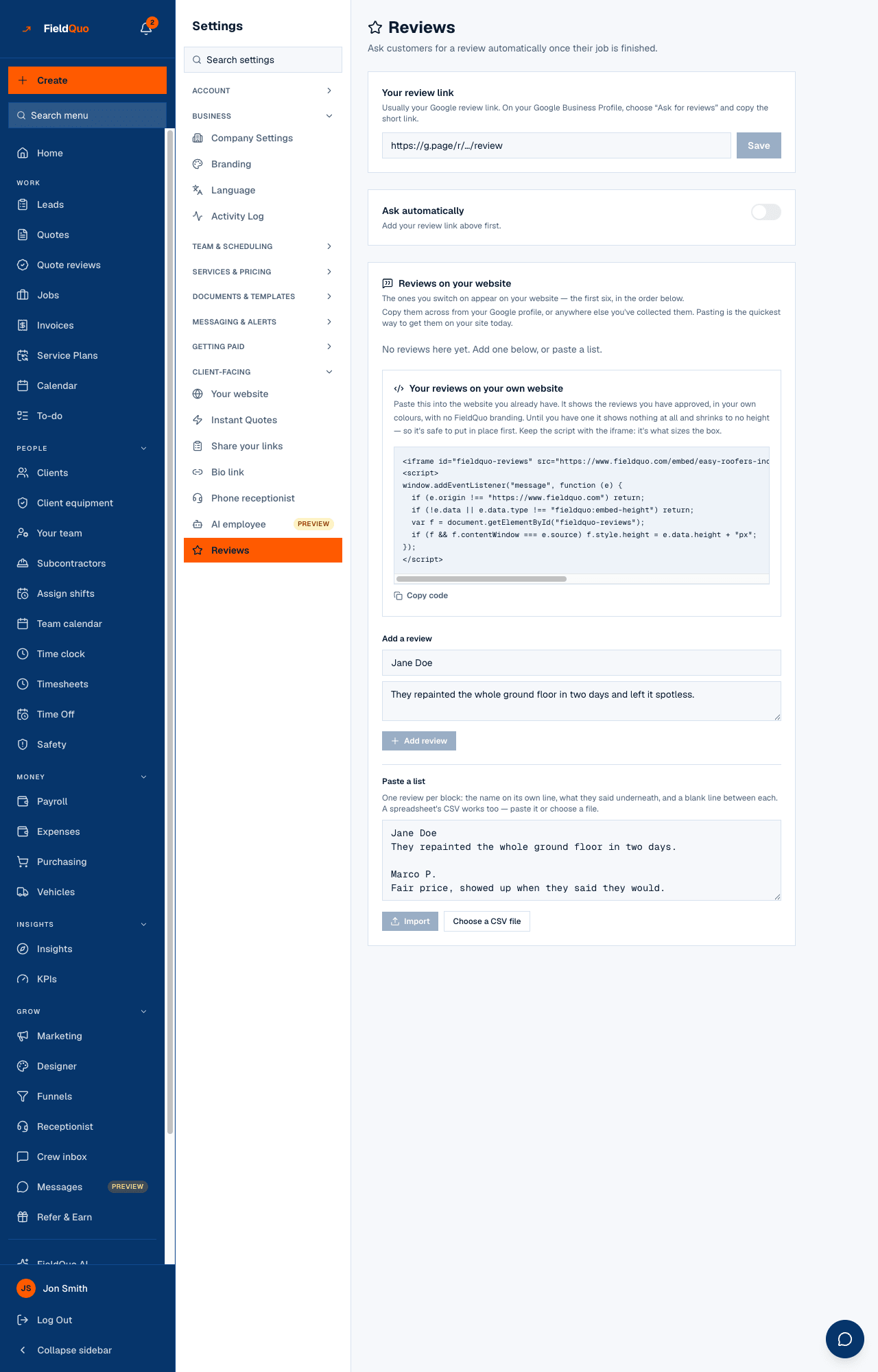
Settings → Client-facing → Reviews — “Ask customers for a review automatically once their job is finished.” Once a job is marked complete, the client gets one email with your review link, after a delay you choose. The screen does not just say On: it tells you how many customers are in the queue right now and how many were asked in the last 30 days.
The lower half of the same screen, Reviews on your website, is where the reviews go once you have them: the testimonials your website shows, and a snippet to show them on a site you already run.
Overview
The ask is an email, from your company, with your logo and colour and your name in the From line — never a text. It goes once per job, ever: the job is stamped before the email leaves, so an overlapping run can never ask twice. The client needs an email address and must not have unsubscribed. FieldQuo checks every hour, so a 4-hour delay means about 4 hours, not the next morning.
The footnote on the screen says the rest: “Customers who have unsubscribed are skipped, and anyone who replies saying something went wrong reaches you directly rather than the review page.”
What is on the screen
- Your review link with Save — “Usually your Google review link. On your Google Business Profile, choose “Ask for reviews” and copy the short link.” Once saved: Open it and check it goes where you expect.
- Ask automatically — the switch. Without a link it is disabled and reads “Add your review link above first.”; with one it reads “Every customer with an email address gets one message after their job is marked complete. Never more than one.”
- When to ask — 2 hours later, 4 hours later, The next day, Two days later, Three days later, A week later. Shown once the switch is on.
- The queue sentence — for example “3 customers are in the queue, and 12 have been asked in the last 30 days.”
- Reviews on your website — “The ones you switch on appear on your website — the first six, in the order below.” Each review with Show on the website, Edit, Remove, Move up / Move down; then Add a review, Paste a list with Choose a CSV file and Import, and Your reviews on your own website with the snippet.
How to switch it on
- Paste your link under Your review link and press Save. Any http or https page works — Google, Facebook, HomeStars, your own form. Press Open it and check it goes where you expect.
- Turn on Ask automatically. The server refuses it without a link, the same as the screen.
- Pick a delay under When to ask. The queue sentence under it updates from the same columns the hourly job reads.
What each control changes
- Your review link — where the button in the email sends the client, and the Leave a review button on your bio link page. Save an empty field and the switch turns itself off, because there would be nowhere to send anyone.
- Ask automatically — whether completed jobs are asked at all. Off, nothing is sent and the queue is not shown.
- When to ask — the delay after the completion time. A job finished more than 30 days ago is never asked, and jobs imported from your old system are skipped, so switching this on today does not email every customer you ever had.
- Show on the website — puts that review on your FieldQuo website and in the embed; the first six switched-on reviews, in the order you set. Imported reviews start switched off.
- The embed snippet — “It shows the reviews you have approved, in your own colours, with no FieldQuo branding. Until you have one it shows nothing at all and shrinks to no height.”
Who can see it
The owner, administrators, and anyone at the Dispatcher or Manager level can open and change this screen; Crew and Estimator logins do not see the row. The email itself and the rules behind it are in Ask for reviews automatically; the testimonials half is in Testimonials on your website.
Frequently asked questions
Does it text the client too?
No. The review request is an email only.
Can I ask one client by hand?
Not from this screen — it is automatic and once per job. Send them your review link yourself.
Do I need a FieldQuo website for the testimonials?
No. Switch them on here and paste the snippet under Your reviews on your own website into any site you run; it carries no FieldQuo branding.
Was this helpful?