

The Clients list
Every client your company has on file, as a card with their contact details and a count of their quotes and invoices — and the two buttons that add more.
Per ora questo articolo è disponibile in inglese, francese e spagnolo. Stai leggendo la versione inglese. Français · Español
Clients is the company's customer book. Every homeowner you have quoted and every business that hires you is a card here, and opening a card reaches that client's quotes, jobs, invoices and equipment in one place. It sits in the People group of the sidebar, just above Client equipment.
The list is deliberately simple: a search box, the cards, and two buttons. There are no filters, no tags and no bulk actions — the work happens on the client record, not on the list.
Overview
The page opens with the title Clients and a count — “3 clients total.” — then the search box and the cards, newest client first. The count is only printed once the server has answered; while the list is loading, or if it could not load, no number is shown rather than a misleading “0”.
Two buttons sit top right for anyone allowed to add clients: Import loads a CSV from whatever you used before (see Import clients from a CSV) and New Client opens the form described in Add a client. If you cannot see them, your access level does not include adding clients — see below.
What is on the screen
- Search clients... — filters the cards as you type, matching the name, the email address or the phone number. It searches what is already loaded, so it is instant.
- A card per client: the name, a Company badge when the client is a business, then either the contact person (for a business) or the email address (for a homeowner).
- The phone number and the city and province — or the street address when no city is recorded — each with a small icon.
- A footer counting quotes and invoices for that client, for example “3 quotes · 1 invoice”. Jobs are not counted on the card; they are listed on the record.
- An arrow on each card: the whole card is a link to the client record.
- When nothing matches your search the page says No clients match your search.; with no clients at all it says No clients yet. and offers Add your first client.
How to find a client
- Open Clients from the People group in the sidebar.
- Type part of the name, the email or the phone number into Search clients.... The cards narrow down as you type.
- Press the card. The client record opens with their details, quotes, jobs, invoices and equipment.
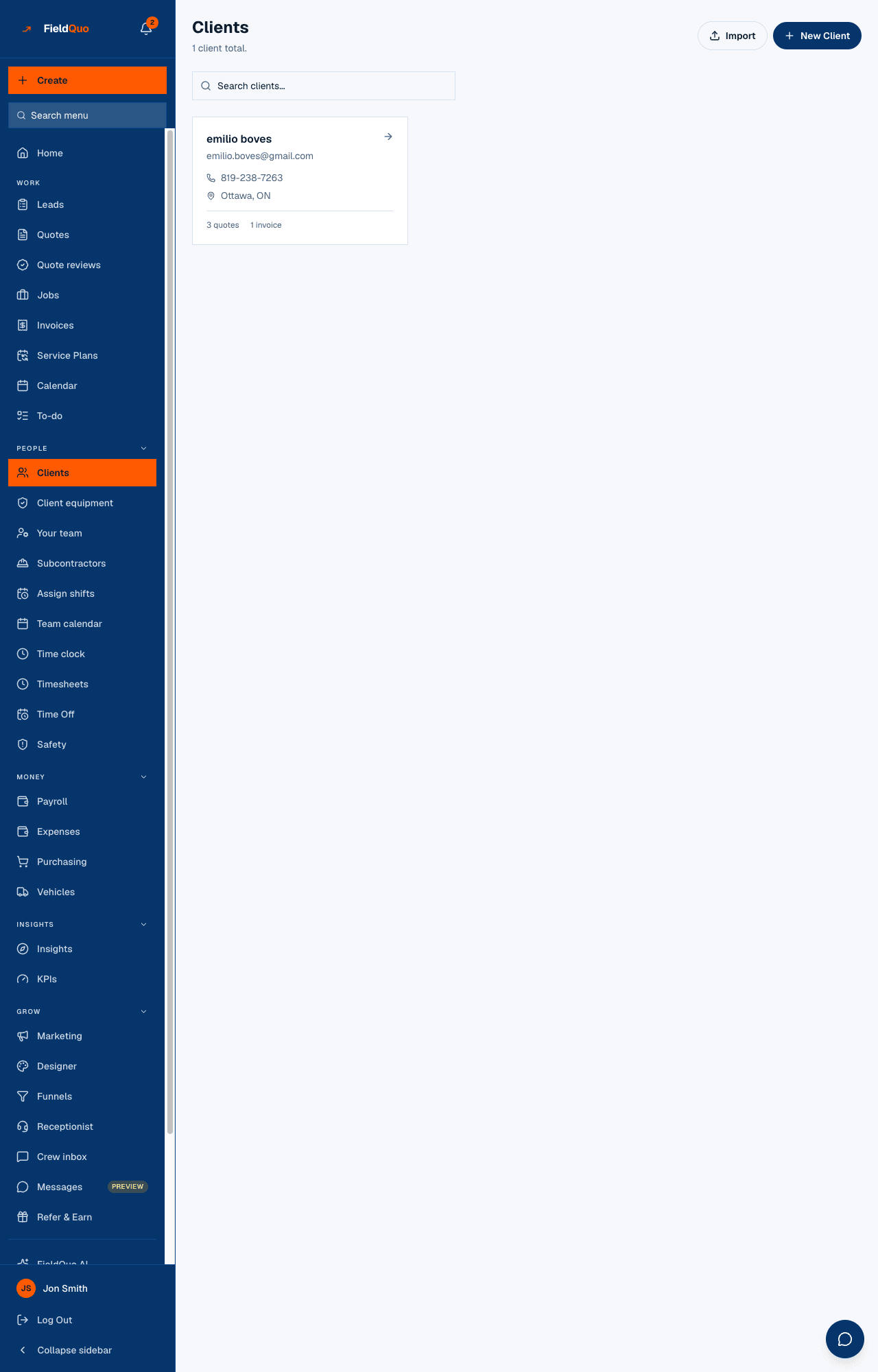
Searching by phone number is the quickest way to find someone who is calling you back. The search matches the number as it is written on the record, so type it with the same dashes — “238-7263” finds “819-238-7263”.
What each part of a card means
| On the card | Where it comes from |
|---|---|
| The name | The client's name, or the company name for a business. |
| Company badge | The client was created as Company / Contractor rather than Homeowner. See Business clients and their contact person. |
| Second line | The contact person for a business; the email address for a homeowner. Blank when neither is on file. |
| City, Province | The city and province on the record, joined with a comma. If the record has an address but no city, the street address is shown instead. |
| “N quotes · N invoices” | Counted live from the quotes and invoices linked to this client. Zero shows as “0 quotes”. |
Who can see it
The Clients row appears in the sidebar for anyone whose Clients and Properties permission is at least View full client and property info. The Estimator, Dispatcher and Manager presets all have it; the Crew preset (View client name and address only) does not, so a crew member does not get the customer list, only the name and address of the jobs they are on.
- View full client and property info — sees the list and every card, cannot add or edit.
- View and edit full client and property info — also sees Import and New Client. This is the Estimator and Dispatcher level.
- View, edit, and delete full client and property info — the Manager level. Deleting is not offered on this list or on the record; see the FAQ.
- The server checks the same permission on every request, so a bookmark to the new-client form does not get around a missing button.
Domande frequenti
Can I sort or filter the list?
No. The cards are always newest first, and the only narrowing is the search box. Search by name, email or phone.
Why does a card show 0 quotes when I have quoted that person?
The quote is linked to a different client record — usually a duplicate created from a lead or an import. Open both records and see Duplicate clients.
How do I delete a client?
There is no delete button on the list or on the record today. A client who has any quote or invoice can never be deleted, because those documents would be orphaned. If you have a client with nothing attached that you need gone, ask support.
È stato utile?