

Team
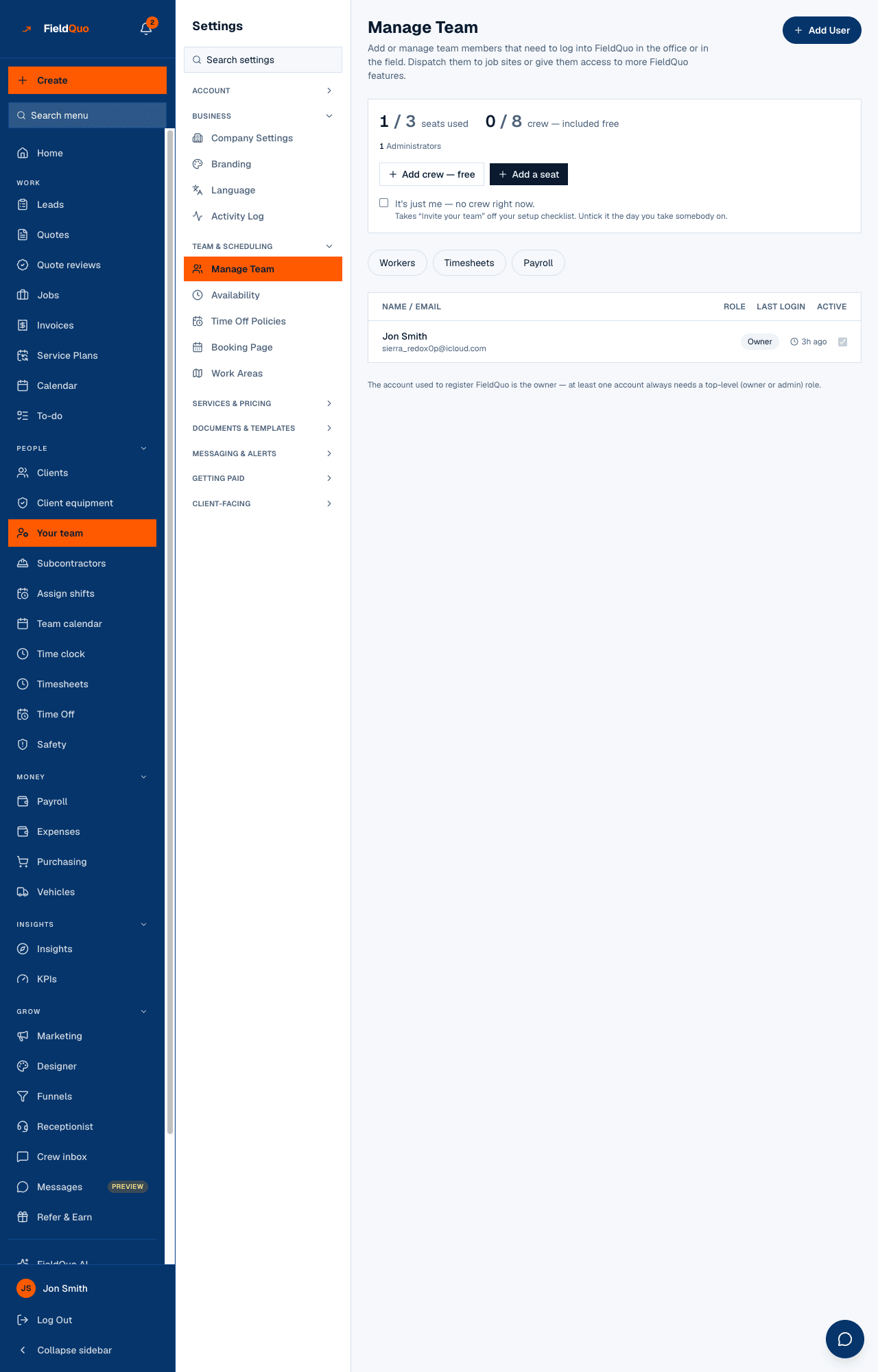
The Manage Team row in Settings is the same screen as Your team in the main sidebar — the seat panel, the roster with each person's access level, Add User and the pending invitations.
Per ora questo articolo è disponibile in inglese, francese e spagnolo. Stai leggendo la versione inglese. Français · Español
Manage Team under Team & scheduling opens the same page as Your team in the main sidebar. This short entry says what is on it and where the full guide lives: Manage Team.
Overview
The heading reads Manage Team — Add or manage team members that need to log into FieldQuo in the office or in the field. Everything about people and access starts here: inviting, choosing an access level, resending or cancelling an invitation, and deactivating someone. Access levels themselves are explained in Access levels: who sees what.
What is on the screen
- Add User at the top right, and under the seat panel Add crew — free and Add a seat — the free crew login and the paid seat, each greyed with a reason when the plan's cap is reached.
- The seat panel — how many seats used against the plan, and a count per level: Administrators, Managers, Dispatchers, Workers, Crew, Custom.
- Tabs — Workers and Payroll for the owner and administrators, Timesheets for anyone who may open the page.
- The roster — Name / Email, Role as a dropdown you can change for people you outrank, Last Login, and an active switch.
- Pending invitations — each with Invited, how long the link has left, Resend invite and Cancel invite.
Who can see it
The row needs the user-management capability: the owner, administrators, Managers and Dispatchers. A Manager or Dispatcher can invite at the Worker tier — Crew or Estimator — with no dial above their own; changing an existing person's access, making an administrator and revoking access are owner-and-administrator only. Full detail: Invite a team member and Deactivate a team member.
Domande frequenti
Is this a different page from Your team?
No — same page, two doors. The Settings menu lists it beside the other team rows; the main sidebar lists it under People.
Why is Workers missing from my tabs?
It holds pay rates, so it is drawn only for the owner and administrators; a Manager does not see it. See Payroll settings.
È stato utile?