

The sidebar, and where everything is
One rail of seventeen rows in five groups, a More page for everything else, a top bar with search, Create and your account, and Settings sliding into the same rail — where every screen lives, and why some rows are missing for some people.
ਇਹ ਲੇਖ ਫ਼ਿਲਹਾਲ ਅੰਗਰੇਜ਼ੀ, ਫ਼ਰਾਂਸੀਸੀ ਅਤੇ ਸਪੈਨਿਸ਼ ਵਿੱਚ ਉਪਲਬਧ ਹੈ। ਤੁਸੀਂ ਅੰਗਰੇਜ਼ੀ ਸੰਸਕਰਣ ਪੜ੍ਹ ਰਹੇ ਹੋ। Français · Español
The back office is one sidebar. Learn its shape once and you know where everything is: Home at the top, then Work, People, Money, Grow and AI — seventeen rows — then More, which opens the rest of the product as a page of tiles. Settings sits at the foot of the rail and slides its own list into the same column; there is no second sidebar.
Across the top of every screen is a slim bar: where you are, a search box that finds a client, a quote number, a page or a setting, the Create button, the notification bell and your avatar. On a phone the five most-used screens sit in a bar along the bottom and More opens a sheet.
Overview
The rail shows icons and labels; the button at the bottom collapses it to icons alone, with the name of each row on hover, and FieldQuo remembers the choice. Every group heading except Work and AI folds and unfolds — those two stay open because they are the pipeline and the walkthrough starts there; all five are open the first time you sign in. The Search box at the top of the rail opens the same search as the top bar; press / anywhere to open it from the keyboard.
The rail, top to bottom
| Group | Rows |
|---|---|
| Work | Leads · Quotes · Quote reviews · Jobs · Invoices · Calendar |
| People | Clients · Chat · Assign shifts |
| Money | Payroll · Insights |
| Grow | Marketing · Messages · Receptionist |
| AI | FieldQuo AI · AI team |
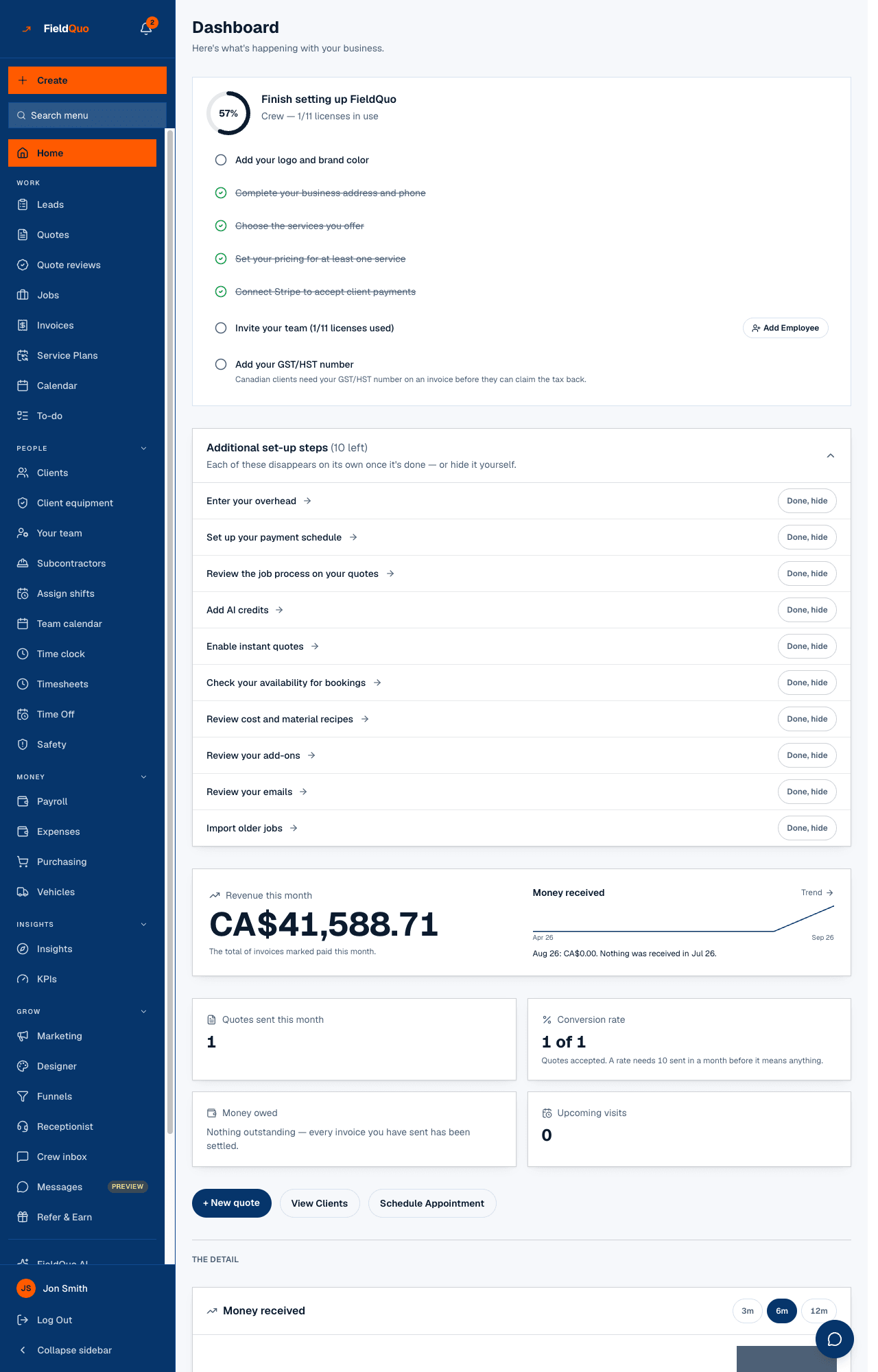
Under the groups, More carries a count — the number of rows it holds for you — and opens a page of four tiles: Work & sales (Service Plans, To-do, Funnels, Crew inbox, Designer), Time & crew (My home, Your team, Team calendar, My schedule, Time clock, Timesheets, Daily sheets, Time Off, Safety, Log book), Money & reports (Expenses, Purchasing, Vehicles, KPIs) and Clients & partners (Client equipment, Subcontractors, Refer & Earn). Nothing was removed when the rail was shortened: every row that used to be in the rail is in a tile, one click away.
The top bar
From left to right: the group and row you are on; Search, which looks through clients, quotes, jobs and invoices by name or number and through every page and setting by name — arrow keys move, Enter opens, Escape closes; Create, a menu to start a Client, Lead, Quote, Job or Invoice; the bell; and your avatar, which opens Settings, Account & billing, Your team, Help, Language, the light-or-dark Appearance switch and Log out. During a support session the avatar menu names the support person and the company being viewed.
The Settings menu
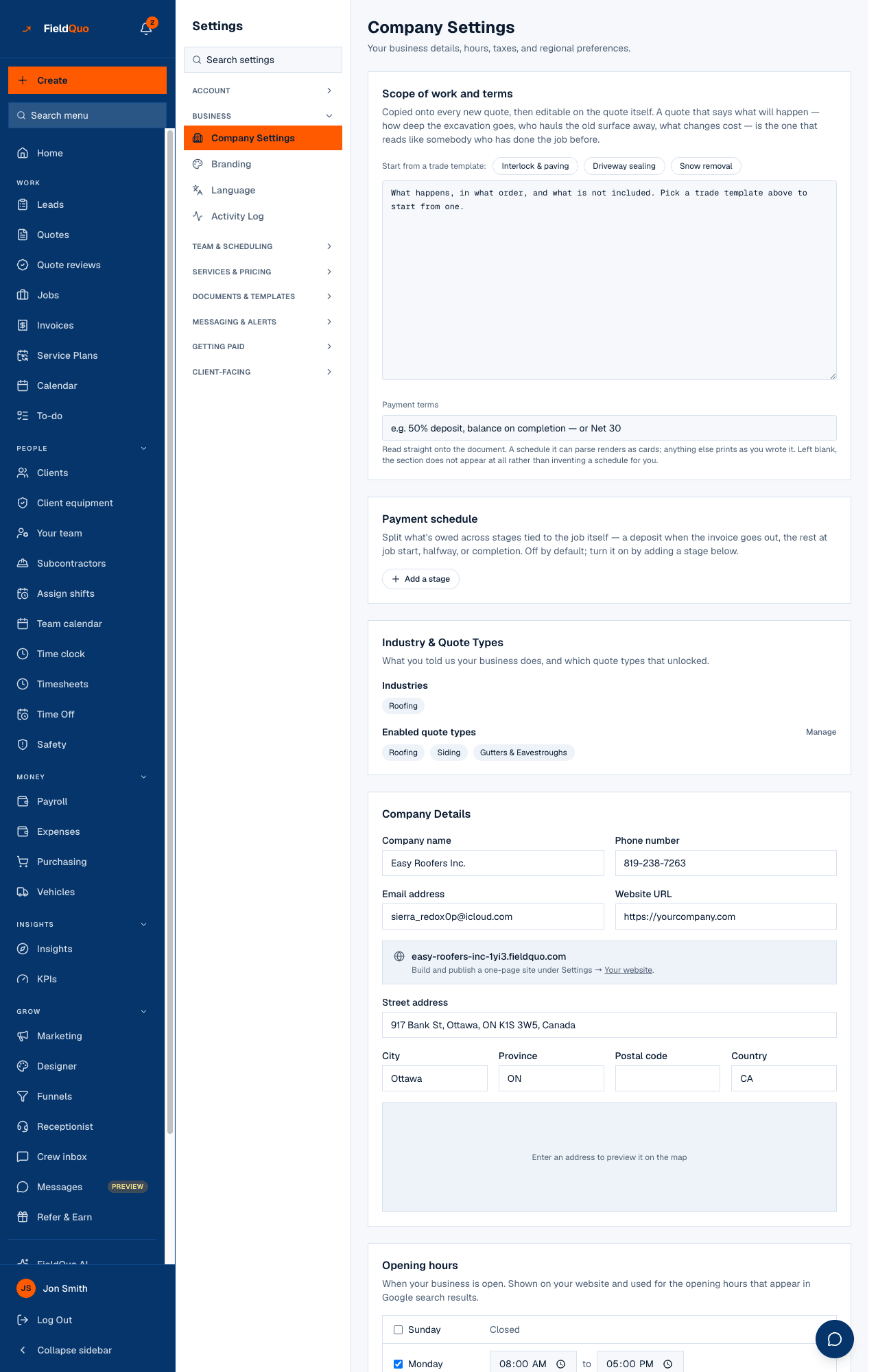
Settings, at the foot of the rail, slides a list of eight groups into the same column — Back to menu at the top brings the rail back, and Settings stays highlighted while you are on a settings page. Clicking it lands on the settings index: a Search settings box first, then eight cards, each with its rows as links. Two clicks reach any setting; one from search.
- Account — Account & Billing · Refer & Earn · Data Migration · Product Updates
- Business — Company Settings · Branding · Language · Activity Log
- Team & scheduling — Manage Team · Availability · My calendar · Time Off Policies · Policies · Booking Page · Work Areas · Field work
- Services & pricing — Products & Services · Services & Pricing · Material Costs · Cabinet Pricing · Overhead · Custom Fields
- Documents & templates — Quote Email · Email Templates · PDF Templates · Translations · Checklists · Job photo tags
- Messaging & alerts — Client messages · Follow-ups · Notifications · Email Domain
- Getting paid — Payments · Meta Ads · Expense Tracking · AI credit · Payroll
- Client-facing — Your website · Instant Quotes · Share your links · Bio link · Phone receptionist · AI employee · Reviews
On a phone
Below the width of a laptop the top bar keeps the menu button, the logo (which goes Home), search and the bell. A bar along the bottom holds Leads, Quotes, Jobs, Invoices and Chat, and a More tab that opens a sheet over the page: search first, then the rest of the rail, the same four tiles, the settings groups and your account — the bar stays visible under it. A round + above the bar is the Create menu. On a settings page a strip across the top lists the other rows of that group. See Using FieldQuo on your phone.
Rows you may not see
A missing row is not a fault. The sidebar hides what the signed-in person's access level does not allow, and the page behind a hidden row refuses them too — hiding is a courtesy, the refusal is the security. The same rules apply on the More page, in the phone sheet and in search: a row you cannot see cannot be found by typing its name either.
- Quotes, Jobs, Invoices, Leads need at least view access to that area. Crew can only view jobs, so a crew member's Work group is Jobs and Calendar.
- Clients, Receptionist need full view of client records. Insights needs the see-prices switch; KPIs needs job costing.
- Your team, Team calendar, Quote reviews, AI team, Subcontractors, Vehicles, Marketing, Designer, Funnels are owner, administrator, dispatcher and manager. Account & billing and Refer & Earn are owner and administrator only.
- Cabinet Pricing and Material Costs appear only for companies that sell a trade priced that way — the only rows a trade decides. Every rule is in Access levels and The Settings menu.
ਅਕਸਰ ਪੁੱਛੇ ਜਾਂਦੇ ਸਵਾਲ
Where are my clients' texts and Facebook messages?
Grow → Messages, in the rail. Crew inbox, under More → Work & sales, is where your own crew's texted photos land.
Why is there a row I cannot find in this list?
Press / and type it. If nothing matches, it is hidden for your access level — ask an owner or administrator.
Where do I change my plan?
Your avatar → Account & billing — the same screen as Settings → Account & Billing. Owners and administrators only.
ਕੀ ਇਹ ਮਦਦਗਾਰ ਸੀ?