

The Settings menu
Where every company-level setting lives: the eight groups of the Settings menu, the Search box, and the reasons a row may be missing from yours.
ਇਹ ਲੇਖ ਫ਼ਿਲਹਾਲ ਅੰਗਰੇਜ਼ੀ, ਫ਼ਰਾਂਸੀਸੀ ਅਤੇ ਸਪੈਨਿਸ਼ ਵਿੱਚ ਉਪਲਬਧ ਹੈ। ਤੁਸੀਂ ਅੰਗਰੇਜ਼ੀ ਸੰਸਕਰਣ ਪੜ੍ਹ ਰਹੇ ਹੋ। Français · Español
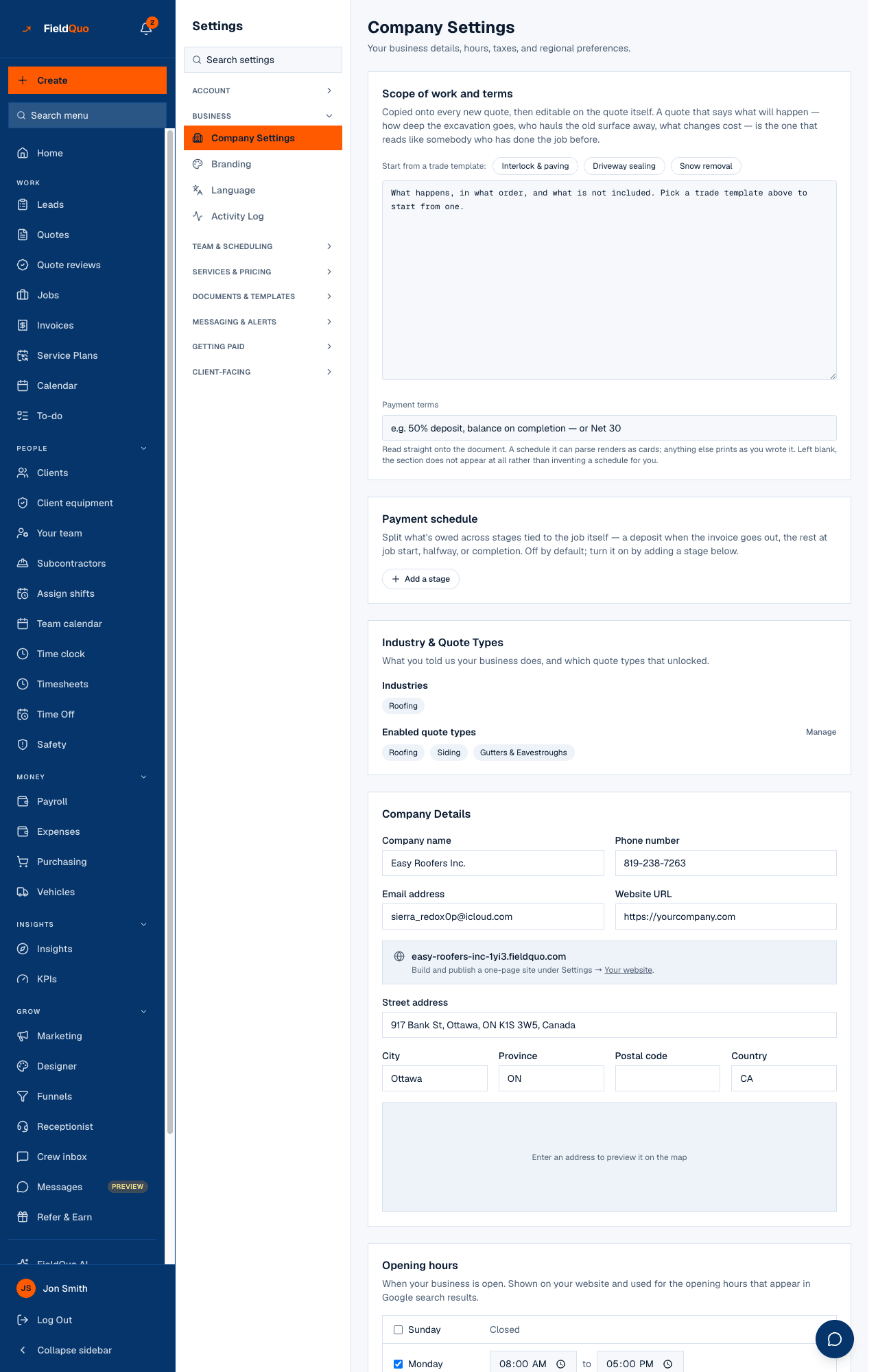
Settings is the last row of the main sidebar. It opens a second, narrower menu on the left — eight groups, each folded closed so the list reads as an index — and lands on Company Settings. Everything that configures your company rather than one quote or one job lives here.
This article is the map: what each group holds, how to find a row by typing, and the reasons a row you read about may not be in your own menu.
Overview
The groups are ordered by how often a company opens them: identity first (Account, Business), then the day-to-day (Team & scheduling, Services & pricing), then what goes out (Documents & templates, Messaging & alerts), then money (Getting paid), then the surfaces a client meets (Client-facing). Only the group you are in is open; press a group heading to open or close it, and FieldQuo remembers which you left open.
On a phone the menu becomes a bar across the top that names the screen you are on. Tap it and the full list slides up as a sheet; tap a row and the sheet closes on the page you asked for.
What is on the screen
Top to bottom: the Settings heading, the Search settings box, then the eight groups. Every row is its own article in this category.
| Group | Rows |
|---|---|
| Account | Account & Billing · Refer & Earn · Data Migration · Product Updates |
| Business | Company Settings · Branding · Language · Activity Log |
| Team & scheduling | Manage Team · Availability · Time Off Policies · Booking Page · Work Areas |
| Services & pricing | Products & Services · Services & Pricing · Material Costs · Cabinet Pricing · Overhead · Custom Fields |
| Documents & templates | Quote Email · Email Templates · PDF Templates · Translations · Checklists · Job photo tags |
| Messaging & alerts | Client messages · Follow-ups · Notifications · Email Domain |
| Getting paid | Payments · Meta Ads · Expense Tracking · AI credit · Payroll |
| Client-facing | Your website · Instant Quotes · Share your links · Bio link · Phone receptionist · AI employee · Reviews |
How to find a row
- Press Settings at the bottom of the main sidebar.
- Type part of a row's name in Search settings — “tax”, “logo”, “hours”. Every group opens while you type, so a row is one search away whatever was folded.
- Press the row. If nothing matches, the menu says Nothing matches “…” with a Clear link that empties the box.
Four rows are the same page as a row in the main sidebar, under another name: Manage Team is Your team, Account & Billing is Plan, Expense Tracking is Expenses, and Refer & Earn is there under its own name. Both doors open the same screen.
Rows that may be missing from your menu
Your menu may be shorter than the table above. That is not a fault: a row is removed for one of the reasons below, and the page behind it would refuse you anyway. Hiding the row is tidiness; the refusal on the server is the rule.
- Your access level. Rows only an owner or administrator may open — Account & Billing, Refer & Earn, Data Migration, Payments, Meta Ads, Payroll, Activity Log, Time Off Policies, Notifications, Your website — are not drawn for a Manager, a Dispatcher, an Estimator or Crew.
- A permission toggle. Material Costs and Overhead need the Job costing switch; Products & Services, Services & Pricing and Instant Quotes need See prices; Expense Tracking needs the highest expenses level in the access grid.
- Your trade. Material Costs and Cabinet Pricing appear only for companies whose enabled quote types price that way — a painter never sees a cabinet rate card.
- A feature in preview or not on your plan. The row stays and carries a Preview or Locked badge instead of vanishing, so you know it exists.
Who can see it
Everyone with a login sees the Settings row and the menu. Three rows are drawn for every member, Crew included, because they are the person's own: Product Updates, Language and Availability. Most of the rest need the user-management capability — the owner, administrators, and the Manager and Dispatcher levels. Each article in this category states its own rule.
A read-only support session from FieldQuo sees every row and can change nothing on any of them.
ਅਕਸਰ ਪੁੱਛੇ ਜਾਂਦੇ ਸਵਾਲ
Why does Settings open on Company Settings?
The index has no page of its own; landing on the first row of the Business group is the same as pressing it. Company Settings is also the screen a new company should finish first.
Can I reorder or hide rows myself?
No. The groups and their order are fixed. What differs from person to person is decided by access level, permission toggles and trade, never by a preference.
Where is Material Costs? I cannot find it.
It is drawn only when your enabled quote types include a trade that prices by material, and only for people whose Job costing switch is on. Check Services & Pricing first, then the person's access.
ਕੀ ਇਹ ਮਦਦਗਾਰ ਸੀ?