

Company Settings
The first screen after signup: your scope of work and payment terms, payment schedule, industry and quote types, company details, opening hours, booking availability, tax settings, the industry benchmark and your regional preferences.
ਇਹ ਲੇਖ ਫ਼ਿਲਹਾਲ ਅੰਗਰੇਜ਼ੀ, ਫ਼ਰਾਂਸੀਸੀ ਅਤੇ ਸਪੈਨਿਸ਼ ਵਿੱਚ ਉਪਲਬਧ ਹੈ। ਤੁਸੀਂ ਅੰਗਰੇਜ਼ੀ ਸੰਸਕਰਣ ਪੜ੍ਹ ਰਹੇ ਹੋ। Français · Español
Company Settings is the row the Settings menu lands on and the screen every new company should finish first. It holds the facts that print on every document — your name, address, phone, tax number — and the preferences that shape every screen your team uses: time zone, date format, first day of the week, currency.
This article walks the page card by card. Three of the cards are large enough to have their own articles: Opening hours, Tax settings and Industry and quote types. The scope-of-work and payment-schedule cards are covered under quotes and invoices.
Overview
The page is one long form with one Update Settings button at the bottom, plus three cards that save on their own: Payment schedule (Save schedule), Opening hours (Save opening hours) and the tax-rate list (Add). A change in any other card waits for Update Settings; a failed save says so in red rather than pretending.
What is on the screen
Under the heading Company Settings — Your business details, hours, taxes, and regional preferences., the cards run top to bottom:
| Card | What it holds |
|---|---|
| Scope of work and terms | The process text copied onto every new quote, three trade templates to start from, and the free-text Payment terms line — see Scope of work and payment terms. |
| Payment schedule | Deposit and balance stages tied to the job's own dates. Off until you add a stage; once on, it writes the Payment terms line for you — see Deposits and payment schedules. |
| Industry & Quote Types | The industries you named at signup and the quote types currently enabled, with a Manage link to Services & Pricing. |
| Company Details | Company name, Phone number, Email address, Website URL, your fieldquo.com subdomain, Street address with a map preview, City, Province, Postal code, Country. |
| Opening hours | When the business is open — the public hours, one row per day. |
| Booking availability | A read-only table of your own bookable hours with an Edit button; the fuller editor is Availability. |
| Tax Settings | Tax ID name and number, the I don't have one box, your tax rates, the VAT question for VAT countries, and the automatic local-tax switch. |
| Industry benchmark | One checkbox: share your anonymized figures to unlock the benchmark page. |
| Regional Settings | Country, Billing currency, the serve-clients-abroad box, Time zone, Date format, First day of the week. |
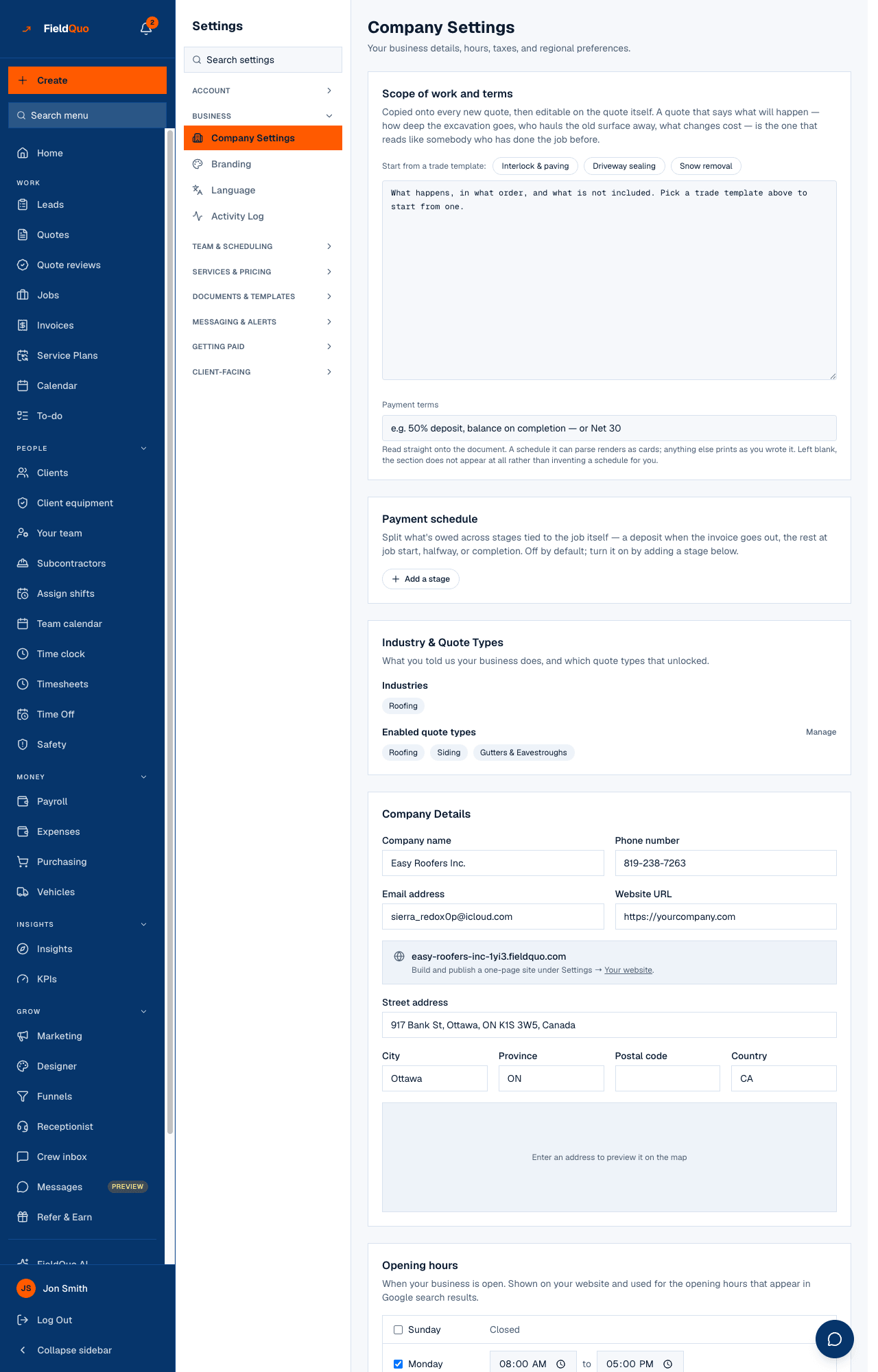
How to update your company details
- Open Settings → Company Settings.
- In Company Details, start typing in Street address and pick the suggestion — City, Province, Postal code, Country and the map fill themselves in. You can still edit each box by hand.
- Check Regional Settings. Country is filled from the address; Billing currency follows the country unless you tick I serve clients outside my country (bill in other currencies), which turns it into a list you choose from.
- Press Update Settings at the bottom. The button reads Saving…, then a green Saved appears beside it.
The name, phone, email and address print on every quote, invoice and email your clients receive, and the address is the start point for the booking page's drive-time check. The subdomain shown under the website box is read-only here; the one-page site that lives at it is built under Settings → Your website.
What each regional setting changes
- Country — decides the currency, which tax-number label you see (GST/HST number in Canada, VAT number in the UK and the EU, EIN in the US) and which time-off starter set is offered first.
- Billing currency — the currency your quotes, invoices and client payments are shown and charged in. Derived from the country unless you bill abroad; the server enforces the same rule on save, so a Canadian shop is never asked to pick between CAD, USD and EUR.
- Time zone — the clock every appointment, reminder and receptionist call is read against. Wrong here means a reminder text at the wrong hour.
- Date format — MM/DD/YYYY, DD/MM/YYYY or YYYY-MM-DD, applied to your own screens: the schedule, the team roster, quote pages, expense imports. Client documents ignore it and follow the client's language.
- First day of the week — Sunday or Monday. Rotates the calendar, the schedule grid and every weekly editor on this page and on Availability.
- Share my anonymized figures to unlock benchmarks — turns the Industry benchmark page on. Your numbers are pooled with other companies and never shown individually; untick it any time and the page locks again.
Who can see it
The row needs the user-management capability: the owner, administrators, and the Manager and Dispatcher levels open the full form. An Estimator or Crew member who reaches the page by its address gets a read-only version — name, phone, email, address, opening hours, booking hours, tax rates, regional settings, industries, quote types and the scope text — with a notice naming who can change it. The tax number, the automatic-tax switch and the benchmark box are not shown to them at all.
Every write goes to one route that checks the same capability again, so hiding the form is a courtesy and the refusal is the rule.
ਅਕਸਰ ਪੁੱਛੇ ਜਾਂਦੇ ਸਵਾਲ
I typed my country as USA and the currency stayed CAD. Why?
Country is a list of codes now, not a text box, precisely because a typed value that the list did not recognise fell through to Canada. Pick the country from the list and the currency follows.
Does changing the date format change my quotes?
No. The format applies to the screens your team reads. A quote, invoice or email to a client formats its dates in the client's own language.
Can I hide my subdomain?
Not from this screen — it is shown so you know the address. Nothing is served there until you build and publish a site under Your website.
ਕੀ ਇਹ ਮਦਦਗਾਰ ਸੀ?