

Invite a team member
How to add somebody to your company from the New User form, what they receive, how long the invitation lasts, and what a pending invitation counts for.
ਇਹ ਲੇਖ ਫ਼ਿਲਹਾਲ ਅੰਗਰੇਜ਼ੀ, ਫ਼ਰਾਂਸੀਸੀ ਅਤੇ ਸਪੈਨਿਸ਼ ਵਿੱਚ ਉਪਲਬਧ ਹੈ। ਤੁਸੀਂ ਅੰਗਰੇਜ਼ੀ ਸੰਸਕਰਣ ਪੜ੍ਹ ਰਹੇ ਹੋ। Français · Español
Nobody can add themselves to your company. The only way in is an invitation sent from Manage Team by somebody already on the team who is allowed to invite. That is deliberate — your client list and your prices are behind that door.
The invitation carries everything you set on the form — level, permissions, phone, address, labour cost — so the person's account is ready the moment they accept. As the form says: everything below is saved now and applied automatically once they accept.
Overview
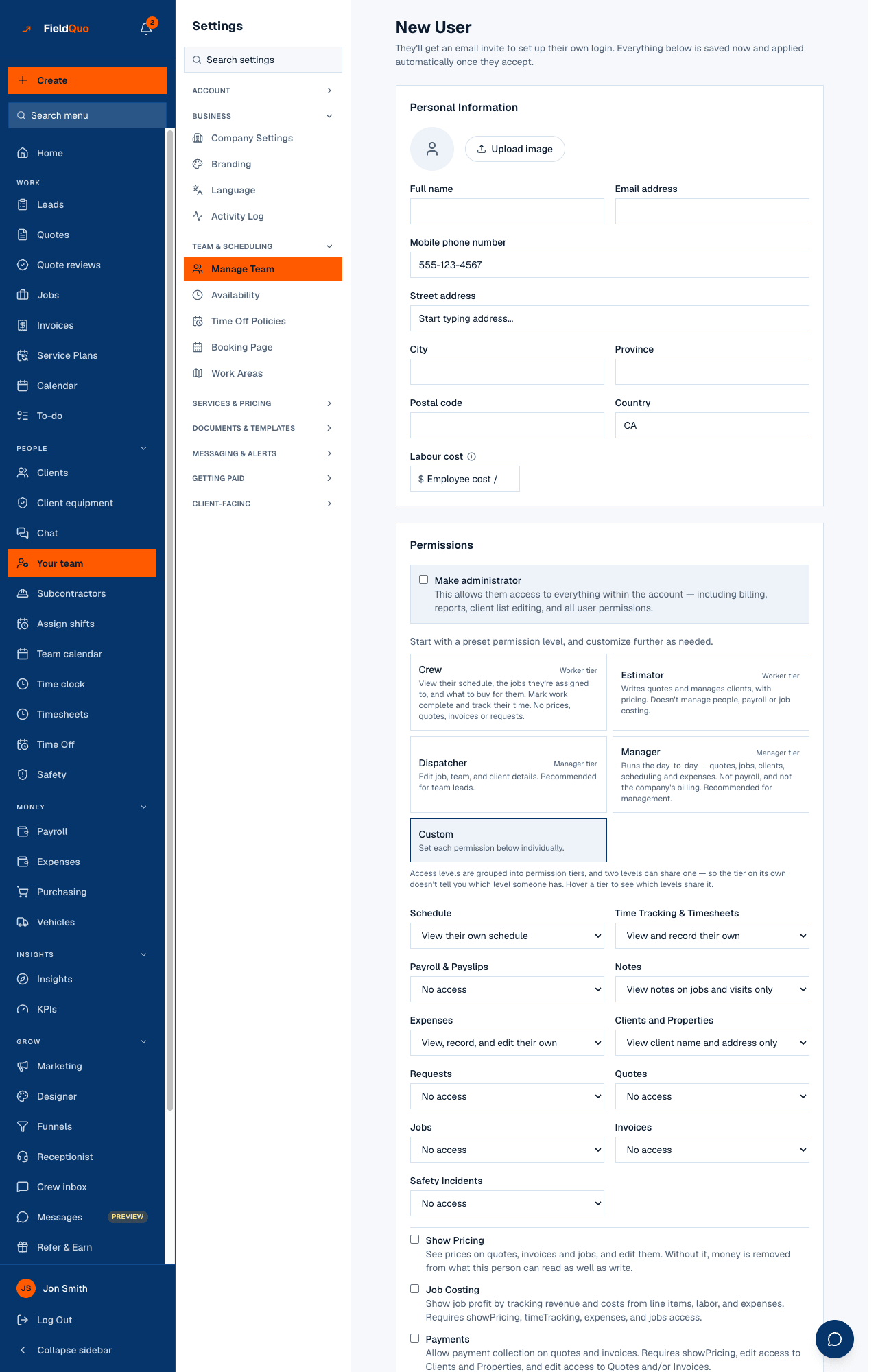
Add User opens New User, a form in three cards: Personal Information, Permissions and Communications. Only Full name and Email address are required. Pressing Send Invite creates the invitation, emails it, and puts the person on the roster as Invited until they accept.
- Check the seat panel first. A Crew login never uses a seat; every other level does, and an invitation counts from the moment it is sent — see Seats and crew logins.
- An email already on your team, or already holding an invitation, is refused: “Someone with that email is already on your team.” / “That email already has an invitation waiting.”
How to send an invitation
- Open Manage Team and press Add User — or Add crew — free / Add a seat, which open the same form with a level already picked.
- Fill Personal Information: Full name and Email address are required; Mobile phone number, Street address, City, Province, Postal code, Country and Upload image are optional.
- Labour cost — their true hourly cost to the business (wage + burden), used for job costing and never shown to clients. Only an owner or administrator sees this field.
- Under Permissions, pick a level: Crew, Estimator, Dispatcher, Manager, or Custom to set each dial yourself. An owner can also tick Make administrator — see Administrators.
- Under Communications, choose the Invitation language — English, French, Spanish, Ukrainian, Punjabi, Tagalog, German or Italian. It applies to the invitation email only and cannot be changed once sent.
- Press Send Invite. You return to Manage Team, where the person shows as Invited with their level beside the badge.
If the invitation was created but the email could not leave, the form stays open and says so instead of returning to the roster. Nothing reached the person. Cancel the pending invitation on Manage Team and send it again once email is working.
What the person receives
An email from FieldQuo titled “You're invited to join your company on FieldQuo”, in the language you chose, with a link. The link opens Join your company, which says which level they were invited as. A newcomer types their name and creates a password; somebody who already has a FieldQuo account at another company signs in with their existing password and is added to yours.
The link is good for 7 days — the pending row on Manage Team says “Expires in N days”, then “Expired” — and a Resend control beside Cancel renews the link and sends the email again. After that it opens on “This invitation has expired” with a note to ask you for a new one — cancel the old invitation and send another. A link you cancelled opens on “This invitation can't be used”. There is no resend button; a new invitation is the resend.
Pending invitations
- A pending invitation shows the level you chose next to the Invited badge, so an Administrator invitation is never mistaken for a Crew one before it is accepted.
- It counts against your plan from the moment it is sent — a seat for any level above Crew, a crew place for Crew.
- Cancel invite asks “Cancel this invitation?” and then stops the link and frees the place. As the dialog says, they keep any worker record already on your books; remove that from Workers if you need to.
- The level on a pending invitation cannot be edited. To change it, cancel and invite again.
Who can invite, and what they can hand out
Owners, administrators, Dispatchers and Managers can invite. Each can only hand out access below their own: the owner can give any level including Administrator; an administrator any level except Administrator; a Dispatcher or Manager only Crew or Estimator, with every dial clamped to their own and no switch they do not hold themselves. The form offers only what will be accepted, and the server checks the same rule again when the invitation is created.
ਅਕਸਰ ਪੁੱਛੇ ਜਾਂਦੇ ਸਵਾਲ
Can I resend an invitation?
Yes. Press Resend beside the pending invitation on Manage Team: a live link is renewed for another 7 days and the email goes out again; an expired one is replaced by a fresh link. An accepted or cancelled invitation cannot be resent.
The person already uses FieldQuo at another company. Can they accept?
Yes. The join page recognises the email, they sign in with their existing password, and they are added to your company with the level you chose.
Why is the Labour cost field missing on my form?
It is shown only to an owner or administrator. A Manager or Dispatcher inviting somebody cannot set a pay rate; the field is hidden rather than silently ignored.
ਕੀ ਇਹ ਮਦਦਗਾਰ ਸੀ?