

Manage Team
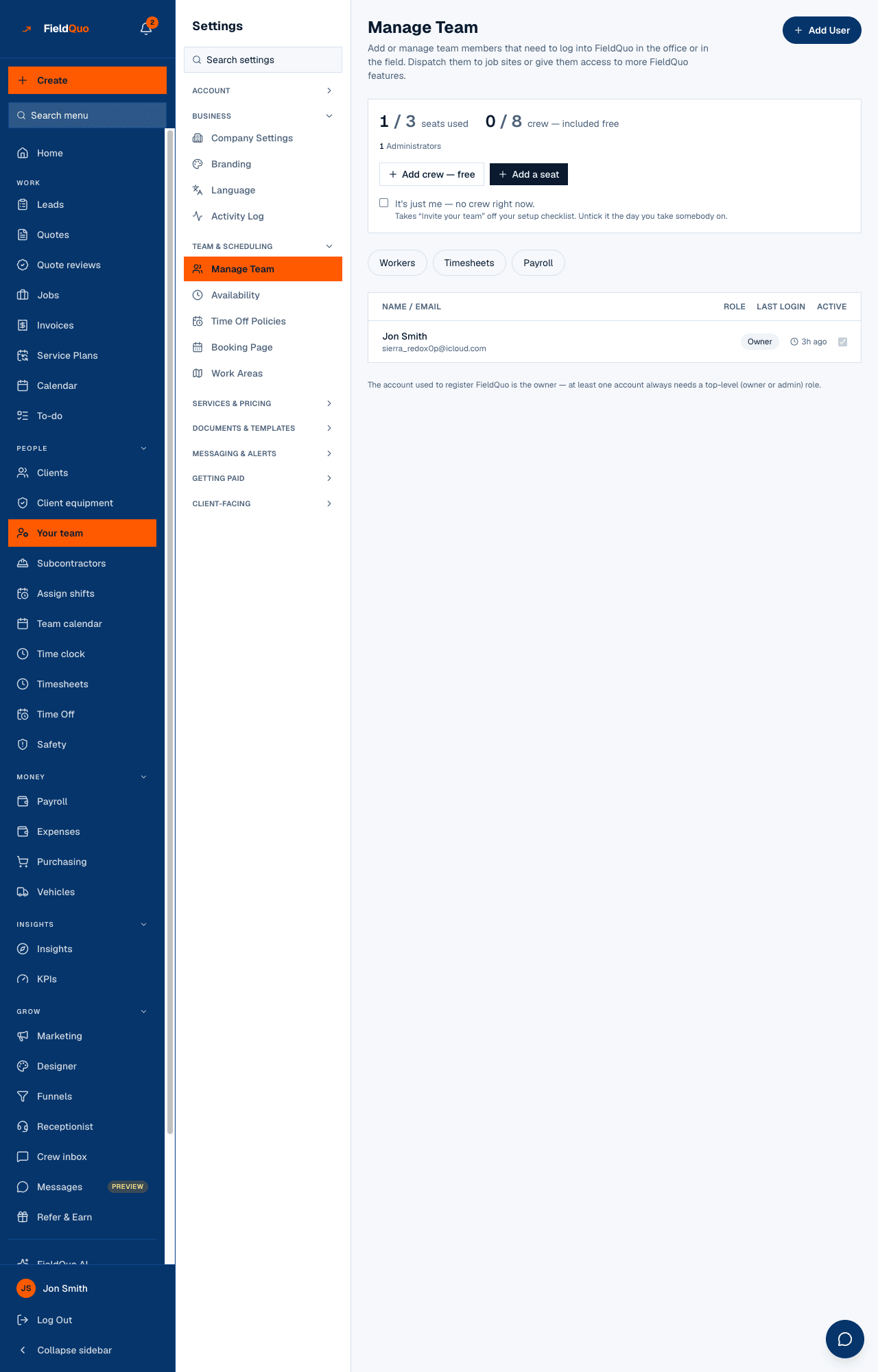
The roster screen: who is on your team, what each person can see and do, the seat panel, pending invitations, and the Add User, Add crew and Add a seat buttons.
ਇਹ ਲੇਖ ਫ਼ਿਲਹਾਲ ਅੰਗਰੇਜ਼ੀ, ਫ਼ਰਾਂਸੀਸੀ ਅਤੇ ਸਪੈਨਿਸ਼ ਵਿੱਚ ਉਪਲਬਧ ਹੈ। ਤੁਸੀਂ ਅੰਗਰੇਜ਼ੀ ਸੰਸਕਰਣ ਪੜ੍ਹ ਰਹੇ ਹੋ। Français · Español
Manage Team is where your company's people live in FieldQuo. It is one screen reached two ways — Your team in the main sidebar under People, and Settings → Manage Team under Team & scheduling — and it shows everyone with a login, the access level each person holds, and how many of your plan's seats and crew places are in use.
Everything about a person's access is changed from here. Their hours, their pay rate and their leave live on other screens — Timesheets, Workers, Time Off — which this page links to.
Overview
The page has three parts, top to bottom: the seat panel, a row of tabs, and the roster. The seat panel counts your plan against the people on it. The roster lists every member with their level in the Role column, their Last Login and an Active checkbox. An invitation nobody has accepted yet sits at the bottom of the roster with an Invited badge and a Cancel invite button.
What is on the screen
- Add User, top right, opens the New User form — see Invite a team member.
- The seat panel: seats used out of the seats your plan includes, crew — included free out of its crew places, and a breakdown by kind — Administrators, Managers, Dispatchers, Workers, Crew, Custom access — that lists only the kinds you actually have.
- Add crew — free and Add a seat. Both open the same New User form; the first with the Crew level already picked, the second with Dispatcher. When a cap is reached the button greys out with the reason, and the sentence beside it names the next plan that would fit.
- It's just me — no crew right now. — shown only while you are the only person on the roster. Ticking it takes “Invite your team” off the dashboard's Additional set-up steps, and the box hides itself the moment somebody else is added.
- The tabs Workers, Timesheets and Payroll. Workers and Payroll appear only for an owner or administrator; Timesheets for everyone who can open this page.
- The roster columns: Name / Email, Role, Last Login (dropped on narrow screens so the Active checkbox stays reachable) and Active.
- On the payroll, no login — a section that appears when a worker record exists with no login attached: that person can be scheduled and paid but cannot sign in. Manage them under Workers.
How to change someone's access
- Find the person in the roster. Their level shows in the Role column — as a dropdown if you may change it, as a grey badge if you may not.
- Pick Crew, Estimator, Dispatcher, Manager or Administrator from the dropdown. The change applies at once: the person's tier and their whole permission grid are replaced by the level's, and they keep the same login.
- Pick Custom… instead to open the editor and move individual dials — see The Custom access editor.
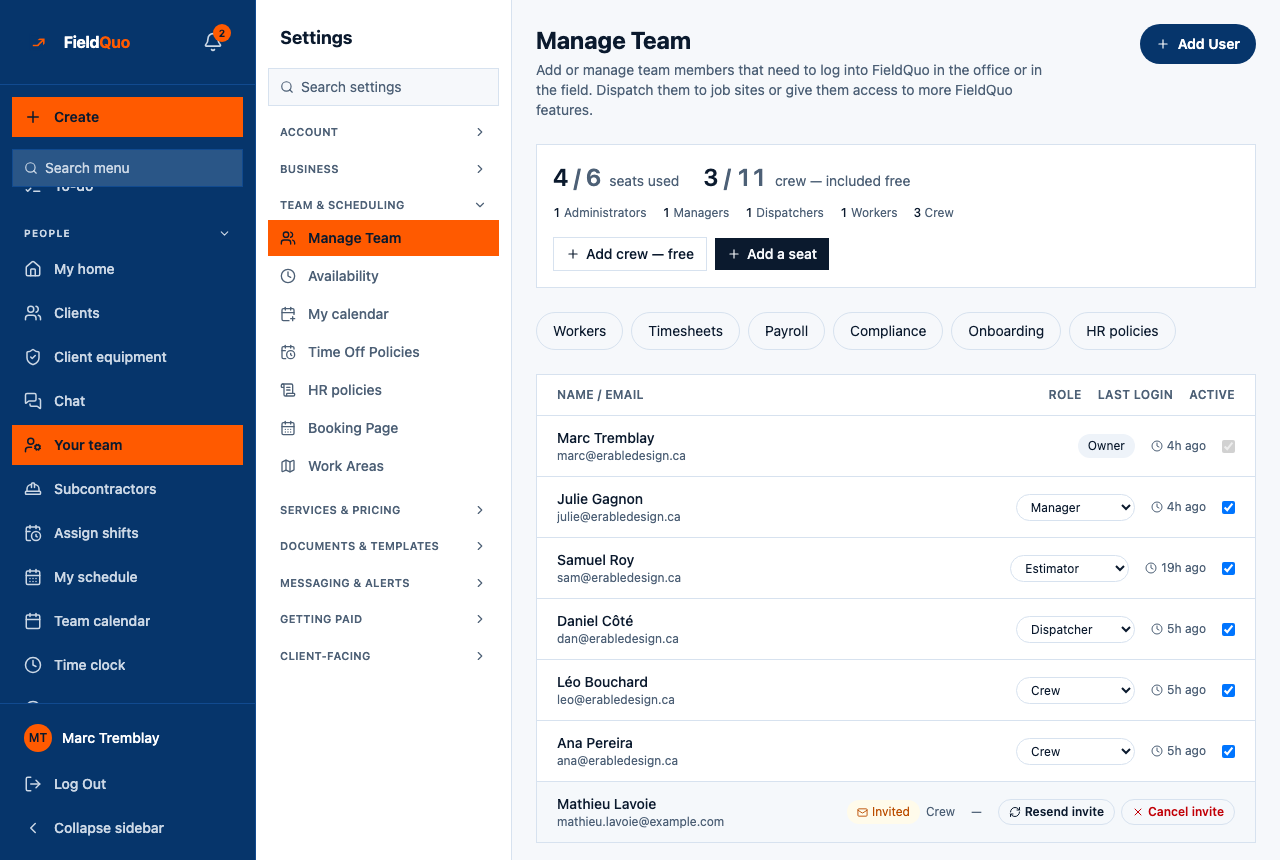
Moving somebody from Crew to any other level uses a seat. If your plan has none free, the change is refused with your plan's numbers and the plan that would fit; upgrade first from Account & Billing.
What each control changes
| Control | What it does |
|---|---|
| Role dropdown | Replaces the person's access with the chosen level, immediately. A badge instead of a dropdown means you cannot change this row: it is your own, it is an owner's, or the person is at or above your rank. |
| Active checkbox | Unticked, the person can no longer sign in to your company and stops counting against your plan; their records stay. Owner and administrator only — see Deactivate a team member. |
| Cancel invite | Asks you to confirm, then stops the invitation link working and frees the place it was holding. A worker record already on your books is kept. |
| Add crew — free / Add a seat | Open New User with a level preselected. The level stays editable on the form. |
| It's just me — no crew right now. | Records that you work alone and removes the invite row from the dashboard's Additional set-up steps. Untick it the day you take somebody on. |
Job title vs. access level
A person has two different labels in FieldQuo, and they are deliberately not the same word. Their access level — Crew, Estimator, Dispatcher, Manager, Administrator — is the seat: it decides what they can see and do, and it is set here, in the Role column. Their job title — Receptionist, Clerk, Foreman, Lead installer, Office manager — is what your company calls them: it changes nothing about access and is shown beside their name wherever people are listed: this roster, the team schedule, the chat's Members bar, and the assignee pickers on appointments, tasks and visits.
Set the title on the person's worker record — Workers tab, Edit — or type it on the New User form when you invite them. It is free text up to 60 characters; the suggestions the field offers are only suggestions. A person with no title shows nothing in its place, never a made-up word.
The same word can be a title for one person and a level for another. "Estimator" as a title says what someone does; the Estimator level says what they may open. Giving a receptionist the Crew level and the title Receptionist is the normal case — the level keeps your prices behind the door, the title says who they are.
Who can see it
Owners, administrators, Dispatchers and Managers see the Your team row and the roster. Estimators and Crew do not — the row is hidden and the page refuses them. Of those who can open it, only an owner or administrator can change an existing person's level or untick Active. A Dispatcher or Manager can add people (Crew or Estimator only) and cancel invitations, and sees everybody's level as a read-only badge.
The account that registered the company is the owner. FieldQuo has no control to transfer ownership or to re-grade an owner, so the owner's row is always a badge — for everyone, other owners included — and the screen says so at the bottom: at least one account always needs a top-level (owner or admin) role.
ਅਕਸਰ ਪੁੱਛੇ ਜਾਂਦੇ ਸਵਾਲ
Why is somebody's level a grey badge instead of a dropdown?
Either you are not an owner or administrator, or the person is at or above your own rank. Your own row is always a badge: nobody changes their own access, even an owner.
Why does the Role column say Custom?
The person's grid does not match any preset exactly — somebody moved a dial after picking a level. Open Custom… to see which dials, or pick a preset to replace the whole grid.
Can a Manager add an Administrator?
No. A Manager or Dispatcher can add Crew or Estimator only, with every dial no higher than their own. Only the owner can make an administrator.
ਕੀ ਇਹ ਮਦਦਗਾਰ ਸੀ?