

Get your Facebook and Instagram lead ads into FieldQuo
Connect your Facebook Page, find your lead forms, switch on the ones that matter and send a test lead — the checklist on Settings → Meta Ads ticks each step as it happens.
Sa ngayon, available ang artikulong ito sa Ingles, Pranses at Espanyol. Binabasa mo ang bersyong Ingles. Français · Español
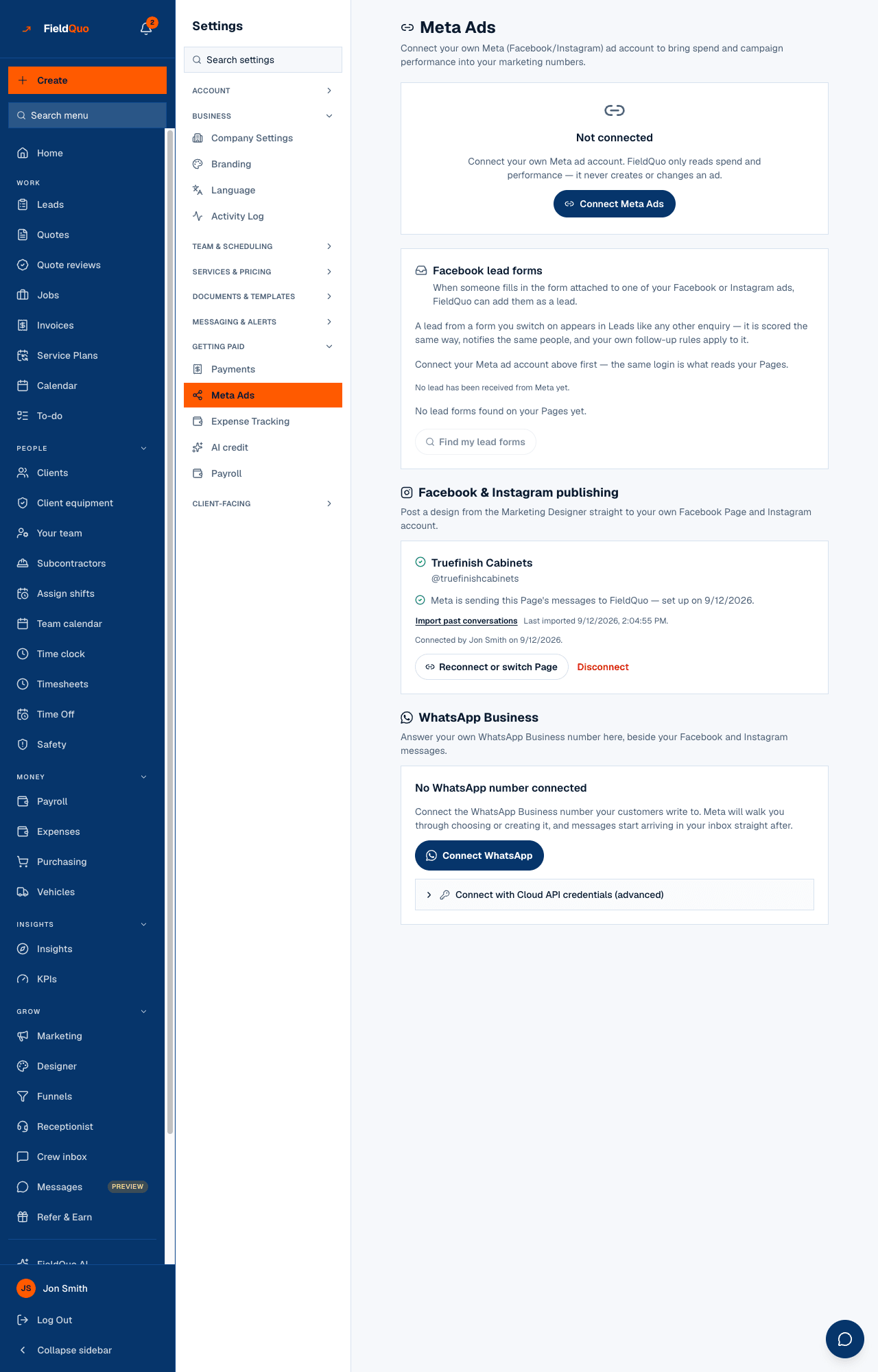
A lead ad on Facebook or Instagram carries a form Meta shows inside its own app. When a homeowner fills one in, FieldQuo can turn the submission into a card on your Leads board — scored, notified and followed up like any other enquiry. All of it is set up on one screen: Settings → Meta Ads, in the Facebook lead forms card.
Lead forms and leads are read through your Facebook Page connection — the Facebook & Instagram publishing card further down the same screen — not through the Meta ad account at the top. The ad account brings in what you spend; the Page brings in the leads.
Before you start
- A Facebook login that manages the Page your ads run from.
- At least one lead form on an ad for that Page. FieldQuo finds and reads your forms; it does not build them — you create the form in Meta when you create the ad.
- An owner or administrator account in FieldQuo. Meta Ads sits under Getting paid in Settings, like Payments, and other roles neither see it nor can use it.
If the card shows Facebook lead forms need Meta's approval of one more permission; nothing is being received yet., every switch and Find my lead forms are disabled and the checklist below is not drawn. That is Meta's review of FieldQuo, not your setup, and there is nothing to do until the sentence goes away.
The checklist at the top of the card
The card opens with Getting your lead ads into FieldQuo, a short list that ticks itself from what FieldQuo can already see — nothing to mark by hand. Each unticked line says what to do and names the button on this screen that does it. Step-by-step guide opens this article.
- Facebook Page connected, with the lead permissions — a Page is connected and Meta granted it every permission lead forms need.
- Lead forms found — Find my lead forms has listed at least one form.
- At least one form switched on — a form's switch reads On.
- First lead received — a lead from Meta has arrived in FieldQuo.
Step 1: connect your Facebook Page
- Open Settings → Meta Ads and scroll to Facebook & Instagram publishing.
- Press Connect Facebook & Instagram and sign in to Facebook.
- Allow every permission Meta shows. Un-ticking one leaves a connection that looks fine and cannot read your leads.
- If your login manages several Pages, choose the one your ads run from under Which Page? and press Connect this Page.
- Back on the lead forms card, check the line Lead forms and leads are read through your Facebook Page connection: … — it names the Page FieldQuo will read.
FieldQuo reads the forms and leads of one Page: the one connected. If your ads run from another Page, press Reconnect or switch Page and choose that one. If Meta held back a permission, an amber line names it and says to press the same button and allow it.
Steps 2 and 3: find your forms and switch them on
- Press Find my lead forms. FieldQuo asks Meta for the forms on the connected Page and lists each one with its Page, Leads: 0 and a switch.
- Turn the switch to On for each form whose submissions should become leads.
- Leave any other form Off — a newsletter sign-up, for example. Nothing from a form that is off is imported.
A form you have just found always starts Off: finding a form is not agreeing to import it, and pressing Find my lead forms again never switches back on a form you turned off. A form you delete in Meta stays on the list, because the leads it already produced still point to it.
What the card's messages mean
| The card says | What it means, and what to do |
|---|---|
| Looked at the Page …: 3 lead forms found. | It worked. The number is how many forms Meta returned for that Page. |
| Looked at the Page …: Meta returned no lead forms for it. | The Page was read and has no lead form. Create the form on your ad in Meta — or connect the Page the ad actually runs from — then press Find my lead forms again. |
| Connect your Facebook Page in Facebook & Instagram publishing below first … | No Page is connected yet. Do step 1. |
| Meta did not grant the Page connection for … these permissions: … | Press Reconnect or switch Page and allow every permission Meta asks for. |
| Meta no longer accepts FieldQuo's access to … | The stored access expired or was removed in Meta. Press Reconnect or switch Page. |
| Meta refused to give FieldQuo the leads of …: this business uses Leads Access Manager. | Your business restricts who may read its leads. See the next section. |
| No lead has been received from Meta yet. or Last lead received … | Whether any lead has arrived. The second one is the proof that the whole chain works. |
Leads access, only if Meta asks for it
Most businesses never touch Meta's Leads Access Manager, and for them the Page connection is enough. If yours restricted it, Meta refuses FieldQuo the leads, Find my lead forms comes back with the Leads Access Manager message above, and the checklist gains a step: FieldQuo assigned in Meta's Leads access, with an Open Leads access in Meta link. Only then:
- Open Meta Business Settings, then “Integrations” → “Leads access”. The address business.facebook.com/settings/leads-accesses goes straight there.
- Choose your Page.
- Open the “CRMs” tab and press “Assign CRMs”.
- Choose FieldQuo and confirm.
- Back in FieldQuo, press Find my lead forms again. When Meta no longer refuses, the step leaves the checklist.
These are Meta's screens and Meta's labels, and FieldQuo cannot assign itself: somebody who manages your business in Meta has to do it.
Step 4: send a test lead
- Open Meta's Lead Ads Testing Tool at developers.facebook.com/tools/lead-ads-testing — the checklist's Open Meta's Lead Ads Testing Tool link opens it — signed in with a Facebook login that manages the Page.
- Choose your Page and a form you switched On, and submit a test lead.
- Reload Settings → Meta Ads: Last lead received … appears, the form's Leads count goes up and First lead received is ticked.
- Open Leads. The test submission is a card like any other — remember it is a test when you see it.
FieldQuo hears about a submission two ways: Meta's instant notice, and its own re-read of every switched-on form once an hour. If the instant notice is missed, the lead still arrives on the next hourly pass — and the same lead never arrives twice, because each one is recorded under Meta's own id.
Mga madalas itanong
Do I need the Meta ad account connected too?
Not for the leads — they are read through the Page connection. Connecting the ad account adds what you spend on ads to your marketing numbers.
Why does my checklist not show the Leads access step?
Because Meta has not refused FieldQuo. The step appears only after Find my lead forms comes back with Meta's Leads Access Manager refusal, since most businesses never restrict leads access.
Will a lead from a form notify me?
Yes. It is created like any other enquiry: scored Hot, Warm or Cold, and announced to the same people as a lead from your website.
Nakatulong ba ito?