
Send lead results to Meta
Tell Facebook and Instagram which of their leads were real, which were not, and which booked, got a quote and bought — so Meta finds more people like your customers.
Sa ngayon, available ang artikulong ito sa Ingles, Pranses at Espanyol. Binabasa mo ang bersyong Ingles. Français · Español
Meta counts every tap on a lead form as a lead and every opened chat as a conversation, whether the person meant it or not. Your ads then learn to find more people who tap. Send lead results to Meta sends back what FieldQuo knows and Meta does not: which leads were real, which were not, and which ones booked, got a quote and bought.
It is one switch on Settings → Meta Ads, off until an owner or administrator turns it on. It covers your Facebook and Instagram lead forms, your funnels and instant estimate when the visitor came from an ad, and — once Meta approves FieldQuo's app for it — your Messenger and Instagram ad conversations.
What FieldQuo tells Meta
For a lead from a Facebook or Instagram lead form, FieldQuo sends each stage the lead reaches, once, under Meta's own lead id:
| Stage | When it is sent |
|---|---|
| Raw Lead | When the lead arrives in FieldQuo. |
| Qualified | When the lead is warm or hot — and, if it came through a conversation, that conversation was judged a real lead. |
| Disqualified | When the conversation was only a tap or was not about your work, when someone marks the lead lost as not a real inquiry, or deletes it as not a lead. |
| Appointment Booked | When an appointment is booked for the lead's client or quote. |
| Quote Sent | When the lead's quote is sent. |
| Converted | When the quote is accepted, or the conversation is marked won — with the amount and your currency. |
- Messenger and Instagram ad conversations: LeadSubmitted when the conversation becomes a warm or hot lead, and Purchase with the amount when that client accepts a quote. A conversation that was only a tap, or was not about your work, sends nothing.
- Your funnels and instant estimate: when the visitor came from a Meta ad, the same Lead your page's pixel already fires is also sent from FieldQuo's server with the same event id, so Meta counts it once. A booking sends Schedule, and an accepted quote sends Purchase.
How to turn it on
- Open Settings → Meta Ads and find Send lead results to Meta.
- Under 1. Meta's Business Tools Terms, tick the box and press Accept. The screen records who accepted and when.
- Under 2. Your Meta dataset (pixel), enter your dataset ID — or press Pick from my ad account if your Meta ad account is connected. If you set an ad tracking pixel for your instant estimate, it is already filled in.
- In Meta's Events Manager, open that dataset, then "Settings", "Conversions API", "Generate access token". Paste the token into Conversions API access token and press Save.
- Under 3. Send a test event, copy the test code from the dataset's "Test events" tab in Events Manager, paste it and press Send test event. The event appears on Meta's "Test events" tab only.
- Turn the switch at the top of the card on.
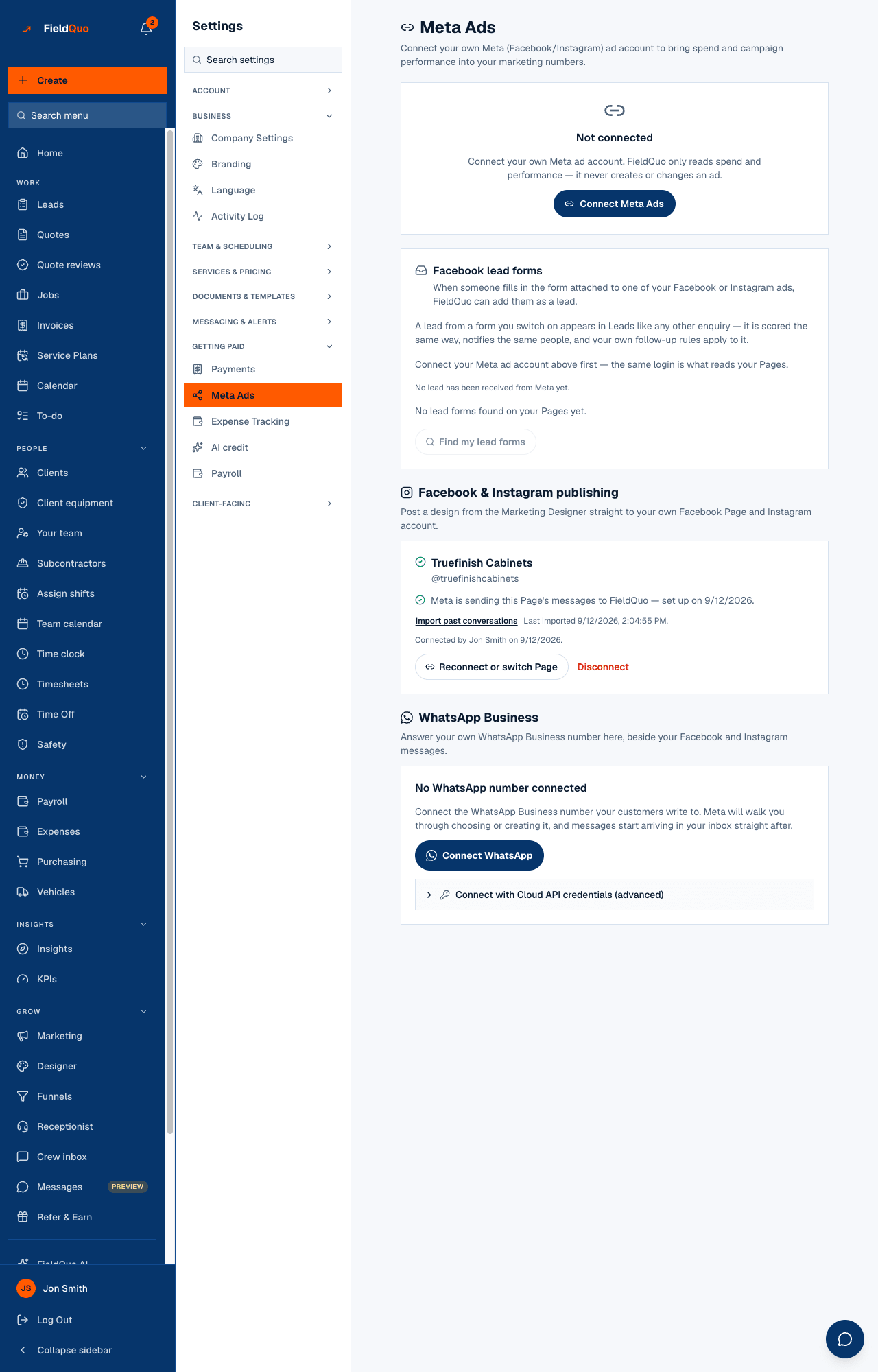
The switch cannot be turned on before the terms are accepted, and Send test event stays greyed out until a dataset ID, a token and the terms are in place — hold the pointer over it to see what is missing.
Reading “What is being sent”
The card lists four lines — lead forms, your funnels and instant estimate, Messenger and Instagram — and says for each one whether it is sending, or what it is waiting for.
- Needs Meta permission page_events (or instagram_manage_events) — Messenger and Instagram events need a permission Meta has to approve for FieldQuo's app. Nothing is sent until then, and there is nothing for you to do.
- off while you ask visitors before loading ad tracking — if you switched on asking visitors before loading ad pixels, FieldQuo cannot see their answer on the server, so your pages send nothing server-side.
- Under the list, the card shows the last sync and, for the last 30 days, how many events were sent, failed, are waiting, or were too old for Meta.
Set up your campaign to use the results
- In Ads Manager, create or edit a Leads campaign that uses an Instant Form.
- In the ad set, under "Performance goal", choose "Maximize number of conversion leads".
- Pick the same dataset, then the stage to optimise for — usually Qualified, or Converted once you have enough sales.
- Leave the campaign running. Meta needs a few weeks of results before it learns.
Meta's rules for this goal: results must be uploaded at least once a day (FieldQuo sends every 15 minutes, with a daily catch-up), and the stage you optimise for should happen within 28 days of the lead, for 1% to 40% of your leads. Meta also asks for about 200 leads a month.
Privacy and what never leaves
- Emails and phone numbers are hashed (SHA-256) before they leave FieldQuo. Meta never receives them in plain text, and they are not stored in plain text in the queue either.
- Nothing is sent while the switch is off. Turning it off stops everything; events already waiting are not sent.
- Meta refuses events more than 7 days old, so FieldQuo never sends an older one.
- Your access token is stored encrypted, is only ever sent to Meta, and is never shown again — the card shows its last four characters.
Mga madalas itanong
Will my older leads be sent?
Only the last 7 days of stages, because Meta refuses anything older. FieldQuo support can run a one-off history send for your company; it shows the counts per stage first.
Does it change my ads?
No. FieldQuo never creates or edits an ad. It only tells Meta what happened to the leads; your campaign uses that once you choose "Maximize number of conversion leads".
Why does Messenger say it needs a Meta permission?
Meta requires FieldQuo's app to be approved for page_events and instagram_manage_events before it can send conversation results. Lead forms and your own pages work without it.
Nakatulong ba ito?