

Using FieldQuo on your phone
FieldQuo runs in your phone's browser — no app to download. What the phone layout looks like, how to sign in, and what works from a driveway.
Sa ngayon, available ang artikulong ito sa Ingles, Pranses at Espanyol. Binabasa mo ang bersyong Ingles. Français · Español
There is no FieldQuo app in the App Store or on Google Play. The back office you use at a desk is the same one you open on a phone: the pages rearrange themselves below about 1,024 pixels of width, a tab bar appears along the bottom, and everything a crew member does all day — clocking in, checking the schedule, filing a photo, chatting with the office — is built to work with one thumb.
This article is the tour: what the phone layout looks like, how to sign in, and which screens are worth bookmarking. The articles after it go one screen at a time.
Overview
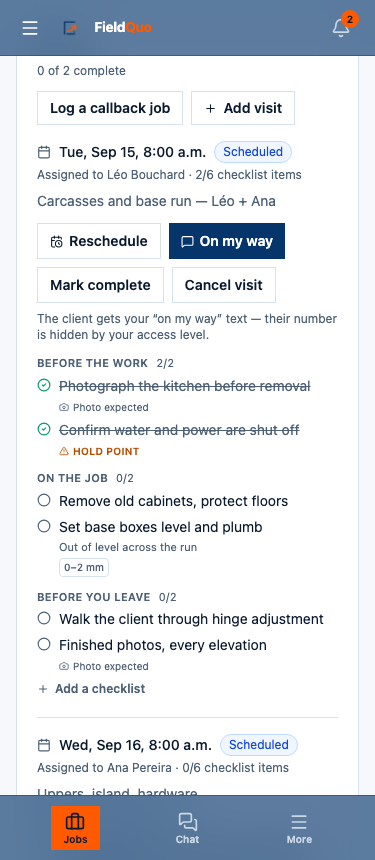
On a phone the sidebar you know from a computer folds away. What replaces it is a sticky bar at the top — the FieldQuo logo, which takes you Home, a menu button, and the notification bell with its unread count — and a tab bar at the bottom with the screens you reach for most. Everything else is one tap away behind More.
Every tap goes to the server. That is the whole design: nothing is stored on the phone, so a shared phone in the van shows nothing to the next person who picks it up, and the office sees your punch or your photo the moment it lands. The flip side is that a tap with no signal does not go through — see Bad connections, and why there is no offline mode.
The phone layout is the same product with the same permissions. A screen your access level hides on a computer is hidden on a phone too, and a URL you type by hand is refused by the server, not just by the menu.
What is on the screen
Top to bottom, on any page:
- The top bar — the menu button on the left opens the full menu as a drawer; the FieldQuo logo in the middle goes to the dashboard; the bell on the right shows how many notifications you have not read.
- The page itself — the same cards as on a computer, stacked in one column. Buttons are sized for a thumb, and the job picker on the time clock is your phone's own picker, not a custom menu.
- The tab bar — up to five tabs plus More. Which tabs you get depends on your access level; a crew member sees Jobs, Chat and More. See The crew tab bar.
- The safe area — on an iPhone the bar sits above the home indicator rather than under it, so the bottom tab is never half covered.
How to sign in on your phone
- Open the invitation email on your phone and accept it — that is how you join a company; there is no self-serve way to add yourself to one. Your login costs the company nothing at the Crew level.
- Set your password. From then on, the login page asks for Email and Password and the button is Log In.
- You land on Home. Tap the menu button, or a tab, to get where you are going.
- Optional but worth doing: add FieldQuo to your home screen so it opens like an app — Install it like an app.
Stay signed in. FieldQuo does not sign you out between visits, so the home-screen icon opens straight onto your day; if you ever are signed out, the icon opens the login page instead.
What works from a phone
| What you need to do | Where | Notes |
|---|---|---|
| Clock in and out, switch job | Time clock | Your phone is asked where it is once, at the tap — never in the background. |
| See your shifts and visits | Assign shifts, Calendar, Jobs | Only what is published, and only what you are on. |
| Add photos to a job | The job page, Job photos | From the camera or the camera roll; or text them in without opening anything. |
| Talk to the office | Chat | A room per job, #general for everyone, direct messages. |
| Ask for time off | Time Off | Balances and your requests on one screen. |
| Report an incident or a near-miss | Safety | A short form; add a photo afterwards. |
| Read your payslips | Payroll | Your own only. |
Who can use it
Everyone with a login. What the menu shows is decided by the access level the owner gave you — Crew, Estimator, Dispatcher, Manager or a custom grid — and the phone layout changes none of it. The rest of this category is written for the Crew level, which is the one most people in a van are on; see What a crew member sees.
Mga madalas itanong
Is there an app in the App Store?
No. FieldQuo runs in the phone's browser. You can add it to your home screen so it opens full-screen with its own icon, which is as close to an app as it gets today.
Does it work on an iPad or a small tablet?
Yes. Below about 1,024 pixels of width you get the phone layout with the tab bar; wider than that you get the sidebar, exactly as on a computer.
Does the office see where my phone is?
Only where it was at the moment you tapped Clock in, Clock out, On my way or Mark complete — and only if you allowed it when the phone asked. Nothing runs between taps.
Nakatulong ba ito?