

Clock in and out on your phone
The time clock: one big button, the job the hours land on, switching jobs mid-day, and what your phone is asked when you tap.
Sa ngayon, available ang artikulong ito sa Ingles, Pranses at Espanyol. Binabasa mo ang bersyong Ingles. Français · Español
Time clock is the screen an hourly worker touches every shift. It is deliberately spare: the time, one button, the job you are on, and today's hours. Every tap writes a plain time entry on the server; the office reviews it on Timesheets, and only then does it reach a pay run.
The one thing to know before your first tap: when you press Clock in or Clock out, your phone is asked where it is — once, with the phone's own permission sheet — and that single position is kept beside the punch so the timesheet can show how far from the site you were. Nothing runs in the background and nothing is tracked between taps.
Overview
You can only be clocked in once: one open entry per worker. Clocking in opens it against the job you picked (or no job), clocking out closes it and the hours are computed. The entry is saved as pending and goes to your manager, which is what the note at the bottom of the screen says: Your hours go to your manager to review and approve. See The time clock for the office's side and Timesheets: review and approve hours.
What is on the screen
- The clock face — today's date and the live time. Clocked in, it adds an On the clock pill, the elapsed time, Since your clock-in time, and On the job's name (or Not linked to a job). Clocked out, it reads You're clocked out.
- Which job? — a picker, shown only while you are clocked out and only when your company has open jobs. No job — travel, yard, quoting sits at the top; then Scheduled for you today and Your other open jobs.
- The location line — shown only while the phone has not yet answered the permission question, so you read why before the phone asks.
- Clock in (green) or Clock out (red) — the one button.
- Today — the day's total and each entry with its times and its job, plus the note that your hours go to your manager.
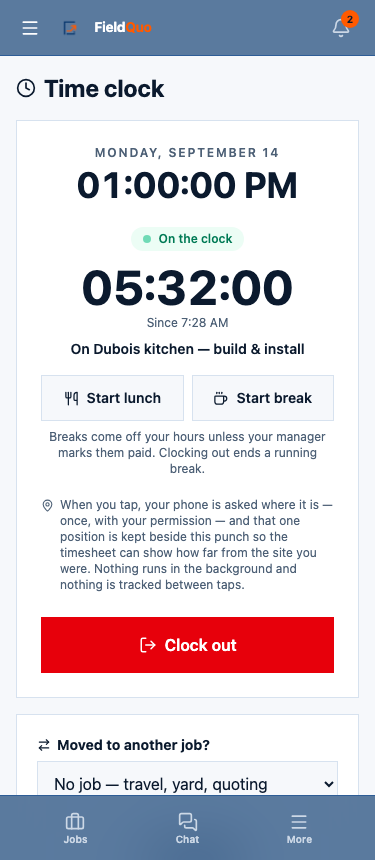
How to clock in and out
- Open More → Time clock (or bookmark it).
- Check the job under Which job? If you have exactly one visit today it is filled in for you and the screen says so; with several, it asks you to pick the one you are starting; with none, it says so and leaves it blank.
- Tap Clock in. If your phone asks whether FieldQuo may use your location, answer once; a refusal changes nothing about the punch.
- Work. The elapsed time counts up on the screen; it also keeps counting on the server if you close the tab or the battery dies.
- Tap Clock out. The entry moves into Today with its hours.
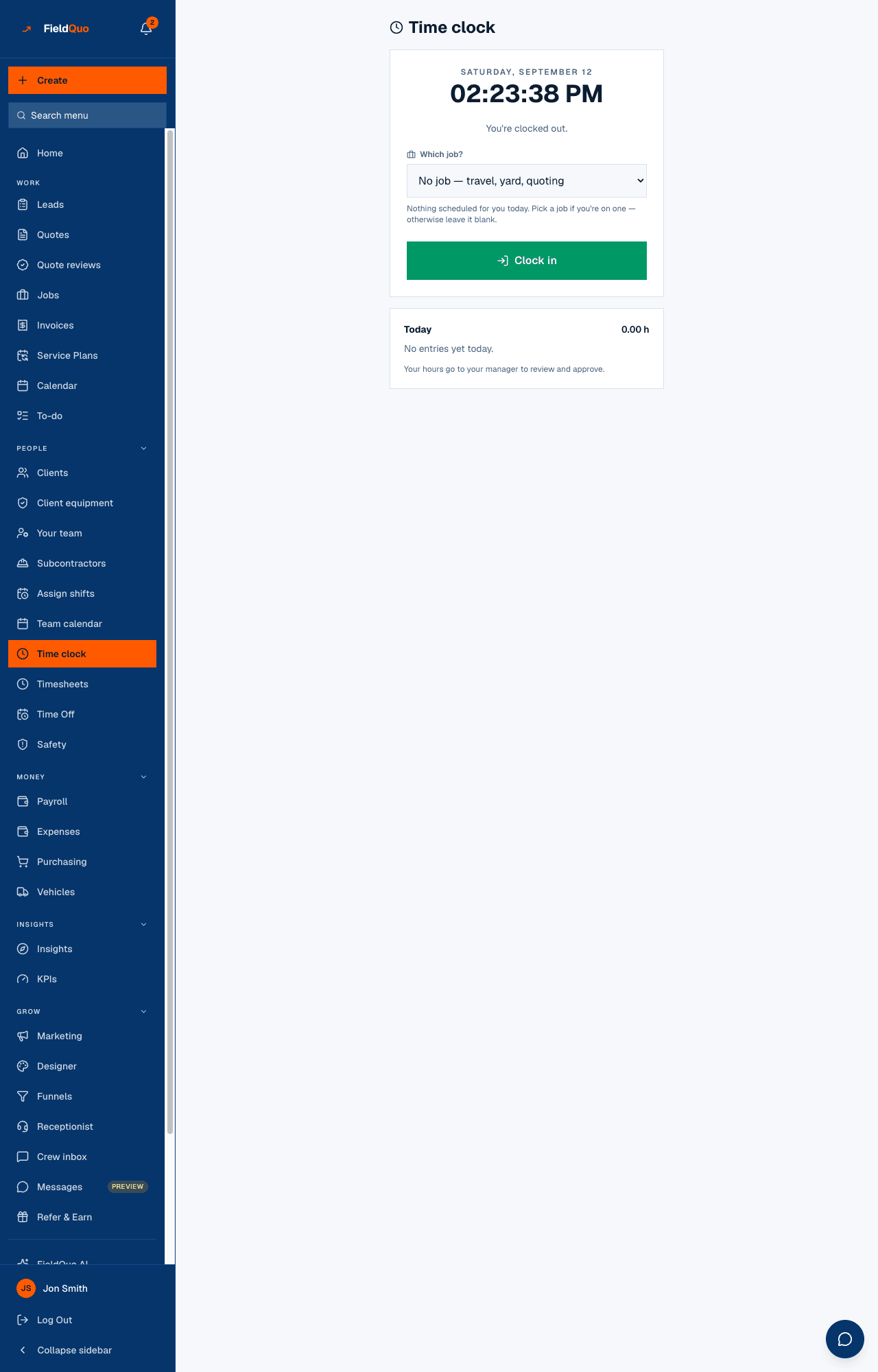
Moved to another job?
Staying clocked in all day puts the whole shift on the first job. The Moved to another job? card fixes that: pick the new job and tap Switch job. The current entry is closed at that instant and a new one opened on the new job — the hours already worked keep the job they were worked on, and, as the card says, a new entry starts from now.
Switch job is disabled while the picker shows the job you are already on. There is no undo: if you switched to the wrong job, switch again — the minute in between lands on the wrong job and your manager can correct it on Timesheets.
Where the phone was, and what the office sees
The position is stored beside the punch with the distance to the job's site, computed once. On Timesheets each punch carries a chip: In · On site when the phone was within 250 m of the site, In · 2.1 km away in amber when it was further, and — when nothing honest can be said — no position, a job with no site address, or a location fix so loose (an accuracy circle wider than 250 m) that the phone could have been anywhere.
An away chip is a question for your manager, not a verdict: approval stays a button a person presses. The phone's own clock is not trusted either — a stamp whose time is more than 15 minutes from the server's is refused rather than stored.
There is no way for FieldQuo to detect that you arrived. A browser can only read position while its page is open and in front, so the screen asks at the tap instead of guessing, and stores nothing between taps.
Who can see it
Everyone whose login is linked to a worker record. If the screen reads You're not set up as a worker yet. Ask an admin to add you under Team., an owner or administrator needs to add you on the Workers tab of Manage Team — the tab only they see. The Crew level records and views its own time; reviewing, editing and approving everyone's is the Dispatcher level and above.
Mga madalas itanong
I forgot to clock out yesterday.
The entry is still open on the server. Clock out now and tell your manager — they correct the time on Timesheets, and the entry goes back to pending for review.
Can I clock in from home and drive to the site?
You can, and the punch will say so: the timesheet chip shows how far from the site the phone was when you tapped. Pick No job for the drive, or ask your company what it wants.
The phone never asked for my location.
Either you answered once already (allowed or refused) and the phone remembers, or the browser has no location at all. Either way the punch goes through; only the chip on the timesheet is affected.
Can I fix my own hours?
Not from the phone today. Your manager fixes an entry on Timesheets; a correction returns the entry to pending so somebody re-checks it.
Nakatulong ba ito?