

Import expenses from a bank CSV
How to bring a bank-statement export into Expense Tracking: the file FieldQuo accepts, mapping the columns, the sign and date questions it asks, the review step where nothing is saved yet, what the imported rows become, and what stops a duplicate.
Sa ngayon, available ang artikulong ito sa Ingles, Pranses at Espanyol. Binabasa mo ang bersyong Ingles. Français · Español
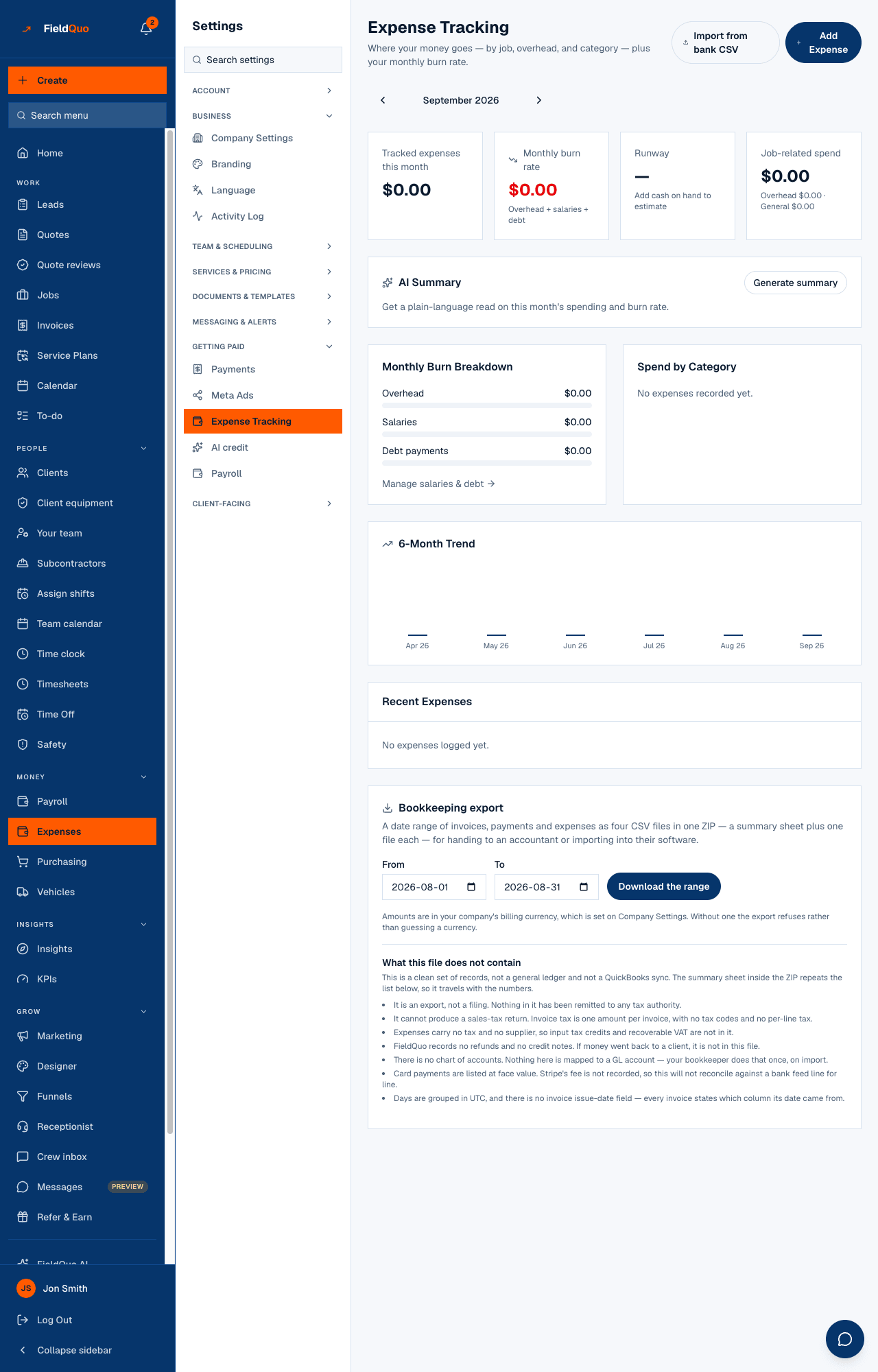
Instead of typing a month of receipts, export a statement from your bank as a CSV and press Import from bank CSV on Expense Tracking. FieldQuo reads the file, asks you which column is which, shows every row it intends to create, and writes nothing until you press Import {n} expenses. There is no bank connection: FieldQuo holds no bank credentials and no bank feed, so the CSV is the whole path.
The importer is built to refuse rather than guess. A date column that could be read day-first or month-first stops and asks; a deposit is skipped as “not an expense” rather than booked as a negative cost; a row that matches something already recorded is excluded as a duplicate.
Overview
The page is titled Import expenses from a CSV — “Upload a bank statement export, map its columns, and review every row before anything is saved.” Three steps: upload, map, review. The browser reads the file only to show you the headers and a few sample rows; the server reads it again to build the review list, so what the browser shows is never trusted as the record of what will be created.
A file is a plain .csv of up to 5,000 rows — a few years of a small contractor's statements. Above that the first rows are read and the page says to split the rest into a second file. A spreadsheet renamed to .csv, an empty file, or a file with headers and no rows each gets its own message.
The three steps
- Choose a CSV file or drag one in.
- Map the columns. Each column of the file gets a dropdown: Date, Description, Amount, Debit (money out), Credit (money in), Category or Skip. FieldQuo pre-fills obvious headers, but Continue (n/3) enables only once Date, Description and an amount — a single Amount column or a Debit column — are mapped.
- Answer the sign question: “In this file, money going out (an expense) shows as:” Negative numbers, like -45.00 or Positive numbers, like 45.00. The pre-selected answer comes from counting the sample values; it is a default, not a decision.
- Check Detected date format. If the dates could be read either way, pick Day first — 13/01/2024 is 13 January or Month first — 01/13/2024 is January 13. If the dates are not recognised at all, the page says so and stops.
- Set a Default category — used for rows with no category column or a blank category cell — and continue.
- Review before importing. “Nothing is saved yet — uncheck any row you don't want, and assign a job where it applies.” Each row has a checkbox and a Job dropdown; the counts read “ready to import”, “excluded as duplicates”, “couldn't be read”, “deposits, not expenses”.
- Press Import {n} expenses. The page confirms “Imported {n} expenses.” with Back to Expense Tracking and Import another file.
What the review decides about each row
| Row status | What it means | What happens |
|---|---|---|
| Ready to import | A date, a description and an outflow under the sign convention you confirmed. | Created when you press Import, unless you untick it. |
| Possible duplicate | Same date, same amount and the same description (ignoring case, accents and spacing) as an expense already recorded for the company from any source — or as an earlier row in the same file. | Excluded. The badge names it; it is not written. |
| Deposits, not expenses | A credit under the sign convention — an inflow. The normal shape of a bank statement, not a mistake. | Skipped. Show the {n} skipped rows lists them. |
| Couldn't be read | A blank or unparseable date or amount on that one row. | Skipped. Show the {n} rows that couldn't be read lists them with the reason. |
Amounts are read in the shapes banks export: “$1,234.56”, “(125.50)”, “125.50-”, “1.234,56”. Currency symbols and codes are stripped; the last separator in a value is taken as the decimal point.
What the imported rows become
- One expense per row, dated from the statement, with the description as its notes, the file's category or your default category, and the job you picked in the review (or none).
- One-time, never recurring, and not flagged Overhead. A statement is twelve separate rent payments, not a declaration about every future month; importing them as recurring would count one rent twelve times in the burn rate. The page says so: “To have a recurring bill like rent feed the monthly burn-rate KPI, add it separately under Settings → Overhead.”
- Written once. A slow response and a second click cannot double the batch — the review session carries one key, and a repeat says “This file was already imported — nothing new was written.”
- Re-checked at the moment of writing: “{n} more matched a transaction recorded since you opened this review and were skipped.”
- One Activity Log entry for the whole batch, not one per row.
Rows are matched on date, amount and description. Two genuinely separate $45.00 fuel stops at the same station on the same day will look like one to the importer; untick nothing, and add the second by hand if the badge is wrong.
Who can do it
Importing needs the same access as recording an expense — the level that lets a person add their own — so anyone with an Expenses dial above none can run the importer. The button lives on Expense Tracking, which is shown only to Manager, administrators and the owner (company-wide Expenses access); the page it opens does not ask for more.
Mga madalas itanong
Can FieldQuo connect to my bank directly?
No. There is no bank feed and FieldQuo never holds bank credentials. Export a CSV from your bank and import it; duplicate detection ignores where a row came from, so re-importing an overlapping statement later creates nothing twice.
The file uses a Debit and a Credit column. Which do I map?
Map both. Debit rows become expenses; Credit rows are skipped as deposits. If the file has a single signed Amount column instead, map that and answer the sign question.
Can I import materials against a job?
Yes — pick the job in the Job dropdown on the review step. The row then counts on that job's costing and in Estimate accuracy.
Why were my dates a month off?
They cannot be, by design: when day and month cannot be told apart from the values, the importer stops and asks. If the file mixes shapes, it refuses the column and says so.
Nakatulong ba ito?