

Checklists
Reusable lists of the steps your crew works through on site, grouped Before the work, On the job and Before you leave, copied onto a visit as a fresh tickable list.
Sa ngayon, available ang artikulong ito sa Ingles, Pranses at Espanyol. Binabasa mo ang bersyong Ingles. Français · Español
Settings → Documents & templates → Checklists is where you write down, once, the steps your crew repeats on every job — mask the counters, photograph before, photograph after — instead of relying on people remembering them. Attach a list to a job visit and it comes across as a fresh, tickable copy; editing the copy later never changes the original.
Two lists on the page, split on purpose: the top one is what your company wrote; the bottom is FieldQuo's per-trade starter library. Taking a starter copies it into your own list rather than linking to it, because the first thing anyone does with a starter list is change a line.
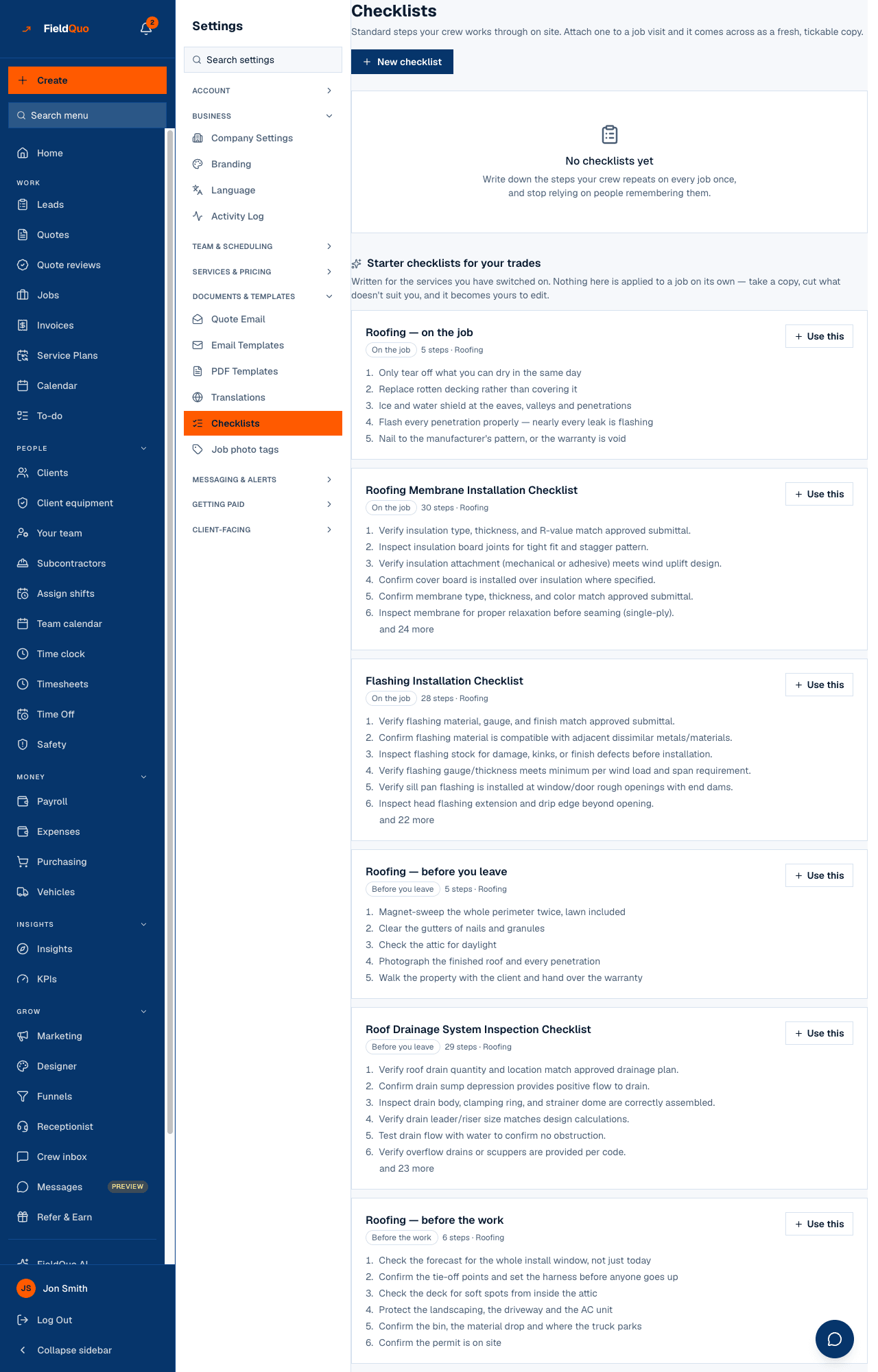
What is on the screen
New checklist at the top right. Then your own checklists, each showing its name, a phase badge (Before the work, On the job or Before you leave), its step count and the service it is for, with Edit and a delete icon. Under them, Starter checklists for your trades — written for the services you have switched on — each with Use this. When you have none yet the page reads No checklists yet.
How to write one
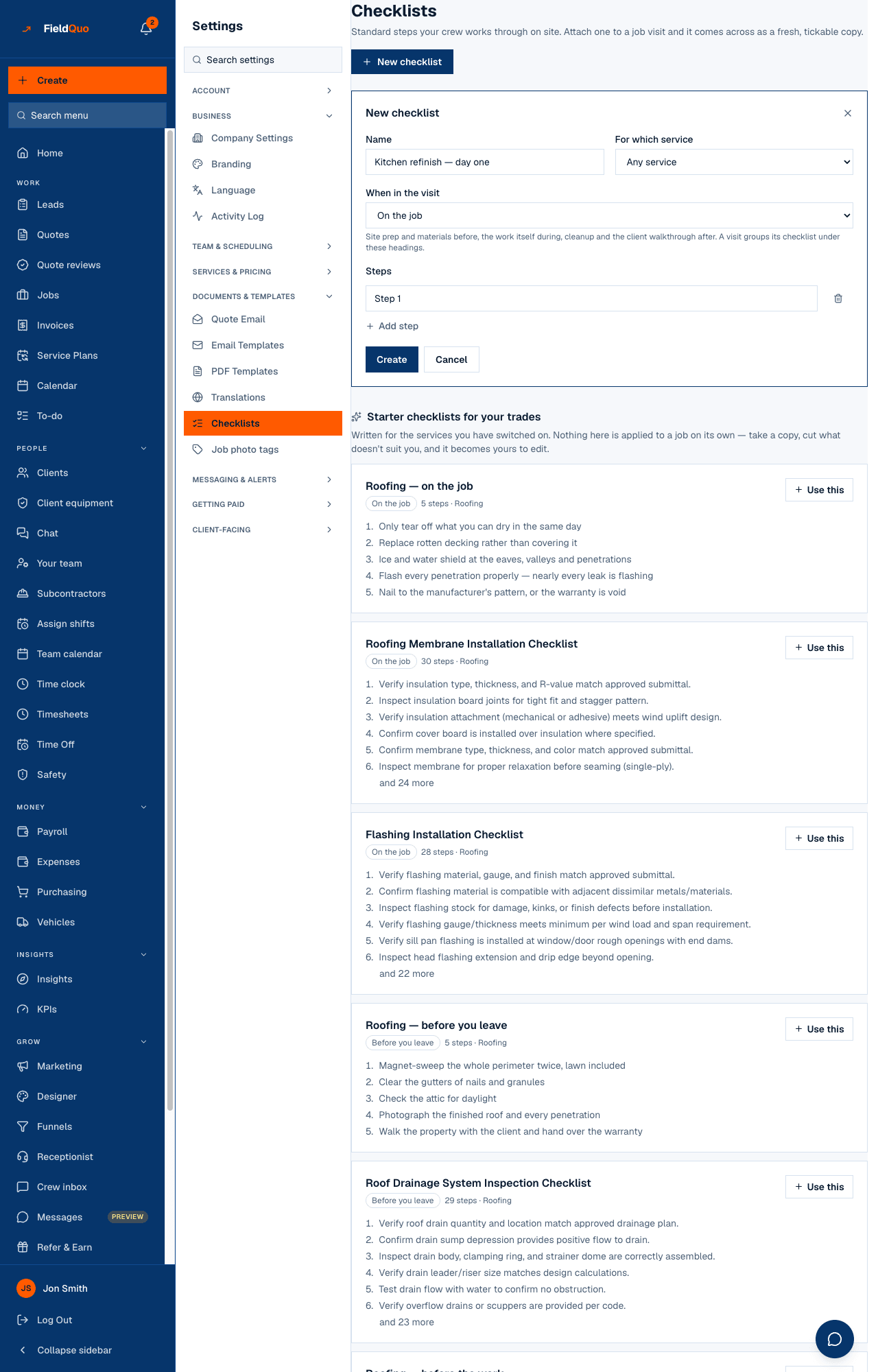
- Press New checklist (or Use this on a starter to begin from a copy).
- Name it — the placeholder suggests Kitchen refinish — day one — and choose For which service, or leave Any service.
- Pick When in the visit: Before the work for site prep and materials, On the job for the work itself, Before you leave for cleanup and the client walkthrough. A visit groups its checklist under these headings.
- Fill in the Steps, one per line, with Add step for more, and press Create (or Save changes when editing). A name and at least one step are required.
How a checklist reaches a visit
- When someone creates a visit on a job, the Checklist field is optional: pick one or more and the crew gets their own tickable copy.
- A visit that already exists can have a template applied to it afterwards from the visit's checklist panel.
- Nothing is applied on its own. The starter library is a set of suggestions, and a checklist you wrote sits here until someone attaches it. Ticking it off happens on the visit, on the crew's phone — see Checklists on site.
Deleting a checklist here removes the template. Copies already attached to visits are separate rows and keep their steps.
Who can see it
Creating, editing and deleting a checklist is for owners, admins and supervisors, so the row is shown to them. Reading the templates is open to everyone on purpose: the new-visit screen and the visit checklist read the same list, and those are exactly the screens a crew member works from.
Mga madalas itanong
If I change a checklist, do visits that already have it change?
No. Each visit holds its own copy. The edit applies to visits it is attached to from now on.
Can a step be a reading rather than a tick?
A step on this screen is a line of text the crew ticks off. There is no numeric or pass/fail response type on this settings form today.
Why do I see no starter checklists?
They are written for the services you have switched on under Services & Pricing. Switch a trade on and its starters appear.
Nakatulong ba ito?