

Job photo tags
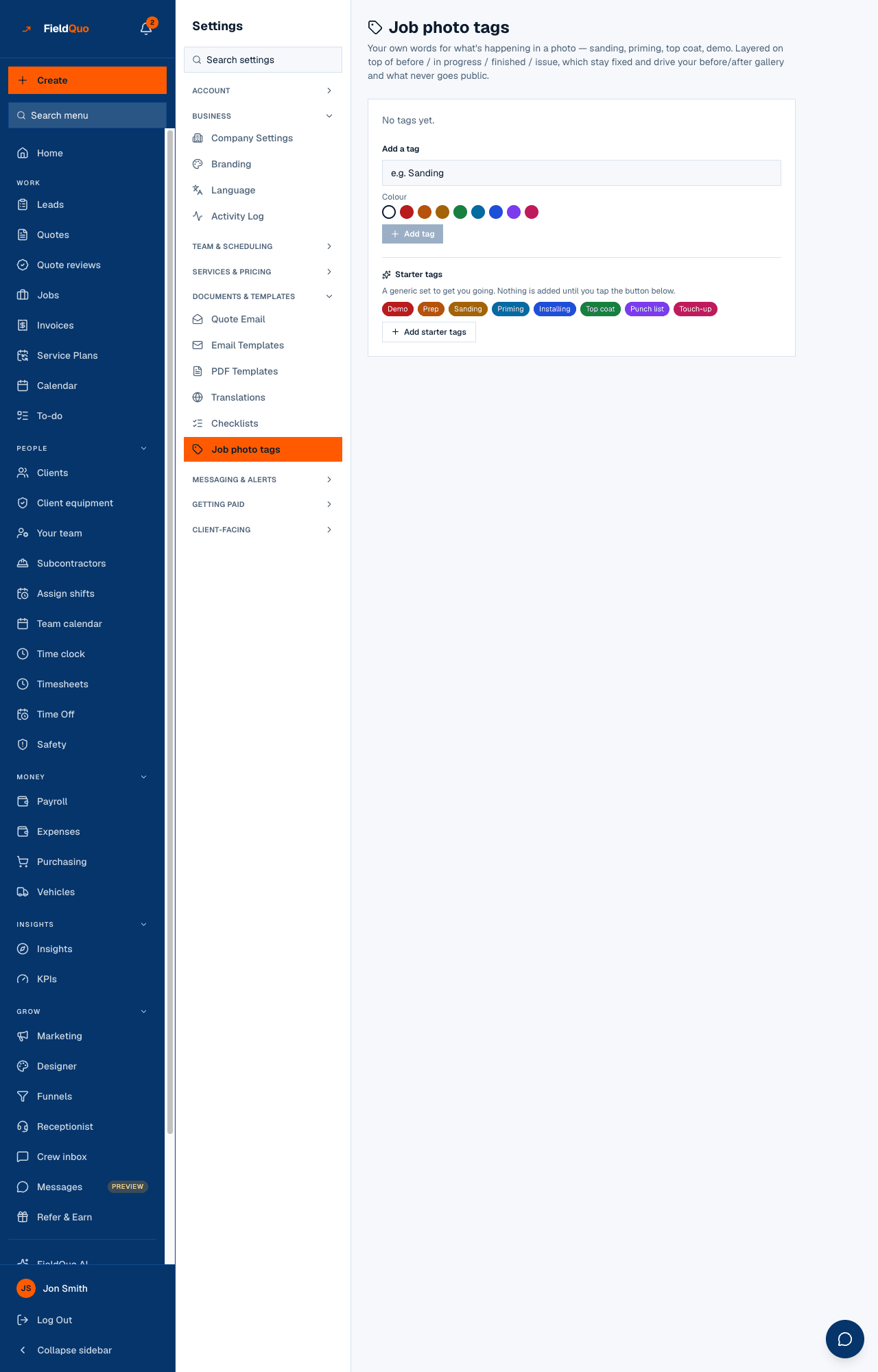
Your own words for what is happening in a job photo — sanding, priming, top coat — and how they sit on top of the four fixed stages.
Sa ngayon, available ang artikulong ito sa Ingles, Pranses at Espanyol. Binabasa mo ang bersyong Ingles. Français · Español
Settings → Job photo tags is where you write the vocabulary your office uses to describe a photo from the field. A tag is a coloured label — “Sanding”, “Demo”, “Punch list” — that anyone curating a job's photos can put on a shot, and that the job's photo timeline can filter by. Tags are layered on top of the four built-in stages (before, in progress, finished, issue), which stay fixed because they drive the before/after gallery on your website and keep an issue photo off it.
Overview
The screen is one card: the ordered list of your tags with a colour swatch each, a small form to add one, and a block of starter tags you can adopt in one press. A tag has a name (up to 60 characters), a colour from eight swatches or none, and a position in the list — the order is the order the picker offers them on a photo.
A tag is never deleted. It is retired: photos that already carry it keep it, and it simply stops being offered on new ones. That is the same rule FieldQuo applies to a person who leaves the company, and for the same reason — two hundred photos labelled “Priming” must not lose their label because you stopped using the word.
What is on the screen
- Job photo tags — the heading, with the sentence explaining that tags sit on top of before / in progress / finished / issue.
- The tag list — each active tag with its swatch, Move up, Move down and Retire. Retired tags follow at the bottom, greyed, with the word retired and a Bring back button.
- Add a tag — a Tag name box, the Colour row of swatches, and Add tag.
- Starter tags — a generic set shown as chips (Demo, Prep, Sanding, Priming, Installing, Top coat, Punch list, Touch-up) and one button, Add starter tags. Nothing is added until you press it.
- No tags yet when the company has none, and You already have every starter tag once the starter set is fully adopted.
How to add and arrange tags
- Open Settings → Job photo tags.
- Type a name under Add a tag, pick a colour (or leave it blank), and press Add tag. A name you already use is refused — one tag per word.
- Press a tag's name to rename it or change its colour, then Save. Use Move up and Move down to set the order the crew sees.
- To stop offering a tag, press Retire and confirm. To offer it again later, press Bring back.
Add starter tags only creates the starter names you do not already have — by name, ignoring case — so a tag you renamed or retired is not re-created behind your back.
What each control changes
| Control | What it does |
|---|---|
| Add tag | Creates the tag at the end of the list. It is offered on new photos immediately. |
| Move up / Move down | Changes the order of the whole list; the picker on a photo follows it. |
| Retire | Hides the tag from the picker on new photos. Every photo already tagged keeps it, and the job's filter still lists it while a photo wears it. |
| Bring back | Puts a retired tag back in the picker, in its old position. |
| Add starter tags | Adds whichever of the eight starter names you are missing, after your own tags. |
Who can see it
The row appears for owners, administrators, and the Dispatcher and Manager levels — anyone who can manage the team. Everyone else can still read the tag list where it matters, on the job's photos, because the picker needs it; they just cannot create, rename or retire one.
Mga madalas itanong
Can I delete a tag outright?
No. Retire it. Photos that carry it keep it, and it disappears from the picker on new photos. There is no delete button on purpose.
Can a tag replace the “issue” stage?
No. Stages and tags live in different places. A tag literally named “Issue” is decoration; only the stage keeps a photo off your public gallery.
Do crew members choose a tag when they text a photo in?
No. Photos arrive with a stage guessed from the text; tags are added afterwards on the job page by someone who can edit jobs.
Nakatulong ba ito?