

Troubleshooting: the five things that go wrong first
Emails that never arrive, an invoice with no Pay button, a screen you cannot find, a logo that will not upload, and a website address that will not load — what each means and where to look.
Поки що ця стаття доступна англійською, французькою та іспанською. Ви читаєте англійську версію. Français · Español
Five problems account for most first-week questions, and four of them are settings rather than faults. Each section below says what you will see, what it usually means, and the screen that fixes it. If you reach the end of a section and it is still broken, that is the moment to email support with the exact sentence on the screen — see How to get help.
A client says the email never arrived
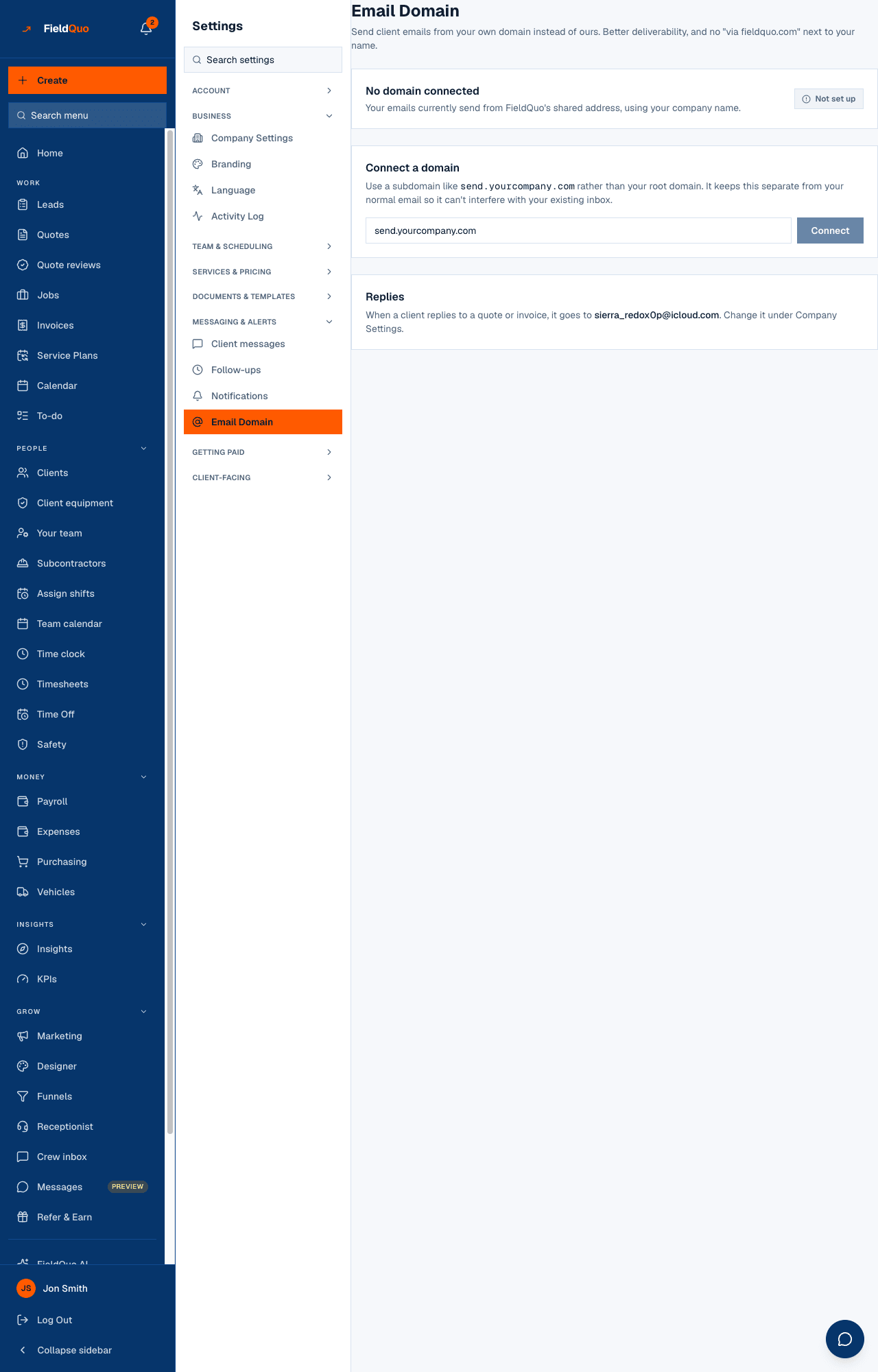
A quote or invoice email goes out from your company's name. Which address it goes out from depends on Settings → Email Domain: your own domain once it is verified, FieldQuo's sending domain until then. Unverified is the usual reason mail lands in spam or shows “via fieldquo.com”.
- Open Settings → Email Domain. The status reads Verified, Waiting on DNS, Verification failed or Not set up.
- Waiting on DNS or Verification failed — the records the page lists are not yet at your domain registrar, or not exactly as shown. Add them and check again; DNS can take an hour.
- Not set up — you are sending from FieldQuo's domain, which works but deliverability is yours to lose. See Send email from your own domain.
- Verified and still nothing — ask the client to check spam, and check the email address on the client record for a typo. The quote's own page shows when it was sent.
There is no Pay button on the invoice
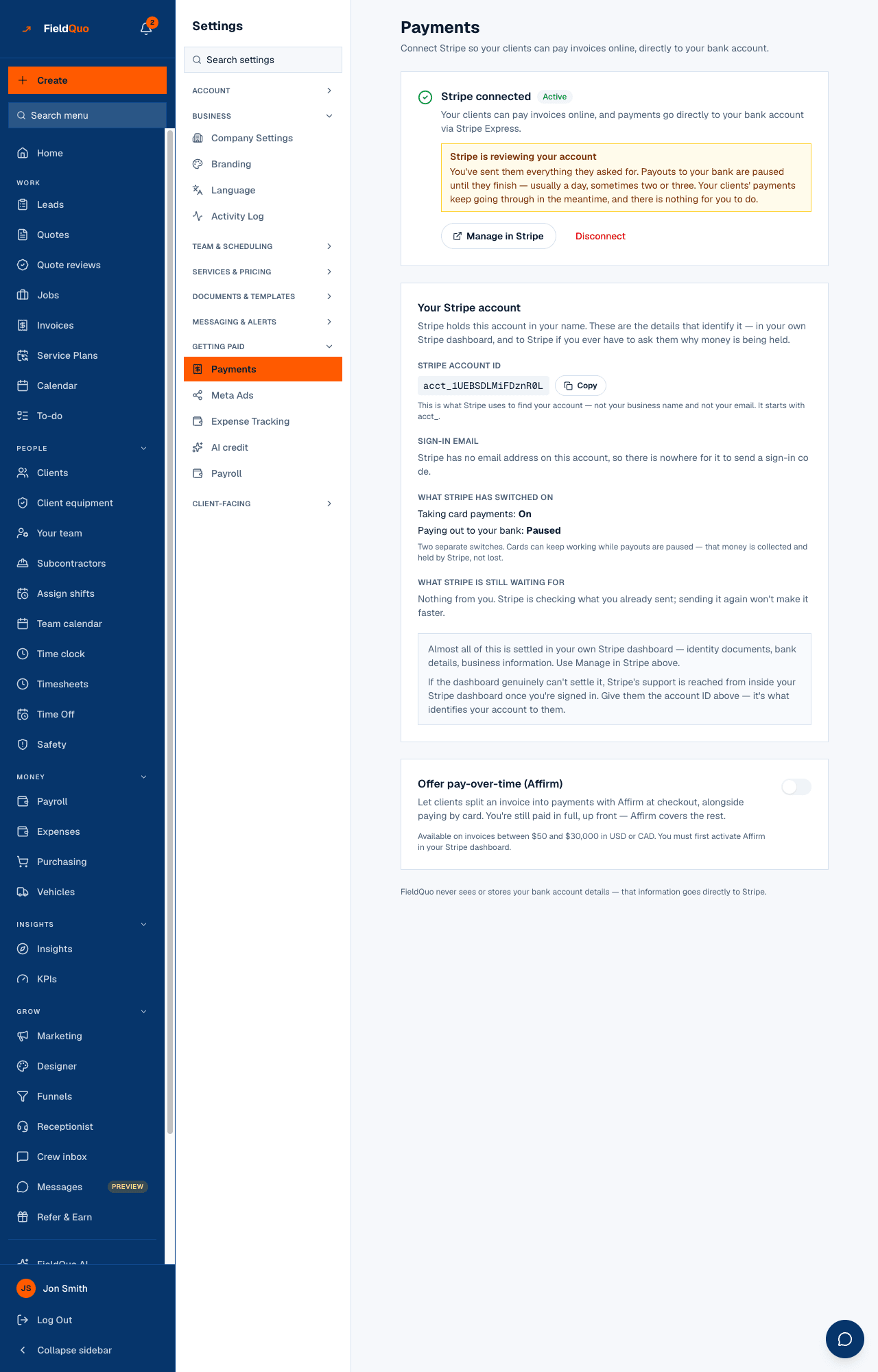
The Pay button appears on an invoice only once Stripe has switched charges on for your account. Until then the client's invoice page shows how to pay you another way instead of the button, and never a dead button.
- Open Settings → Payments. If Stripe is not connected, press Connect with Stripe — see Connecting Stripe and getting verified.
- If it is connected, the card names what Stripe has switched on and what it is still waiting for — usually a document, a bank account or a director's name. Press Manage in Stripe and finish it.
- If the page says Stripe is holding your money or reviewing your account, payments still go through; only the payout waits. See Payouts held or under review.
A screen or a button you expected is not there
The sidebar hides rows your access level does not allow, and some controls are hidden the same way. A missing row is the product working, not the product broken.
- Check your level: the owner or an administrator can read it on Your team. Crew sees no Leads, Quotes, Invoices or Clients; Estimator sees no Your team, Timesheets or Quote reviews; Dispatcher sees no Expenses, KPIs or delete buttons. See Access levels: who sees what.
- A block that reads Hidden by your access level or “Pricing is hidden by your access level” is the same rule inside a screen — ask the owner to raise that one dial in the Custom access editor.
- Cabinet Pricing and Material Costs appear only for the trades that price that way; the industry is set on Settings → Company Settings.
- On a phone, More opens everything the tab bar does not show.
The logo will not upload
Settings → Branding takes PNG, JPG, WebP or SVG, up to 8 MB. A file outside that is refused; a file inside it that fails shows Upload failed or Could not upload logo.
- Check the format and size. A photo straight off a phone can be over 8 MB — export it smaller.
- Try once more. A single failure on a bad connection is common; the upload is signed by the server and completes or fails, it never half-saves.
- If every upload fails with the same message, the fault is on FieldQuo's side (the image service refusing the upload), not your file. Email support with the message.
Your website address will not load
Your site lives at your subdomain of fieldquo.com, chosen on Settings → Your website. “Safari can't find the server” or “this site can't be reached” means the name does not resolve — a name-service problem on FieldQuo's side, not something in your site's content.
- Open Settings → Your website and check the badge beside the address reads Live. A site that was never published does not answer at all — the button beside the address reads Publish until it is, and Update afterwards.
- Press Open on that page rather than typing the address; a typo in the subdomain is the commonest cause.
- If it is Live and still does not load from a second device, email support with the address. That is a wildcard name-service fault FieldQuo has to fix.
There is no custom-domain option today: the address is always yoursubdomain.fieldquo.com. See Your website address.
Часті запитання
FieldQuo AI stopped answering.
The month's allowance is used up; the screen says so above the question box. It resets at the start of next month. Everything else keeps working.
The first page after a quiet spell was slow or failed.
Reload once. The database sleeps when nobody has used it for a while and the first connection wakes it.
A client's reminder text did not go out.
Reminders go by text only, and only to a client with a mobile number on their record who has not unsubscribed. See Appointment reminders.
Чи була ця стаття корисною?