

Job photos and tags
Every photo on a job is filed by stage — before, in progress, finished, issue — with your own tags on top; a star puts one on your website, and issue photos never go public.
Sa ngayon, available ang artikulong ito sa Ingles, Pranses at Espanyol. Binabasa mo ang bersyong Ingles. Français · Español
A wall of undated photos is a shoebox. Grouped by stage, the same photos become the record of a job — what it looked like when the crew arrived, the work under way, the finished result — and the before and after of one job is what wins a painter the next one.
Two things describe a photo. Its stage is fixed product logic: Before / start, In progress, Finished and Issue / snag drive the before/after pairing on your website and keep an issue shot off it. Tags are your own words — sanding, priming, top coat, demo — layered on top and touching none of that.
Where photos come from
- Uploaded on the job page. The Job photos panel takes up to 12 at a time. They are filed as In progress — change the stage on any photo after it lands.
- Texted to your crew line. A photo sent by text lands on the job with its stage guessed from the words in the message: “all done” files it as finished, “before we start” as start, “leak” or “damage” as issue, anything unclear as in progress. It is a hint you can change, and a texted photo arrives with no tags. See The crew inbox.
Anyone who can see the job can add photos, Crew included.
What you can do on the job page
- Star a photo to show it on your website; the panel counts how many are on your website. A Before / start and a Finished photo of the same job become a before/after. An Issue / snag photo cannot be starred — the button says so rather than silently doing nothing.
- Change the stage with the dropdown under the photo.
- Tick tags under the photo. A retired tag still shows, already ticked, on a photo that had it — it is only no longer offered on new ones.
- Comments and Add markup (drawing on the photo) live on each photo too.
- Photo record lists every photo dated and grouped by stage, issue photos included, with Filter by tag and Download photo report — a PDF for a client, an insurer or a dispute.
Starring, re-staging, tagging and markup need the Jobs area at View, create, and edit. Uploading and commenting work at View only, so a Crew member files photos and leaves comments but does not curate.
How to set up tags
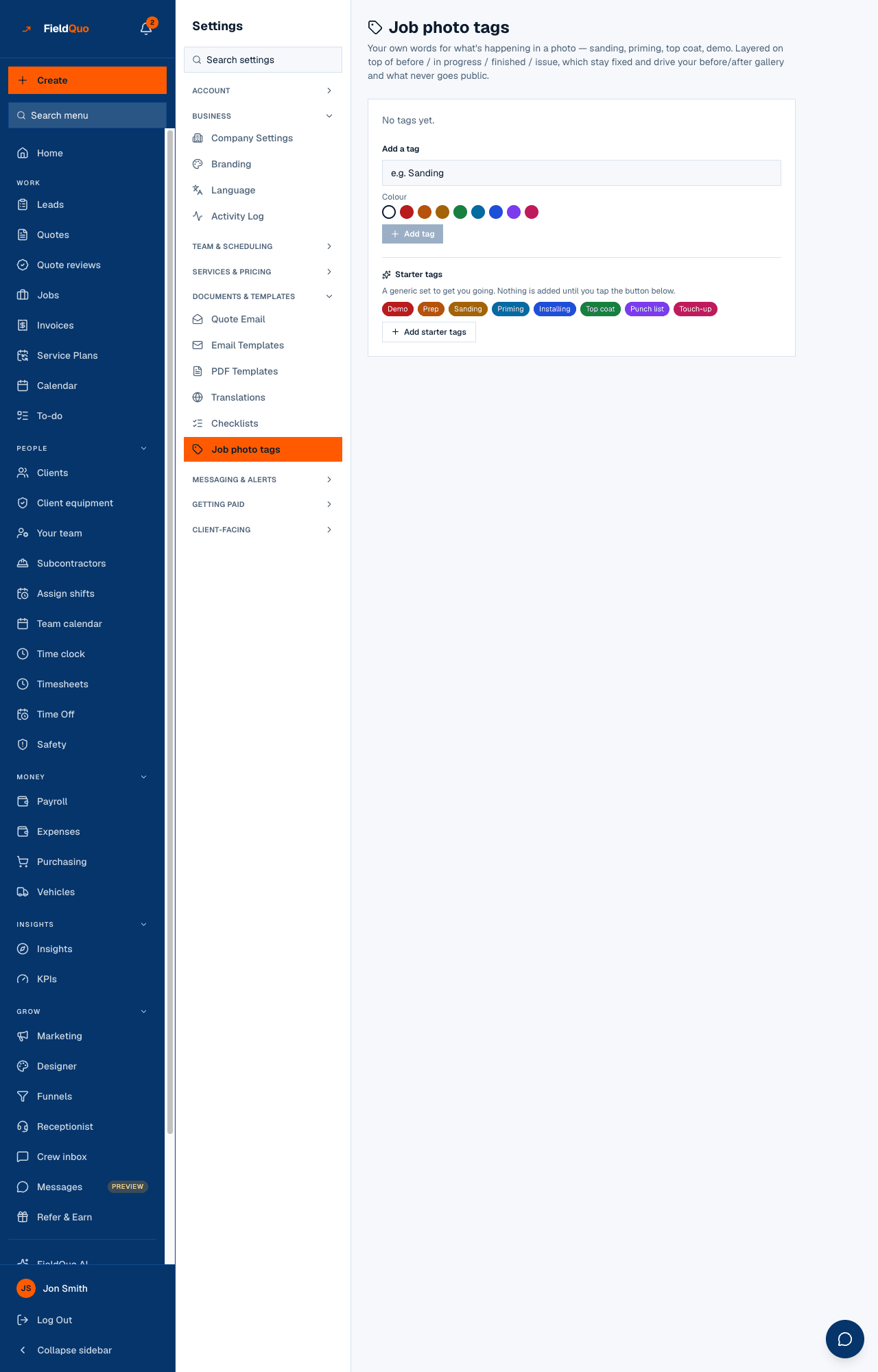
- Open Settings → Job photo tags (or Manage tags from the job page).
- Under Add a tag, type a Tag name, pick a Colour and press Add tag.
- Or press Add starter tags to take the generic set — Demo, Prep, Sanding, Priming, Installing, Top coat, Punch list, Touch-up. Nothing is added until you press it.
- Order the list with Move up and Move down; that is the order the job page offers them in.
Retiring a tag
There is no delete on this screen, on purpose. Retire hides a tag from the picker on new photos; every photo that already carries it keeps it, unchanged. Bring back puts it in the picker again. A tag named “Issue” behaves exactly like one named “Sanding” — the privacy rule belongs to the stage, and a tag has no way to reach it.
Who can see it
The Job photo tags settings row is for owners, administrators and the Dispatcher and Manager presets. Photos on a job follow the job: a Crew member sees the photos on the jobs they are assigned to.
Mga madalas itanong
Can a photo leak onto my website by accident?
Only a starred photo appears there, and an Issue / snag photo cannot be starred. The website checks the stage again when it builds the gallery.
Does a tag change what the website shows?
No. Tags are for filtering and for you; the website reads stage and the star only.
Can I delete a photo?
There is no delete control for a job photo today. Re-stage it as Issue / snag to keep it off the website.
Nakatulong ba ito?