

Timesheets: review and approve hours
Where the office reviews every clock-in, sees where the phone was when it happened, approves the hours a pay run may use, and logs a punch somebody forgot.
Поки що ця стаття доступна англійською, французькою та іспанською. Ви читаєте англійську версію. Français · Español
The crew clock in and out on Time clock; the office reviews the result on Timesheets. Nothing reaches a pay run until somebody presses Approve on it, and nothing on this screen is hidden from the person who worked the hours — the same entry they see on their phone is the row you see here.
This article covers what each row shows, what the position chips mean and do not mean, how to add a missed punch, and who is allowed to approve, edit or delete an entry.
The attendance chip, and where the hours go
Timesheets has no download: the hours are not exported as a file. Approved hours go where they are used — into pay runs, whose payslips download as PDFs, and into each job's labour cost.
A chip beside a name — On time, Late 12 min, Left 20 min early, No-show — is the rota's verdict for the published shift that punch belongs to, the same one the day board shows on the block. A punch with no published shift around it has no chip.
Overview
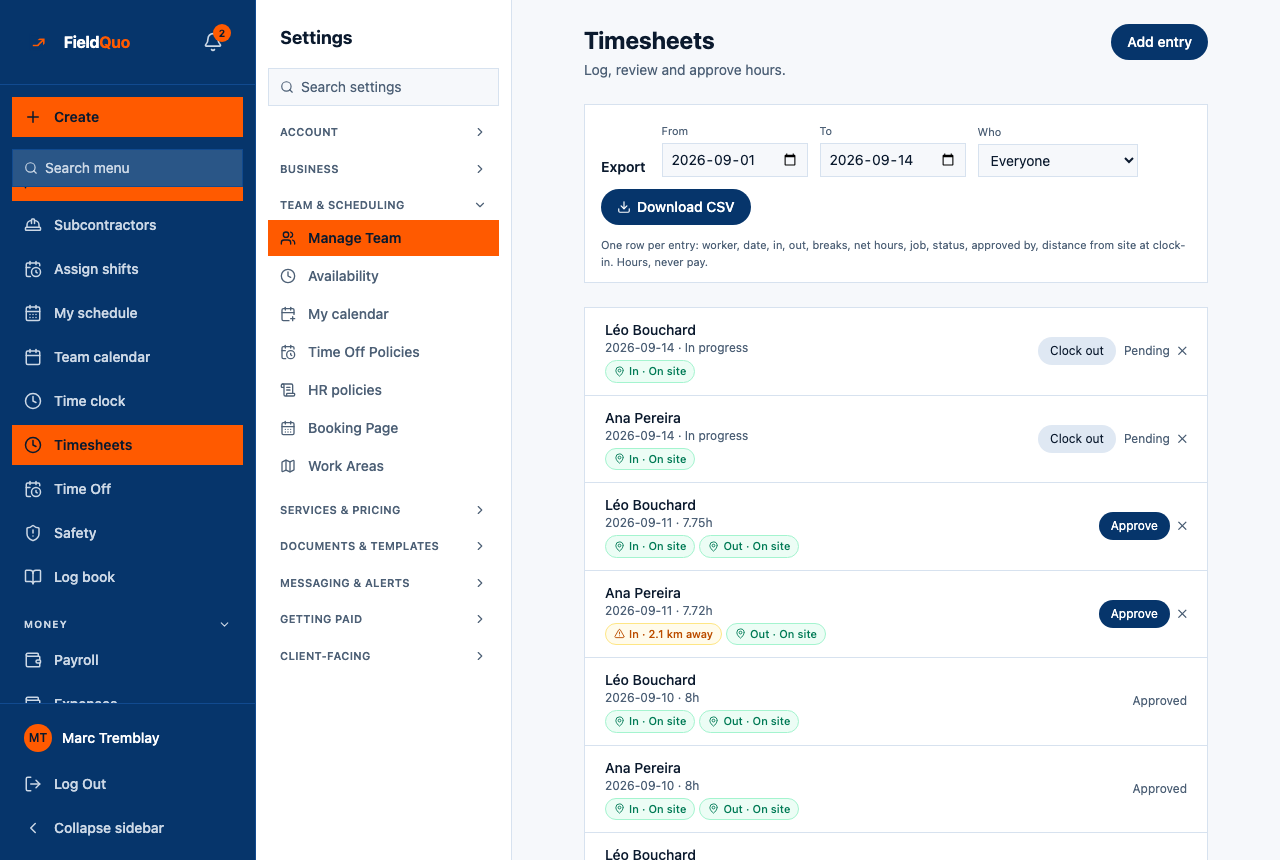
Timesheets sits in the sidebar under People, next to Time clock and Time Off. The heading reads Timesheets — Log, review and approve hours. Below it is one row per punch, newest first, for everyone in the company — not a week view, and not filtered by person.
An entry is pending from the moment it is clocked out until somebody approves it; a row still on the clock reads In progress instead of a number of hours. Only approved hours are counted by a payroll run and by job costing; pending hours are reported beside them as left out, never silently added.
What is on the screen
- Add entry, top right — opens the New time entry form. It only appears once at least one worker exists; otherwise the page says Add a worker under Workers first, then log their hours here.
- Each row: the worker's name, the date, and either the hours (7.5h) or In progress.
- Two chips under the name: In · On site, In · 2.1 km away or In · —, and the same for Out once the person has clocked out.
- On the right: Clock out on a row still open, Approve on a pending row with hours, the status word on everything else, and a ✕ to delete a row that is not yet approved.
- A row approved by the same person who worked it carries · self-approved in amber.
- The legend at the bottom: Position is captured only at the moment they tap Clock in or Clock out, with their permission. Nothing is tracked in between. A flag is a question for you, not a verdict.
How to approve hours
- Open Timesheets from the sidebar.
- Read the row: the date, the hours, and the two chips. An amber chip means the tap landed more than 250 m from the job's address — look, then decide.
- Press Approve. The row changes to approved and the hours become available to the next pay run and to the job's cost.
- A row that is still In progress cannot be approved. Press Clock out on it first (the end time is now), or wait for the person to clock out themselves.
Approving your own hours is allowed — a sole trader has nobody else to ask — but it is named: the row says · self-approved, the pay run says so, and the Activity Log records it as a separate action.
An approved entry is closed. Only an owner, administrator, Dispatcher or Manager can change or reopen it, because those hours may already be on a payslip. A crew member who corrects their own hours — a forgotten clock-out is the usual case — sends the entry back to pending so it gets looked at again.
How to log a missed punch by hand
- Press Add entry. The New time entry form opens.
- Choose the Worker, the Date (today is pre-filled), the Start time and, if the shift is over, the End (optional) time.
- Press Save. The hours are worked out on the server in your company's timezone, so a 9:00–17:00 entry is 8 hours wherever the person saving it happens to be.
Leave End (optional) blank and the entry stays In progress until somebody presses Clock out on it. A manual entry has no position chips to show — nobody tapped a phone — so both chips read —.
What the position chips mean
| Chip | What it means |
|---|---|
| In · On site | The phone answered at the moment of the tap and was within 250 m of the job's geocoded address. |
| In · 2.1 km away | The phone answered and was further than 250 m from the address. Amber, because it is a question — the person may have parked up the street, or may not have been there. |
| In · — | No claim can be made: the phone did not answer, the job has no site address on a map, the entry was typed in by hand, or the reading was too rough to trust (an accuracy circle wider than the fence). |
The 250 m fence is fixed; it is not a setting. Position is asked for once per tap and only with the person's permission; FieldQuo never records a route, a trail or a location between punches, and never draws anyone on a map — the timesheet shows the distance to the site and nothing else. The chip never disables Approve — the decision stays yours.
Who can see it
The page opens for anyone who can manage people — the owner, administrators, and the Dispatcher and Manager levels. The sidebar row appears at the Time Tracking & Timesheets level View, record, edit, and delete everyone's, which those same presets hold. Crew and Estimator are at View, record, and edit their own: they do not see this row, and their own entries live on Time clock.
- Approve: owner, administrator, Dispatcher, Manager.
- Clock out somebody else, or edit their times: the same everyone's level.
- ✕ Delete: the everyone's level, and never on an approved row — the server refuses that, so the button is not shown. Deleting asks first: Delete this time entry?
Часті запитання
Why is there no Approve button on a row?
Either it is still In progress (clock it out first) or it is already approved. A row that reads approved has no button and no ✕.
Does a flagged row stop the person being paid?
No. The chip changes nothing on its own; the hours reach the pay run only when you approve them, flagged or not.
Can I see which job the hours were on?
Not on this list — it shows the worker, the date and the hours. The job is on the person's Time clock entry and in the job's own cost panel once the hours are approved.
Where does the hourly rate come from?
From the worker's record under Settings → Workers. A worker with no rate still has their approved hours counted, but they add no labour cost to the job, and the cost panel says so rather than showing a cheaper job.
Чи була ця стаття корисною?