

Build a quote
The quote builder from top to bottom — client, assignee, language, services, lines, cost and margin, notes, photos, totals — and the three ways out of it.
Поки що ця стаття доступна англійською, французькою та іспанською. Ви читаєте англійську версію. Français · Español
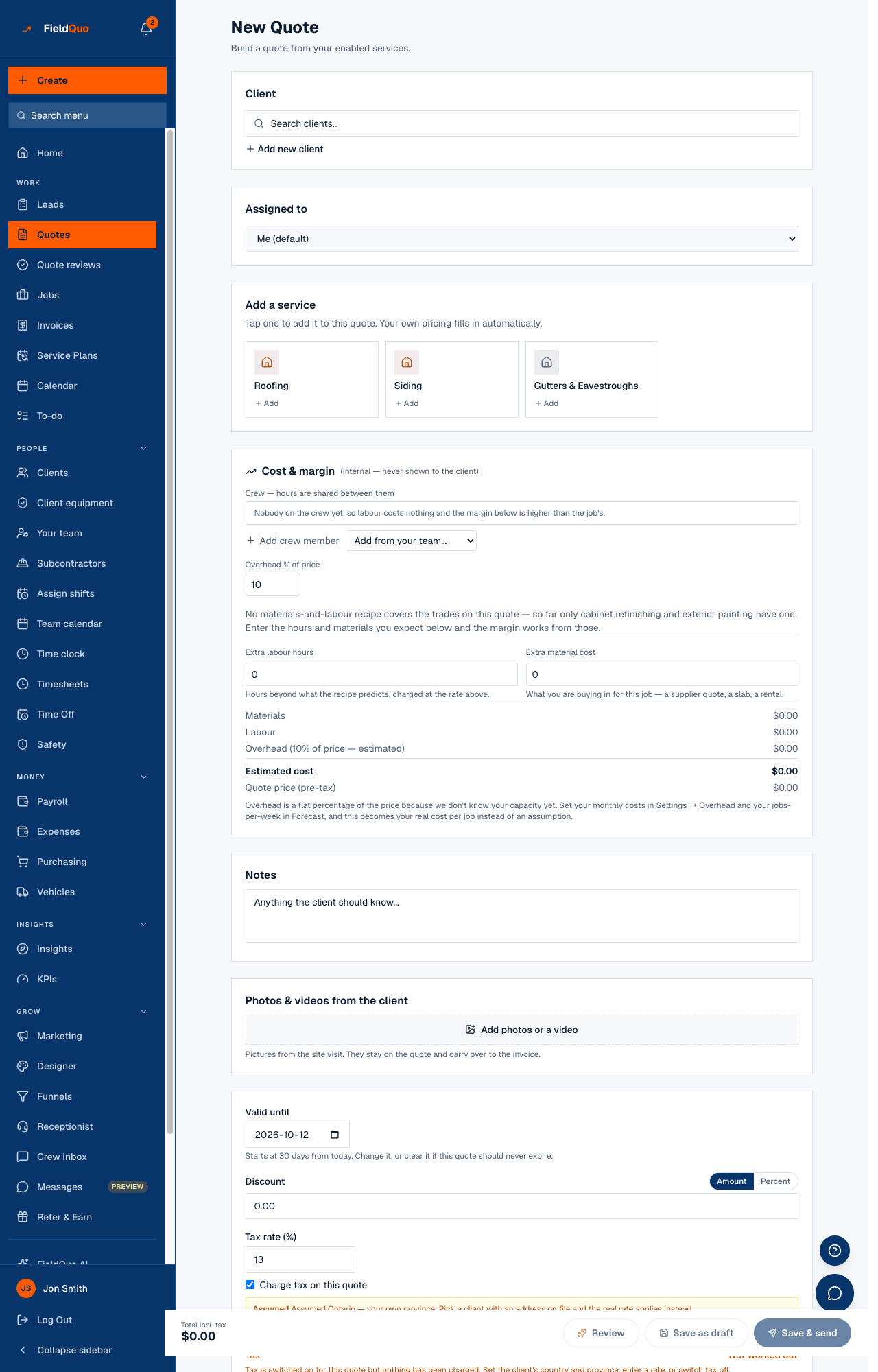
New Quote opens one screen — the builder — that is also the editor of every quote you reopen. You pick the client, tap the services, fill in what each one asks, adjust the lines, and the total works itself out from your own rates. Nothing you type here reaches the client until you send it.
The subtitle says it: Build a quote from your enabled services. The tiles you see are the quote types you have turned on under Settings → Services & Pricing, and the prices they fill in are yours.
Overview
A quote is a client, a language, one or more scope groups (one per service, each with its lines and its own subtotal), a discount, tax, an expiry date, notes, photos and a status. The builder keeps a running subtotal on every group so you can see which half of a two-service quote is the expensive one.
Creating and editing differ in two ways only: on a new quote you choose the client and the language; on a saved one both are fixed — the language because a document keeps the language it was created in, the client because the quote is theirs.
Before you start
- Turn on the quote types you sell and set their rates — Quote types and takeoffs. A type that is off has no tile.
- Put your one-off extras in the price book — Lines from your price book — so they are one tap away.
- Have the client's address: it drives the tax rate, and a quote with no jurisdiction shows an assumed rate with a caution under it.
- Priced something like it before? Duplicate on that quote's page opens a fresh draft under the next quote number with the same client, language, services and lines, add-on offers, costing, notes and email sections — and none of its history: no send date, signature, approval, client edits or AI review.
Coming from a lead? Convert to quote on the lead panel opens this screen with the client, the service, the answers and the photos already filled in. See Convert a lead to a quote.
The builder, top to bottom
The cards, in the order they appear:
- Client — Search clients… or Add new client (a person or a company, with their contact person, language and address). Picking a client with a saved language sets the quote's language.
- Assigned to — Me (default), or another member. Reassigning to someone else needs the assign permission; the server refuses otherwise.
- The language bar — the language this document will be written in, from the languages your company sends in. Chosen once; fixed after the first save. See A quote keeps its language.
- Add a service — Tap one to add it to this quote. Your own pricing fills in automatically. One tile per enabled quote type. Some trades open a list of sections to pick from — see Group a quote by room or scope.
- One card per service you added, numbered 01, 02 when there is more than one, with the trade's colour, a running subtotal and a remove button. Inside: the trade's form — a takeoff, a unit grid, a menu of tiers or a set of questions — then the line items: Description, Qty, Rate, Amount, Add line item, Common for this trade, and + Add from Products & Services….
- Cost & margin (internal — never shown to the client) — crew, hours, materials, overhead and the margin against the price. Shown only to members with job costing. See Cost and margin on a quote.
- Notes (Anything the client should know...) and Photos & videos from the client — see Photos on a quote.
- The totals bar — Valid until (30 days from today, changeable or clearable), Discount as an amount or a percent, Tax rate (%) with Charge tax on this quote, then Subtotal, Tax, Total — and the buttons Review, Save as draft, Save & send. Under it, What happens next: the process steps the client reads at the bottom of the quote.
How to build one
- Press New Quote on the Quotes list.
- Pick the client, or Add new client and fill in name, email, phone, language and address.
- Check the language bar. The client's saved language is already selected; change it only if this document should be in another one.
- Tap a service tile. Its card appears with the trade's own form.
- Fill in the form — doors and drawer fronts, areas and surfaces, a load size, or the trade's questions. The lines and the subtotal appear as you type.
- Adjust the lines: edit a rate, add a line by hand, tap one from Common for this trade (a description with the price left blank for you), or pick an item from + Add from Products & Services… with its price already on it.
- Set Valid until, a Discount if any, and check the tax line. A yellow Assumed note means the rate came from your own province because the client has no address on file — pick a client with an address, enter the rate, or switch tax off.
- Press Save as draft, Save & send, or Review.
The builder refuses to save until a client is chosen and at least one service is on the quote: the buttons stay disabled and the banner says Select or create a client first or Add at least one service to the quote.
The three ways out
| Button | What happens |
|---|---|
| Save as draft | The quote is saved with status Draft and its page opens. Nobody is emailed. |
| Save & send | A confirmation asks Send this quote? They'll get it by email straight away. You can't unsend it. and names the recipient. Save & send saves and emails the quote, with its PDF, in the quote's language. The status becomes Sent only once the email is accepted. See Send a quote. |
| Review | Saves a draft first — the review reads the saved quote — then opens it with the checks already run: completeness, a price comparison against your own history, suggested add-ons and the AI's notes. See AI quote review. |
Saving a quote freezes its prices. A saved group's lines are edited as numbers; its takeoff is kept but not reopened, so a quote already in a client's inbox never silently reprices because a rate card moved.
Who can do it
Building a quote needs View, create, and edit on Quotes and the See prices switch — Estimator, Dispatcher, Manager, Administrator and the owner. A member with quote access but without See prices is refused the builder rather than shown one priced off numbers that are not the company's. Crew has no quote access.
Часті запитання
Where do the prices come from?
From the trade's rate card under Settings → Services & Pricing for the main scope, and from Products & Services for extras. Both are yours; FieldQuo's defaults apply only until you set your own.
Can I write a quote without a service tile?
No — every quote has at least one scope group. If none of the built-in types fits, create a custom quote type with the fields you want under Settings → Services & Pricing.
Why is the language bar gone on a saved quote?
A quote keeps the language it was created in, so the emailed copy and the PDF say the same thing as what was approved. Create a new quote for another language.
What is Notes for review?
An internal box that appears only when a phone-call draft or the review put something in it. It never appears on the client's copy; clear it once you have dealt with what it says.
Чи була ця стаття корисною?