

References and before-and-after photos in the quote email
Two optional sections of the email that carries a quote — past clients who agreed to take a call, and photo pairs from finished jobs — set once under Settings → Quote Email and switched on or off per quote.
Поки що ця стаття доступна англійською, французькою та іспанською. Ви читаєте англійську версію. Français · Español
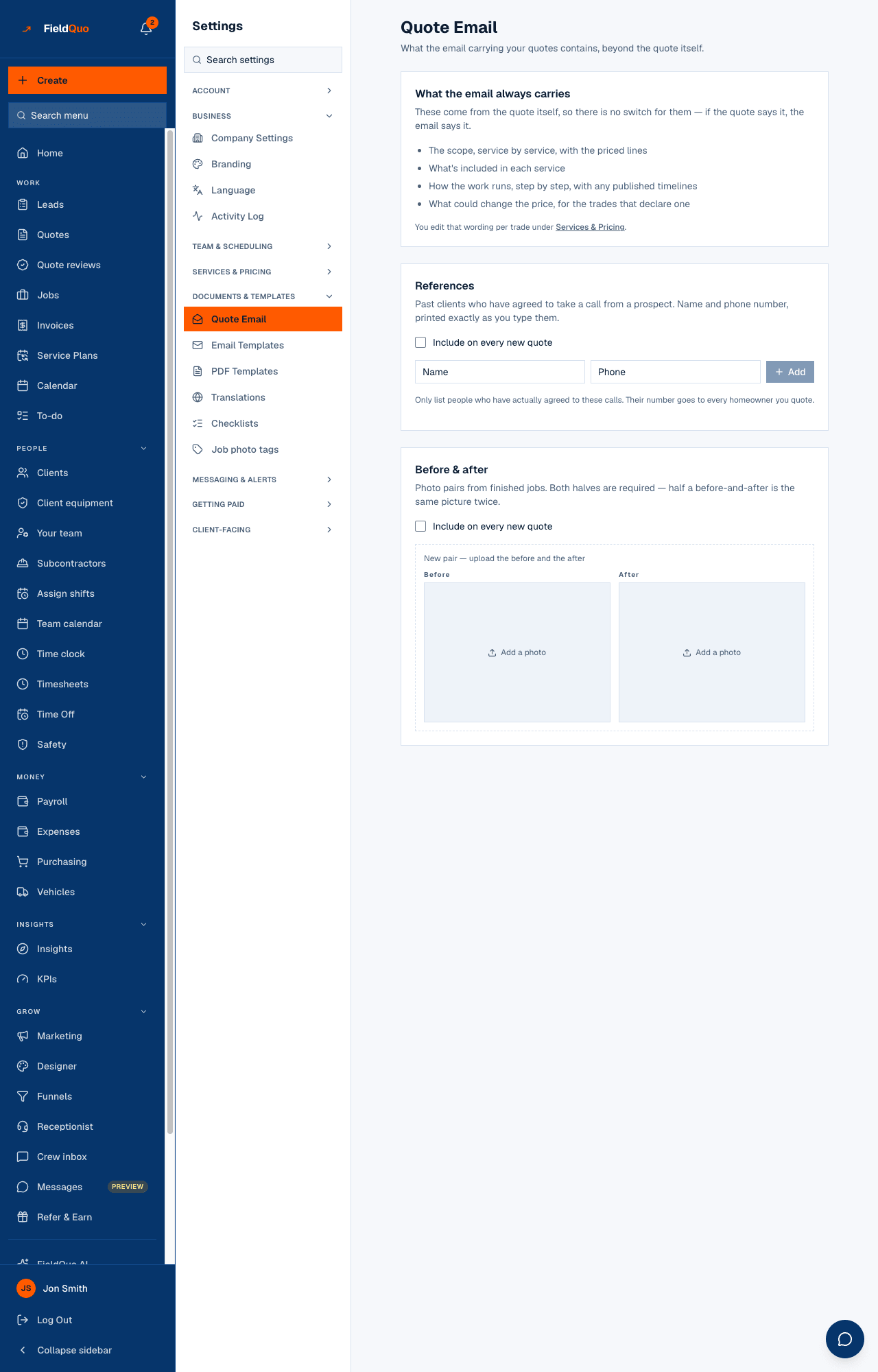
The quote email always carries the scope, what is included, how the work runs and what could change the price — those come from the quote itself and have no switch. Settings → Quote Email adds two optional sections you own: References and Before & after. This article is what each one does, how it is switched on, and the one rule that stops an empty section reaching a homeowner.
Overview
The screen opens with What the email always carries — the scope service by service with the priced lines, what's included in each service, how the work runs step by step, and what could change the price for the trades that declare one — and points you to Services for that wording. Then the two sections below, each with an Include on every new quote switch.
References
Past clients who have agreed to take a call from a prospect: a Name and a Phone, printed exactly as you type them. Press Add for each; Remove takes one off.
The screen says it and it bears repeating: only list people who have actually agreed to these calls. Their number goes to every homeowner you quote.
Before & after
Photo pairs from finished jobs. New pair — upload the before and the after opens two upload boxes, Before and After, with an optional caption. Both halves are required — half a before-and-after is the same picture twice.
Per quote: the Email sections panel
On each quote, an Email sections panel shows the two optional parts with their state — Default (on) or Default (off) from the company setting, or On / Off if you overrode it for this quote — and how many items would go, from this quote or your company list. A quote can carry its own references and pairs as well as the company's.
- Open Settings → Quote Email and add at least one reference or one pair.
- Switch Include on every new quote on. New quotes from now on default to including it; existing quotes keep what they had.
- On a quote where it should not go, open Email sections and turn it Off for that quote.
The empty-section rule
A section that is switched on with nothing in it must never reach a homeowner — and must not be dropped silently either, because you ticked the box and would believe it went. So the send is blocked. The quote page says This is switched on with nothing to show, so the quote can't be sent yet, and the send itself stops with A section you've included is empty and two ways out: Add content (which takes you to the settings) or Leave it out of this quote, then Send now.
The rule is enforced twice — before the email is built and inside the builder of the email itself — so no future send path can post a heading over a blank space. Follow-up emails from Settings → Follow-ups carry neither section and are unaffected.
Language, and who can change it
The email is sent in the quote's language, from your company's own name — references and captions print as you typed them, untranslated. The settings screen is for owners, administrators, Managers and Dispatchers; the per-quote switch is part of editing the quote (Quotes at View, create, and edit).
Часті запитання
Do these sections print on the PDF?
No. They are sections of the covering email. The PDF is the document itself — see The quote PDF.
Can I add a reference to one quote only?
Yes — the Email sections panel on the quote counts items from this quote as well as from your company list.
I turned the switch on and now nothing sends. Why?
The section is on with nothing in it. Add a reference or a pair under Settings → Quote Email, or leave it out of that quote, and send again.
Чи була ця стаття корисною?