

Lines from your price book
Settings → Products & Services: the items you can drop onto any quote with their price already on them, how to add and import them, and how they appear in the builder.
Products & Services is your price book: the extras and one-off items — handles, hinges, a rush fee, a disposal charge — that you drop onto a quote in one tap, with the price you set. A line picked from here is priced by you, so the number the homeowner sees is the one you decided on.
It is separate from the rate card on Settings → Services & Pricing, which prices the main scope of a trade. The two answer different questions: a rate says what a unit of work costs; a product says what else went on the job.
Overview
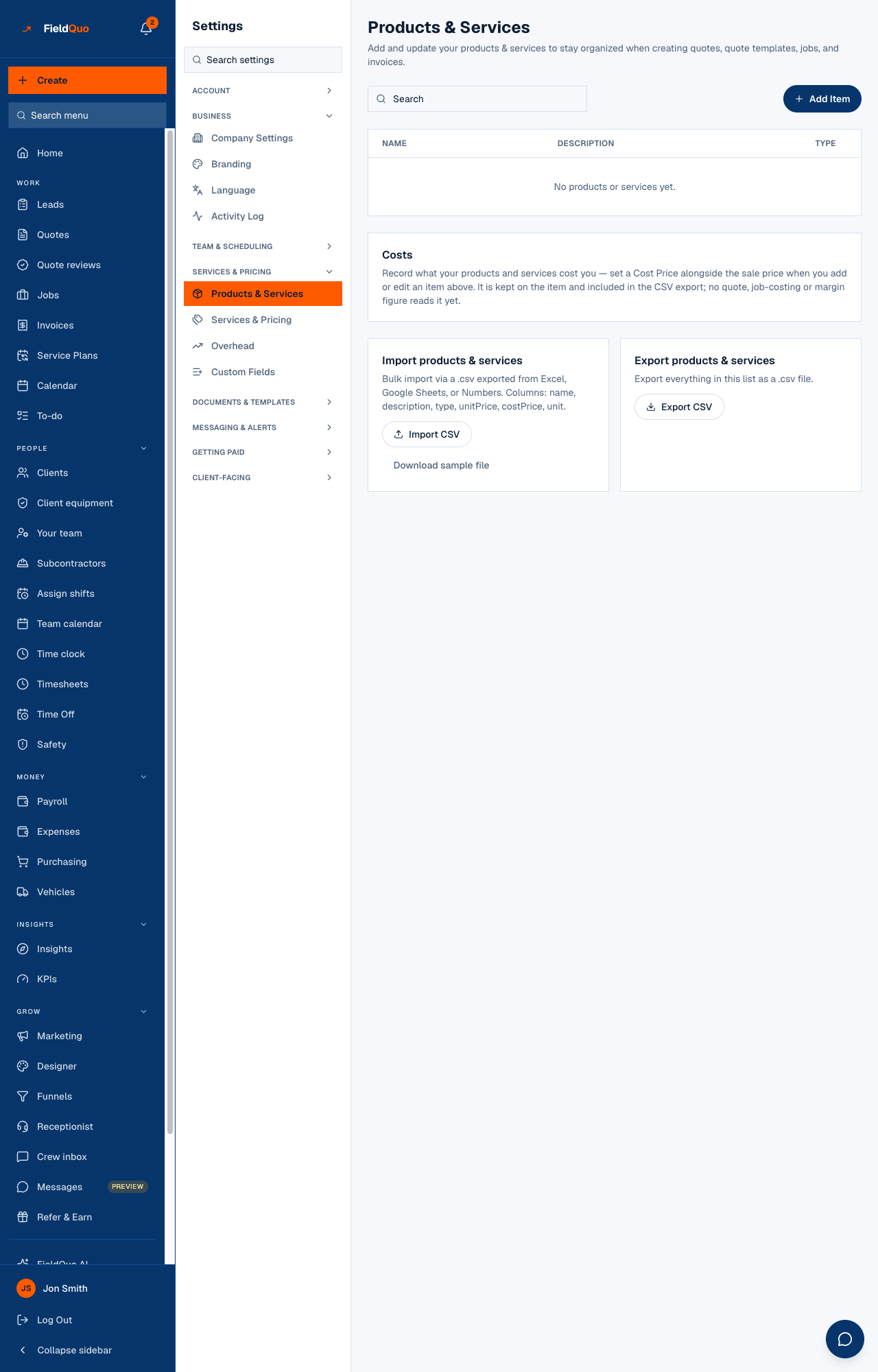
The screen reads Products & Services — Add and update your products & services to stay organized when creating quotes, quote templates, jobs, and invoices. A table of Name, Description and Type, with search, Add Item, edit and delete on each row, and a card for CSV import.
An item can be limited to certain quote types. In the builder, a service card's + Add from Products & Services… menu lists only the items linked to that type — a flooring group does not offer cabinet hardware — or every item, if the item was left unlinked.
Rate card or price book?
| Question | Rate card (Services & Pricing) | Price book (Products & Services) |
|---|---|---|
| What it prices | The main scope: per door, per square, per linear foot. Builds the quote's core lines from the takeoff. | Extras and one-offs, priced individually. Added to a quote by hand. |
| Where it appears | Inside the trade's form on the quote. | In the + Add from Products & Services… menu under a service's lines. |
Several trades ship a standard set of extras. Add standard items to Products & Services on the type's card under Services & Pricing creates them here in one press, already linked to that type; the same upgrade can be linked to more than one trade.
What is on the screen
Top to bottom:
- Search and Add Item.
- The table — Name, Description, Type (Service or Product) — with Edit and Delete on each row, paged when the list is long.
- Costs — Record what your products and services cost you — set a Cost Price alongside the sale price when you add or edit an item above. It is kept on the item; no quote, job-costing or margin figure reads it yet.
- Import products & services — Import CSV and Download sample file. Columns: name, description, type, unitPrice, costPrice, unit.
How to add an item
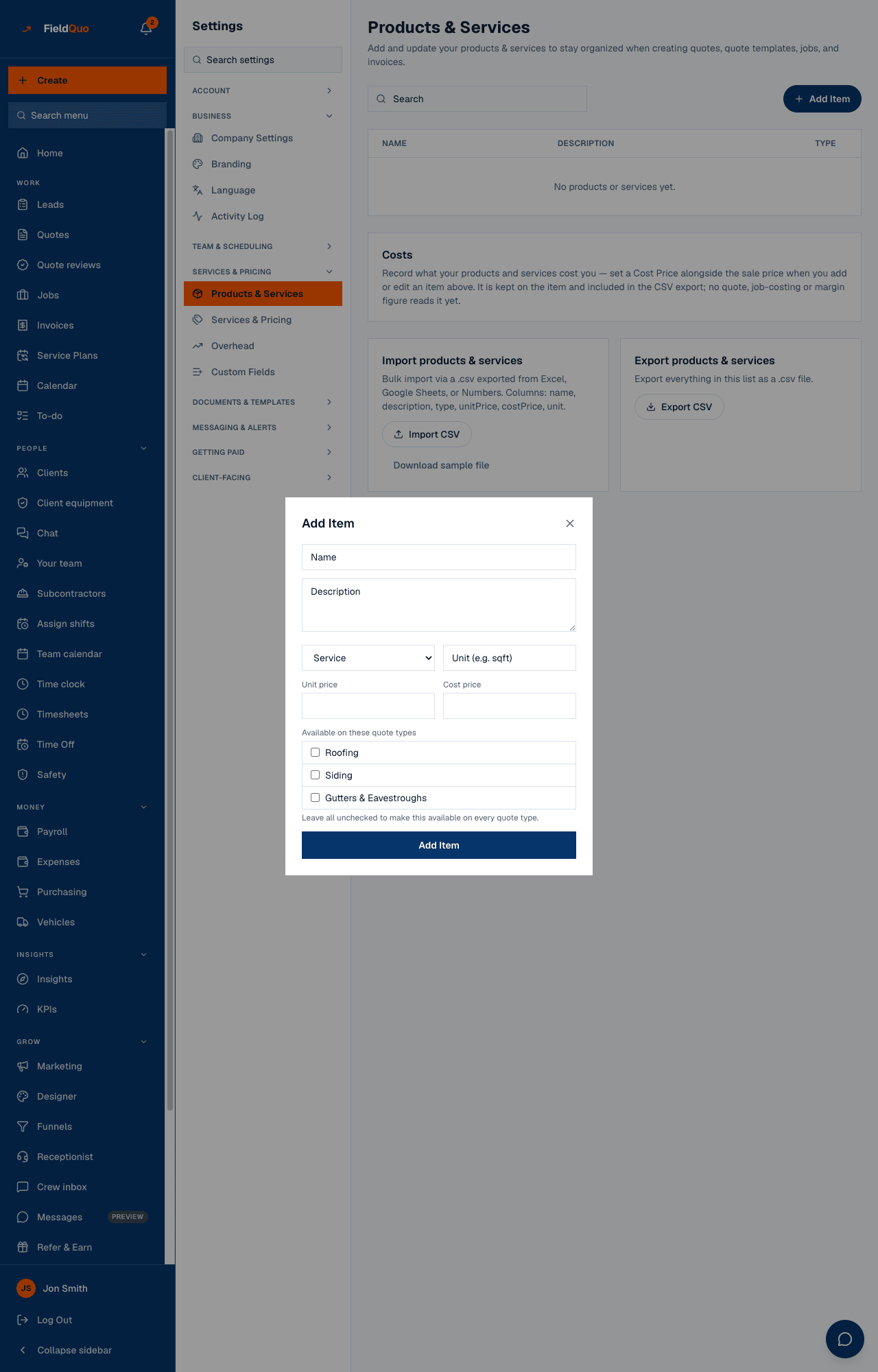
- Open Settings → Products & Services and press Add Item.
- Type the Name and, if the client should read more, a Description.
- Choose Service or Product, and the unit — Unit (e.g. sqft).
- Enter the Unit price. Cost price is optional and, today, informational only.
- Under Available on these quote types, tick the types this item belongs to, or tick none: Leave all unchecked to make this available on every quote type.
- Press Add Item. It is ready in the builder at once.
Deleting an item asks first: Delete …? Its price and description are removed for good — quotes already written keep the numbers they were built with.
How to use it on a quote
- In the builder, add the service and open its lines.
- Under the lines, open + Add from Products & Services…. Each item shows its name and price.
- Pick one. A line appears with the item's name, its description as the detail, quantity 1 and its unit price.
- Change the quantity or the rate on that quote if the job needs it. The item in the price book is unchanged.
A line from the price book is an ordinary line once it is on the quote: the client sees a description and an amount, the same as a line you typed.
Import
Import CSV takes a file exported from Excel, Google Sheets or Numbers with the columns name, description, type, unitPrice, costPrice, unit; Download sample file gives you the shape. The list does not go back out as a file, so if you like to edit prices in a spreadsheet, keep that spreadsheet as your master copy.
- The result reads Imported … items. Imported items are unlinked to any quote type — available everywhere — until you edit them.
- A row with no name is skipped; a type other than product is stored as Service. An item added by hand with Add Item also gets its description drafted into the other languages your company sends in; an imported item does not.
- The importer is simple: it splits every line at each comma and does not read quotes, so a name or description with a comma in it lands in the wrong columns. Leave commas out of those cells.
Importing does not replace or de-duplicate. Importing the same file twice gives you every item twice.
Who can see it
The row and the list are shown to members with the See prices switch — Estimator and above; a price book is prices, so Crew is refused rather than shown a redacted one. Adding, editing, deleting and importing items are owner-and-administrator actions: anyone else gets Only an owner or admin can change the price book.
Frequently asked questions
Does Cost price feed the margin on a quote?
Not yet. The screen says so: it is kept on the item, and no quote, job-costing or margin figure reads it. Cost & margin on a quote works from the materials recipes and labour under Settings → Material Costs.
Why is my item missing from the menu on a quote?
It is linked to other quote types. Edit the item and either tick the type you are quoting or untick everything to make it available on every type.
Can the client see the price book?
No. Only the line you add — its description and amount — reaches the client's page, email and PDF.
What is the difference between a Service and a Product?
A label on the item, shown in the Type column. Both price the same way on a quote.
Was this helpful?