

Set up your branding
Upload the logo, pick a primary colour, and every quote, invoice, email, booking page and website page carries it — measured for contrast, never inside the app.
Per ora questo articolo è disponibile in inglese, francese e spagnolo. Stai leggendo la versione inglese. Français · Español
Branding — Your logo and brand color appear on every quote, invoice, and email your clients see. One screen, one save, and from then on a homeowner reading your quote sees your company, not a software product.
The colour is not applied naively. Every text-on-background pairing on a client-facing surface is computed from your one brand hex and measured for contrast, so a yellow, a white or a mid-grey still prints legibly.
Overview
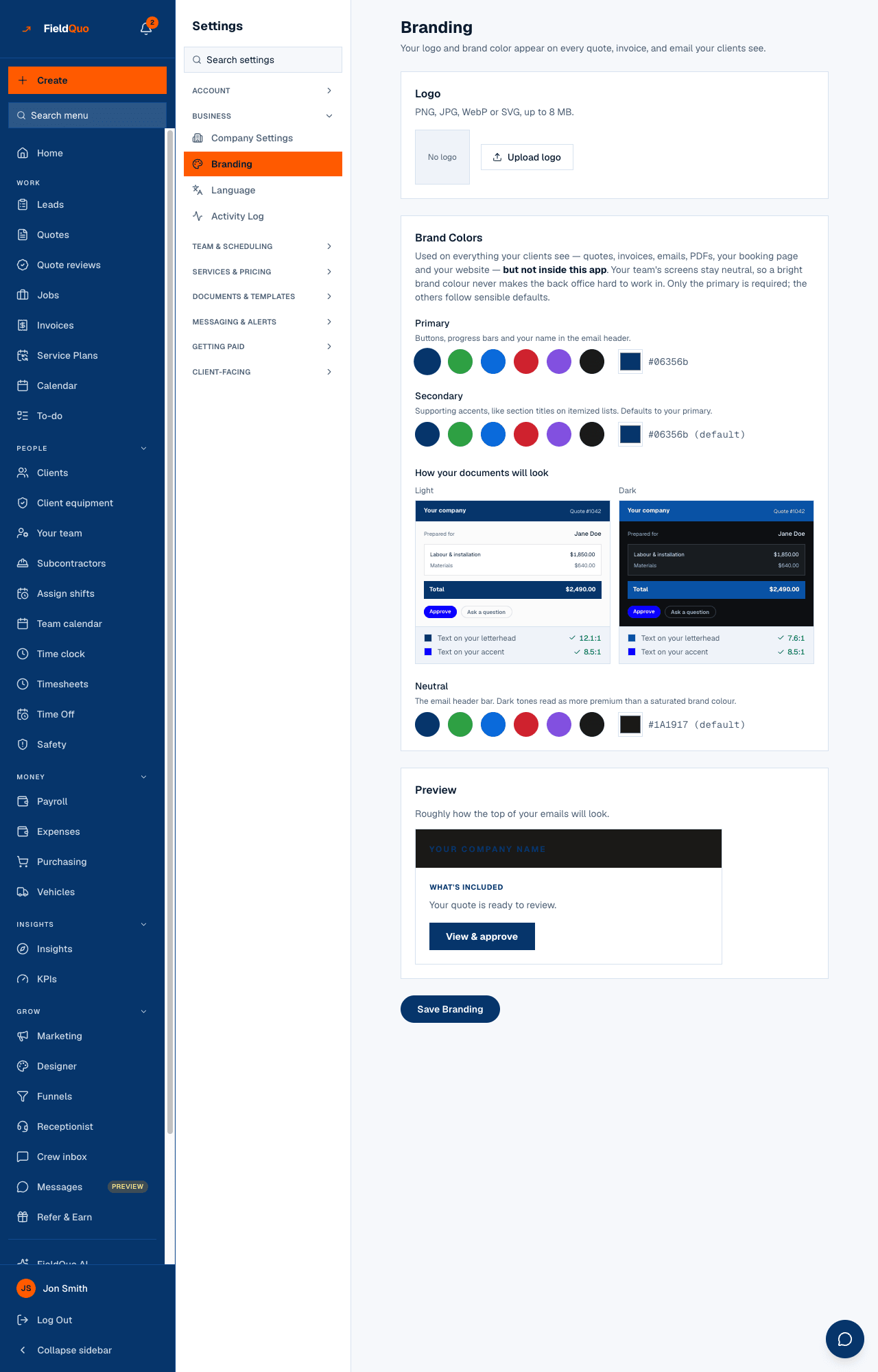
Three cards and a preview. Only the primary colour is required; the others follow sensible defaults from it. Nothing here changes your team's screens — the back office stays neutral so a bright brand colour never makes it hard to work in.
What is on the screen
- Logo — the current logo or No logo, and Upload logo / Replace logo. PNG, JPG, WebP or SVG, up to 8 MB.
- Brand Colors — Primary and Secondary, each with six preset swatches, a custom colour picker and a Reset link once set.
- How your documents will look — a quote header previewed in Light and Dark.
- Neutral — the email header bar colour, and a Preview of roughly how the top of your emails will look with your logo and company name.
How to set it up
- Open Settings → Branding.
- Press Upload logo and choose the file. It is uploaded straight away and shown in the card; nothing is saved to your documents yet.
- Pick a Primary colour — a preset, or the picker for your exact hex.
- Optionally pick a Secondary and a Neutral. Leave them unset to inherit from the primary and the default dark header.
- Press Save Branding. Saved ✓ confirms it, and the next quote you open already carries it.
If the page cannot load your current branding it refuses to show the form at all, with a Retry button — so a failed load can never save default colours over your real ones.
What each setting changes
| Setting | Where it shows |
|---|---|
| Logo | The header of every quote, invoice and PDF; the email header; the booking page; your website; the client portal. |
| Primary | Buttons, progress bars and your name in the email header; the accent on every client-facing page. |
| Secondary | Supporting accents, like section titles on itemised lists. Defaults to the primary. |
| Neutral | The email header bar. Defaults to a dark tone, which reads as more premium than a saturated colour. |
The colours never appear inside the app. Your team's screens stay the same whatever you pick.
Why a yellow logo still prints legibly
Contractors pick yellow, white, black and mid-grey, and the naive rule — “dark colour, white text” — fails on all of them. FieldQuo does not guess: it measures every text and background pairing derived from your hex and picks ink and wash colours that pass a 4.5:1 contrast ratio. The Light and Dark previews on this page are the same maths, so what you see is what the client gets. Full detail: Branding and Nothing says FieldQuo.
Who can edit it
Owners, administrators, dispatchers and managers. The save is refused on the server for anyone else, whatever the screen shows.
Domande frequenti
My logo upload fails.
Check the format — PNG, JPG, WebP or SVG — and the size, 8 MB at most. A larger file is rejected before it is stored.
Does the brand colour change the emails' From line?
No. The From line is your company name, and your own address once a domain is verified — see Send from your own domain.
Can I preview a real quote with the new colours?
Yes — save, then open any quote's client page. The preview on this screen is the same theme maths, but a real document is the honest test.
È stato utile?