

Solo in FieldQuo
The Marketing Designer
Design one ad on a canvas and get it in every size Instagram, TikTok, Facebook and YouTube ask for — templates, your own photos, stock photos, text and shapes free; AI images on credit; approval before anything goes out.
Per ora questo articolo è disponibile in inglese, francese e spagnolo. Stai leggendo la versione inglese. Français · Español
The Designer row in the sidebar opens the Marketing Designer. Its own description: “Design one ad and export it in every size a social network asks for — Instagram, TikTok, Facebook and YouTube — without redoing the layout by hand.” One design carries five formats at once, each with its own saved adjustments, and Download all formats hands you a PNG of each.
No comparison data FieldQuo keeps on Jobber, Housecall Pro or Projul lists an ad-design canvas at any tier, which is why this sits under Only in FieldQuo. What it is not: a tool that posts for you today — see Post to Facebook and Instagram, now or later for where that stands.
Overview
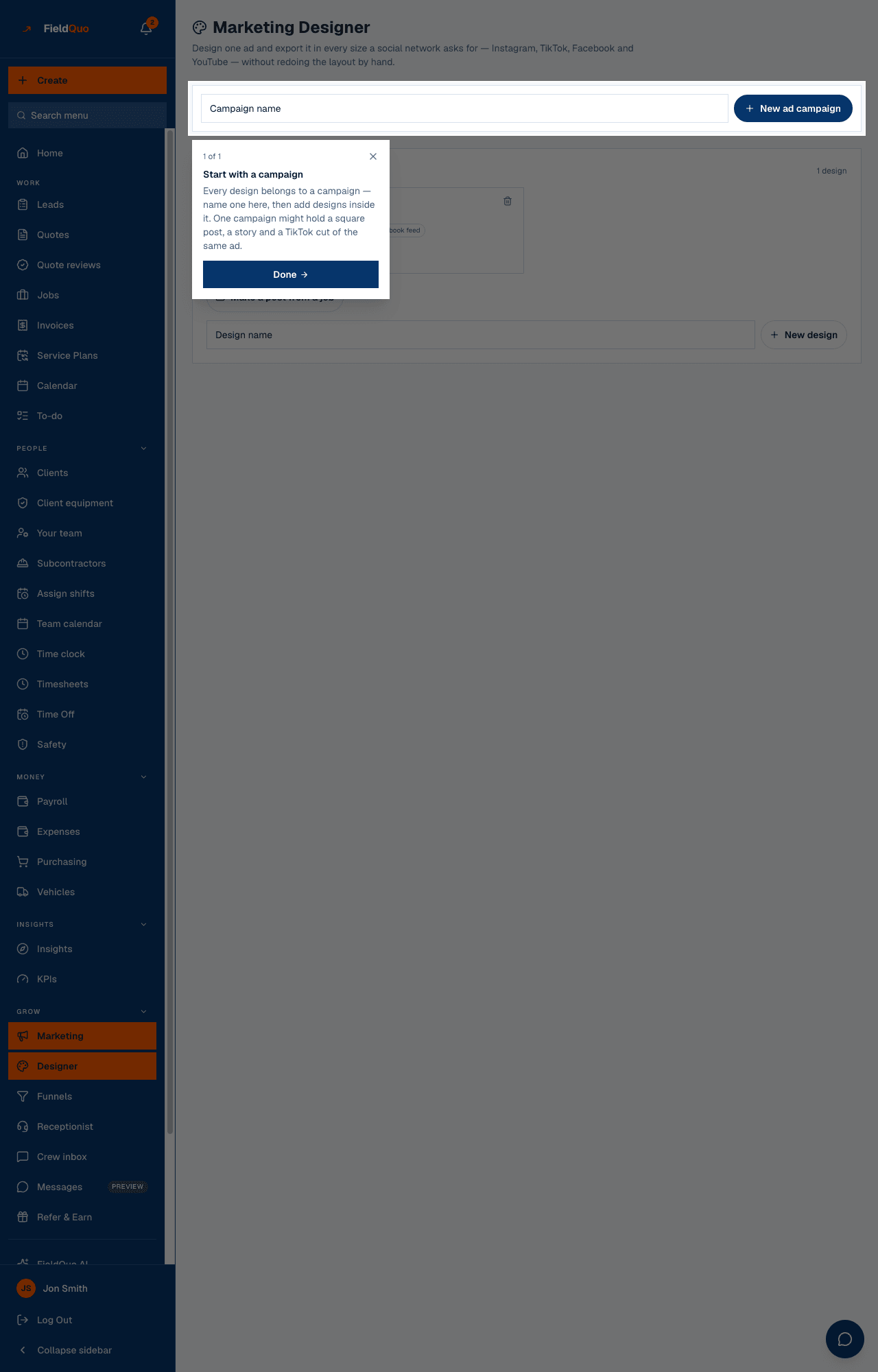
Every design belongs to an ad campaign, and the campaigns are the same rows as on the Marketing screen — one created here shows up there and vice versa. The Designer's index lists each campaign with its designs: a badge reading Approved, Not approved or Re-approve, chips for the five formats, and 2/5 formats ready. Under each campaign: Make a post from a job and a Design name box with New design.
What is in the editor
Open a design and the canvas has a tab per format across the top: Instagram post (1080 × 1080), Instagram story (1080 × 1920), TikTok (1080 × 1920), Facebook feed (1200 × 630) and YouTube thumbnail (1280 × 720). Lay the ad out once; switching tabs reflows it into the other frame, and whatever you nudge on a tab is saved for that format only. A warning appears when artwork hangs over the edge of a format.
- Design — templates to start from.
- Image — Upload image, stock photos, and a Job photos tab that lists a job's photos so a real before-and-after lands on the canvas. Photos tagged Issue / snag are never offered.
- Text, Shapes, Draw — the ordinary tools, all free.
- AI — AI image generation from a prompt, optionally starting from one of your photos, and background removal. These are the one paid piece: they spend AI image credit from Settings → AI credit, the panel shows the price before you press, and it offers Add AI credit if the balance is short. The panel also says what it does not know: your prices or your service area.
- Settings — canvas size and background.
Changes save as you go — the header reads All changes saved, Saving… or Couldn't save — check your connection. Download all formats rasterises every tab to a PNG named after the campaign and the format.
Review and approve
- Press Review & approve in the editor header.
- Write or paste the caption and hashtags. If they are unsaved, approving saves them first.
- Press Approve this post. The badge turns Approved, with who approved it and when.
Approval is a fingerprint of the artwork and the words. Change either afterwards and the badge reads Re-approve — “This changed after it was approved. Have another look, then approve it again.” Renaming the design does not withdraw it; Withdraw approval does, on purpose. Nothing can be scheduled or posted until a design is approved.
Under What next, the approval screen offers Download every size and Copy the caption. For a paid ad it says so plainly: upload the downloaded file in Meta Ads Manager — FieldQuo cannot create the ad for you, because that needs a Meta permission it has not been granted.
Who can see it
Owners, administrators, managers and dispatchers see the Designer row and can create, edit, approve and delete designs. Deleting a design asks first and cannot be undone.
Domande frequenti
Is the Designer extra?
No. Templates, uploads, stock photos, job photos, text, shapes and every export are included. Only AI image generation and background removal draw on AI credit.
Where do the job photos come from?
From the photos your crew filed on jobs, with their stage tags — see Job photos and tags. An Issue / snag photo never reaches a design.
Can I post straight from here?
The Publish button and the Social calendar are built, but posting waits on Meta's approval of the app. Until then download every size and post from your own account — the approval screen says exactly that.
È stato utile?