

Payroll settings
When you pay — frequency, closing day, payday — and the deductions and allowances that turn gross pay into net: regional starting points, your own components, tax bands.
Per ora questo articolo è disponibile in inglese, francese e spagnolo. Stai leggendo la versione inglese. Français · Español
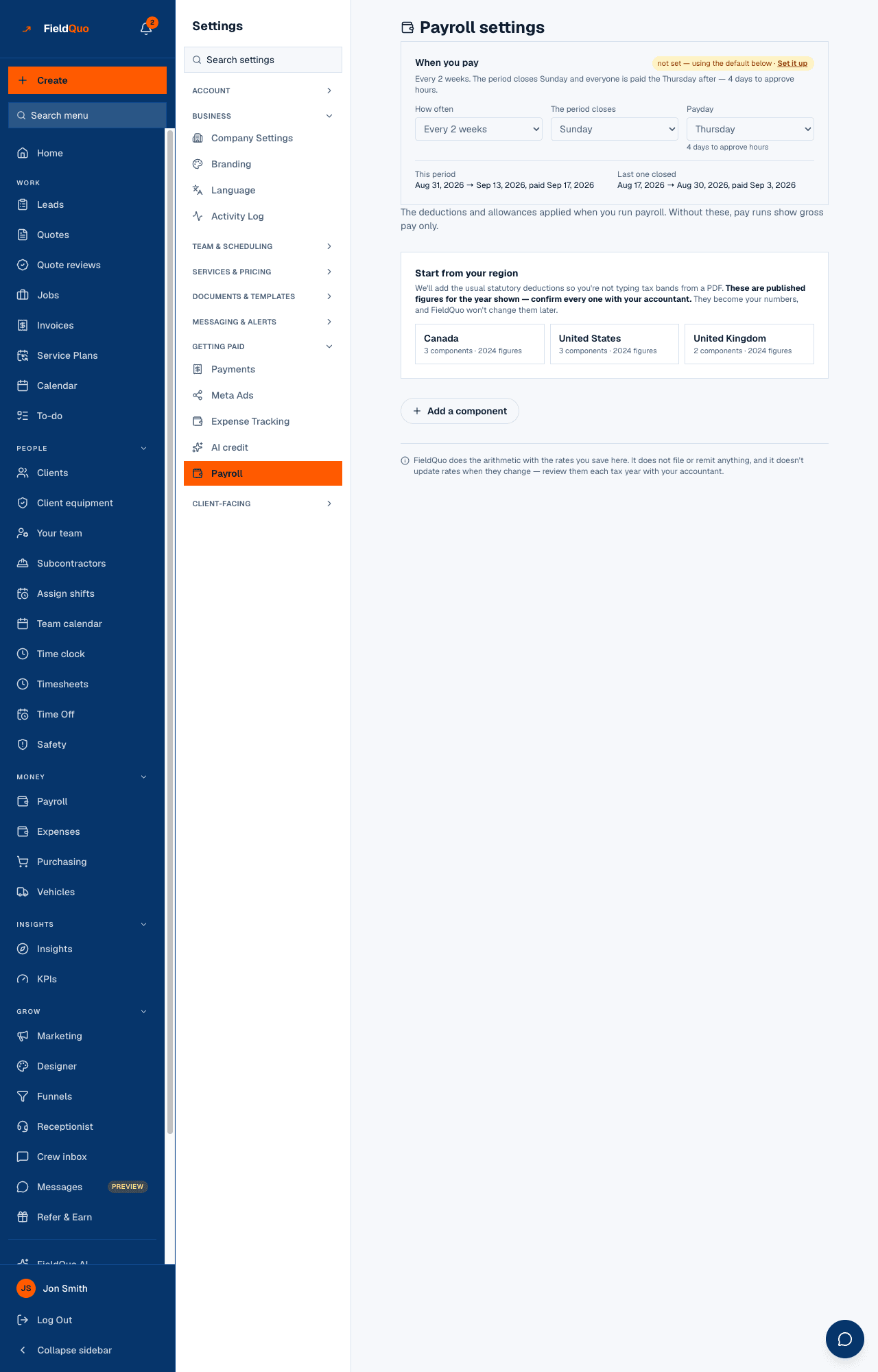
Settings → Payroll is what a pay run calculates from. The top card, When you pay, sets the cadence: how often, the day the period closes, payday. Below it are the components — deductions such as income tax, CPP or EI, and allowances or earnings such as a tool allowance — each a fixed amount, a percent of gross, or progressive bands. Until something is set up here, pay runs show gross pay only, and say so.
Overview
FieldQuo does the arithmetic with the rates you save here. It does not file or remit anything, and it does not update rates when they change — the regional templates are published figures for the year shown, offered as a starting point, and they become your numbers the moment you seed them. Review them each tax year with your accountant.
FieldQuo works out gross pay and produces the payslips. It does not pay employees or file your payroll taxes — deductions are the ones you or your accountant supply. Running payroll itself is in Payroll runs.
What is on the screen
- When you pay — How often (Every week, Every 2 weeks, Twice a month, Once a month), The period closes, Payday, the days to approve hours, then This period and Last one closed with their dates. Set by an owner or admin.
- Start from your region — Canada, United States or United Kingdom, each with … components · … figures for the year, and the sentence that these are published figures to confirm with your accountant.
- Deductions and Allowances & earnings — each component with statutory where it applies, its rule (… % of gross, … progressive bands, or an amount), everyone or assigned individually, and Turn off / Turn on and remove.
- Add a component — the form for a new one: name, Deduction or Allowance / earning, Fixed amount / Percent of gross / Progressive bands, and Apply to everyone automatically.
How to set it up
- Open Settings → Payroll and fill in When you pay. Every-week or every-2-weeks aligns to whole weeks; twice-a-month and monthly are calendar periods, and the card warns that weekly overtime is then worked out on the partial weeks inside each period.
- Press your region under Start from your region to seed the usual statutory deductions — federal bands, CPP/EI or their equivalents. Components you already have are left alone.
- Open each seeded component, read the figures against your accountant's, and correct them. They are yours now; FieldQuo will not change them later.
- Press Add a component for anything else — union dues, a tool allowance — choosing how it is calculated and whether it applies to everyone automatically.
- Turn off a component to keep it without applying it; remove it only if you never want it back. Past payslips keep what was already deducted either way.
Provincial and state income tax, employer-side contributions and the finer rules (CPP2, exemptions, allowance tapering) are deliberately not in the templates. A half-populated set looks complete and under-withholds. Have your accountant add what your region needs.
The three ways a component is calculated
| Calculation | What you enter | Typical use |
|---|---|---|
| Fixed amount | an amount per pay period | union dues, a tool allowance |
| Percent of gross | a percentage | CPP at 5.95%, EI |
| Progressive bands | annual thresholds, lowest first — leave the last “up to” blank for “and above” — and a percent for each | income tax brackets |
What each control changes
- When you pay decides which hours fall into which run and the payday printed on every payslip. Changing it changes the next period, never one already closed.
- Apply to everyone automatically puts the component on every person's payslip; off, it is assigned per person from their pay settings.
- Turn off keeps the component and its figures but skips it on the next run; Turn on brings it back.
- Remove deletes the component from future runs only — past payslips keep what was already deducted.
Who can see it
Owners and administrators only. The route answers a refusal to everyone else — a Manager runs the day-to-day but never sees deduction rates or tax bands — so the row is hidden from every other level.
Domande frequenti
Will FieldQuo update the tax rates next year?
No. Seeded figures become your own the moment you seed them and are never changed afterwards. Review them each tax year with your accountant.
Can I pay one person differently?
Yes. Untick Apply to everyone automatically on the component and assign it per person from their pay settings.
What happens to old payslips if I remove a deduction?
Nothing. Past payslips keep what was already deducted; only future runs stop applying it.
È stato utile?