
The Leads board
Every enquiry that reaches your company, on one four-column board, scored Hot, Warm or Cold, with the lead panel where you assign it, note it and turn it into a quote.
ਇਹ ਲੇਖ ਫ਼ਿਲਹਾਲ ਅੰਗਰੇਜ਼ੀ, ਫ਼ਰਾਂਸੀਸੀ ਅਤੇ ਸਪੈਨਿਸ਼ ਵਿੱਚ ਉਪਲਬਧ ਹੈ। ਤੁਸੀਂ ਅੰਗਰੇਜ਼ੀ ਸੰਸਕਰਣ ਪੜ੍ਹ ਰਹੇ ਹੋ। Français · Español
Leads is the first screen of the pipeline: the place an enquiry lands before it is anyone's client. A stranger fills in your quote form, books a visit, answers an ad, phones the receptionist, or you import a list — and a card appears here. Nothing on this screen is a quote yet; it is the queue of people to call back, ordered so the best one is on top.
The board is a pipeline. A card moves left to right — New, Contacted, Won, Lost — and each card opens a panel where the real work happens: read why it scored what it did, assign it to someone, log a note, and convert it into a draft quote that carries everything the person told you.
Overview
Every lead arrives already scored from what the person said — budget, timeline, urgency, how much effort they put in — so the question “who do I ring first?” has an answer on the card instead of in someone's head. The score is a transparent list of reasons, not a black box, and you can overrule it by editing the lead. See Lead scoring: Hot, Warm, Cold.
A lead is a record of an enquiry, not a client. The client record is created — or matched to an existing one by email, then by phone — the moment you press Convert to quote. Until then the person is only on this board.
What is on the screen
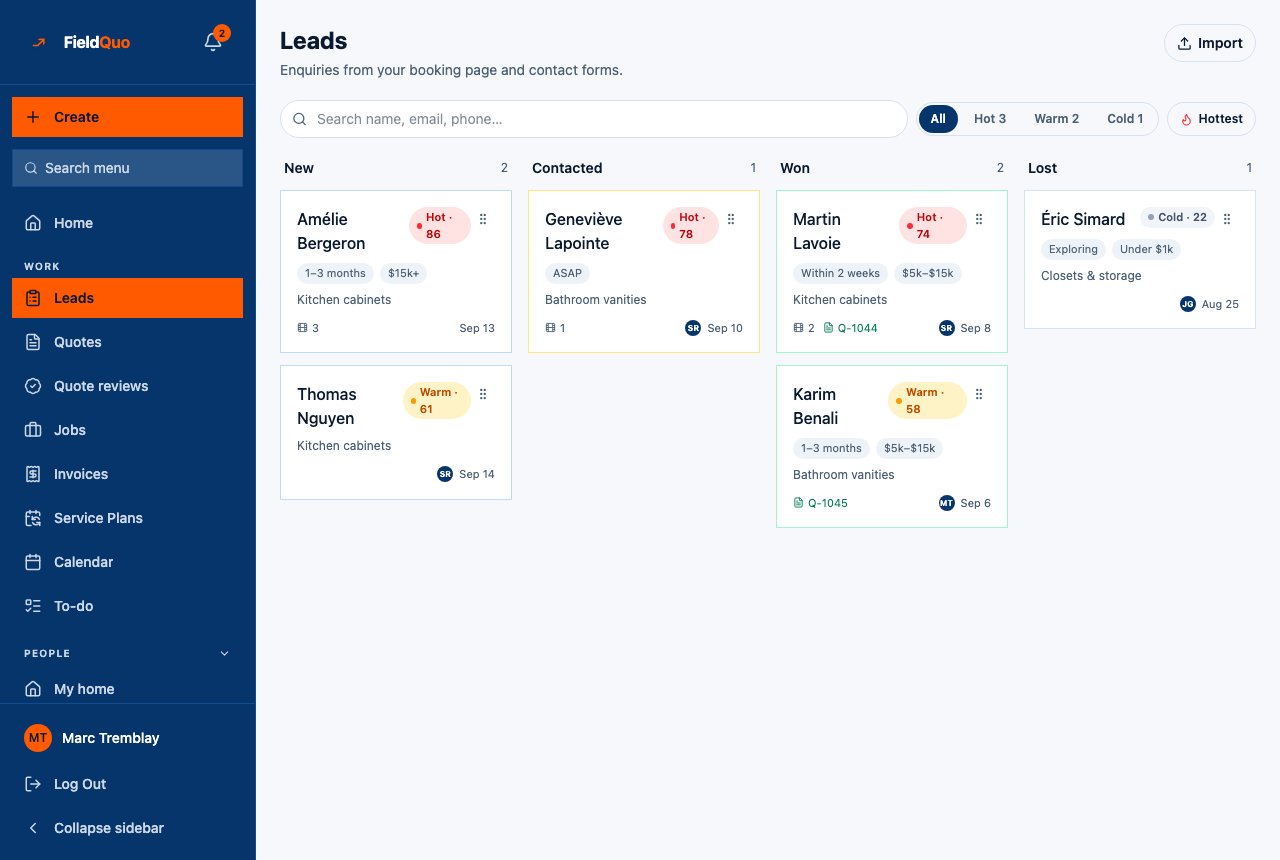
The heading reads Leads — Enquiries from your booking page and contact forms. Top to bottom:
- Import, top right, opens the CSV importer — see Import leads.
- A search box, Search name, email, phone…, which also searches the message the person wrote.
- Four filter chips — All, Hot, Warm, Cold — each with the count of leads in that band.
- A sort toggle that reads Hottest (highest score first, then newest) or Newest. The board opens on Hottest.
- The four columns — New, Contacted, Won, Lost — each with its count. An empty column says Nothing here.
- On each card: the person's name, the temperature chip with the score (for example Hot · 86), the timeline and budget chips as they answered them, the service category, a photo count and a PDF-plan count, the linked quote number once one exists, the assignee's initials and the date it arrived. A Do not call flag appears on anyone who has opted out of calls.
How to move a lead along
- Open the lead by tapping its card, or drag it by the grip handle in its top-right corner into another column. On a phone the columns stack, so use the Status buttons inside the panel instead of dragging.
- Press Contacted once you have spoken to the person. Sending a quote does this for you.
- Press Lost and pick a reason — Went with someone else, Price was too high, Timing wasn't right, Not a real inquiry, Never responded or Other — then Mark as lost. The board refuses a move to Lost without a reason.
- Won cannot be chosen until a quote exists for the lead. Convert it first; once the client accepts the quote the lead moves to Won on its own.
The reason you pick for a lost lead is what separates a real enquiry from a wrong number in your numbers later. A lead marked Not a real inquiry is one click from being reopened if you change your mind.
A card slides back the moment the server refuses the move — a lead never sits in a column it is not really in. If you see a red banner such as “This lead has no quote yet”, nothing changed.
How to delete a lead
Lost is for a real enquiry that went nowhere, and it stays in your win/loss numbers. Delete is for a row that should never have counted: a test lead, or a conversation that was never an enquiry. Deleted leads drop out of your lead counts and reports. Only someone whose Requests access is View, create, edit, and delete sees the delete controls; the owner, administrators and the Manager level have it.
- One lead: open it and press Delete lead at the bottom of the panel, or use the ⋯ menu on its card.
- Several: press Select above the board, tap the cards you want, then Delete N leads.
- Read the confirmation. It names the lead (or lists the selection), says it cannot be undone, and says what is kept: any quote, client, job or invoice made from it, and the conversation and its messages. They just stop pointing at the lead.
- If the lead came from a Facebook, Instagram, WhatsApp, text or web-chat conversation, tick Don't create a lead from this conversation again. Without it, the next message from that person may create a new lead.
Deleting cannot be undone. The lead and its notes are removed; its photos stay in your media storage, because a quote made from the lead uses the same files. Every deletion is recorded in the Activity log with who did it, the lead's name, where it came from and when it arrived. A deleted Facebook lead form is not imported again by the next sync.
The lead panel
Tapping a card opens a panel titled Lead. Everything you can change is in it:
| Control | What it does |
|---|---|
| The email and phone lines | Tap to write or call. A Do not call flag next to the number means the person has opted out of calls. |
| Why this score | The reasons and the points behind them, for example “Ready to start ASAP +35”. Read-only. |
| Timeline and Budget | Editable. Changing either re-scores the lead at once. An empty value reads Not stated when the form asked and the person skipped it, or Nobody asked when that channel never puts the question — the instant quote, the kitchen designer, the portal and the phone. |
| Their message and What they told us | The free text and the structured answers from the form, plus any attached photos or a drawn kitchen plan. |
| Owner | Who is looking after this lead. Unassigned by default; the list is your team. |
| Status | The same four buttons as the columns. Lost asks for a reason; Won is greyed out until a quote exists. |
| Convert to quote / View quote Q-… | Creates a draft quote from the lead and opens it in the builder, or opens the quote that already exists. See Convert a lead to a quote. |
| Notes | Internal notes with the author and date. Add saves one; they never reach the client. |
Only a tap, conversation, lead or not relevant
Every Facebook, Instagram and WhatsApp conversation is sorted into one of four kinds, with the reason in the person's own words. Only a Lead puts a card on this board — a tap on a button your Page offers is not an enquiry.
- Only a tap — they tapped a quick-reply question (“I would like to get a Free Quote”, or one of your own that opens three or more other chats word for word), sent an emoji, a sticker or a like, or said hello and nothing else.
- Conversation — they typed their own words about something you do, but gave nothing a quote can start from yet.
- Lead — they want the work and gave at least one real detail: counts (doors, drawers, rooms, square feet), photos, an address, a phone or email, a visit request, or a question about their own job.
- Not relevant — spam, someone selling to you, a mis-tap (“I pressed the button by mistake”), or work you don't list — including when you already replied that it isn't yours.
The rules decide first, for free. AI reads a conversation only when the rules can't tell — never a tap or a not-relevant chat. Tap Lead, Conversation, Only a tap or Not relevant on the conversation or in the lead panel to change it; your choice sticks when new messages arrive, and Back to the rules undoes it.
Review leads made from conversations
Owners and administrators see Review leads from conversations at the top of the board. It re-reads every lead that came from a conversation and suggests which to remove. Nothing changes until you confirm.
- Press Review leads from conversations.
- Read the list. Leads that were only a tap or not relevant are ticked, each with the reason and what they sent.
- Untick any you want to keep. A lead with a quote, or one already marked Won or Lost, is always kept.
- Press Delete N — not leads. Those leads are deleted and their conversations never make a lead again.
Every removal is recorded in the Activity log, exactly like a delete from the board.
What a lead is worth, and its quote
A lead shows a figure only when there is something to price:
- from quote Q-… or from estimate — a quote or an instant estimate exists.
- estimate from 22 doors + 15 drawers — the person gave counts, priced at your own rates for that service (your price book), before tax. If you have no price for those counts, the panel says so.
- No figure at all — they gave no scope. Those leads are counted as “no figure” in the strip above the board, never padded with an average.
A lead with a quote shows its number, status and total on the card — or a quote for the same client made after the lead, marked probably theirs. The Quoted filter shows only those. Convert to quote carries the counts, colour, hardware, damage notes, photos from the conversation and the language they wrote in onto the draft.
“I'll get in touch when I'm back”
When someone says they are away or will come back to it — “in 3 weeks”, “after the 17th of October”, “out of town until Monday” — FieldQuo adds a dated follow-up to your tasks, for whoever the lead is assigned to (or the owner), and notifies them on the day. With no date given, it is a week later. The card shows Follow up · date, in red once the day has passed.
A later message from the person moves the follow-up rather than adding a second one. Taps and not-relevant chats never make one.
Who can see it
Leads are the Requests area of the access grid. The screen needs at least View only on Requests; moving a card, editing the qualifiers, assigning an owner or importing needs View, create, and edit. Converting to a quote also needs View, create, and edit on Quotes.
- Crew — no access. The row is not in their sidebar and the API refuses them.
- Estimator and Dispatcher — view, create and edit, so they can work the board and convert leads.
- Manager, Administrator and the owner — everything, delete included.
- A member whose Clients access is name and address only sees the board with the email, phone and budget hidden, and the panel says Hidden by your access level.
ਅਕਸਰ ਪੁੱਛੇ ਜਾਂਦੇ ਸਵਾਲ
Why can I not drag a lead straight to Won?
Won means a client said yes to a priced quote, and a lead with no quote has nothing behind it. Convert it first; once a quote exists you can move the card by hand, and when the client accepts online it moves on its own.
Where did the lead's email go?
Your access level on Clients is “name and address only”, so the server removes the email, phone and stated budget before the board is sent to you. Ask an owner or administrator if you need them.
Does marking a lead Contacted send anything?
No. It records that you spoke to the person. Nothing is emailed or texted by any status button on this board — though marking a lead Contacted does stop a New enquiry, nobody replied follow-up rule, if you run one. See Follow-up rules.
Can the receptionist's callers appear here?
Yes. A call the phone receptionist takes creates a lead with the caller's details and is scored without a budget, because the receptionist may never discuss money. See The phone receptionist.
ਕੀ ਇਹ ਮਦਦਗਾਰ ਸੀ?