

Deposits and payment schedules
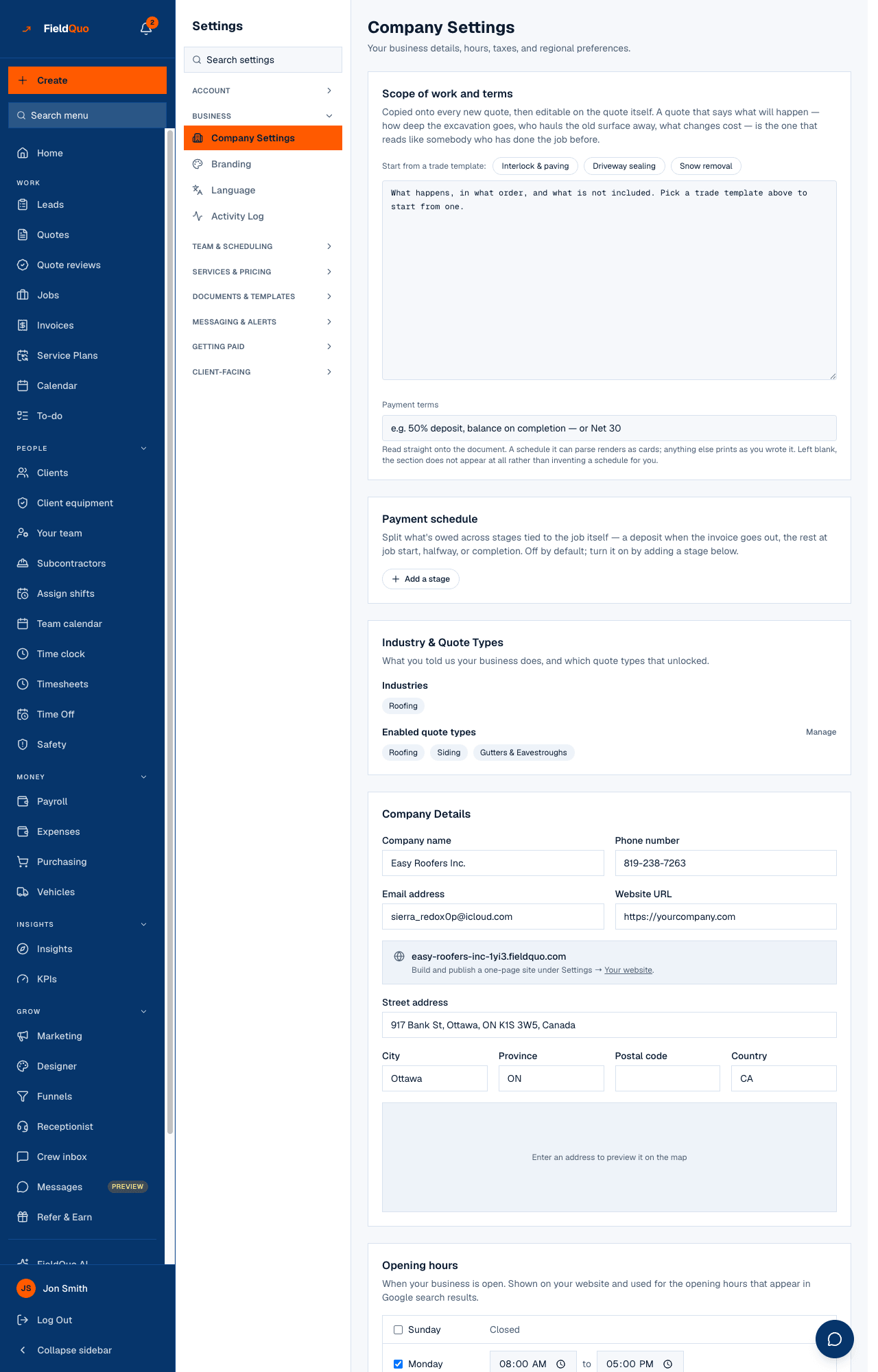
Split what a job is owed into a deposit and later stages tied to the job's own dates, from the Payment schedule card on Settings → Company Settings.
Sa ngayon, available ang artikulong ito sa Ingles, Pranses at Espanyol. Binabasa mo ang bersyong Ingles. Français · Español
Most trades take a deposit and the balance later. The Payment schedule card on Settings → Company Settings turns that into rules: a percentage when the invoice is created, a percentage at job start, halfway, or on completion. Every accepted quote from then on gets one invoice, requested in those stages, each with its own pay link for its own share.
It is off by default — with no stages, every quote gets one full invoice on acceptance, exactly as it always has. This article is the card; how each stage is actually requested is in Progress payments: how each stage is requested.
Overview
A schedule is a list of stages. Each has a name, a trigger and a percentage, and the percentages must add up to exactly 100. The amounts are worked out from the accepted quote's total the moment the client approves it, and frozen on the job — a stage that has already been requested never changes because a date moved afterwards.
The card also writes your Payment terms text for you: with a schedule saved, the terms on every quote, invoice and PDF read “30% Deposit, 40% Job start, 15% Halfway, 15% On completion” — generated from the stages, so the document the client sees always matches what actually bills. The free-text terms field is locked while a schedule is on.
What is on the card
“Split what's owed across stages tied to the job itself — a deposit when the invoice goes out, the rest at job start, halfway, or completion. Off by default; turn it on by adding a stage below.” Each stage row has Stage name, When and Percent; the When list offers four triggers:
- Deposit — when the invoice is created and sent — fires the moment the quote is accepted, before any date is known.
- Job start — the job's start date.
- Halfway through the job — the middle day of the job, counted from its start and end dates.
- Job end (completion) — the job's end date as scheduled, not the day the crew actually finished.
Under the rows: Total with the running sum, Add a stage, Remove this stage on each row, Save schedule, and Turn off — go back to free text.
How to set one up
- Open Settings → Company Settings and find the Payment schedule card.
- Press Add a stage. The first row defaults to Deposit; type the percentage.
- Add the rest — for example Job start 40, Halfway 15, On completion 15 — renaming any stage in your own words.
- Watch Total: “Stages must add up to exactly 100% before they can be saved.” Press Save schedule when it reads 100.
Up to 12 stages, each name up to 80 characters. A 0% stage is allowed and is simply waived when its turn comes — no $0 email goes to the client.
What each control changes
| Control | What it changes |
|---|---|
| Stage name | The label on the client's email and on the job's schedule. Editable; never re-derived once saved. |
| When | Which job date releases the request. A stage with no usable date waits, visibly, and is never skipped. |
| Percent | The stage's share of the accepted total. The last stage absorbs rounding so the stages sum to the cent. |
| Save schedule | Writes the stages and regenerates the Payment terms sentence. Applies to quotes accepted from now on; jobs already in progress keep their frozen stages. |
| Turn off — go back to free text | Deletes every stage. New quotes get one full invoice again and the Payment terms field becomes editable. |
How halfway is counted
Days are counted inclusively: a job from September 1 to September 6 is a 6-day job. Halfway is day 3, so the request goes out on September 3. An odd length rounds up — a 5-day job asks on day 3, once more than half the work is genuinely done, never on day 2. The dates are the job's scheduled start and end; a job with only one of them set shows “Can't schedule yet” for the stages that need the other.
Turning it off
“This clears every stage. Jobs already using this schedule keep what was already billed; new quotes will use the free-text terms below instead.” Turning off does not un-request anything already sent, and does not refund anything.
Who can change it
Saving or clearing the schedule needs the user:manage capability — owners, administrators, and the Dispatcher and Manager levels. Settings → Company Settings is hidden from the Crew and Estimator levels. The booking-page visit deposit is a different thing, set on Settings → Booking page — see Booking fees and visit deposits.
Mga madalas itanong
Does a schedule create several invoices?
No. One invoice per job, requested in stages. Each stage emails a pay link capped to its own share of that one invoice; the invoice's balance is the running total across every stage paid.
Can I set a different schedule per quote?
Not today. The schedule is company-wide and applies to every quote accepted while it is on. Turn it off for a one-off job that should bill in full.
What about work added after acceptance?
Stages are percentages of the accepted quote. Agreed changes are collected on the invoice's balance, not by a stage, and the job page says how much that is.
Nakatulong ba ito?