

The Scheduler: draft and publish the crew's week
Assign shifts is a day board — a row per person, a column per hour — and a week list. You draft shifts with lunch and breaks, see the coverage strip say who is left on site, watch the time clock turn the dots green and amber, and publish once; the crew sees nothing until you do.
Sa ngayon, available ang artikulong ito sa Ingles, Pranses at Espanyol. Binabasa mo ang bersyong Ingles. Français · Español
Assign shifts in the sidebar opens Scheduling, with a Day | Week toggle at the top right. Day is the dispatch board: one day at a time, a row per person, a column per hour, shifts as blocks. Week is the list of seven day cards. Both draft the same shifts, share the same form, and publish through the same button — shifts stay Draft and invisible to the crew until you publish.
A shift is a person's hours, not a trip to an address. Visits live on the job and the calendar; shifts say who is working when. The day board draws both on the same row so they cannot disagree in silence.
Hours, cost, attendance and holidays — before you publish
Above the board, one line says what the rota costs before it is published: This day and This week in money, the hours scheduled this week, and the overtime hours over the weekly threshold (40 h unless a pay run overrides it). The money shows only to people who can see pay rates — the same people who see them under Settings → Workers; everyone else sees the hours. Somebody scheduled with no hourly rate is named beside the total (Rate not set: Jean Roy) rather than counted at zero, because a total that quietly leaves three people out is not a total.
Under each name on the day board, 38.5h this week is that person's scheduled hours for the week, drafts included. Past the threshold it turns amber and says over 40h. The Week view has the same figures as a list, Hours this week, with the cost per person when you may see it.
A small chip on a shift block is the time clock's verdict for that shift: On time, Late 12 min, Left 20 min early or No-show. It is computed every fifteen minutes from the person's punches (a first punch more than ten minutes after the start is late; none an hour after the start is a no-show; a clock-out more than fifteen minutes before the end is early out), hollow while the shift is still under way and filled once it is final. The same chip sits on the timesheet row, and a 30-day count per person is on their card in Manage Team.
A statutory holiday, or a blackout range from Time off policies, draws a muted band across the top of the board — Labour Day — statutory holiday. Nothing is greyed or refused: a plumber works Labour Day. It is said, so a manager scheduling the day knows.
Publishing now tells the crew. Each person whose shifts just became visible gets one notification — Your schedule is out: Mon 14 Sep, 8:00 – 16:00 at Sophie Dubois, 12 rue Principale, and 4 more — in the bell and as a push on the phones they turned notifications on in. Moving a published shift, changing its job, deleting it or unpublishing it tells them too. Drafts never do: creating, moving or deleting a draft says nothing to anybody. Every one of those edits is also written to the Activity log — who, whose shift, the old and new times.
What is on the screen
On Day: Previous day, Today, Next day, a date field and the day's name; for those who can edit, Copy last Monday (the same weekday a week earlier) and Publish this day once a draft exists. Then the board: a Coverage strip, an hour header, and a row per active worker — initials with a status dot, the name, their title when one is set, and a second line such as 8h 00m · on site since 7:42, 7h 30m · not clocked in, Time off · Vacation or Not scheduled. A legend under the board names every colour.
A shift is a filled block labelled with its times and its job — the client, the site address and the job title, when the shift has one; otherwise its note. A draft has a dashed border and says so. A lunch or break is a hatched amber stripe inside the block, labelled when there is room. Approved time off fills the whole row with a muted Out — Vacation block. The hours a person has not said they are available for are grey. A job visit booked from the job page is a small dashed chip with a pin below the shift band, coloured by its status; it is read-only here and opens the job. A red line marks the current time.
On Week: the heading, “Add shifts for the week, then Publish so your team can see them — shifts stay hidden until you publish.”, Previous week, This week, Next week and the date range; Add shift; Publish week once a draft exists; and seven day cards, each with a plus, Today on the current day and No shifts scheduled. when empty. A shift row shows the person, the hours, the job or note, its lunch and breaks, a Draft badge until it is published, Edit, and an ✕ for those allowed to delete.
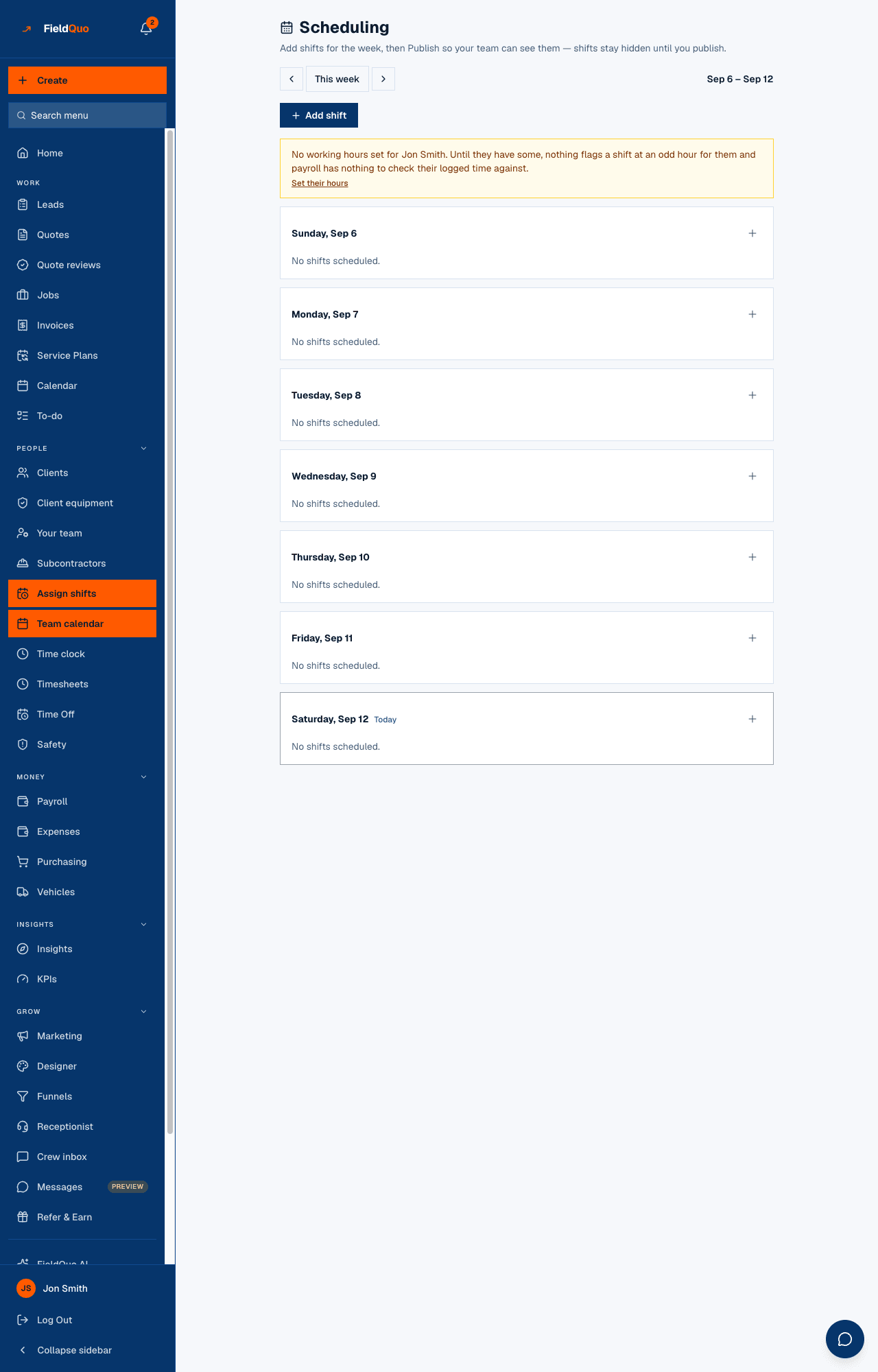
An amber banner names anyone with no working hours: “No working hours set for … Until they have some, nothing flags a shift at an odd hour for them and payroll has nothing to check their logged time against.” Set their hours goes straight to their Availability.
The coverage strip
Above the rows, one cell per half hour. The big number is how many people are working — on a shift and not on a break; a small 2 brk under it is how many of those on shift are at lunch or on a break. A cell inside the company's opening hours where nobody is working turns red: that is the gap to cover. Hover a cell for the sentence.
The board's hours come from your opening hours (Settings → Business hours), one hour either side; a company with none set sees 7:00–18:00. A shift outside that range widens the board rather than being cut off.
Lunches are per shift, not a company rule, on purpose. The point of the strip is staggering them — two people at 12:00 and one at 12:30 keeps somebody on site — and a staggered rota is a different time per person per day.
How to draft and publish a day
- On the day board, click an empty hour in a person's row (or the dashed + on an empty row). On the week list, press Add shift or a day card's plus.
- In New shift, check the Worker, Date, Start and End — a board click fills them in with that hour and eight hours on. Pick a Job (optional) from your open jobs, or leave No job and put the site in the Note (optional).
- Under Lunch and breaks, press Add 30-min lunch at midpoint or Add break, then set each one's type, times and whether it is Paid. Breaks must fall inside the shift and not overlap; the form says so before you save.
- Press Add to draft. The block appears with a dashed border.
- Click a block to change it — times, job, note, breaks — and press Save changes; Delete shift is there for those allowed to delete.
- Press Publish this day (or Publish week on the list). Every draft in that range becomes visible to the people on it, and the notice says how many.
Copy last Monday copies the same weekday's shifts and breaks from seven days earlier into this day as drafts, after asking. Anyone who already has a shift on the day is skipped, and so is a copy the checks below refuse (now on leave, now unavailable); the notice says how many were copied and how many skipped.
Publishing shows the shifts on each person's own Assign shifts screen — “These are the shifts your manager has published. Check back for changes.” It does not send an email or a text.
The time clock drives the dots
The dot on each person's initials comes from the time clock, not from the plan. Green means clocked in now — the line says on site since 7:42. Amber means they pressed Start lunch or Start break on the clock and have not ended it — on break since 12:03. Grey means scheduled today and not clocked in. A hollow dot is not scheduled; a muted one is on approved leave.
The board re-reads itself every thirty seconds while the tab is open, and at once when you come back to it, so a break punched in the van changes the colour here without a reload. The planned lunch stays hatched inside the block; the dot shows the real one — so you can see that the 12:00 lunch actually started at 12:20.
A break punched on the clock is recorded on the person's time entry, not on the shift. Unpaid breaks come off the hours booked at clock-out, and the timesheet shows the minutes beside the hours.
What FieldQuo checks when you add a shift
| The shift falls… | What happens |
|---|---|
| Outside the hours the person said they are available | The form stops: “Check with them before you go ahead — they won't have agreed to this yet.” You can add a reason under Why? and press Schedule anyway; the shift is then marked Outside stated availability with a warning glyph on the block, and the person sees that when it is published. |
| On approved time off | Blocked. “Change the date, or amend their time off first.” Approved leave is a decision already made, and there is no override. The row shows Out instead of hour cells. |
| Outside their normal working hours | Saved, with a warning after Shift added. Overtime is not an error. |
| On someone with no hours set at all | Saved. Silence is not a refusal — the banner nudges you to set their hours, and nothing on their row is greyed. |
| With a break outside the shift, or two that overlap | Refused: “Breaks must fall inside the shift, end after they start, and not overlap.” Moving a shift re-checks its breaks against the new times. |
Availability, working hours and time off are three different things — see Working hours and bookable hours and Time off requests.
Who can do what
- Adding, editing, copying and publishing need the Schedule area at Edit everyone's schedule — Dispatchers, Managers, owners and administrators.
- Deleting a shift (the ✕, or Delete shift in the form) needs Edit and delete everyone's schedule — Managers, owners and administrators. A Dispatcher drafts and publishes but does not delete.
- Crew and Estimators open the same board and see only their own row, only published shifts, with their lunch and breaks, and the note that their manager publishes them. Nothing on it is clickable for them.
Mga madalas itanong
Can I unpublish a week?
Not from the screen. Delete the shift that is wrong and add the right one; the new one is Draft until you publish again.
Does a shift put anything on the client's calendar?
No. Shifts are internal. The client is told about visits, never shifts.
Why can I add a shift on a Sunday?
Working hours only warn; they do not block. Only approved time off blocks.
Why is a visit on the board with no shift under it?
Because it was booked from the job page and assigned to that person, and nobody has built them a shift for that day yet. The board shows both so the two never disagree in silence.
Can I drag a block to move it?
No. Click it and change the times in the form — that is where the availability and time-off checks run.
Nakatulong ba ito?