

AI employee
The Settings row where you hire an assistant that answers a customer's message — its job, how it writes, what it reads, draft or send — and why, today, every reply is a draft waiting for you.
Sa ngayon, available ang artikulong ito sa Ingles, Pranses at Espanyol. Binabasa mo ang bersyong Ingles. Français · Español
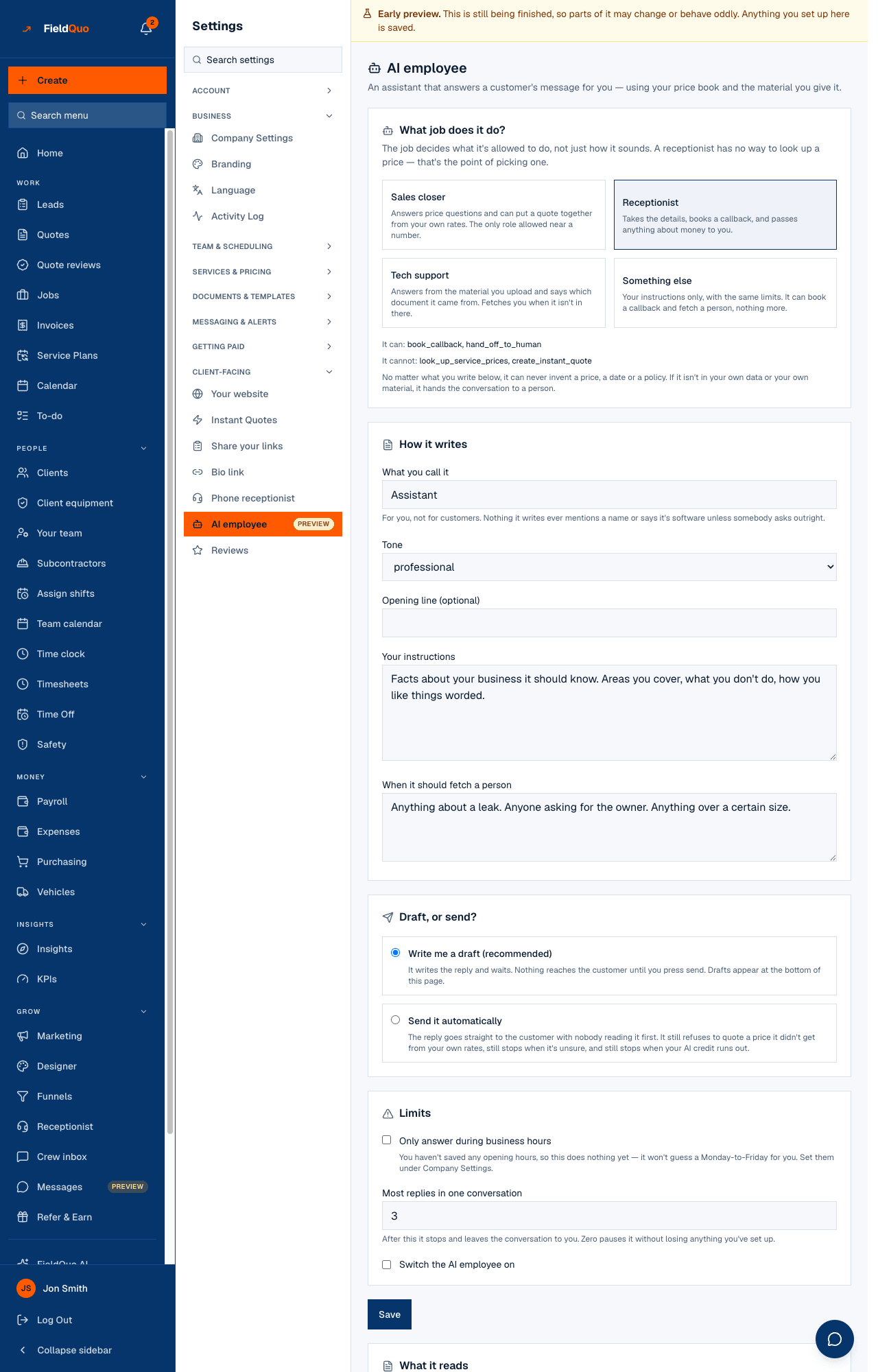
Settings → Client-facing → AI employee — “An assistant that answers a customer's message for you — using your price book and the material you give it.” You pick the job it does, how it writes, what it may read, how far it may go, and whether it drafts or sends. The row carries a Preview badge.
The screen opens with the one thing it cannot do yet: “Replies can't leave the building yet. The AI employee answers your Facebook and Instagram messages, and Meta hasn't approved messaging for FieldQuo. Everything here works — it drafts, and the drafts wait below for you to send.” Everything below is real and runs the real code; the sending waits on Meta.
Overview
The job is a set of abilities, not a personality: “The job decides what it's allowed to do, not just how it sounds. A receptionist has no way to look up a price — that's the point of picking one.” Every job shares the same rule, printed on the screen: it can never invent a price, a date or a policy, and if the answer is not in your own data or your own material it hands the conversation to a person.
Every reply and every test spends AI credit, metered like the rest of FieldQuo AI. When the allowance is out the screen says so with a Top up AI credit link and the employee stops rather than guessing. See AI credit.
What is on the screen
- What job does it do? — four cards: Sales closer, Receptionist, Tech support, Something else, each with It can: and It cannot: underneath.
- How it writes — What you call it (for you, never said to customers), Tone, Opening line (optional), Your instructions, When it should fetch a person.
- Draft, or send? — Write me a draft (recommended) or Send it automatically.
- Limits — Only answer during business hours, Most replies in one conversation, Switch the AI employee on, then Save.
- What it reads — Upload a file or Paste text instead, and the list of what it has read, with a reason on anything it could not.
- Try it — a test box and See the answer; then Waiting for you, the drafts with Send it / Not this one, and It stopped on these with Let it answer again.
How to hire it
- Open Settings → AI employee and pick a job. Sales closer is the only one allowed near a number: it reads your price book and can put an instant estimate together from your own rates. Receptionist takes the details and books a callback. Tech support answers from the material you upload and names the document it came from.
- Fill in Your instructions — areas you cover, what you do not do, how you like things worded — and When it should fetch a person.
- Leave Write me a draft (recommended) selected. Set Most replies in one conversation; zero pauses it without losing your setup.
- Under What it reads, upload your policy, your troubleshooting notes or a manual, or paste the text.
- Tick Switch the AI employee on and press Save. Then type a customer's message under Try it and press See the answer — it shows what it used and what the test cost.
What each setting changes
| Setting | What it does |
|---|---|
| The job | Fixes the tools it may call. Sales closer: look up service prices, build an instant estimate, book a callback, hand off to a person. The other three: book a callback and hand off only. |
| Tone | Professional, warm or brief — how the same facts are worded. |
| Write me a draft | The reply waits under Waiting for you with Send it and Not this one. “Sending one sends it in the conversation, exactly as if you'd typed it.” |
| Send it automatically | “The reply goes straight to the customer with nobody reading it first.” It still refuses to quote a price it did not get from your rates and still stops when unsure. Today the channel is blocked, so it drafts either way. |
| Only answer during business hours | Uses the opening hours saved under Company Settings; outside them the message waits for you. With no hours saved it does nothing — “it won't guess a Monday-to-Friday for you.” |
| Most replies in one conversation | The cap per thread. When it is reached the thread appears under It stopped on these with Let it answer again. |
“We can read plain text: .txt, .md and .csv, or text you paste in. We cannot read a PDF or a Word file yet — if you upload one it'll show up below marked unread, and the fix is to paste the text or export it as .txt.” Uploaded material is treated as evidence, never as orders — an instruction hidden inside a manual is just text.
Who can see it
The owner, administrators, and anyone at the Dispatcher or Manager level — the same rung as the phone receptionist, because it decides what is said to customers in the company's name and spends the company's AI allowance. Crew and Estimator logins do not see the row. Sending or dismissing a draft needs the same access as the screen. The fuller story, including how the drafts show in Messages, is The AI employee: drafts you approve.
Mga madalas itanong
Will customers know they are talking to software?
It never claims to be a named person. Asked outright, it says the reply is automatic and a member of the team will follow up. The name you give it is for you.
Can it quote a price?
Only the Sales closer, and only a figure a FieldQuo tool computed from your own rates, which it repeats and attributes. It cannot add, discount or round.
Why is there nothing under Waiting for you?
No message has arrived that it could answer — usually because no Page is connected or Meta has not approved messaging yet — or it is switched off, outside business hours, or over its cap.
Nakatulong ba ito?