

The Jobs list
Every job in your company on one screen — filtered by status, searched by title or client, with the archive kept behind its own toggle.
本文目前提供英语、法语和西班牙语版本。您正在阅读英语版本。 Français · Español
Jobs is the list of work your company has agreed to do: every job, newest first, with its status, its client and how many visits are on it. Most jobs arrive here on their own the moment a client approves a quote; the rest you start by hand with New Job.
The list is where the office answers “what still needs a date?” and where a crew member finds the address they are driving to. What each of those people sees depends on their access level — the same list, narrowed.
Overview
A job is scheduled work at a client's address. It sits between the quote (what was agreed) and the invoice (what gets billed): approve a quote and a job appears in Needs a date; schedule it, do it, mark it Completed, and the invoice and the review request follow — see When a job is completed.
The list itself holds no details. Every row opens the job page, which is where visits, materials, photos, notes and costing live.
What is on the screen
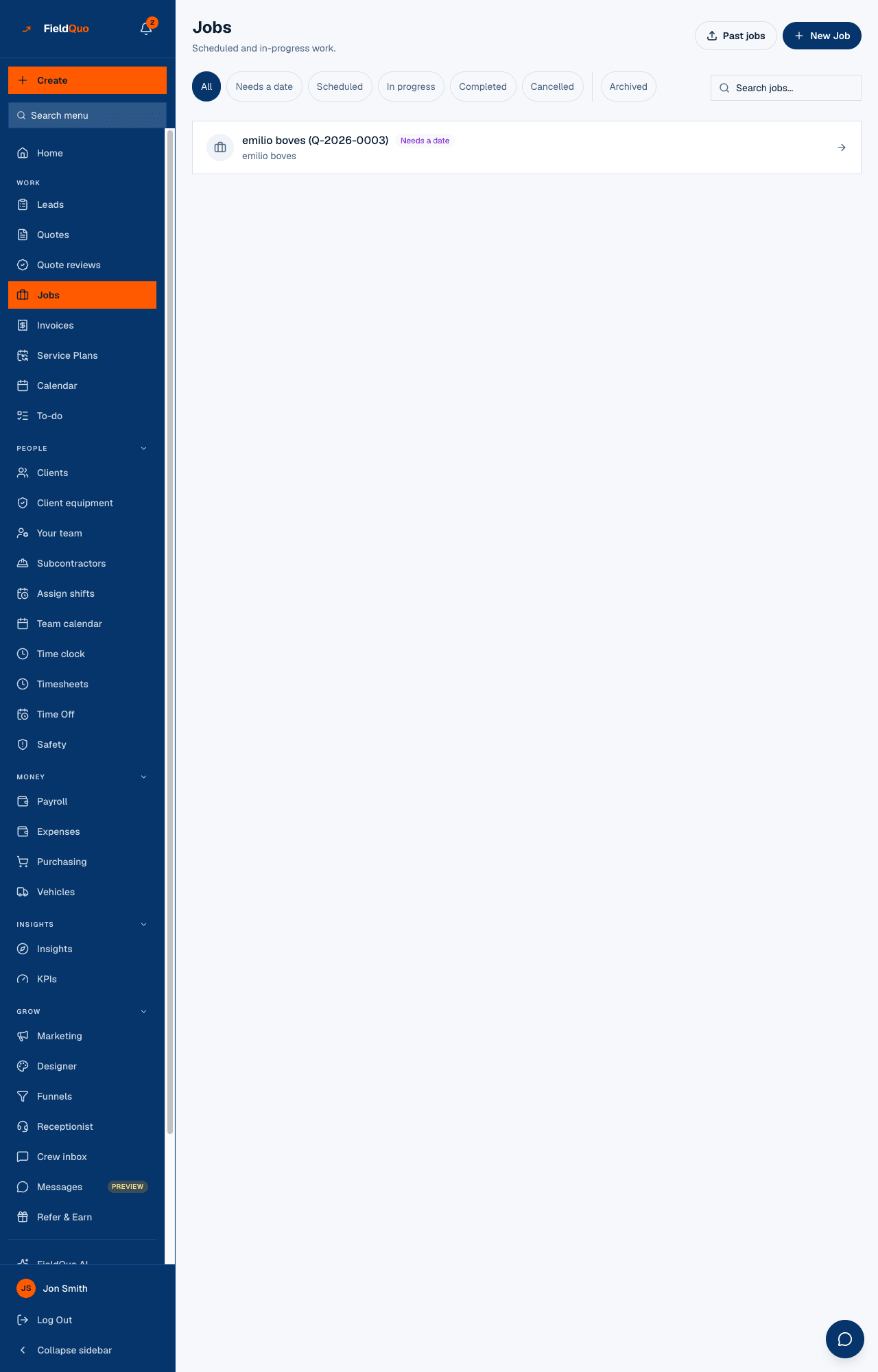
- Jobs — Scheduled and in-progress work. At the top right, Past jobs (history from your old system — see Import past jobs from your old system) and New Job.
- Status chips: All, Needs a date, Scheduled, In progress, Completed, Cancelled. One is active at a time.
- After a divider, the Archived toggle. It is not a status: it swaps the list for the jobs you have filed away.
- Search jobs... — matches the job title or the client's name as you type.
- One row per job: the title, a status badge, a Recurring badge on a job that repeats, the client's name, and “3 visits” once visits are booked on it.
- An empty list says why it is empty. A filter or search with no match reads No jobs in this view.; a brand-new company is told that jobs are created automatically when a quote is accepted; a crew member with nothing assigned reads You're not on any jobs right now.
How to find a job
- Open Jobs in the sidebar, under Work.
- Press a status chip to narrow the list. Needs a date is the one to clear every morning: a job there has no visit and no work dates yet.
- Type part of the title or the client's name into Search jobs...; the list filters as you type, inside the chip you picked.
- Press the row. The job page opens; Back to jobs brings you here again.
A job you cannot find under any chip is probably archived. Press Archived: that drawer is separate from the status chips, so a job can be Completed and archived at the same time.
What each control changes
| Control | What it does |
|---|---|
| Status chips | Filter the loaded list by status. They change nothing on the job itself — the status is changed on the job page. |
| Archived | Loads the archived jobs instead of the live ones. Nothing is shown from both drawers at once. A job is archived or restored from its own page. |
| Search jobs... | Narrows by title or client name. Cleared when you delete the text. |
| New Job | Opens the job form — see Create a job. Shown only to people whose access allows creating jobs. |
| Past jobs | Opens the past-jobs import. Same access rule as New Job. |
| A row | Opens the job page. Rows are ordered newest job first, whatever the status. |
Who can see it
The Jobs row appears for anyone whose Jobs access is at least View only; somebody set to No access has no row and the page refuses them. The Crew preset sits at View only, scoped: a crew member sees only the jobs that have a visit assigned to them, and a job with no visit yet is nobody's and does not appear. Estimators see every job but cannot create or change one. Dispatchers create and edit; Managers, administrators and the owner can also delete. The presets are described in Access levels: who sees what.
Hiding the button is not the rule — the server checks the same access on every request. A person who reaches the New Job form through an old bookmark without the right level reads Your access level lets you view jobs, not create them.
常见问题
Why is a job missing for my crew member?
A crew member only sees jobs with a visit assigned to them. Book a visit on the job with their name on it and it appears in their list immediately.
Does the Archived toggle mean cancelled?
No. Cancelled is a status; archived is whether you still want to see the job. A finished job you file away stays Completed, and Restore on the job page brings it back to the live list.
Can I sort or export the list?
No. The order is fixed, newest first, and FieldQuo does not export lists — past-job history goes the other way, into FieldQuo, through Past jobs.
这篇文章有帮助吗?