

Website pages and blocks
The pages a FieldQuo site can have, the fifteen kinds of section that go on them, which ones you can reword by hand, and which are drawn from your company record.
本文目前提供英语、法语和西班牙语版本。您正在阅读英语版本。 Français · Español
A FieldQuo site is a list of pages, and each page is a list of sections (blocks). The builder decides which pages and sections your site gets from your data; you can reword the Home page's sections by hand, hide the ones you do not want, and pick a different layout for any of them. This article names every page and every block so you know what is possible before you ask for it.
Overview
Every site built by the current builder is multi-page: a Home page plus the pages the catalogue allows, each with its own sections and a place in the header menu. A section is either written (a heading and a paragraph the assistant wrote and you can edit) or derived (rendered from your company record — the booking calendar, the quote form, opening hours, areas served — and not editable as text). A section the site has no data for is left out rather than padded: a gallery heading with no photos, or a testimonials strip with no approved review, is never published.
The pages
| Page | In the menu as | Default sections |
|---|---|---|
| Home | Home | Header, What we do, Before & after, Call to action band, Get in touch |
| Services | Services | Header, What we do, How it works, FAQ, Call to action band |
| Work | Our Work | Header, Our work, Before & after, What clients say, Call to action band |
| About | About | Header, About us, Credentials & numbers, Areas we serve, Call to action band |
| Book | Book | Header, Book a visit (calendar), Opening hours |
| Quote | Get a quote | Header, Request a quote (form) |
| Contact | Contact | Header, Get in touch, Opening hours, Areas we serve |
Home is always first and always in the menu. A page whose sections have nothing to show — a FAQ with no items, a gallery with no photos — drops out of the menu on its own. The preview pane shows a tab per page so you can check each one before publishing.
The fifteen kinds of section
| Section | What you can edit | Where the rest comes from |
|---|---|---|
| Header | Headline, subhead, button label; seven layout variants | Always first; cannot be hidden |
| What we do | Heading, intro | Your enabled services |
| About us | Heading, body | — |
| Our work | Heading, intro; add or remove photos | Recent job photos |
| What clients say | Heading | Approved testimonials under Settings → Reviews |
| FAQ | Heading; the questions and answers | — |
| Request a quote (form) | Heading, intro | The self-quote form for your enabled services |
| Book a visit (calendar) | Heading, intro | Your booking page and real availability |
| Opening hours | Heading, note | Company opening hours |
| Get in touch | Heading, intro | Phone, email and address from Company Settings |
| Before & after | Heading, intro; the pairs | Pairs you confirmed under Fine-tune |
| How it works | Heading, intro; the steps | — |
| Areas we serve | Heading, intro | Your work areas |
| Credentials & numbers | Heading, intro; the items | — |
| Call to action band | Heading, sub, button label | — |
How to reword or hide a section
- Open Settings → Your website and switch the right-hand pane from Preview to Sections.
- Find the section by its name (the names above) and type in its fields. Headings, paragraphs and list items are plain text; the layout chips under the name switch the variant.
- Press Hide on a section you do not want; Show brings it back. The Header cannot be hidden.
- Press Save. The preview reloads with your words.
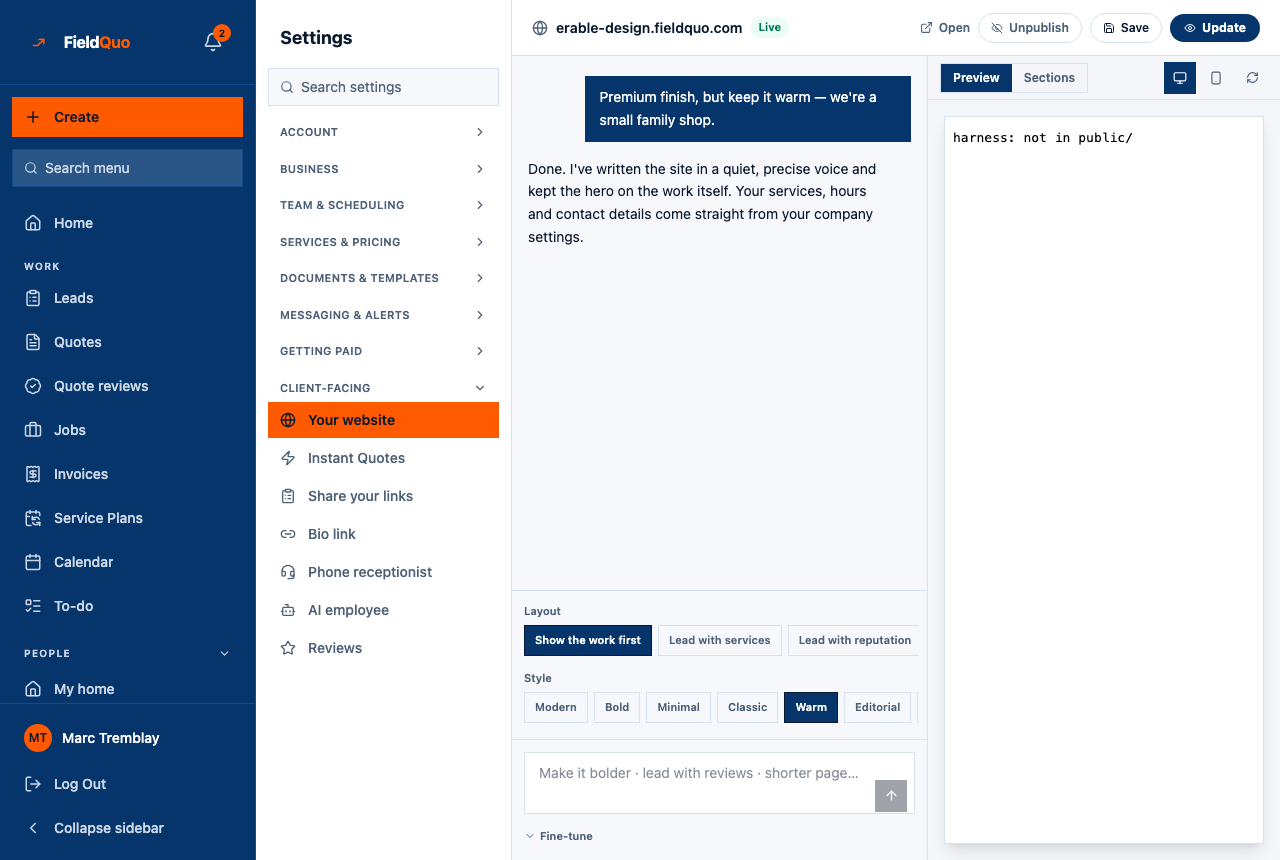
The Sections pane edits the Home page. The other pages are rewritten by the assistant when you type a prompt, and re-laid-out when you pick a Layout chip.
Layouts, styles and variants
Three things decide how a page looks, and all three are closed sets that were designed and checked on a phone — the assistant chooses among them and never writes a style rule of its own.
- Layout — the order and choice of sections: Show the work first, Lead with services, Lead with reputation, Lead with booking, Short one-pager. A layout that needs data you do not have (a review, a photo) is offered once you have it.
- Style — type, spacing and colour treatment: Modern, Bold, Minimal, Classic, Warm, Editorial, Technical, Couture, Gallery, Playful, Noir, Future, Monument. Every text-and-background pairing is measured against your brand colour, not assumed.
- Variant — the arrangement of one section. The header alone has seven (centered, split, banner, overlay, side by side, minimal, editorial); a variant that needs a photo is only used when there is one.
Chip and variant labels are shown in English on every language's screen.
Photos
Job photos reach the site from two places: the photos your crew attach to jobs, and the photos you upload from the builder's Add photos action. Under Fine-tune → Before & after pairs you pair a before shot with its after shot; only confirmed pairs appear in the Before & after section. Stock photography is used only as a background in the header and similar spots while you have no photos, never in Our work.
One strong before-and-after pair on the Home page does more than a gallery of twelve. Ask the assistant to “lead with our before-and-after photos” once the pair is confirmed.
常见问题
Can I add a page the catalogue does not have?
Not today. The seven pages above are the whole catalogue; a page a contractor cannot fill is worse than no page. You can hide sections and rename headings freely within them.
Why is a section missing after a rebuild?
Because there was nothing to put in it. The thread says so (“Left out … — reason”). Add the data — a review, a photo, an opening-hours entry — and rebuild, or pick a Layout that does not need it.
Can I change the services or hours shown on the site?
Not in the builder — they are read live from Settings → Services & Pricing and Company Settings. Change them there and the site follows.
这篇文章有帮助吗?