

Email templates
The block editor behind the emails your follow-up rules and email campaigns send, the merge fields it understands, and what the Active badge does and does not decide.
本文目前提供英语、法语和西班牙语版本。您正在阅读英语版本。 Français · Español
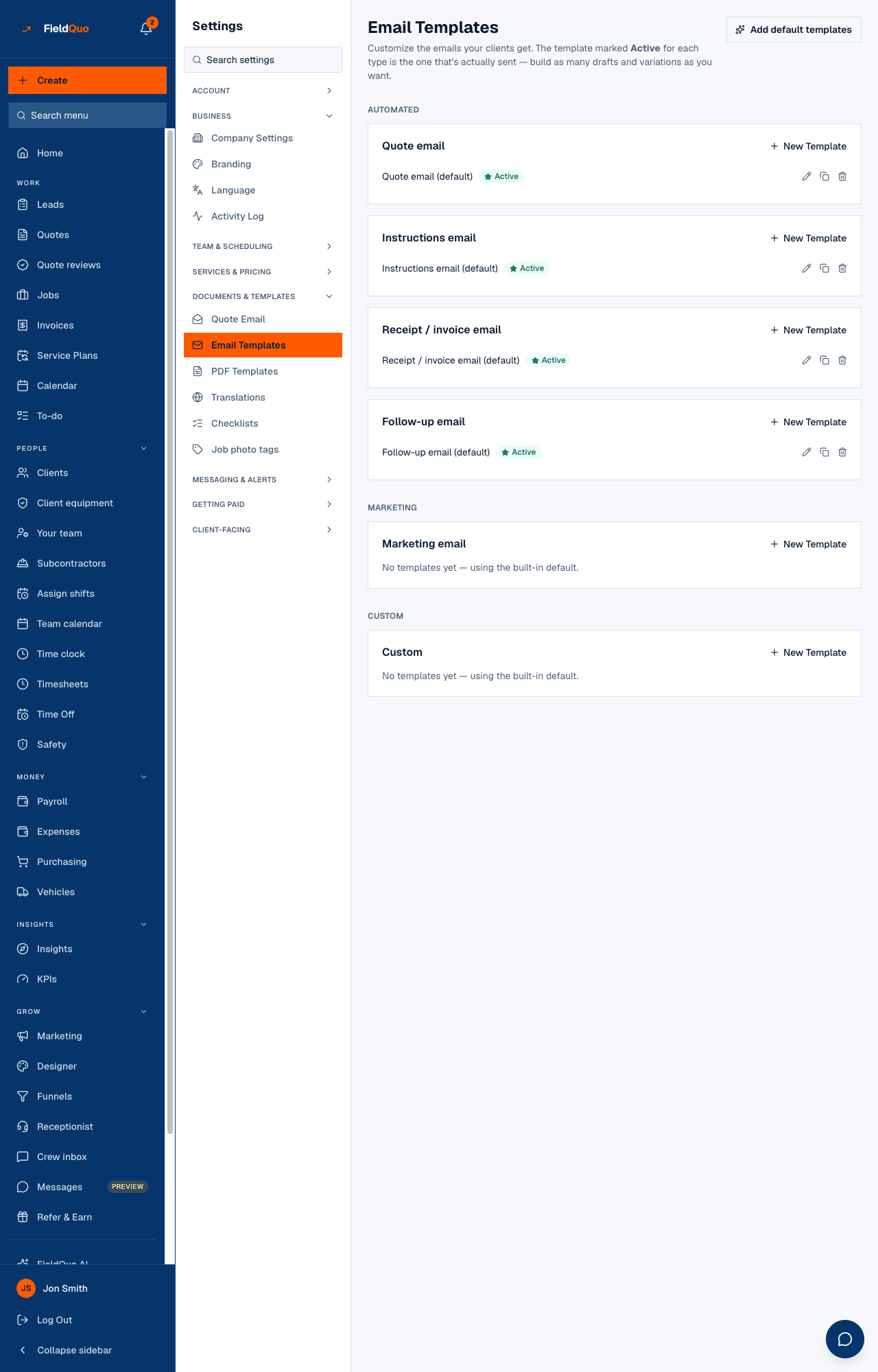
Settings → Email Templates lists every email template your company has, grouped Automated, Marketing and Custom, one row per template with an Active badge, and edit, duplicate and delete icons. Add default templates seeds a starter set — one per automated type — so a follow-up rule has something to send without any hand-building.
Each template opens in a mobile-first block editor: headings, text, images, buttons, dividers, a quote or invoice summary, an itemized list and a progress tracker, reordered by drag, with {{mergeField}} tokens and a phone or desktop preview. Your logo and brand colour come in from Branding unless you override them.
Overview
Six types: Quote email, Instructions email, Receipt / invoice email and Follow-up email under Automated; Marketing email; and Custom. A type with no template of its own reads No templates yet — using the built-in default. You can build as many drafts and variations of a type as you like; the one marked Active is the company's default for that type.
Where a template is actually used
Read this before spending an evening on one. A template on this screen is sent when a follow-up rule or an email campaign names it: a rule under Settings → Follow-ups picks one of your Follow-up, Marketing or Custom templates and sends it a set time after a quote, invoice or job hits a state; an email campaign under Marketing picks a Marketing or Custom template and sends it to your subscribers. See Follow-up rules and Email campaigns and subscribers.
The quote email and the invoice and receipt emails a client receives are built by FieldQuo from the document itself — the same sections as the PDF, your branding, and the references and photos you set under Settings → Quote Email. Today no send reads the Quote email, Receipt / invoice email or Instructions email templates on this screen, so editing one of those changes nothing a client receives. To change what the quote email carries, see Quote Email settings.
How to build a template
- Press New Template on the type you want, name it, and press Create & edit.
- Set the Subject line. Merge fields work here too. Left blank, the built-in subject for this template type is used.
- Press Add block and pick Heading, Text, Image, Button, Divider, Spacer, Quote/Invoice summary, Itemized list or the progress tracker. Drag the handle to reorder; each block has its own alignment, size, width or colour controls.
- Click into a text field and press Insert a merge field to drop in a token such as {{clientName}}; until a field has focus the button reads Click into a text field first.
- Check Look & feel: Using your branding picks up your logo and brand colour; override the header, background, text, accent and button colours and it reads Customized, with Reset to my company branding to undo. With no logo uploaded the header shows your company name instead.
- Use Mobile preview and Desktop preview (Preview (sample data)), type your address under Send a test, and press Save. Set active makes it the type's default.
Merge fields
| Field | Filled with |
|---|---|
| {{clientName}}, {{clientAddress}}, {{clientPhone}} | The client's name, the client or job address, their phone |
| {{companyName}}, {{companyPhone}}, {{companyEmail}} | Your company's details, from Company Settings |
| {{quoteNumber}}, {{quoteTotal}}, {{quoteUrl}} | The quote a follow-up rule fired for, and the link to approve it |
| {{invoiceNumber}}, {{invoiceTotal}}, {{invoiceUrl}}, {{dueDate}}, {{balanceDue}}, {{amountPaid}} | The invoice, its pay link, when it is due and what is left |
| {{projectStartDate}}, {{projectEndDate}}, {{jobTitle}} | The job's dates and title |
A field the record does not have is left blank at send time; the test email fills them with sample values (Jane Doe, Q-1042, $4,250.00) and your real company details.
Duplicating and deleting
The duplicate icon copies a template, sections and all, so you can try a variation without touching the one a rule uses. The trash icon asks first: deleting is permanent, and a follow-up rule that pointed at the deleted template is skipped at send time rather than sending something else. Deleting the Active one leaves the type with no default until you mark another.
Who can see it
The owner, administrators, Managers and Dispatchers see Settings → Email Templates and can create, edit, activate, duplicate, delete and seed templates. Crew and Estimator do not see the row.
常见问题
I edited the Quote email template and the quote my client got did not change. Why?
The quote email is built from the quote itself and your Quote Email settings, not from this template. Change the references and photos under Settings → Quote Email; the wording of the covering email is FieldQuo's, in the quote's language.
What does Active do, then?
It marks the company's default template for that type. A follow-up rule or campaign still names the exact template it sends.
Can I send a template to a client from here?
Only a test to your own address with Send a test. Client sends go through follow-up rules and email campaigns.
这篇文章有帮助吗?