

The quote approval page
The page a client opens from the quote email: the document on your letterhead, the optional extras they can tick, the signature they give to approve, what Decline does, and what happens on your side the moment they answer.
Per ora questo articolo è disponibile in inglese, francese e spagnolo. Stai leggendo la versione inglese. Français · Español
The link in the quote email opens one page: the quote, laid out as a document on your letterhead, with two buttons at the bottom — Approve this quote and Decline. It sits outside the app on purpose. No navigation, no sign-in, no FieldQuo branding competing with yours; it should read as a document from the company they hired.
Approval is a real signature. The client types their name, signs in a box, ticks an agreement that names the total, and confirms. A tap on a phone in bright sun cannot create a contract by accident.
Overview
The page is public to anyone holding the link — a long random token, and the page is kept out of search engines. It shows the quote only once it has been sent; a draft's link answers “This quote isn't ready yet.” The language is the quote's, so the page, the PDF they were sent and the covering email all say the same thing in the same words.
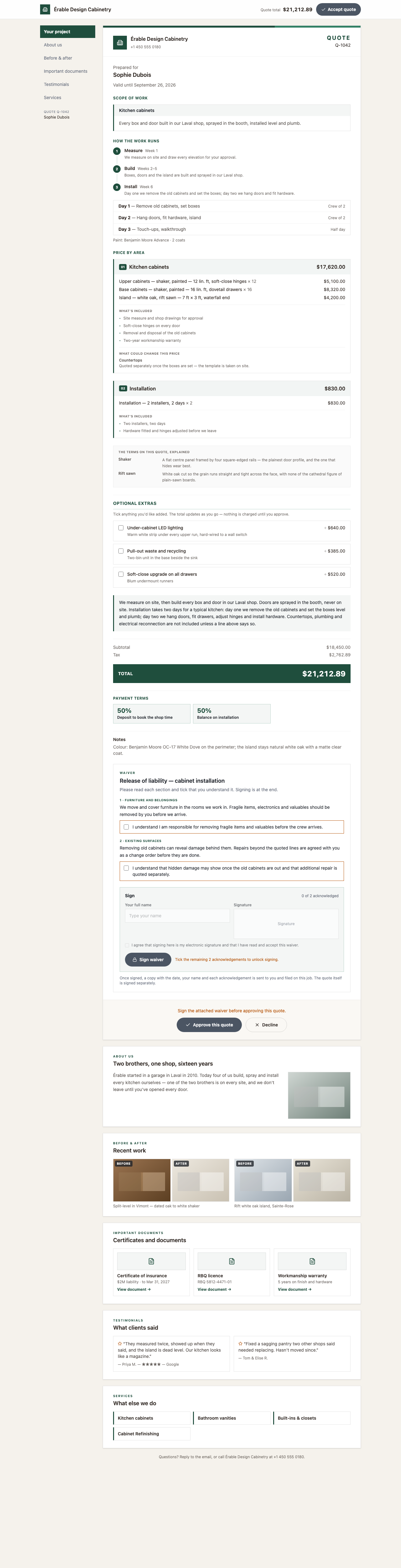
What is on the page, top to bottom
- The brand rule, your logo (or your initial on your colour), your name and phone; QUOTE and the number on the right.
- Prepared for the client's name, and Valid until the date when the quote has one.
- One numbered card per scope group — the group name and subtotal, a description, the priced lines with quantities, What's included, and What could change this price where the trade declares one.
- The terms on this quote, explained — a short glossary of the trade words used above (“Shaker”, “Rift sawn”).
- Optional extras — “Tick anything you'd like added. The total updates as you go — nothing is charged until you approve.” Each extra has a description and a price; a taxable one adds its tax as it is ticked.
- How the work runs — the numbered steps with their week or day, and your process notes.
- Payment terms — your payment schedule as tiles (“50% Deposit to book”, “50% Balance on installation”) or your terms text; then Notes.
- Subtotal, Discount, Tax (or the reason there is none), “Includes optional extras” when any are ticked, and the TOTAL band.
- Pay monthly — “About $410 a month”, the term and APR, and “An estimate only, on the terms [Your company] has stated…” — only when you have entered a rate and a term under financing; otherwise a plain Financing panel with your note and a See financing options link, or nothing.
- Approve this quote and Decline; under them, “Questions? Reply to the email, or call [Your company] at [phone].”
How the client approves
- They tick any Optional extras they want. The total on the page moves as they tick; the browser only ever sends the ids of the extras — the server reprices from its own rows, so nothing on the page can change what is charged.
- They press Approve this quote. The page asks “Approve this quote for $21,212.89?” — “Including $640.00 of optional extras. This tells them to go ahead.” when extras are ticked.
- They type Your full name, sign in the Signature box, and tick “I agree that signing here is my electronic signature and approves this quote for $21,212.89.” The Yes, approve button stays off until all three are done.
- The page turns to Approved — thank you: “[Your company] has been notified and will be in touch about next steps.”
The signature is stored with the quote as a record — the name, the drawn signature, the time, the client's IP address and browser, and a fingerprint of exactly what they approved (lines, extras, totals). The quote PDF then carries an Approval block with the signature, the name, the date and “Electronically signed”.
A quote past its Valid until date cannot be approved: the page reads This quote has expired — “Contact [Your company] for an updated price.” The same happens if it expires between the client opening the page and pressing the button.
Declining
Decline asks “Decline this quote?” — “You can always ask for a revised quote.” — then Yes, decline. The page turns to Quote declined: “[Your company] has been notified. If this was a mistake, give them a call.” No signature is needed to decline, and a declined quote can be edited and sent again.
What happens on your side
- The quote becomes Approved (or Declined) with the accepted total, extras included. Owners and administrators get an email — “Sophie Dubois approved Q-1042 — plus $640.00 in extras” — with the signed PDF attached and a link to the quote; a notification appears in the app.
- The client is emailed a signed copy: subject “Approved — thank you — Q-1042”, “Thank you for approving your quote with [Your company]. A copy is attached for your records.”, from your company.
- A job is created from the quote, ready to schedule, and a draft invoice that mirrors the quote is raised.
- If your company has a payment schedule with a Deposit to book stage, that stage fires at once: the client is emailed a request for exactly the deposit, with a link to pay it from their portal. See Deposits and payment schedules.
- The lead the quote came from is marked Won or Lost, and a follow-up task is created for an approved quote.
If the client answered by phone instead, open Get approved on the quote and use Record their answer — They approved it or They declined — so the pipeline stays right. The same screen has Client link with Copy, Preview what they see, and Replace link, which kills the old link if the wrong person got it (any email already sent stops working).
Who can see it
The page itself is open to anyone with the link, which is why the link is sent only to the client. On your side, the quote, its signature record and the Get approved screen follow your Quotes access; recording a phone answer needs the same level as editing the quote.
Domande frequenti
Can the client change the price or the lines?
No. They can tick or untick the optional extras you offered and nothing else. The total is recomputed on the server from your stored prices whatever the page claims.
Is the signature legally a signature?
It is an electronic signature with an audit record: name, drawn signature, time, IP address, browser and a fingerprint of the approved document, printed on the PDF's Approval block. Whether that satisfies a given contract is a question for your lawyer, not for the software.
The client approved, then changed their mind.
A quote can only be answered once from the page. Edit the quote and send it again, or record the change from the quote page.
Does the client pay on this page?
No. Approval and payment are separate. If you have a deposit stage, the deposit request is emailed right after approval with its own pay link; otherwise the invoice follows when you send it. See The invoice email and pay page.
È stato utile?